1. Introduction
The Philips Brilliance 231P4QUPEB is a 23-inch LED-Lit monitor designed for enhanced productivity and connectivity. This innovative display features a notebook docking capability, allowing for easy port replication and expansion of your workspace. With a single SuperSpeed USB cable, you can connect peripherals, access the internet, and extend your viewing area.
Key features include:
- 23" IPS panel with Full HD 1920x1080 resolution.
- Integrated USB Hub for notebook docking.
- Versatile connectivity: USB 3.0 (for video/audio/data), VGA, USB 2.0, USB 3.0.
- RJ45 Ethernet port via USB, Microphone input via USB, Headphone output via USB.
- USB Video Daisy Chain capability for connecting multiple monitors with one USB cable.
- Ergonomic design with Height, Swivel, and Pivot Adjustments.
- Auto Power Sensor and built-in speakers.
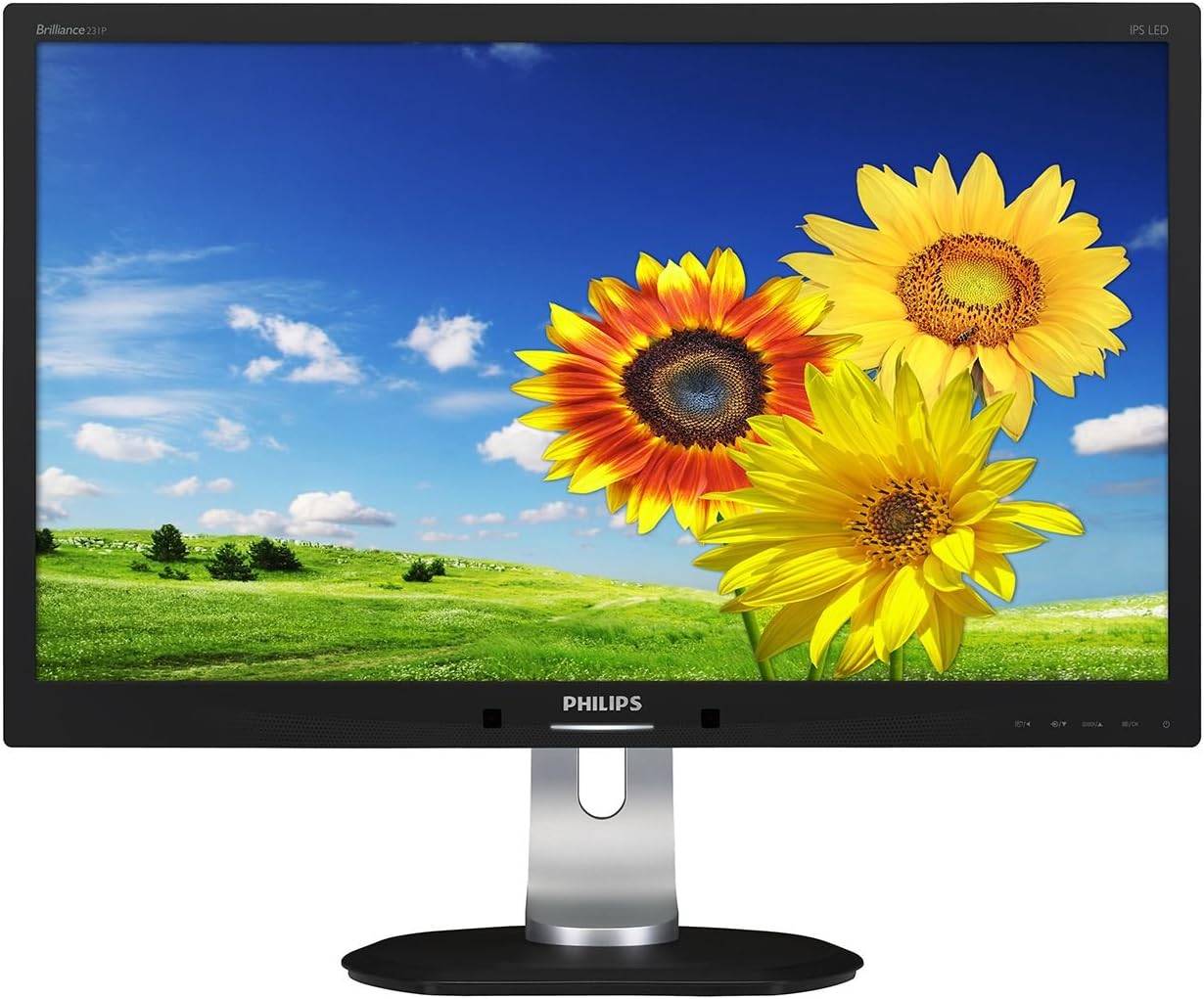
Figure 1.1: Front view of the Philips Brilliance 231P4QUPEB monitor, showcasing its sleek design and thin bezels.
2. Safety Information
Please read these safety instructions carefully before using your monitor. Failure to follow these instructions may result in electric shock, fire, or damage to the product.
- Do not expose the monitor to rain or moisture.
- Do not open the monitor casing. There are no user-serviceable parts inside.
- Ensure proper ventilation around the monitor. Do not block ventilation openings.
- Use only the power cord and adapter supplied with the monitor.
- Place the monitor on a stable, flat surface to prevent it from falling.
- Unplug the monitor from the power outlet during lightning storms or when unused for long periods.
- Keep the monitor away from direct sunlight, heat sources, and extreme temperatures.
3. Package Contents
Verify that all items are present in the package:
- Philips Brilliance 231P4QUPEB IPS LED USB Docking monitor - 23"
- Power Cord
- VGA Cable
- USB 3.0 Cable (for docking functionality)
- Audio Cable
- Quick Start Guide
- Resource CD (User Manual, Drivers)
4. Setup
4.1. Assembling the Monitor Stand
- Carefully remove the monitor and stand components from the packaging.
- Attach the base to the stand column, ensuring it clicks securely into place or is fastened with the provided screw.
- Align the stand assembly with the mounting slot on the back of the monitor.
- Gently push the stand into the slot until it locks securely.
- To remove the stand for VESA mounting, refer to the detailed instructions in the full user manual on the resource CD.
4.2. Connecting the Monitor
Ensure your computer and monitor are turned off before making any connections.
- Power Connection: Connect the power cord to the monitor's power input and then to a grounded electrical outlet.
- USB 3.0 Docking Connection: For full docking functionality (video, audio, USB hub, Ethernet), connect one end of the supplied USB 3.0 cable to the upstream USB 3.0 port on the monitor and the other end to a USB 3.0 port on your notebook or computer.
- VGA Connection (Optional): If not using the USB 3.0 for video, connect the VGA cable from your computer's VGA output to the VGA input on the monitor.
- USB Peripheral Connections: Connect your USB devices (keyboard, mouse, external drives) to the available USB 2.0 and USB 3.0 downstream ports on the monitor.
- Network Connection: Connect an Ethernet cable from your router/modem to the RJ45 port on the monitor for network access via the USB docking feature.
- Audio Connections: Connect your headphones or external speakers to the headphone output port, and a microphone to the microphone input port on the monitor, if desired.

Figure 4.1: The Philips Brilliance 231P4QUPEB monitor connected to a laptop, demonstrating its USB docking capabilities for extended display and peripheral connectivity.
5. Operating the Monitor
5.1. Power On/Off
Press the power button located on the front or side of the monitor to turn it on or off. The monitor features an Auto Power Sensor for energy efficiency.
5.2. On-Screen Display (OSD) Menu
The OSD menu allows you to adjust various monitor settings. Use the control buttons, typically located on the bottom right bezel, to navigate the menu.
- Brightness/Contrast: Adjust the overall luminance and difference between light and dark areas.
- Color Settings: Select color temperature, sRGB mode, or customize RGB values.
- Input Selection: Manually switch between USB 3.0 and VGA inputs.
- Audio: Adjust volume for the built-in speakers or connected headphones.
- OSD Settings: Change OSD language, position, and transparency.
5.3. USB Docking Functionality
When connected via the USB 3.0 cable, the monitor acts as a docking station, providing:
- Video Output: Extends your laptop's display to the monitor.
- USB Hub: Provides additional USB ports for connecting peripherals directly to the monitor.
- Ethernet Connectivity: Enables wired network access through the monitor's RJ45 port.
- Audio Passthrough: Routes audio through the monitor's headphone jack and microphone input.
The monitor is compatible with Windows 10 and other common operating systems. Ensure necessary drivers are installed, typically found on the provided resource CD or Philips support website.
6. Maintenance
6.1. Cleaning the Monitor
- Always unplug the monitor before cleaning.
- Use a soft, lint-free cloth slightly dampened with water or a mild, non-abrasive screen cleaner.
- Do not use alcohol, ammonia, or abrasive cleaners, as they may damage the screen or casing.
- Wipe the screen gently to avoid scratching.
6.2. Storage
If storing the monitor for an extended period, disconnect all cables and pack it in its original packaging to protect it from dust and physical damage. Store in a cool, dry place.
7. Troubleshooting
If you encounter issues with your monitor, refer to the following common problems and solutions:
| Problem | Possible Solution |
|---|---|
| No power / Power LED off |
|
| No image / "No Signal" message |
|
| Image is too dark or too bright |
|
| Colors are incorrect or distorted |
|
| USB ports on monitor not working |
|
8. Specifications
| Feature | Detail |
|---|---|
| Model Number | 231P4QUPEB |
| Screen Size | 23 Inches |
| Panel Type | IPS |
| Max Resolution | 1920 x 1080 (Full HD) |
| Aspect Ratio | 16:9 |
| Brightness | 250 cd/m² |
| Dynamic Contrast Ratio | 20,000,000:1 |
| Connectivity | 1x USB 3.0 (upstream for docking), 2x USB 3.0 (downstream), 2x USB 2.0 (downstream), 1x VGA, 1x RJ45, Mic in, Headphone out |
| Product Dimensions (LxWxH) | 21.54 x 8.66 x 20.28 inches |
| Item Weight | 13.23 pounds |
| Color | Black |
| Manufacturer | Envision Peripherals |
9. Warranty and Support
This Philips Brilliance monitor includes a 4-year advanced replacement warranty. For warranty claims or technical support, please refer to the contact information provided on the Philips support website or the documentation included with your product.
When contacting support, please have your monitor's model number (231P4QUPEB) and serial number ready.