
Introduction
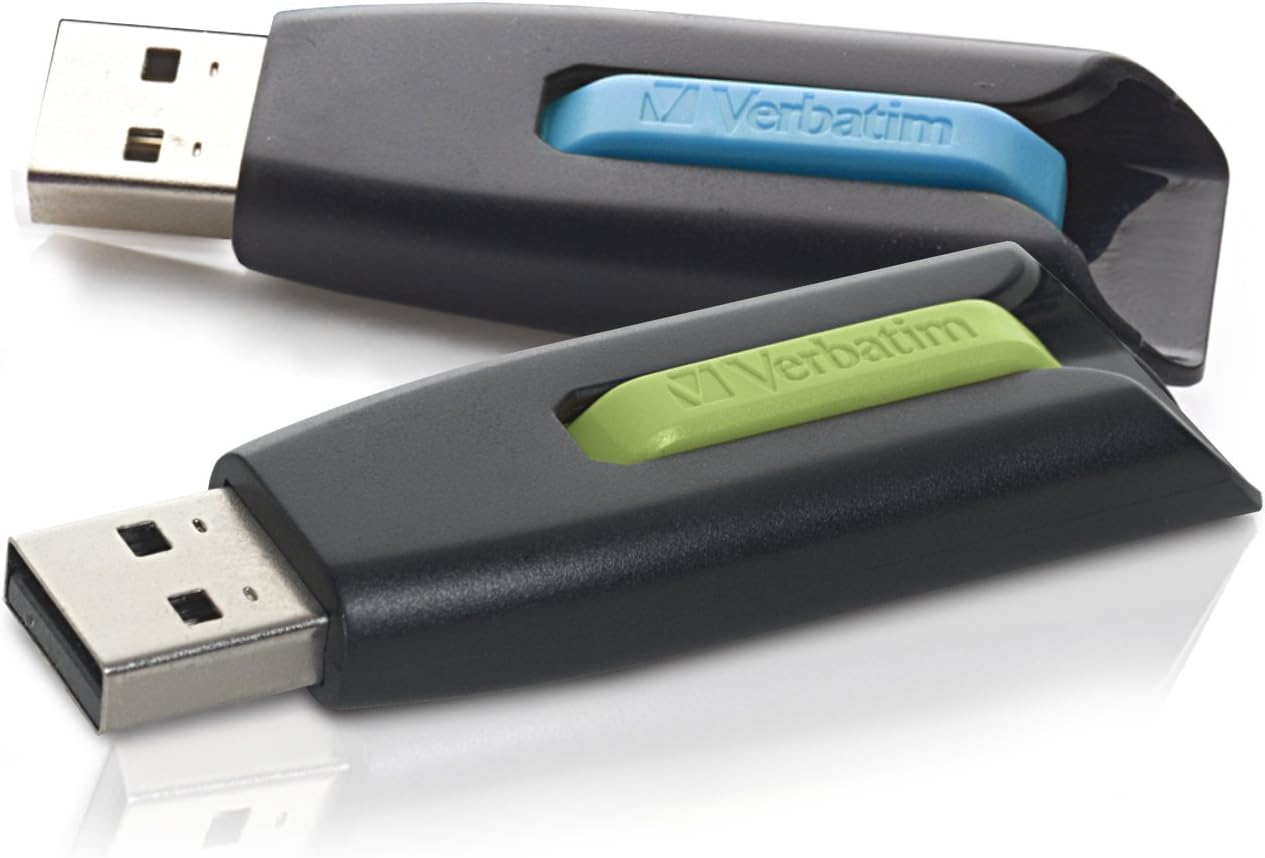
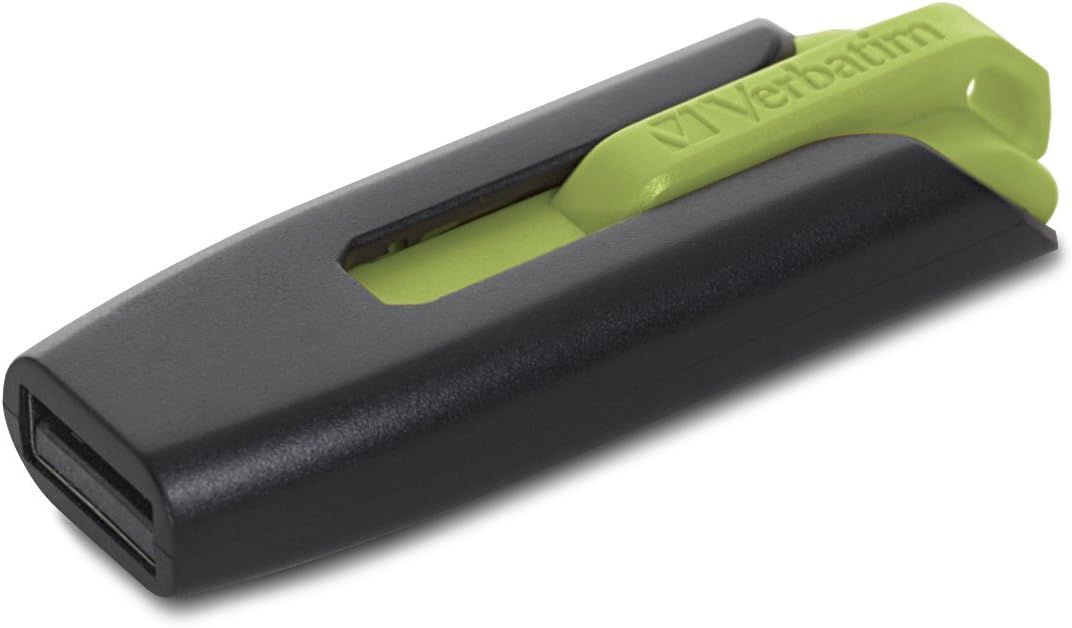
The Verbatim Store 'n' Go V3 USB 3.0 Flash Drive provides a high-speed storage solution for transferring and saving data. Designed for efficiency, its USB 3.0 interface offers significantly faster data transfer rates compared to USB 2.0, facilitating quick movement of large files or multiple documents. The drive features a retractable design that protects the USB connector when not in use, eliminating the need for a cap and reducing the risk of loss or damage. This manual provides essential information for setting up, operating, maintaining, and troubleshooting your Verbatim Store 'n' Go V3 Flash Drive.
Package Contents
- Verbatim Store 'n' Go V3 USB 3.0 Flash Drive (Quantity as purchased)
Setup
- Insert the Drive: Locate an available USB port on your computer (PC or Mac). Gently slide the retractable mechanism on the flash drive to expose the USB connector. Insert the flash drive firmly into the USB port.
- Automatic Recognition: Your operating system (Windows, macOS, Linux) should automatically detect and install the necessary drivers for the flash drive. A notification may appear indicating that the device is ready for use.
- Accessing the Drive:
- Windows: Open "This PC" or "My Computer." The flash drive will appear as a removable disk drive (e.g., "USB Drive (E:)").
- macOS: The flash drive icon will appear on your desktop or in the Finder sidebar under "Locations."
- Linux: The drive will typically be mounted automatically and accessible through your file manager.
- Optional Password Protection Software: For Windows operating systems, password protection software is available for download from the official Verbatim website. Refer to the Support section for details.
Operating Instructions
Data Transfer
To transfer files to or from the flash drive:
- Open the flash drive's folder on your computer.
- Navigate to the location of the files you wish to transfer.
- To copy files to the flash drive: Drag and drop the desired files or folders from your computer into the flash drive's folder. Alternatively, copy the files (Ctrl+C on Windows, Command+C on Mac) and paste them into the flash drive's folder (Ctrl+V on Windows, Command+V on Mac).
- To copy files from the flash drive: Drag and drop the desired files or folders from the flash drive's folder to a location on your computer.
For optimal performance, connect the drive to a USB 3.0 port. While compatible with USB 2.0 ports, data transfer speeds will be limited to USB 2.0 rates.
Safe Removal
Always safely remove the flash drive before physically disconnecting it to prevent data corruption.
- Windows: Click the "Safely Remove Hardware and Eject Media" icon in the system tray (bottom-right corner of the taskbar), then select the Verbatim flash drive. Wait for the "Safe to Remove Hardware" message before unplugging.
- macOS: Drag the flash drive icon from your desktop to the Trash icon in the Dock, or click the Eject button next to the drive name in Finder. Wait for the icon to disappear before unplugging.
- Linux: Right-click the drive icon in your file manager and select "Eject" or "Unmount."
Maintenance
- Physical Protection: Utilize the retractable design to shield the USB connector from dust, dirt, and physical damage when the drive is not in use.
- Cleaning: If necessary, gently wipe the exterior of the drive with a soft, dry, lint-free cloth. Avoid using liquid cleaners or solvents.
- Data Backup: Regularly back up important data stored on the flash drive to another storage medium (e.g., computer hard drive, cloud storage) to prevent data loss in case of unforeseen issues.
- Temperature and Environment: Store the drive in a cool, dry place away from extreme temperatures, direct sunlight, and strong magnetic fields.
Troubleshooting
- Drive Not Recognized:
- Ensure the drive is fully inserted into the USB port.
- Try a different USB port on your computer.
- Test the drive on another computer to determine if the issue is with the drive or the computer's USB port.
- Check your computer's Device Manager (Windows) or System Information (macOS) to see if the drive is listed, even if not assigned a drive letter.
- Restart your computer.
- Slow Data Transfer Speeds:
- Ensure you are connecting the drive to a USB 3.0 port for optimal performance. USB 3.0 ports are typically blue or marked with a "SS" (SuperSpeed) symbol.
- Transferring many small files can be slower than transferring one large file of the same total size.
- Close other applications that might be using system resources.
- Data Corruption or Errors:
- Always use the "Safely Remove Hardware" function before disconnecting the drive.
- If the drive becomes corrupted, you may need to reformat it. Warning: Reformatting will erase all data on the drive. Back up any recoverable data before proceeding.
- To reformat (Windows): Right-click the drive in "This PC," select "Format," choose the desired file system (e.g., exFAT for broad compatibility), and click "Start."
- To reformat (macOS): Open Disk Utility, select the drive, click "Erase," choose a format (e.g., ExFAT), and click "Erase."
Specifications
| Feature | Detail |
|---|---|
| Brand | Verbatim |
| Model Name | Store 'n' Go V3 |
| Model Number | 99127 |
| Memory Storage Capacity | 32 GB |
| Hardware Interface | USB 3.0 |
| Read Speed | Up to 625 MB/s |
| Write Speed | Up to 625 MB/s |
| Special Feature | Lightweight, Retractable Design |
| Compatible Devices | PC, Mac, Linux, Television |
| Operating System Compatibility | Windows XP, Vista, 7 and higher; Mac OS X 10.1 and higher; Linux kernel 2.6 and higher |
| Item Weight | 4.54 g |
| Color | Blue, Green (as per variant) |


Warranty Information
The Verbatim Store 'n' Go V3 USB 3.0 Flash Drive is covered by a Lifetime Limited Warranty. This warranty covers defects in materials and workmanship under normal use. For specific terms, conditions, and to make a warranty claim, please refer to the official Verbatim website or contact their customer support.

Support
For further assistance, technical support, driver downloads (including password protection software for Windows), or warranty inquiries, please visit the official Verbatim website:
You may also find helpful resources and frequently asked questions on their support pages.


