
EPtech 0703001805e
EPtech AC/DC Adapter User Manual
Model: 0703001805e
1. Introduction
This manual provides essential information for the safe and effective use of your EPtech AC/DC Adapter. Please read this manual thoroughly before using the product and retain it for future reference.
The EPtech AC/DC Adapter is designed to provide a reliable power source for various compatible devices, including a wide range of Xerox DocuMate scanners and other equipment requiring similar power specifications. It is manufactured with high-quality materials and tested to meet or exceed OEM specifications.
2. Product Overview
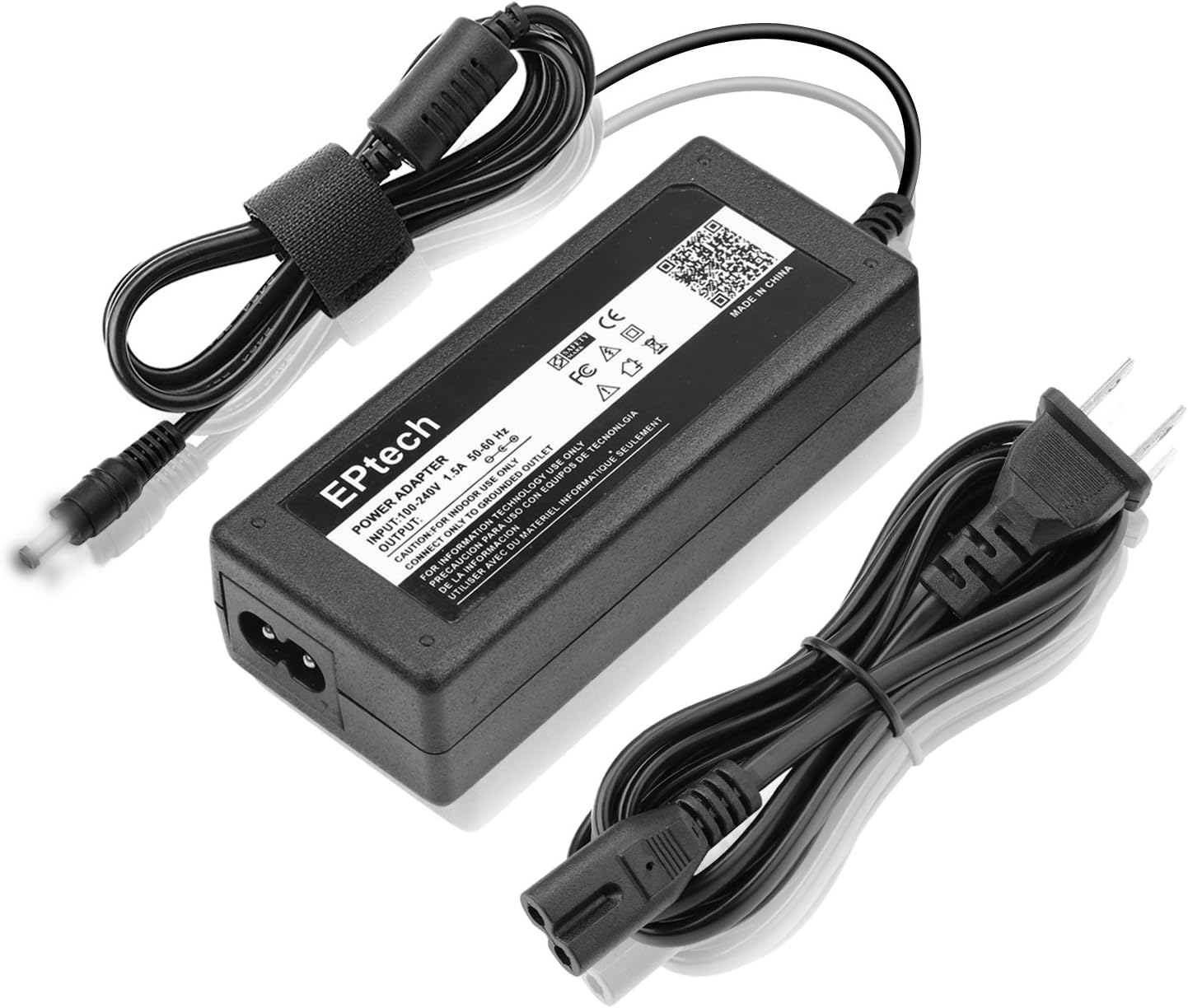
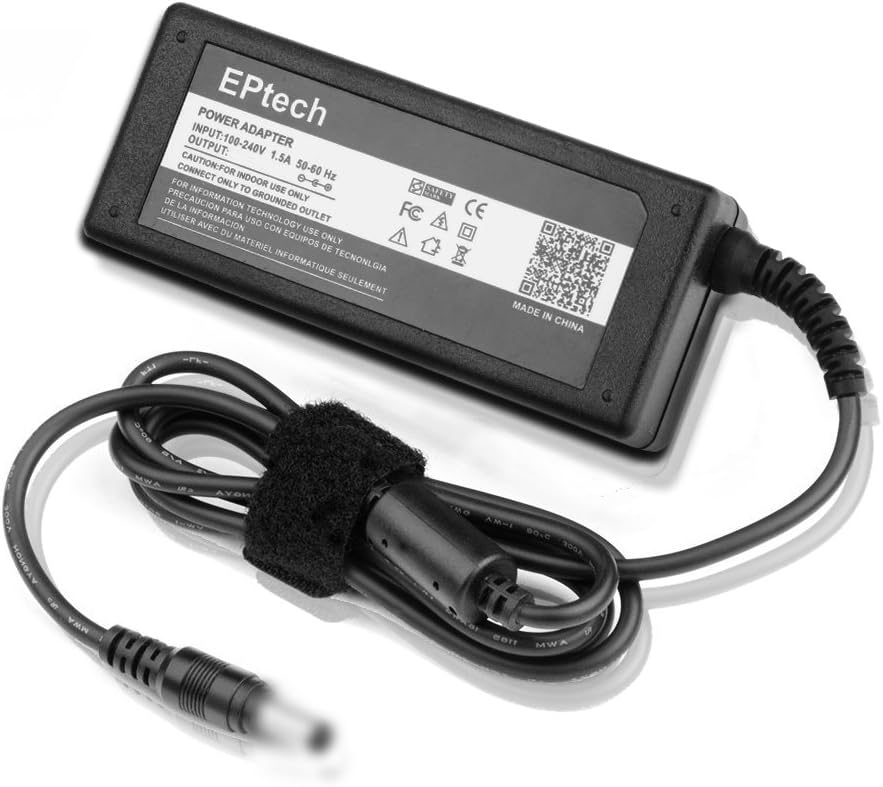
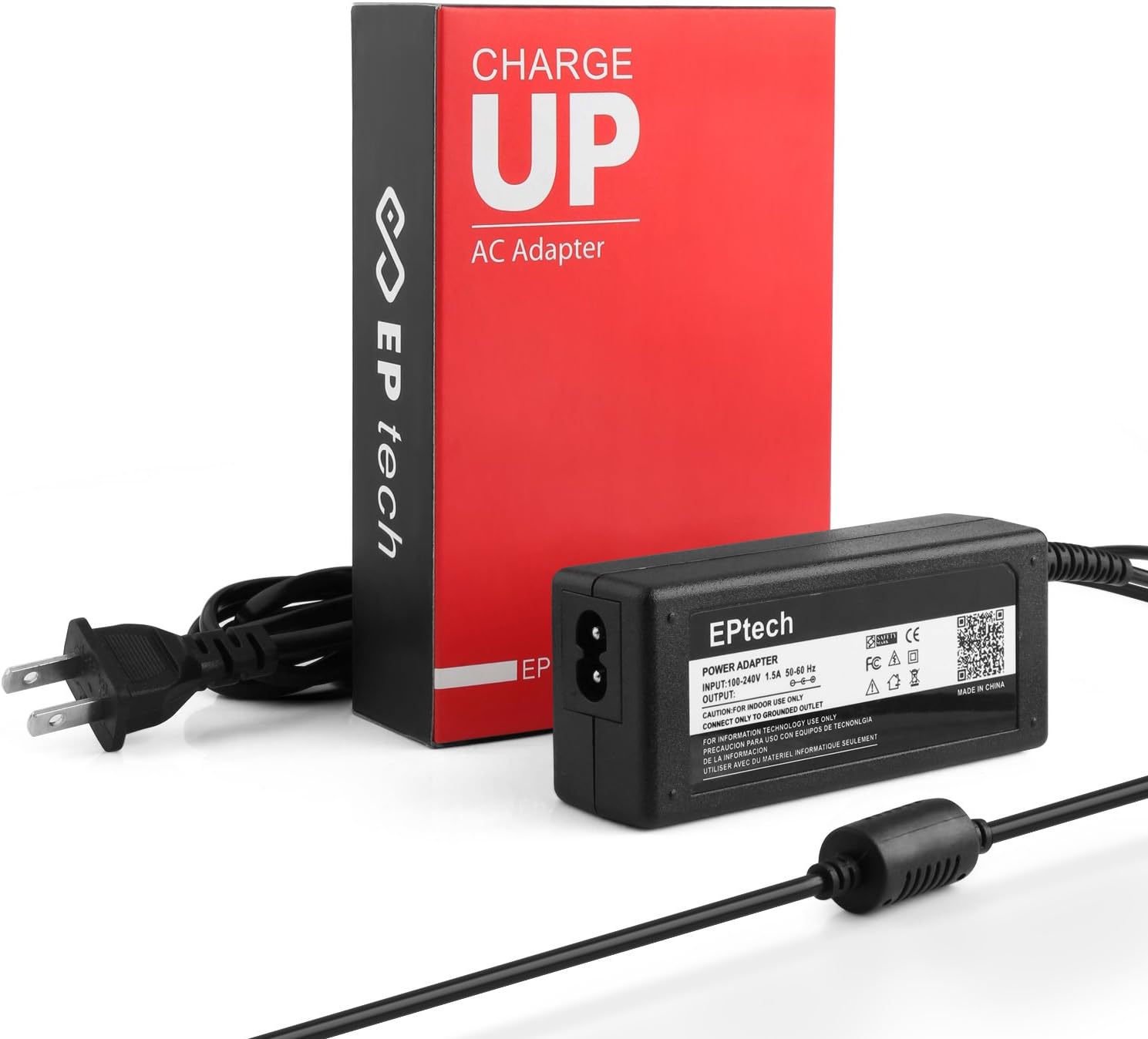
The adapter features an AC input range of 100V-240V at 50-60Hz, making it suitable for international use with appropriate plug adapters. It provides a stable DC output, ensuring consistent power delivery to your device.
3. Setup and Installation
- Unpack the Adapter: Carefully remove the AC/DC adapter and all associated cables from its packaging.
- Connect the AC Input Cord: Insert the two-pin connector of the AC input cord firmly into the corresponding port on the adapter unit.
- Connect to Device: Plug the barrel connector of the DC output cord into the power input port of your compatible device (e.g., Xerox DocuMate scanner). Ensure a secure connection.
- Connect to Power Outlet: Insert the AC plug of the input cord into a standard wall power outlet (100V-240V, 50-60Hz).
- Verify Power: A blue LED light on the adapter unit will illuminate, indicating that the adapter is receiving power and is ready to operate.
Note: This adapter is designed for indoor use only. Connect only to a grounded outlet.
4. Operating Instructions
Once properly set up, the EPtech AC/DC Adapter operates automatically to provide power to your connected device. There are no user-adjustable settings on the adapter itself.
- Ensure the adapter is placed in a well-ventilated area to prevent overheating.
- Avoid placing the adapter near heat sources or in direct sunlight.
- Do not cover the adapter during operation.
- Always disconnect the adapter from the power outlet before cleaning or if it will not be used for an extended period.
5. Care and Maintenance
To ensure the longevity and optimal performance of your EPtech AC/DC Adapter, follow these simple maintenance guidelines:
- Cleaning: Disconnect the adapter from all power sources and devices before cleaning. Use a soft, dry cloth to wipe the surface. Do not use liquid cleaners or aerosols.
- Storage: When not in use, store the adapter in a cool, dry place, away from direct sunlight and extreme temperatures. Avoid tightly coiling the cables to prevent damage.
- Handling: Do not drop, strike, or otherwise mishandle the adapter. This can damage internal components.
- Cable Integrity: Regularly inspect the power cords for any signs of fraying, cuts, or damage. If any damage is observed, discontinue use immediately and replace the adapter.
6. Troubleshooting
If you encounter issues with your EPtech AC/DC Adapter, please refer to the following common problems and solutions:
| Problem | Possible Cause | Solution |
|---|---|---|
| Adapter not powering on (LED off) |
|
|
| Device not receiving power |
|
|
| Adapter feels excessively hot |
|
|
If the problem persists after attempting these solutions, please contact EPtech customer support for further assistance.
7. Specifications
| Feature | Detail |
|---|---|
| Brand | EPtech |
| Model Number | 0703001805e |
| Input Voltage | 100V-240V AC |
| Input Frequency | 50-60Hz |
| Output | DC Output (Specific voltage/amperage not provided in input, but implied by "DC Output") |
| Wattage | 15 watts |
| Connector Type | Barrel Connector (DC Output), 2-pin (AC Input) |
| Safety Certifications | FCC, CE, RoHS |
| Protection Features | Over voltage protection, Over heat protection |
| Intended Use | Indoor Use Only |
8. Warranty Information
EPtech provides the following warranty for this AC/DC Adapter:
- Money Back Guarantee: 30 Days
- Worry-Free Warranty: 360 Days
For warranty claims or further details, please contact EPtech customer service.
9. Customer Support
If you have any questions, require assistance, or need to troubleshoot issues not covered in this manual, please do not hesitate to contact EPtech customer service. Our team is dedicated to providing the best support to ensure your satisfaction.
Contact information is typically available on the product packaging or the official EPtech website.
Ask a question about this manual
Ask about setup, troubleshooting, compatibility, parts, safety, or missing instructions. Manuals+ will review the question and use this page’s manual context to help answer it.