
Introduction
This manual provides detailed instructions for the setup, operation, maintenance, and troubleshooting of your EagleTec KG010 Mechanical Keyboard. The KG010 is a full-size wired mechanical keyboard featuring dust-proof blue switches, blue LED backlighting, and a durable aluminum and ABS construction. It is designed for use with various computer systems, offering a responsive and tactile typing experience.

Figure 1: Front view of the EagleTec KG010 Mechanical Keyboard with blue LED backlighting.
Setup
The EagleTec KG010 Mechanical Keyboard is a plug-and-play device, requiring no special drivers for basic functionality.
- Unpack the Keyboard: Carefully remove the keyboard from its packaging.
- Connect to Computer: Locate an available USB port on your computer. Insert the USB connector from the keyboard into the USB port.
- System Recognition: Your operating system (Windows 10, 8, 7, Vista, XP, or compatible Mac OS) will automatically detect and install the necessary drivers. This process may take a few moments.
- Ready for Use: Once the installation is complete, the keyboard's blue LED backlighting will illuminate, indicating it is ready for use.

Figure 2: The EagleTec KG010 keyboard connected and in use with a desktop computer setup.
Operating Instructions
Backlighting Control
The KG010 keyboard features blue LED backlighting with multiple modes and brightness levels.
- Change Backlighting Modes: Press FN + INSERT to cycle through 9 different backlighting modes.
- Adjust Brightness: Press FN + UP Arrow to increase brightness and FN + DOWN Arrow to decrease brightness.
- Custom Backlighting (Per-Key):
- Press FN + ~ (tilde) to enter custom backlighting mode.
- Press FN + RIGHT Arrow to select a color from the palette (the ~ key will display the selected color).
- Press any key to apply the selected color to that specific key.
- Press FN + ~ (tilde) again to save your custom layout and exit the mode.
Multimedia Keys
Access common multimedia functions using the FN key in combination with the F1-F12 keys.
- FN + F1: Media Player
- FN + F2: Volume Down
- FN + F3: Volume Up
- FN + F4: Mute
- FN + F5: Stop
- FN + F6: Previous Track
- FN + F7: Play/Pause
- FN + F8: Next Track
- FN + F9: Email
- FN + F10: Web Browser
- FN + F11: My Computer
- FN + F12: Calculator
Special Features
- Anti-Ghosting (N-Key Rollover): All 104 mechanical keys are conflict-free, ensuring that every keystroke is registered accurately, even when multiple keys are pressed simultaneously.
- WASD and Arrow Key Exchange: Press FN + W to swap the functionality of the WASD keys with the Arrow keys. Repeat the combination to revert to the default setting.
- Lockable Windows Key: Press FN + Windows Key to disable the Windows key, preventing accidental interruptions during gaming or other activities. Press again to re-enable.
- Adjustable Feet: The keyboard features non-slip adjustable rear feet to set the optimal typing angle for comfort.

Figure 3: Key features of the EagleTec KG010 Mechanical Keyboard.
Maintenance
Proper maintenance ensures the longevity and optimal performance of your EagleTec KG010 Mechanical Keyboard.
- Cleaning the Keyboard:
- Disconnect the keyboard from your computer before cleaning.
- Use a can of compressed air to remove dust and debris from between the keycaps.
- Wipe the keycaps and the keyboard surface with a soft, slightly damp, lint-free cloth. Avoid excessive moisture.
- For stubborn grime, a small amount of isopropyl alcohol on a cloth can be used, but avoid direct application to the keyboard.
- Spill Resistance: The KG010 is designed with a spill-proof construction to withstand average liquid spills. In case of a spill:
- Immediately disconnect the keyboard from your computer.
- Turn the keyboard upside down to drain any liquid.
- Wipe the surface thoroughly with a dry cloth.
- Allow the keyboard to air dry completely for at least 24 hours before reconnecting it. Do not use heat to dry.
- Keycap Removal (Optional): The keycaps can be removed for deeper cleaning or replacement. Use a keycap puller (not included) to gently lift keycaps straight up. Be careful not to damage the switches.

Figure 4: The KG010 keyboard demonstrating its spill-resistant design.
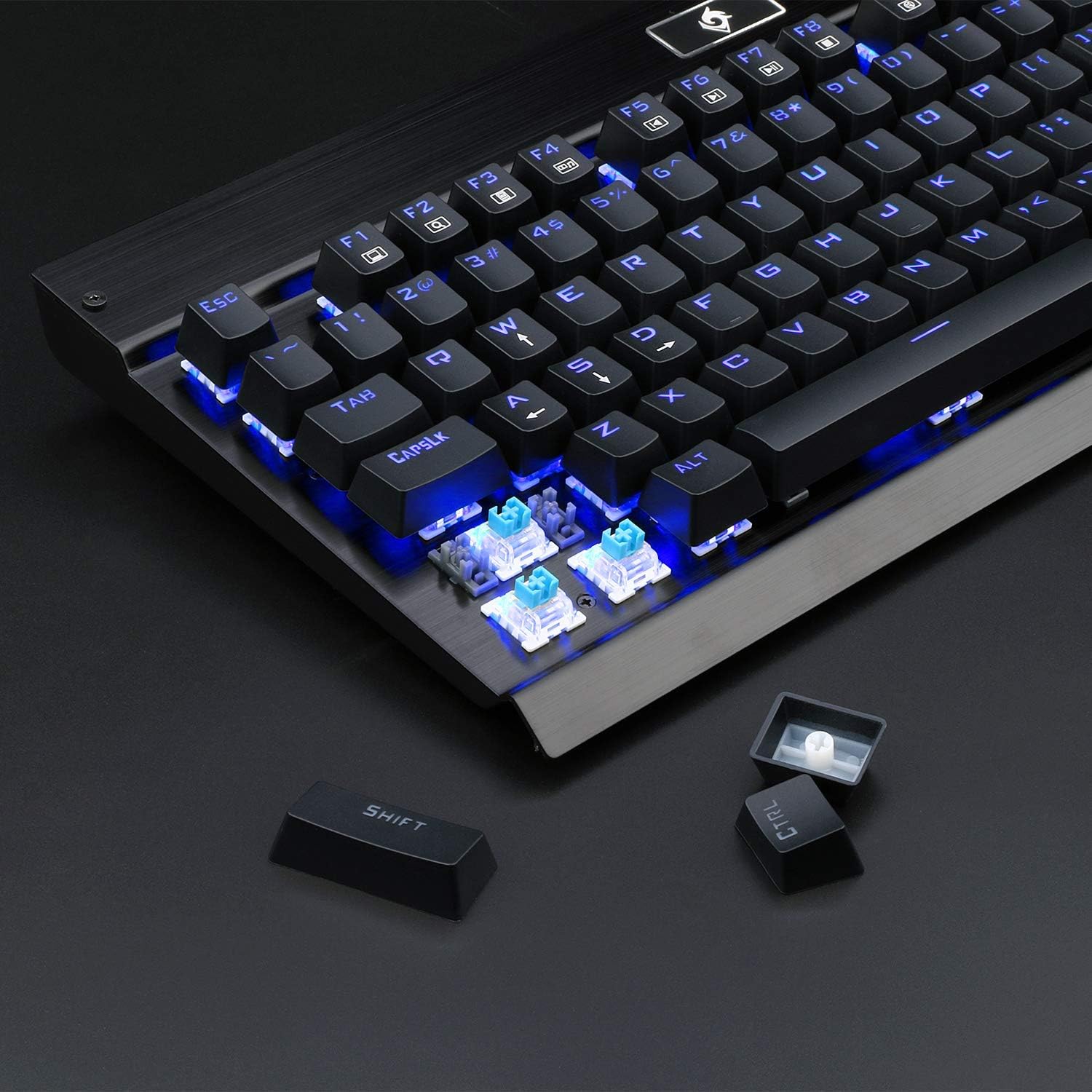
Figure 5: Close-up of the blue mechanical switches, showing their construction.
Troubleshooting
If you encounter issues with your EagleTec KG010 keyboard, refer to the following common solutions:
- Keyboard Not Responding:
- Ensure the USB cable is securely connected to both the keyboard and the computer.
- Try connecting the keyboard to a different USB port on your computer.
- Restart your computer.
- Test the keyboard on another computer to determine if the issue is with the keyboard or your system.
- Backlighting Not Working or Dim:
- Ensure the keyboard is properly connected and receiving power.
- Adjust the brightness using FN + UP Arrow.
- Cycle through backlighting modes using FN + INSERT.
- Keys Not Registering or Double-Typing:
- Clean the affected key(s) using compressed air to remove any debris.
- If the issue persists, the switch may be faulty. Contact customer support for assistance.
- Windows Key is Disabled:
- Press FN + Windows Key to re-enable the Windows key functionality.
Specifications
| Feature | Detail |
|---|---|
| Model Number | KG010 |
| Brand | EagleTec |
| Connectivity | Wired USB |
| Switch Type | Mechanical Blue Switches (Clicky, Tactile) |
| Key Rollover | 104-Key Anti-Ghosting (N-Key Rollover) |
| Backlighting | Blue LED, 9 Modes, Adjustable Brightness, Per-Key Customization |
| Construction Material | Aircraft-Grade Aluminum and ABS |
| Dimensions (L x W x H) | Approximately 17.6 x 7.01 x 1.06 inches (44.7 x 17.8 x 2.7 cm) |
| Weight | Approximately 2.28 pounds (1.03 kg) |
| Compatibility | Windows 10, 8, 7, Vista, XP; Limited Mac OS support |
| Special Features | Spill-Proof Design, Adjustable Feet, Multimedia Keys, WASD/Arrow Key Exchange, Lockable Windows Key |
Warranty and Support
For warranty information or technical support regarding your EagleTec KG010 Mechanical Keyboard, please refer to the documentation included with your purchase or visit the official EagleTec website.
Contact Information: Please consult the product packaging or the manufacturer's website for the most current customer service contact details.
