
1. Introduction
Thank you for choosing the Dell 051XVC Monitor Stand and Docking Station Support. This product is designed to provide an organized and efficient workspace by integrating your Dell Latitude E-series laptop with a compatible Dell docking station and an external monitor. This manual provides essential information for the proper setup, operation, and maintenance of your new monitor stand.
The Dell 051XVC is specifically compatible with Dell PR02X and PR03X docking stations and Dell Latitude E 5500, E 5510, and E 5520 series laptops.
2. Safety Information
- Ensure the stand is placed on a stable, level surface to prevent tipping.
- Do not exceed the recommended weight capacity for the monitor platform.
- Keep the stand away from liquids and excessive moisture.
- Avoid placing heavy objects on the stand that are not intended for its use.
- Do not attempt to modify or disassemble the stand. Refer all servicing to qualified personnel.
- Keep packaging materials away from children.
3. Package Contents
Please check the package contents carefully. If any items are missing or damaged, contact your retailer.
- 1 x Dell 051XVC Monitor Stand and Docking Station Support
Note: The docking station, laptop, and PC monitor are not included with this product and must be purchased separately.
4. Setup and Assembly
Follow these steps to set up your Dell 051XVC Monitor Stand and integrate your docking station and monitor.
4.1. Stand Placement
- Place the Dell 051XVC monitor stand on a sturdy, flat desk or workstation. Ensure there is enough space around the stand for proper ventilation and cable management.

Figure 1: Front view of the Dell 051XVC stand, highlighting the docking station bay.
4.2. Integrating the Docking Station
- Locate the designated slot or bay within the Dell 051XVC stand designed for the docking station.
- Carefully slide your compatible Dell PR02X or PR03X docking station into this bay until it is securely seated. Ensure all connectors align properly.
4.3. Placing the Monitor
- Place your external monitor directly on the top platform of the Dell 051XVC stand. Ensure the monitor's base is centered and stable on the platform.
- Connect the monitor's power cable and video cable (e.g., VGA, DVI, DisplayPort) to the docking station.
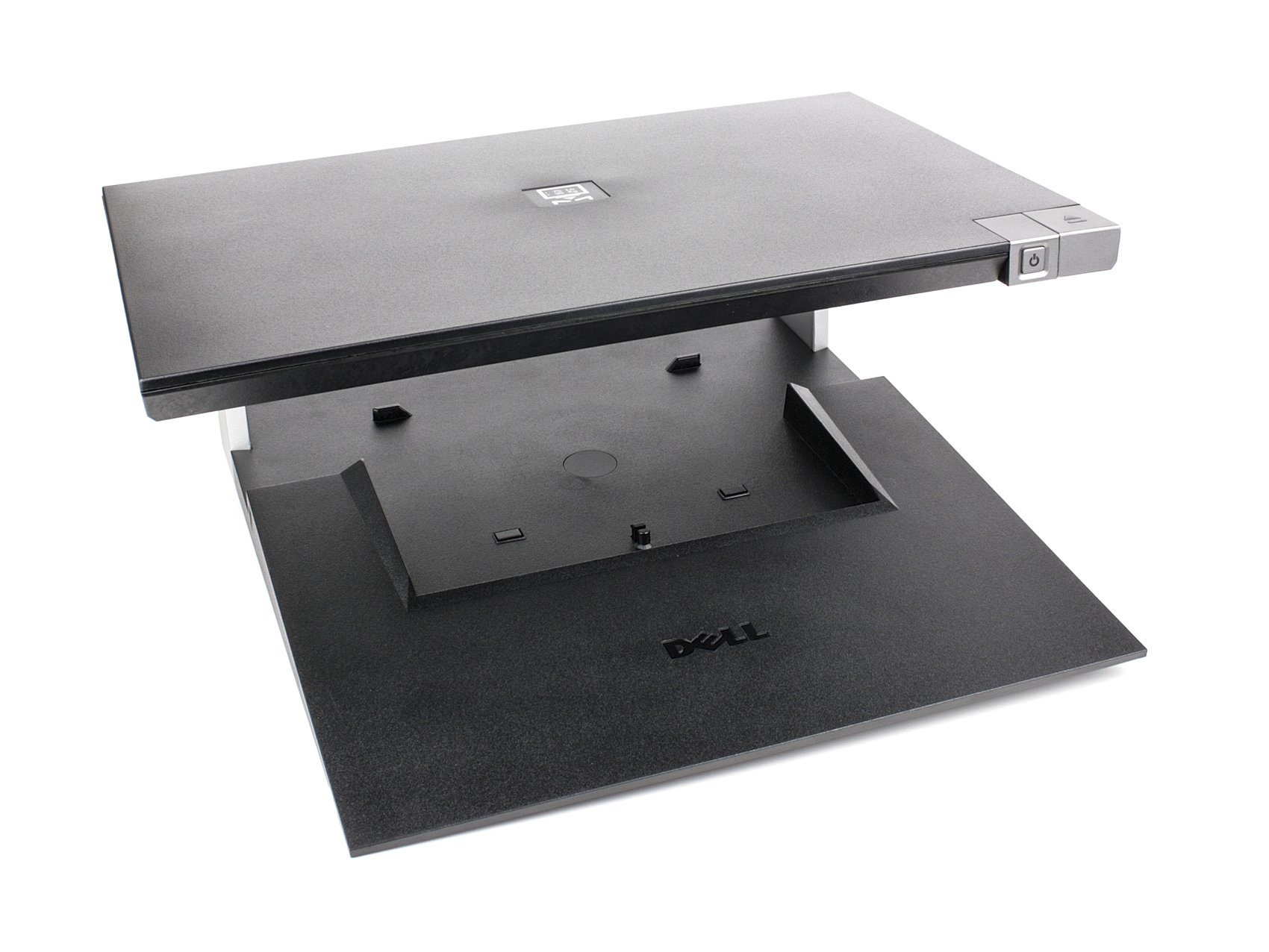
Figure 2: Dell 051XVC stand with a monitor in place.
4.4. Connecting the Laptop
- Once the docking station is secured and the monitor is in place, connect your Dell Latitude E 5500, E 5510, or E 5520 laptop to the docking station.
- Ensure the laptop is properly seated and connected to the docking port.
- Connect any desired peripherals (keyboard, mouse, external drives) to the docking station's ports.

Figure 3: Complete setup with monitor and laptop docked.
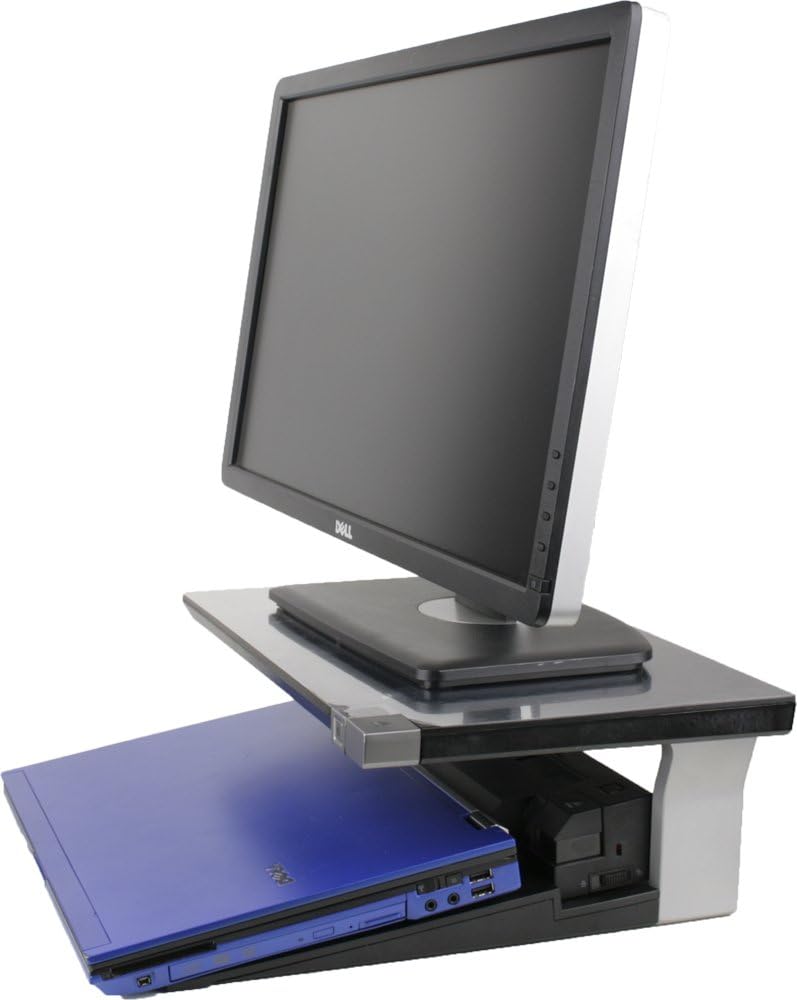
Figure 4: Close-up side view of the laptop docked into the stand.
5. Operating Instructions
Once the Dell 051XVC monitor stand, docking station, monitor, and laptop are all connected, you can begin using your integrated workstation.
- Power On: Ensure the docking station is connected to power. Power on your laptop and monitor. The docking station will automatically connect your laptop to the external monitor and any connected peripherals.
- Display Settings: You may need to adjust your display settings in your operating system to extend or duplicate your laptop's display to the external monitor.
- Disconnecting: To disconnect your laptop, ensure all data transfers are complete, then safely eject the laptop from the docking station according to your operating system's procedures.
6. Maintenance
To ensure the longevity and proper functioning of your Dell 051XVC monitor stand, follow these simple maintenance guidelines:
- Cleaning: Wipe the stand with a soft, slightly damp cloth. Avoid using abrasive cleaners, solvents, or harsh chemicals, as these can damage the finish.
- Inspection: Periodically check for any loose parts or signs of wear. Do not use the stand if it appears damaged.
- Environment: Store and use the stand in a clean, dry environment, away from extreme temperatures.
7. Troubleshooting
If you encounter issues with your Dell 051XVC monitor stand, consider the following common solutions:
- Monitor Not Displaying:
- Ensure the monitor is powered on and its video cable is securely connected to the docking station.
- Verify the laptop is properly docked and powered on.
- Check your laptop's display settings to ensure the external monitor is detected and configured correctly.
- Laptop Not Docking Properly:
- Ensure the docking station is correctly seated within the stand.
- Verify your laptop model is compatible with the PR02X or PR03X docking station and the 051XVC stand.
- Check for any obstructions in the docking port on both the laptop and the docking station.
- Peripherals Not Working:
- Ensure peripherals are securely connected to the docking station.
- Test peripherals by connecting them directly to the laptop (if possible) to rule out device issues.
- Restart your laptop and docking station.
If problems persist, refer to the documentation for your Dell docking station and laptop, or contact Dell support.
8. Specifications
| Model Number | 051XVC |
| Brand | Dell Computers |
| Compatible Docking Stations | Dell PR02X, Dell PR03X |
| Compatible Laptops | Dell Latitude E 5500, E 5510, E 5520 |
| Color | Dark Gray |
| UPC / GTIN | 685784408350 |
9. Warranty and Support
For information regarding the warranty of your Dell 051XVC Monitor Stand, please refer to the warranty documentation provided at the time of purchase or visit the official Dell support website.
For technical support, product registration, or to find service information, please visit www.dell.com/support or contact your local Dell customer service representative.