
1. Introduction
This manual provides essential information for setting up, operating, and maintaining your Brother MFC-J480DW Wireless Inkjet All-in-One Printer. Please read these instructions carefully before using the printer to ensure optimal performance and longevity.

Figure 1: Brother MFC-J480DW Wireless Inkjet All-in-One Printer
2. Setup
2.1 Unpacking and Initial Placement
Carefully remove the printer from its packaging. Place the printer on a stable, flat surface with adequate space for ventilation and paper handling. Remove all protective tapes and packing materials from the exterior and interior of the printer.
2.2 Power Connection
Connect the power cord to the printer and then to a grounded electrical outlet. Do not connect the USB cable yet.
2.3 Installing Ink Cartridges
Open the ink cartridge cover, typically located on the front or side of the printer. Insert each ink cartridge into its corresponding slot, ensuring the colors match. Push firmly until each cartridge clicks into place. Close the cover.

Figure 2: Individual CMYK ink cartridges for the Brother MFC-J480DW printer.
2.4 Loading Paper
Pull out the paper tray from the front of the printer. Adjust the paper guides to fit the size of your paper. Load the paper print-side down. Push the paper tray back into the printer until it locks into place.
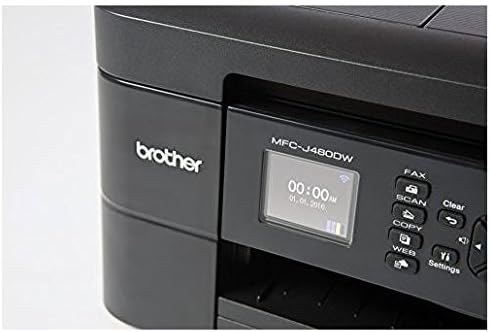
Figure 3: The paper tray of the Brother MFC-J480DW printer, shown partially extended with paper loaded.
2.5 Connecting to Wi-Fi
Follow the on-screen instructions on the printer's LCD display to connect to your wireless network. You may need to enter your network's SSID and password. Alternatively, use the Wi-Fi button on the control panel to access network settings.
3. Operating Instructions
3.1 Control Panel Overview
The control panel features an LCD display and various buttons for navigating menus and performing functions. Key buttons include OK, directional arrows, Clear/Back, Settings, Scan, Web, Stop/Exit, Black Start, and Color Start.

Figure 4: Close-up view of the Brother MFC-J480DW control panel with LCD screen and function buttons.
3.2 Printing
To print from a computer or mobile device, ensure the printer is connected to the same network. Select the print option from your document or application. Choose the Brother MFC-J480DW from the list of available printers and adjust settings as needed before confirming the print job.
3.3 Copying
Place the document face down on the scanner glass or face up in the Automatic Document Feeder (ADF). Use the control panel to select 'Copy'. Adjust settings such as number of copies, quality, and paper type. Press 'Black Start' for monochrome copies or 'Color Start' for color copies.
3.4 Scanning
Place the document on the scanner glass or in the ADF. On the control panel, select 'Scan'. Choose your desired scan destination (e.g., Scan to PC, Scan to Image, Scan to E-mail, Scan to Web). Follow the on-screen prompts to complete the scan.
3.5 Faxing
The MFC-J480DW supports fax functionality. Refer to the detailed on-screen menu options for sending and receiving faxes. You can typically enter the recipient's fax number using the numeric keypad and initiate the fax transmission.
4. Maintenance
4.1 Replacing Ink Cartridges
When an ink cartridge is low or empty, the printer's display will indicate which cartridge needs replacement. Open the ink cartridge cover, press the release lever for the empty cartridge, and remove it. Insert a new genuine Brother ink cartridge into the slot and push until it clicks. Close the cover.
4.2 Print Head Cleaning
If print quality deteriorates (e.g., streaks, missing lines), perform a print head cleaning. Access the 'Settings' menu on the control panel, navigate to 'Ink' or 'Maintenance', and select 'Print Head Cleaning'. Follow the on-screen instructions.
5. Troubleshooting
If you encounter issues with your printer, try the following basic troubleshooting steps:
- No Power: Ensure the power cord is securely connected to both the printer and the electrical outlet.
- Connectivity Issues: Verify that the printer is connected to the correct Wi-Fi network. Restart your router and printer.
- Paper Jams: Follow the on-screen instructions or refer to the full user guide for clearing paper jams from various access points.
- Poor Print Quality: Check ink levels and perform a print head cleaning or alignment.
- Printer Offline: Ensure the printer is powered on and connected to the network. Check your computer's printer settings to ensure it's not set to 'Offline'.
6. Specifications
| Feature | Specification |
|---|---|
| Product Dimensions (DxWxH) | 13.43"D x 15.75"W x 6.77"H |
| Item Weight | 17.6 pounds (8 Kilograms) |
| Maximum Media Size | 8.5 inches x 14 inches |
| Max Input Sheet Capacity | 100 sheets |
| Output Sheet Capacity | 100 sheets |
| Max Print Speed (Monochrome) | 27 ppm |
| Max Print Speed (Color) | 10 ppm |
| Max Copy Speed (Black & White) | 6 ppm |
| Maximum Black and White Print Resolution | 203 x 203 DPI |
| Scanner Type | Sheetfed |
| Duplex Printing | Automatic |
| Connectivity Technology | USB, Wi-Fi |
| Ink Color | CMYK |
| Compatible Devices | Smartphones |
| Control Method | App |
7. Warranty and Support
The Brother MFC-J480DW comes with a full warranty. For specific details regarding warranty coverage, please refer to the documentation included with your product or visit the official Brother support website. For technical support, driver downloads, and additional resources, please visit Brother Support.
This product is eligible for Amazon Dash Replenishment, ensuring you never run out of ink or toner again. Your printer automatically detects low ink levels and places an order for genuine Brother supplies, delivered directly to your door.
Video 1: Learn about the convenience of Amazon Dash Replenishment for your Brother printer, ensuring you always have ink when you need it.