
1. Introduction
This manual provides detailed instructions for the setup, operation, and maintenance of your Marathon CL030050BL Digital Dual Alarm Clock. This digital clock features an easy-to-read display with backlight, dual alarms for weekdays and weekends, and displays time, date, and temperature. Please read this manual thoroughly before using the device.

Image 1.1: The Marathon CL030050BL Digital Dual Alarm Clock, showcasing its compact design and clear display on a desk.
2. Package Contents
Verify that all items are present in the package:
- Marathon CL030050BL Digital Dual Alarm Clock
- User Manual (this document)
3. Product Features
The Marathon CL030050BL Digital Dual Alarm Clock offers the following key features:
- Easy-to-Read Display: Large digital numbers for clear visibility.
- Backlight: Provides illumination for viewing in low-light conditions.
- Multiple Display Modes: Shows time (12/24 hour format), date, and indoor temperature (Celsius/Fahrenheit).
- Dual Alarm: Allows setting two separate alarms, suitable for weekdays and weekends.
- Snooze/Light Button: Convenient button for temporary alarm pause and backlight activation.
- Multilingual Day Display: Day of the week available in 7 languages.
- Compact and Lightweight Design: Ideal for bedside tables or travel.

Image 3.1: Detailed view of the clock's display and highlighted features such as ease of use, multilingual support, and sleek design.
4. Setup
4.1 Battery Installation
The clock requires batteries for operation. Locate the battery compartment on the back of the unit.
- Gently slide open the battery compartment cover.
- Insert the required batteries (typically AA or AAA, refer to the compartment label) according to the polarity indicators (+ and -).
- Close the battery compartment cover securely.
4.2 Initial Power On
Upon successful battery installation, the clock display will activate. It may show a default time or a flashing display, indicating it is ready for time and date setting.

Image 4.1: Rear view of the clock, illustrating the location of control buttons for setup and operation.
5. Operating Instructions
Familiarize yourself with the buttons on the back of the clock: MODE, ALARM (bell icon), UP (triangle up), DOWN (triangle down), C/F, and RESET.
5.1 Setting Time and Date
- Press the MODE button repeatedly until the time display starts flashing or you enter the time setting mode.
- Use the UP or DOWN buttons to adjust the hour.
- Press MODE again to move to minutes, then use UP or DOWN to adjust.
- Continue pressing MODE to cycle through year, month, and day settings, adjusting each with UP or DOWN.
- After setting the day, press MODE to exit the setting mode.
5.2 12/24 Hour Format
While in time display mode (not setting mode), press the UP button to toggle between 12-hour (with AM/PM indicator) and 24-hour formats.
5.3 Setting Alarms (Alarm 1 and Alarm 2)
This clock supports two independent alarms.
- Press the ALARM button once to view Alarm 1. Press it again to view Alarm 2.
- While viewing the desired alarm, press and hold the ALARM button until the alarm time starts flashing.
- Use the UP or DOWN buttons to set the alarm hour.
- Press ALARM again to move to minutes, then use UP or DOWN to adjust.
- Press ALARM to confirm the alarm time.
- To activate/deactivate an alarm, press the ALARM button to select it, then press UP or DOWN to toggle it on or off. An alarm icon will appear on the display when active.
5.4 Snooze Function and Backlight
When an alarm sounds, press the large SNOOZE/LIGHT button (usually located on top or front) to temporarily silence the alarm for a few minutes. The alarm will sound again after the snooze period. Pressing this button outside of an alarm will activate the backlight for a few seconds.
5.5 Temperature Unit Selection
Press the C/F button on the back of the clock to switch the temperature display between Celsius (°C) and Fahrenheit (°F).
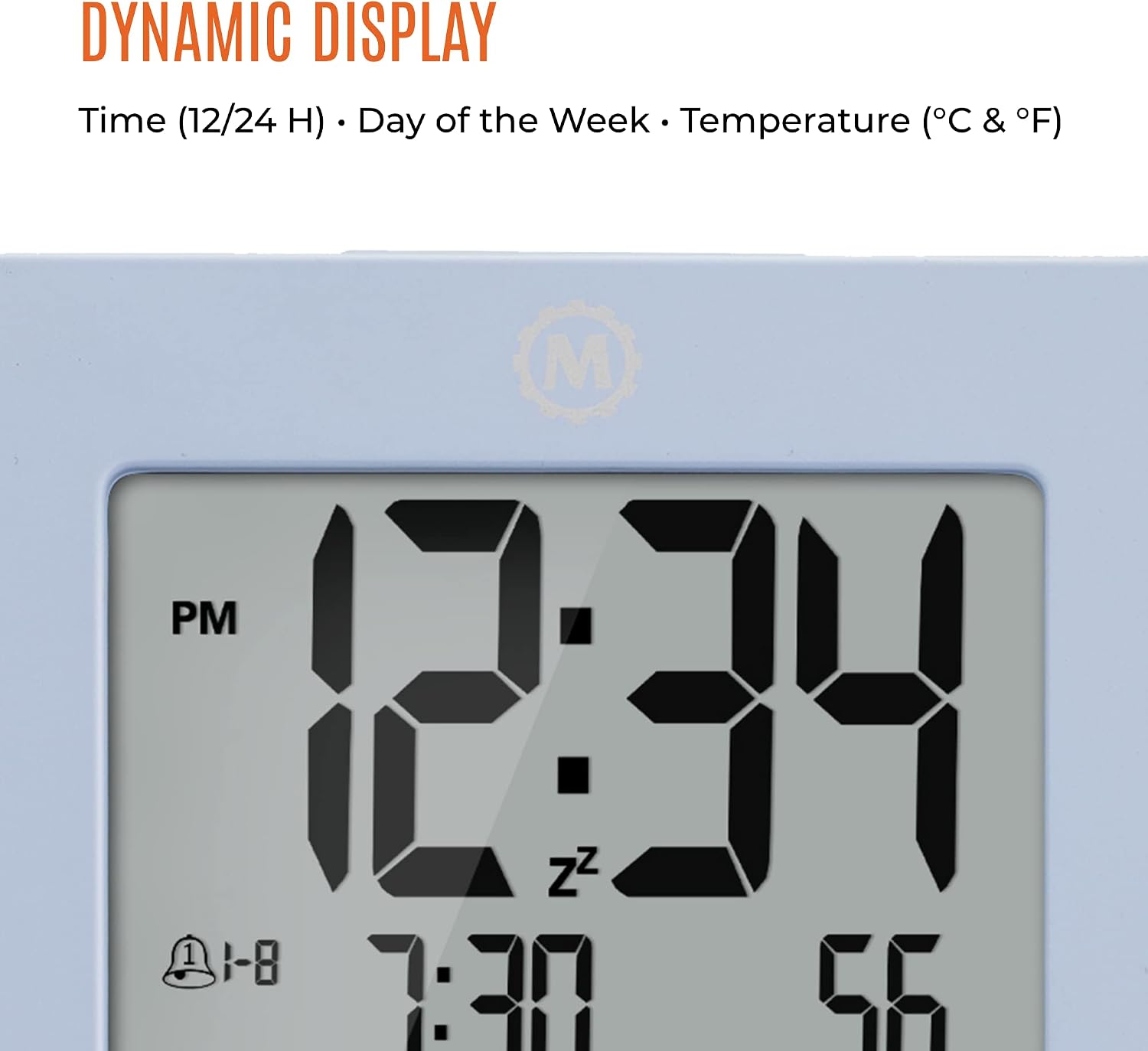
Image 5.1: Dynamic display showing various information including time, alarm status, date, and temperature.
6. Maintenance
6.1 Cleaning
To clean the clock, use a soft, dry cloth. Do not use abrasive cleaners, solvents, or chemical sprays, as these may damage the display or casing.
6.2 Battery Replacement
When the display dims or functions become erratic, it is time to replace the batteries. Follow the battery installation steps in Section 4.1. Dispose of old batteries responsibly according to local regulations.
7. Troubleshooting
- Display is blank or dim:
Ensure batteries are correctly installed and not depleted. Replace batteries if necessary. - Time/Date is incorrect:
Re-enter time and date settings as described in Section 5.1. Ensure the correct 12/24 hour format is selected. - Alarm does not sound:
Verify that the alarm is activated (alarm icon visible on display) and the alarm time is set correctly. Check battery level. - Temperature reading is inaccurate:
Ensure the clock is placed in an area with stable ambient temperature, away from direct heat sources or drafts. - Buttons are unresponsive:
Try pressing the RESET button (often a small recessed button requiring a pointed object like a paperclip) to restart the clock. This will clear all settings, requiring re-setup.
8. Specifications

Image 8.1: Visual representation of the clock's dimensions.
| Feature | Detail |
|---|---|
| Model Number | CL030050BL |
| Dimensions (L x W x H) | 9.53 x 3.81 x 9.53 cm (3.7 x 1.5 x 3.7 inches) |
| Weight | 160 g |
| Display Type | Digital |
| Special Features | Dual Alarm, Day, Date, Temperature, Backlight |
| Power Source | Batteries (Type specified in compartment) |
9. Warranty and Support
For warranty information or technical support, please refer to the warranty card included with your purchase or visit the official MARATHON website. Keep your purchase receipt as proof of purchase for any warranty claims.