
HP 15-ac123TX
HP 15-ac123TX Laptop User Manual
Model: 15-ac123TX
Introduction
This manual provides essential information for setting up, operating, maintaining, and troubleshooting your HP 15-ac123TX laptop. Please read this manual thoroughly before using your device to ensure optimal performance and longevity.
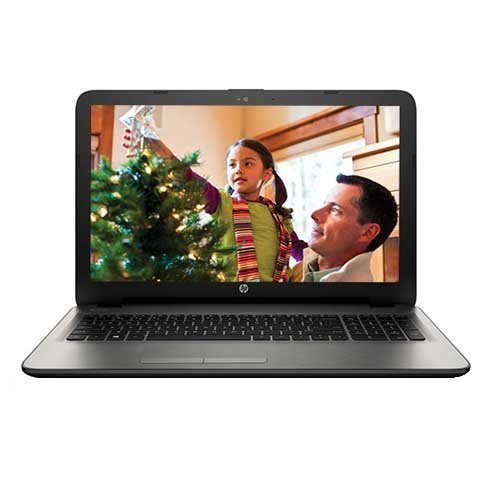
Figure 1: HP 15-ac123TX Laptop. This image displays the laptop in an open position, showcasing its 15.6-inch screen, keyboard, and touchpad. The screen shows a family scene, indicating its display capabilities.
Setup Guide
- Unpacking: Carefully remove the laptop and all accessories from the packaging. Verify that all components are present: laptop, power adapter, and documentation.
- Connect Power: Plug the power adapter into the laptop's power port and then into a wall outlet. It is recommended to fully charge the battery before first use.
- Initial Boot: Open the laptop lid and press the power button. The laptop will guide you through the initial Windows 10 setup process, including language selection, network connection, and user account creation.
- Software Installation: Follow on-screen prompts to complete the operating system setup. Install any necessary updates or additional software as required.
Operating Instructions
Basic Operation
- Power On/Off: Press the power button to turn on. To shut down, click the Start button, then Power, and select "Shut down".
- Sleep Mode: Close the lid or select "Sleep" from the Power menu to enter sleep mode.
- Keyboard and Touchpad: Utilize the full-size textured island style keyboard and the touchpad with Windows 10 Multi-touch gesture support for navigation and input.
Connectivity
- Wi-Fi: Connect to wireless networks via the built-in 802.11bgn Wi-Fi. Access network settings through the Windows 10 taskbar.
- Bluetooth: Pair Bluetooth devices such as headphones or mice through Windows 10 Bluetooth settings.
- USB Ports: The laptop features 2 USB 2.0 ports and 1 USB 3.0 port for connecting peripherals.
- HDMI: Connect to external displays using the HDMI port.
- Ethernet: Use the Ethernet port for wired network connections.
- Optical Drive: The integrated DVD-RW drive supports reading and writing CDs and DVDs.
- Card Reader: Insert Secure Digital (SD) cards into the card reader slot for data transfer.
Maintenance
- Cleaning: Use a soft, lint-free cloth to clean the screen and exterior. Avoid harsh chemicals.
- Software Updates: Regularly check for and install Windows updates and driver updates to ensure system stability and security.
- Battery Care: To prolong battery life, avoid extreme temperatures and allow the battery to discharge periodically before recharging.
- Storage: Keep the laptop in a cool, dry place when not in use.
Troubleshooting
| Problem | Possible Solution |
|---|---|
| Laptop does not power on. | Ensure the power adapter is securely connected and the outlet is functional. Check battery charge level. |
| No Wi-Fi connection. | Verify Wi-Fi is enabled in Windows settings. Restart the router and the laptop. |
| Slow performance. | Close unnecessary applications. Check for background processes. Ensure sufficient free disk space. Consider upgrading RAM if frequently running demanding applications. |
| Screen issues (e.g., no display). | Connect to an external monitor to check if the issue is with the laptop screen. Restart the laptop. |
For further assistance, refer to the HP support website or contact customer service.
Specifications
- Model: HP 15-ac123TX
- Processor: Intel Core i5-5200U (2.2 GHz)
- RAM: 4 GB DDR3L (Expandable to 8 GB)
- Storage: 1 TB 5400 RPM Serial ATA HDD
- Graphics: AMD Radeon R5 Series M330 (2GB Dedicated)
- Display: 15.6-inch, 1366 x 768 resolution (HD)
- Operating System: Windows 10 (64-bit)
- Webcam: HP TrueVision HD Webcam (1280 x 720 @ 30 fps)
- Audio: DTS Studio Sound, Dual Speakers
- Connectivity: Wi-Fi (802.11bgn), Bluetooth, 2x USB 2.0, 1x USB 3.0, 1x HDMI, 1x Ethernet, 1x Audio-out
- Optical Drive: DVD-RW
- Card Reader: Secure Digital Card
- Battery Life: Approximately 5 hours (average)
- Dimensions: 10 x 15.1 x 1 cm (Product), 2.19 kg (Item Weight)
Warranty and Support
This product comes with a 1-year manufacturer warranty from the date of purchase. For warranty claims or technical support, please contact HP customer service or visit the official HP support website. Keep your purchase receipt as proof of purchase.
Important: Any unauthorized modifications or repairs may void your warranty.
For more information, visit: HP Support
Ask a question about this manual
Ask about setup, troubleshooting, compatibility, parts, safety, or missing instructions. Manuals+ will review the question and use this page’s manual context to help answer it.