1. Introduction
This manual provides essential instructions for setting up, operating, maintaining, and troubleshooting your Lenovo Ideacentre 300s Slim Desktop. Please read this manual thoroughly before using your new computer.
The Lenovo Ideacentre 300s is a compact desktop PC designed for everyday computing tasks, featuring an Intel Core i5-4460s processor, 8 GB DDR3 RAM, and a 1 TB HDD, running Windows 10.
2. What's in the Box
Verify that all items are present in the packaging:
- Lenovo Ideacentre 300s Slim Desktop Unit
- Keyboard
- Mouse
- Power Cable
- Documentation (User Manual, Warranty Information)

Image: Front view of the Lenovo Ideacentre 300s Slim Desktop, accompanied by a wired keyboard and mouse, illustrating the typical contents of the package.
3. Setup Guide
Follow these steps to set up your Lenovo Ideacentre 300s Slim Desktop:
3.1 Unpacking and Placement
- Carefully remove the desktop and all accessories from the packaging.
- Place the desktop on a stable, flat surface with adequate ventilation. Ensure no vents are blocked.
3.2 Connecting Peripherals
Refer to the rear panel image below for port identification.
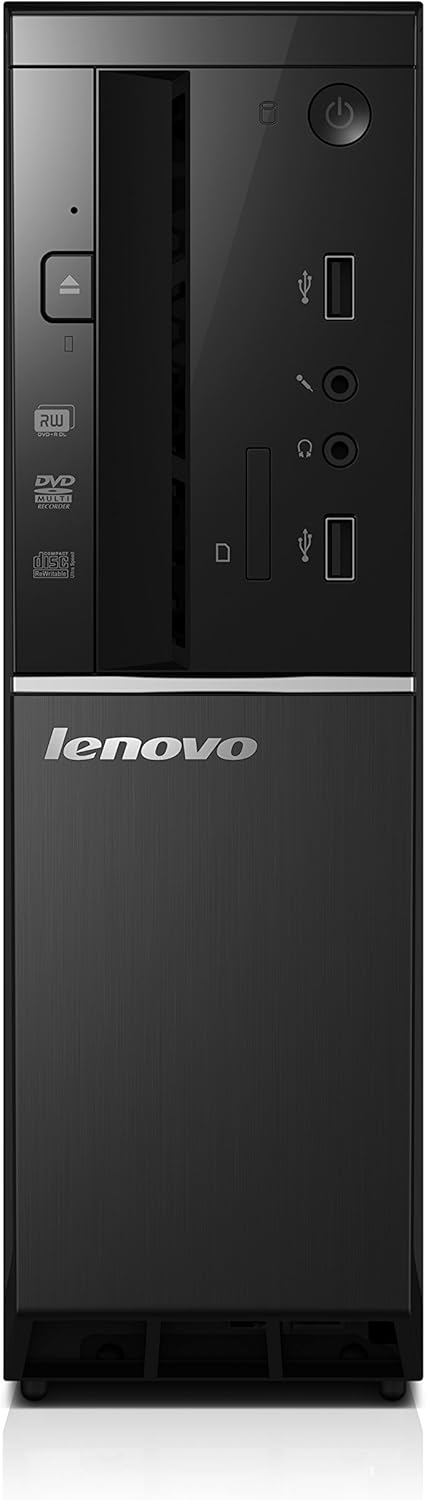
Image: Rear panel of the Lenovo Ideacentre 300s Slim Desktop, highlighting various ports including USB, HDMI, VGA, Ethernet, and audio jacks.
- Connect Monitor: Connect your monitor to the desktop using an HDMI or VGA cable. If your monitor has both, HDMI is recommended for better quality.
- Connect Keyboard and Mouse: Plug the keyboard and mouse into the available USB ports on the rear or front of the desktop.
- Connect Network (Optional): For a wired internet connection, connect an Ethernet cable from your router or modem to the Ethernet port on the rear panel. For wireless, ensure your Wi-Fi network is available during initial setup.
- Connect Audio (Optional): If using external speakers or headphones, connect them to the appropriate audio jacks on the rear or front panel.
3.3 Power Connection
- Plug the power cable into the power connector on the rear of the desktop.
- Plug the other end of the power cable into a grounded electrical outlet.
4. Operating Instructions
4.1 Powering On/Off
- To Power On: Press the power button located on the front panel of the desktop. The power indicator light will illuminate.
- To Power Off: In Windows 10, click the Start button, then select Power > Shut down. Do not unplug the computer directly without proper shutdown to prevent data loss.
- Restart: In Windows 10, click the Start button, then select Power > Restart.
- Sleep: In Windows 10, click the Start button, then select Power > Sleep.

Image: Front view of the Lenovo Ideacentre 300s Slim Desktop, showing the power button, optical drive, and front USB/audio ports.
4.2 Initial Windows 10 Setup
Upon first power-on, Windows 10 will guide you through an initial setup process. This includes:
- Selecting your region and language.
- Connecting to a Wi-Fi network (if not using wired Ethernet).
- Accepting the license agreement.
- Creating a user account or signing in with a Microsoft account.
- Setting privacy options.
Follow the on-screen prompts to complete the setup.
4.3 Using the Optical Drive
The desktop includes a DVD-RW optical drive. To use it:
- Press the eject button on the front of the optical drive to open the tray.
- Place a CD or DVD onto the tray with the label side facing up.
- Gently push the tray back into the drive until it clicks shut.
- Windows will typically auto-play the disc or prompt you for action.
5. Maintenance
Proper maintenance ensures the longevity and optimal performance of your desktop.
5.1 Cleaning
- Always power off and unplug the desktop before cleaning.
- Use a soft, lint-free cloth slightly dampened with water or a mild, non-abrasive cleaner to wipe exterior surfaces.
- Do not spray liquids directly onto the desktop.
- Use compressed air to clear dust from vents and ports periodically.
5.2 Software Updates
- Regularly check for and install Windows updates to ensure security and performance. Go to Start > Settings > Update & Security > Windows Update.
- Keep your drivers updated. Lenovo provides driver updates on their official support website.
5.3 Data Backup
Regularly back up your important data to an external drive or cloud storage to prevent data loss in case of hardware failure.
6. Troubleshooting
This section addresses common issues you might encounter.
6.1 No Power
- Ensure the power cable is securely connected to both the desktop and the electrical outlet.
- Verify the electrical outlet is functional by plugging in another device.
- Check if the power supply unit (PSU) fan is spinning or if any indicator lights are on.
6.2 No Display on Monitor
- Ensure the monitor is powered on and its power indicator light is active.
- Check that the video cable (HDMI or VGA) is securely connected to both the desktop and the monitor.
- Try a different video cable or monitor if available to isolate the issue.
- Ensure the correct input source is selected on your monitor.
6.3 Internet Connectivity Issues
- Wired Connection: Check if the Ethernet cable is properly connected. Verify your router/modem is working correctly.
- Wireless Connection: Ensure Wi-Fi is enabled in Windows settings. Check if you are connected to the correct network and have entered the password correctly. Restart your router/modem.
- Run the Windows Network Troubleshooter (Start > Settings > Network & Internet > Status > Network troubleshooter).
6.4 System Slowdown or Freezing
- Close unnecessary applications running in the background.
- Check Task Manager (Ctrl+Shift+Esc) for processes consuming high CPU, memory, or disk usage.
- Ensure your system has enough free disk space.
- Run a full system scan with antivirus software.
- Restart the computer.
7. Specifications
Key technical specifications for the Lenovo Ideacentre 300s Slim Desktop (Model 90F10000US):
| Feature | Specification |
|---|---|
| Processor | Intel Core i5-4460s (2.9 GHz, up to 3.4 GHz) |
| RAM | 8 GB DDR3 (1600 MHz) |
| Storage | 1 TB SATA HDD (7200 RPM) |
| Graphics | Intel HD Graphics (Integrated) |
| Operating System | Windows 10 |
| Wireless Connectivity | 802.11ac Wi-Fi |
| USB Ports | 4x USB 2.0, 2x USB 3.0 |
| Video Outputs | HDMI, VGA |
| Optical Drive | DVD-RW |
| Dimensions (LxWxH) | 11.69 x 13.23 x 3.62 inches |
| Weight | 9.09 pounds |
8. Warranty and Support
8.1 Product Warranty
Your Lenovo Ideacentre 300s Slim Desktop comes with a standard manufacturer's warranty. Please refer to the warranty card included in your product packaging for specific terms, conditions, and duration of coverage. Keep your proof of purchase for warranty claims.
8.2 Technical Support
For technical assistance, driver downloads, or further support, please visit the official Lenovo support website:
You may need your product's serial number, which can typically be found on a label on the desktop chassis.


