
GoodQbuy CHARG-ICOM-192
GoodQbuy Smart Battery Charger Instruction Manual
Models: BC-191, BC-192, BC-193
1. Introduction
This manual provides essential instructions for the safe and efficient use of your GoodQbuy Smart Battery Charger. This rapid charger is designed to provide reliable power to compatible Icom walkie-talkie batteries. Please read this manual thoroughly before operation and retain it for future reference.
Key Features:
- 100-240V wide voltage input for global compatibility.
- Rapid charging capability, delivering up to 1000mAh per hour.
- Microprocessor-controlled charging for optimal battery health and override protection.
- Durable construction using heavy-duty ABS/PC plastic.
- Integrated LED indicator to clearly display charging status.
2. Product Overview
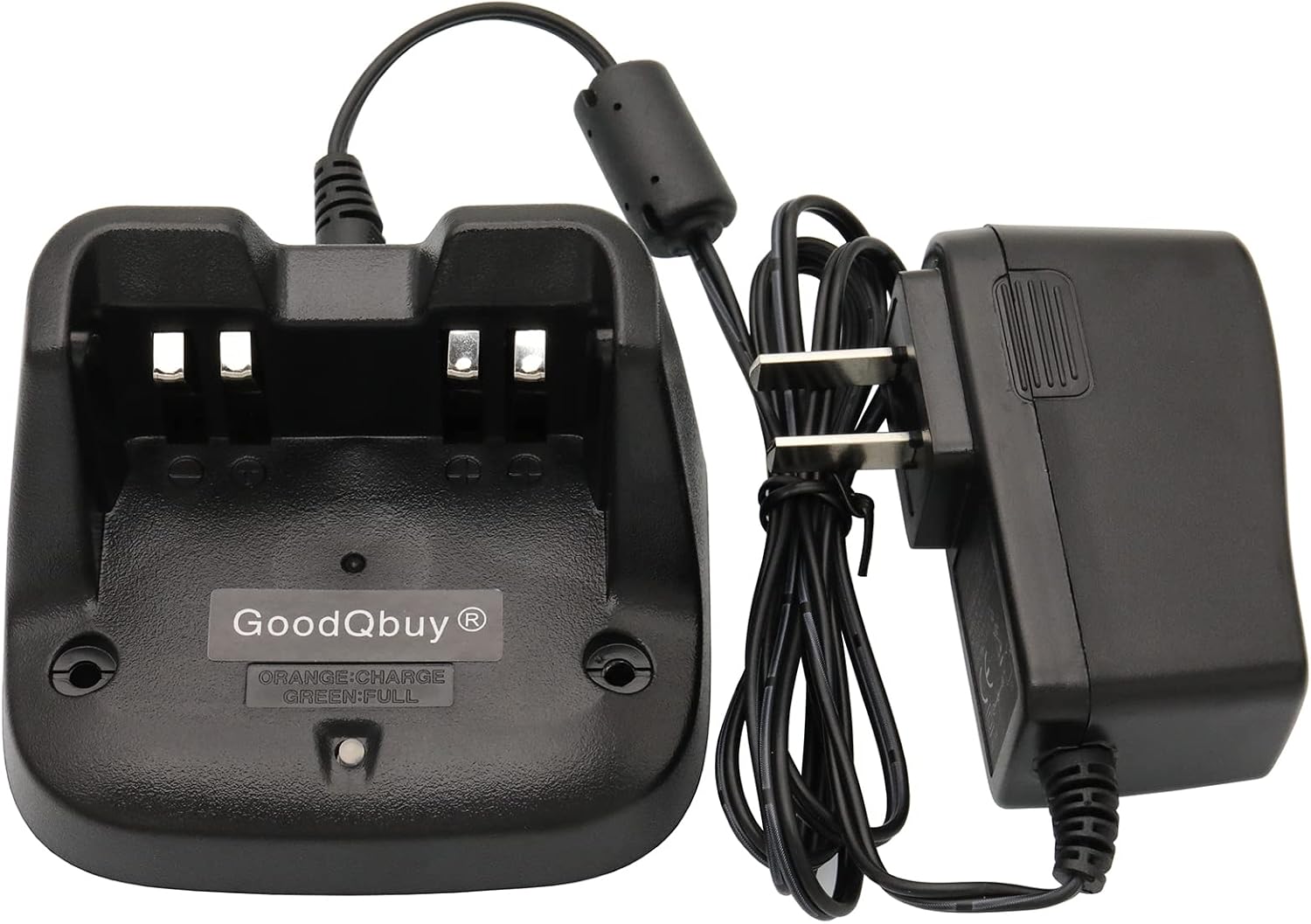
The GoodQbuy Smart Battery Charger consists of a charging base and a power adapter. The charging base features a slot for your battery and an LED indicator to show charging status.


3. Setup Instructions
- Unpack the Charger: Carefully remove the charging base and power adapter from the packaging.
- Connect Power: Insert the DC plug from the power adapter into the power input port located on the rear of the charging base.
- Plug into Outlet: Plug the power adapter into a standard 100-240V AC wall outlet. Ensure the outlet is easily accessible.
- Placement: Place the charging base on a stable, flat surface away from direct sunlight, heat sources, and moisture.
4. Operating Instructions
Charging Procedure:
- Ensure the charger is properly set up and connected to a power source.
- Carefully insert the compatible Icom battery (or radio with battery attached) into the charging slot on the base. Ensure the battery contacts align correctly with the charger's contacts.
- The LED indicator on the charger will illuminate to show the charging status.
- Once charging is complete, the LED indicator will change color. Refer to the 'LED Indicator Status' table below.
- Remove the battery from the charger once fully charged.
LED Indicator Status:
| LED Color | Status |
|---|---|
| Orange | Battery is charging. |
| Green | Battery is fully charged. |
5. Compatible Icom Radios and Batteries
This charger is compatible with Icom radios and batteries that use the BC-191, BC-192, or BC-193 charging standard. Specific compatible models include:
- Icom F3011, F4011
- Icom F3101D, F4101D
- Icom IC-V80, IC-T70
- Icom F3102D, F3103D, F4102D, F4103D
- Icom F3002, F4002
- Icom F3003, F4003
- Icom IC-F27SR
- Batteries compatible with BC-191, BC-192, BC-193, such as BP264.
Always verify your radio or battery model against this list to ensure compatibility before charging.
6. Maintenance
- Cleaning: Disconnect the charger from the power outlet before cleaning. Use a soft, dry cloth to wipe the exterior of the charger. Do not use liquid cleaners or solvents.
- Storage: When not in use, store the charger in a cool, dry place, away from direct sunlight and extreme temperatures.
- Inspection: Periodically inspect the power cord and charger for any signs of damage. If damage is found, discontinue use immediately and contact support.
7. Troubleshooting
| Problem | Possible Cause | Solution |
|---|---|---|
| LED does not light up when battery is inserted. |
|
|
| Battery does not charge or charges slowly. |
|
|
8. Specifications
| Feature | Detail |
|---|---|
| Input Voltage | 100-240V AC |
| Charging Current | Up to 1000mAh per hour |
| Item Weight | 8.8 ounces |
| Package Dimensions | 5.43 x 4.65 x 4.06 inches |
| Color | Black |
| Model Number | CHARG-ICOM-192 (Compatible with BC-191, BC-192, BC-193 standards) |
| Manufacturer | GoodQbuy® |
9. Safety Information
Please observe the following safety precautions to prevent injury or damage to the product:
- Do not disassemble or modify the charger.
- Do not expose the charger to water, rain, or excessive humidity.
- Avoid using the charger in extremely hot or cold environments.
- Keep the charger out of reach of children.
- Use only the provided power adapter with the charger.
- Ensure proper ventilation around the charger during use.
- If the charger emits smoke, unusual odors, or makes strange noises, immediately unplug it from the power outlet.
10. Warranty and Support
For warranty information or technical support, please refer to the documentation provided at the time of purchase or contact your retailer. You may also visit the official GoodQbuy website for further assistance.
Ask a question about this manual
Ask about setup, troubleshooting, compatibility, parts, safety, or missing instructions. Manuals+ will review the question and use this page’s manual context to help answer it.