1. Introduction
Thank you for choosing the UniFire V60 Wireless Keyboard and Mouse Combo. This product is designed to provide a reliable and comfortable wireless experience for various computing tasks, including gaming, office work, and general use with desktops, laptops, and compatible smart televisions. This manual provides detailed instructions for setup, operation, and maintenance to ensure optimal performance and longevity of your device.

Image 1.1: UniFire V60 Wireless Keyboard and Mouse Combo. This image displays the full-sized white wireless keyboard and the matching white wireless mouse, highlighting their ergonomic design.
2. Package Contents
Please verify that all items are present in your package:
- 1 x UniFire V60 Wireless Keyboard
- 1 x USB Wireless Mouse
- 1 x USB Receiver
3. Setup Instructions
Follow these steps to set up your UniFire V60 Wireless Keyboard and Mouse Combo:
- Install Batteries:
- For the keyboard: Open the battery compartment on the underside of the keyboard and insert two (2) AA batteries (not included), ensuring correct polarity.
- For the mouse: Open the battery compartment on the underside of the mouse and insert two (2) AAA batteries (not included), ensuring correct polarity.
- Connect the USB Receiver:
Locate an available USB port on your computer (desktop, laptop, or smart TV). Plug the small USB receiver into the USB port. The system will automatically detect and install the necessary drivers. No additional software installation is required.

Image 3.1: USB Receiver Connection. This image shows the compact USB receiver being plugged into a laptop's USB port, illustrating the simple plug-and-play setup.
- Begin Use:
Once the USB receiver is connected and batteries are installed, the keyboard and mouse should be ready for immediate use. The devices operate on a 2.4GHz wireless frequency, providing a stable connection.
4. Operating Instructions
4.1 Keyboard Operation
- Standard Typing: Use the keyboard as a standard QWERTY layout for typing.
- Multimedia Keys: The keyboard features 8 multimedia key combinations for quick access to functions like volume control, media playback, and more. Refer to the key legends for specific functions.
- Wireless Range: The keyboard maintains a stable connection up to 10 meters (approximately 33 feet) from the USB receiver.

Image 4.1: Keyboard Detail. A close-up view of the UniFire V60 keyboard, showcasing the keycaps and the integrated wrist rest design.
4.2 Mouse Operation
- Standard Functions: The mouse provides standard left-click, right-click, and scroll wheel functionality.
- DPI Control: The mouse includes a DPI governor button, typically located near the scroll wheel, allowing you to adjust the cursor sensitivity (DPI) to suit your preference. The optical resolution is 1600DPI, and the mouse resolution is 1000DPI.
- Ergonomic Design: The mouse is ergonomically designed for a comfortable grip during extended use.
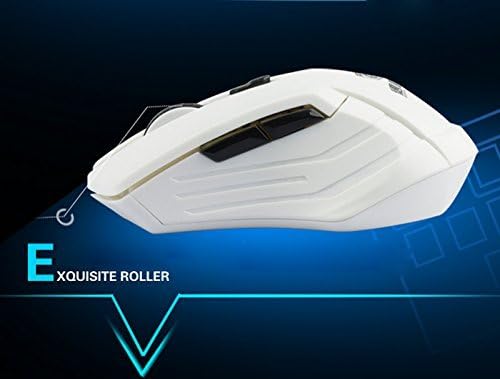
Image 4.2: Mouse Top View. This image shows the top view of the UniFire V60 mouse, highlighting its six standard keys and scroll wheel, with numbered indicators for each function.
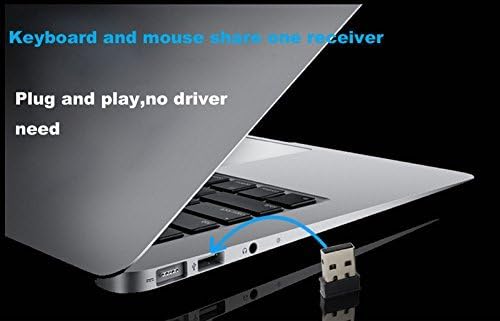
Image 4.3: Mouse Side View. A side profile of the UniFire V60 mouse, emphasizing its ergonomic contours and the design of the scroll wheel.

Image 4.4: Wireless Range Illustration. This image displays the keyboard and mouse, indicating a working distance of up to 10 meters, powered by 2.4GHz wireless technology.
5. Specifications
| Feature | Description |
|---|---|
| Model | V60 |
| Type | Wireless Keyboard and Mouse Combo |
| Connectivity Technology | 2.4GHz Radio Frequency |
| Operation Range | Up to 10 meters |
| Compatible Devices | Laptops, Desktops, Intelligent Televisions, Gaming Consoles |
| Keyboard Dimensions (L x W x H) | 445 x 150 x 25 mm (17.5 x 5.9 x 1 inches) |
| Keyboard Key Lifespan | Up to 1,500,000 times |
| Keyboard Multimedia Keys | 8 multimedia key combinations |
| Keyboard Battery | 2 x AA batteries (not included) |
| Mouse Size | 115 x 67 x 45 mm |
| Mouse Optical Resolution | 1600 DPI |
| Mouse Resolution | 1000 DPI |
| Mouse Special Features | Ergonomically designed, DPI control, Micro nano-receiver |
| Mouse Battery | 2 x AAA batteries (not included) |
| Item Weight | 1.7 pounds (approx. 0.77 kg) |
| Special Feature | Ergonomic, Waterproof |
6. Maintenance
- Cleaning: To clean the keyboard and mouse, use a soft, damp cloth. Avoid using harsh chemicals or abrasive cleaners. Ensure the devices are powered off and batteries are removed before cleaning.
- Battery Replacement: Replace batteries when performance degrades or the low battery indicator (if present on the keyboard) illuminates. Always use fresh batteries of the specified type (AA for keyboard, AAA for mouse).
- Storage: When not in use for extended periods, remove batteries from both devices to prevent leakage. Store in a cool, dry place away from direct sunlight.
7. Troubleshooting
- No Response from Keyboard/Mouse:
- Ensure batteries are correctly installed and not depleted. Replace if necessary.
- Verify the USB receiver is securely plugged into a working USB port. Try a different USB port.
- Move the keyboard and mouse closer to the USB receiver to rule out range issues or interference.
- Restart your computer.
- Lag or Intermittent Connection:
- Check for potential sources of interference, such as other 2.4GHz wireless devices (Wi-Fi routers, cordless phones) or large metal objects between the devices and the receiver.
- Ensure the operating distance is within 10 meters.
- Replace batteries.
- Mouse Cursor Jumps or is Erratic:
- Clean the optical sensor on the underside of the mouse.
- Use the mouse on a clean, non-reflective surface.
- Adjust the DPI setting using the DPI control button on the mouse.
- Specific Keys Not Working:
- Ensure the keyboard is clean and free of debris under the keys.
- Replace batteries.
8. Warranty and Support
UniFire products are manufactured to high-quality standards. For warranty information or technical support, please refer to the contact details provided with your purchase documentation or visit the official UniFire website. Please retain your proof of purchase for warranty claims.