
Canon MG7720 BK
Canon PIXMA MG7720 Wireless All-in-One Printer User Manual
Model: MG7720 BK
Introduction
This manual provides essential information for setting up, operating, and maintaining your Canon PIXMA MG7720 Wireless All-in-One Printer. Please read this manual thoroughly before using the printer to ensure proper and safe operation.
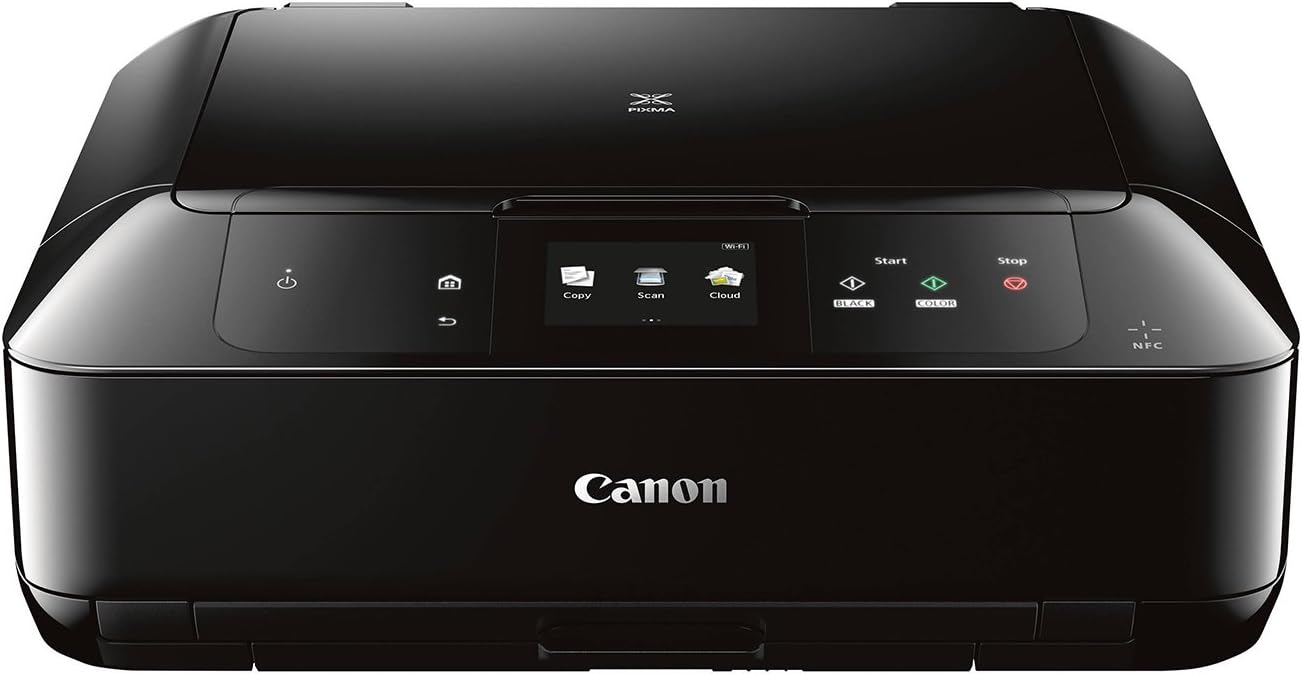
Figure 1: Canon PIXMA MG7720 Wireless All-in-One Printer. This image shows the printer in its compact, closed state, highlighting its sleek black design and front control panel.
Setup
Follow these steps to set up your Canon PIXMA MG7720 printer for the first time.
- Unpacking: Carefully remove the printer from its packaging. Remove all protective tapes and packing materials.
- Power Connection: Connect the power cord to the printer and then to a wall outlet. Do not connect to a surge protector or power strip initially.
- Initial Power On: Press the power button to turn on the printer. Follow the on-screen instructions on the LCD display for initial setup, including language selection.
- Ink Cartridge Installation: Open the printer's access cover. Install the provided ink cartridges into their respective slots. Ensure they click into place.
- Paper Loading: Load plain paper into the paper tray. Ensure the paper guides are adjusted to fit the paper size.
- Wireless Setup:
- On the printer's touch screen, navigate to the Wi-Fi setup option.
- Select your wireless network (SSID) from the list.
- Enter your network password (WPA/WPA2 key).
- Confirm the connection. The Wi-Fi indicator on the printer should illuminate steadily once connected.
- Software Installation: Insert the setup CD-ROM into your computer's CD/DVD drive, or download the latest drivers and software from the official Canon website. Follow the on-screen instructions to complete the installation.
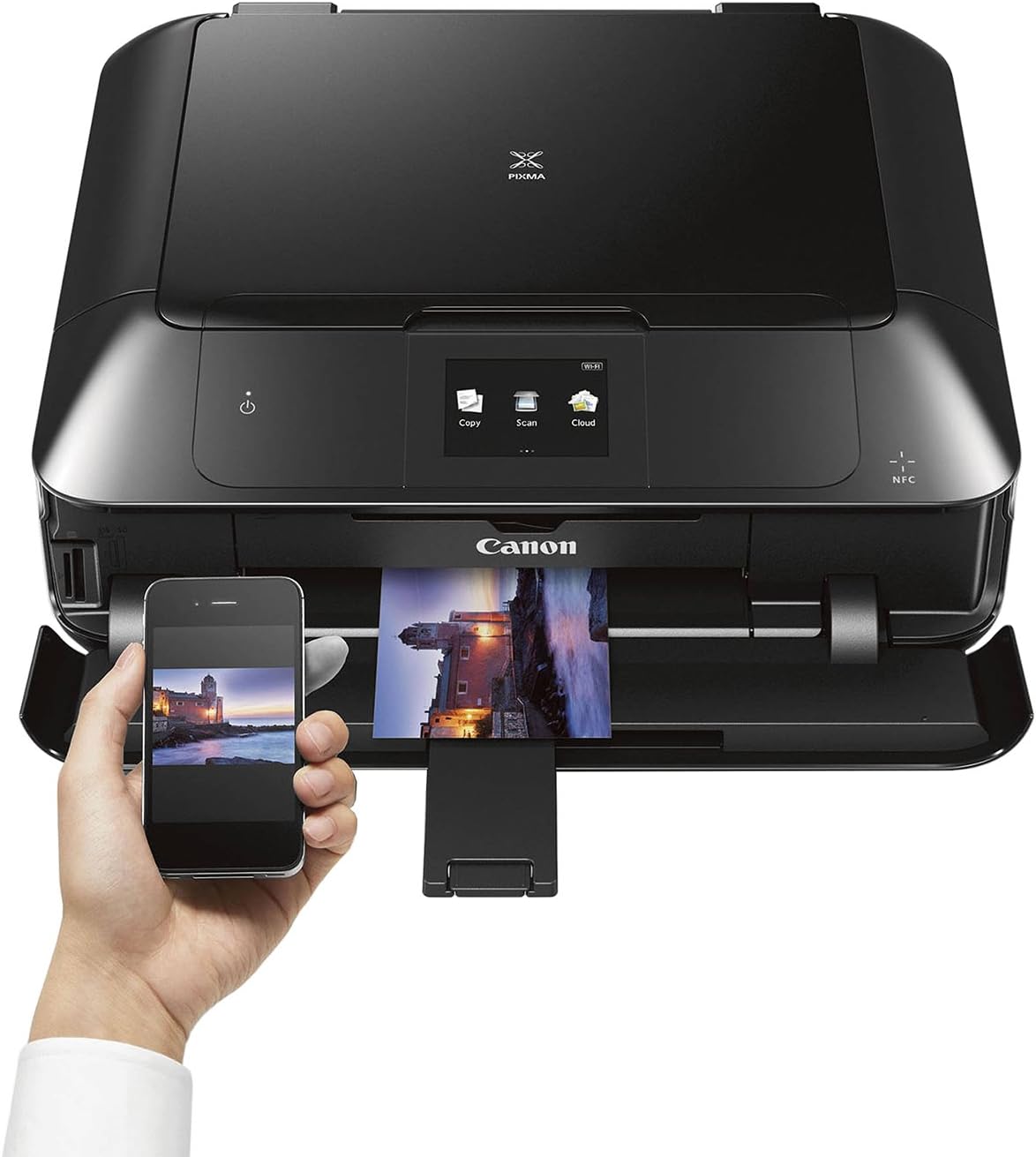
Figure 2: Mobile Device Printing. This image illustrates the printer's capability for mobile printing, showing a smartphone wirelessly connected to the printer, ready to send a print job.
Operating Instructions
This section covers the basic operations of your Canon PIXMA MG7720 printer.
Printing Documents and Photos
- Load Paper: Ensure the correct paper type and size are loaded in the paper tray.
- Open Document: Open the document or photo you wish to print on your computer or mobile device.
- Print Command: Select the "Print" option from your application's menu (e.g., File > Print).
- Select Printer: Choose "Canon MG7720 series" from the list of available printers.
- Adjust Settings: Configure print settings such as paper size, print quality, color/grayscale, and duplex printing (if desired).
- Start Printing: Click "Print" to send the job to the printer.

Figure 3: Printing in Progress. This image shows the printer in action, with a vibrant photo emerging from the output tray, demonstrating its photo printing capabilities.
Scanning Documents
- Place Document: Lift the document cover and place the document face-down on the scanner glass. Align it with the alignment mark.
- Close Cover: Gently close the document cover.
- Initiate Scan:
- From Printer: On the printer's touch screen, select "Scan". Choose to scan to a computer or cloud service.
- From Computer: Open the Canon scanning software (e.g., My Image Garden or IJ Scan Utility) on your computer and select the scan option.
- Adjust Settings: Select scan type (document, photo), color mode, resolution, and destination folder.
- Start Scan: Begin the scanning process. The scanned image will be saved to the specified location.
Copying Documents
- Place Document: Place the document face-down on the scanner glass.
- Close Cover: Close the document cover.
- Select Copy: On the printer's touch screen, select "Copy".
- Adjust Settings: Choose the number of copies, color or black & white, and any other copy settings (e.g., fit to page, intensity).
- Start Copying: Press the "Black" or "Color" button to start copying.
Maintenance
Regular maintenance ensures optimal performance and longevity of your printer.
- Ink Cartridge Replacement:
When an ink cartridge runs low or is empty, a message will appear on the LCD screen. Open the printer cover, wait for the print head to move to the replacement position, and gently press the tab to remove the old cartridge. Insert a new genuine Canon ink cartridge until it clicks into place. Close the cover.
- Print Head Cleaning:
If print quality degrades (e.g., streaks, faded colors), perform a print head cleaning. This can be done through the printer's maintenance menu on the LCD screen or via the printer driver software on your computer. There are usually "Standard Cleaning" and "Deep Cleaning" options.
- Print Head Alignment:
If printed lines appear misaligned or blurry, perform a print head alignment. This process prints a test pattern and then scans it to automatically adjust the print head position. Access this function through the printer's maintenance menu or printer driver.
- Roller Cleaning:
If paper feeding issues occur, clean the paper feed rollers. This can often be done through a utility in the printer driver software, which feeds a few sheets of paper to clean the rollers.
- Exterior Cleaning:
Wipe the exterior of the printer with a soft, damp, lint-free cloth. Do not use abrasive cleaners or solvents. Clean the scanner glass with a soft cloth and a non-abrasive glass cleaner.
Troubleshooting
This section provides solutions to common issues you might encounter with your printer.
- Printer is not turning on:
Ensure the power cord is securely connected to both the printer and a working electrical outlet. Try a different outlet. If using a power strip, try plugging directly into the wall.
- Printer is offline or not detected:
Check the Wi-Fi connection on the printer and your computer/device. Restart both the printer and your router. Ensure the printer drivers are correctly installed and updated. For USB connection, ensure the cable is securely connected.
- Poor print quality (streaks, faded colors, blurry text):
Check ink levels and replace any empty or low cartridges. Perform a print head cleaning and print head alignment from the printer's maintenance menu or computer software. Ensure you are using genuine Canon ink cartridges.
- Paper jams:
Carefully remove any jammed paper from the paper trays or inside the printer. Refer to the printer's LCD screen for specific instructions on clearing jams. Ensure paper is loaded correctly and not overfilled. Use appropriate paper type and quality.
- Cannot print from mobile device:
Ensure both the printer and mobile device are connected to the same wireless network. Verify that the Canon PRINT Inkjet/SELPHY app (or AirPrint/Google Cloud Print) is correctly configured on your device. Restart both devices.
Specifications
| Feature | Specification |
|---|---|
| Model Name | Canon PIXMA MG7720 BK |
| Product Dimensions | 14.6"D x 17.2"W x 5.9"H |
| Item Weight | 17.4 pounds |
| Connectivity Technology | Wi-Fi, USB |
| Printing Technology | Inkjet |
| Printer Output | Color |
| Special Feature | Touch Screen |
| Maximum Print Speed (Color) | 10 ppm |
| Max Printspeed Monochrome | 15 ppm |
| Scanner Type | Sheetfed |
| Max Copy Speed (Black & White) | 15 ppm |
| Duplex Printing | Automatic |
| Display Type | LCD |
| Max Input Sheet Capacity | 250 |
| Included Components | Pixma Mg7720 Photo Printer (black) |
Warranty and Support
For detailed warranty information and technical support, please refer to the official Canon website or contact Canon customer service. Keep your purchase receipt as proof of purchase for warranty claims.
Online Resources: Visit www.usa.canon.com for drivers, software, FAQs, and support contact information.
Related Documents - MG7720 BK
 |
Canon Printer: Printing with Google Cloud Print Guide A comprehensive guide from Canon on how to utilize Google Cloud Print with your Canon printer. Learn to register, send print jobs, and manage your printer for cloud printing services. |
 |
Canon Mobile Printing Getting Started Guide and FAQs A comprehensive guide to using Canon Mobile Printing, covering network setup, device detection and registration, printing various file types (images, PDFs, Microsoft Office, web pages), saving data to an inbox, and customizing print settings. Includes troubleshooting tips and FAQs. |
 |
Canon PIXMA G3420 All-in-One Printer: Features and Specifications Detailed overview and specifications for the Canon PIXMA G3420 All-in-One printer, highlighting its high-volume, low-cost printing, speed, quality, maintenance, design, and connectivity features. |
 |
Canon imagePRESS Lite C170/C165 Quick Guide A quick guide to the Canon imagePRESS Lite C170/C165, covering its practical features, parts, and basic operations. Learn about auto gradation adjustment, color tone correction, paper handling, and control panel functions. |
 |
Canon imageRUNNER ADVANCE DX 6800 Series Multifunction Printer Specifications and Features Explore the Canon imageRUNNER ADVANCE DX 6800 Series, a high-volume, mid- to high-volume multifunction printer offering advanced workflow efficiency, robust security, and exceptional quality and reliability. Features include high print/scan speeds, large paper capacity, and comprehensive management tools for business environments. |
 |
Canon imageRUNNER ADVANCE DX C3800 Series Multifunction Printer Specifications and Features Detailed overview of the Canon imageRUNNER ADVANCE DX C3800 Series multifunction printers, including specifications, workflow efficiency, security features, cost management, sustainability, and configuration options. |