Introduction
This manual provides essential information for the safe and effective use of your Canon MG7720 Wireless All-In-One Printer. Please read it thoroughly before operating the device and keep it for future reference. The Canon MG7720 is designed for versatile home and office use, offering printing, scanning, and copying functionalities with advanced wireless connectivity.

Figure 1: Canon MG7720 Wireless All-In-One Printer (Red)
This image shows the Canon MG7720 printer from a slightly elevated angle, highlighting its compact design and the control panel on the top. The printer is a vibrant red color.
Setup
1. Unpacking and Initial Preparation
Carefully remove the printer from its packaging. Ensure all protective tapes and packing materials are removed from the exterior and interior of the printer. Refer to the quick start guide included in the box for visual instructions on tape removal.
2. Power Connection
- Connect the supplied power cord to the printer's power input port.
- Plug the other end of the power cord into a grounded electrical outlet.
- Press the power button to turn on the printer. The LCD display will illuminate.
3. Ink Cartridge Installation
Open the printer's top cover to access the ink cartridge compartment. Install the supplied ink cartridges into their corresponding slots, ensuring they click firmly into place. The Canon MG7720 uses multiple individual ink tanks for optimal color reproduction.
4. Paper Loading
Load paper into the appropriate paper tray. The MG7720 features multiple paper input options. Ensure the paper guides are adjusted to fit the paper size snugly.
5. Wireless Setup
The Canon MG7720 supports wireless connectivity. Follow these steps to connect to your Wi-Fi network:
- On the printer's LCD touch screen, navigate to the Setup menu.
- Select Wireless LAN setup or Wi-Fi setup.
- Choose your preferred connection method (e.g., Standard setup, WPS).
- If using Standard setup, select your network name (SSID) from the list and enter the network password.
- Confirm the connection. A successful connection will be indicated on the printer's display.
For mobile device printing, ensure your device is connected to the same Wi-Fi network as the printer. The printer supports AirPrint for Apple devices and Google Cloud Print for various platforms.
Operating Instructions
1. Printing Documents and Photos
To print from a computer or mobile device, ensure the printer drivers are installed (for computers) or the Canon PRINT Inkjet/SELPHY app is used (for mobile devices). Select the Canon MG7720 as your printer from the application you are printing from. Adjust print settings such as paper type, size, and print quality as needed.
2. Copying Documents
- Place the document face-down on the scanner glass or face-up in the Automatic Document Feeder (ADF) if available.
- On the printer's control panel, select Copy.
- Adjust copy settings such as number of copies, paper size, and quality using the touch screen.
- Press the Black or Color button to start copying.
3. Scanning Documents
Documents can be scanned directly from the printer to a computer or cloud service.
- Place the document on the scanner glass.
- On the printer's control panel, select Scan.
- Choose the destination for the scanned file (e.g., computer, cloud).
- Adjust scan settings such as resolution and file type.
- Press Start to begin scanning.
4. CD/DVD Printing
The Canon MG7720 supports direct printing onto compatible CD/DVD media. Use the included CD/DVD tray and follow the instructions provided by the Canon software for disc label creation and printing.
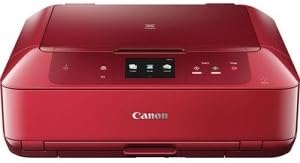
Figure 2: Canon MG7720 Wireless All-In-One Printer (Front View)
This image displays the Canon MG7720 printer from a direct front perspective, showing the paper output tray and the overall compact form factor. The printer is red.
Maintenance
1. Replacing Ink Cartridges
When an ink cartridge runs low or is empty, a message will appear on the LCD display. To replace:
- Ensure the printer is powered on.
- Open the top cover. The print head will move to the replacement position.
- Press the tab on the empty cartridge and lift it out.
- Unpack a new Canon genuine ink cartridge and insert it firmly into the correct slot until it clicks.
- Close the top cover. The printer will perform an initialization process.
2. Cleaning the Printer
- Exterior: Wipe the exterior of the printer with a soft, damp, lint-free cloth. Avoid abrasive cleaners.
- Scanner Glass: Use a soft, lint-free cloth lightly dampened with glass cleaner to clean the scanner glass. Ensure it is dry before closing the cover.
- Print Head Cleaning: If print quality degrades (e.g., streaks, missing colors), perform a print head cleaning from the printer's maintenance menu or through the printer driver software on your computer.
- Print Head Alignment: If printouts are misaligned, perform a print head alignment from the printer's maintenance menu.
3. Paper Path Cleaning
If paper jams occur frequently or printouts have smudges, clean the paper path rollers. Refer to the printer's on-screen menu for specific instructions on paper path cleaning.
Troubleshooting
| Problem | Possible Cause | Solution |
|---|---|---|
| Printer does not power on. | Power cord not connected; power outlet issue. | Ensure power cord is securely connected to printer and outlet. Try a different outlet. |
| Cannot connect to Wi-Fi. | Incorrect password; printer too far from router; network issue. | Verify Wi-Fi password. Move printer closer to router. Restart router and printer. |
| Print quality is poor (streaks, faded). | Low ink; clogged print nozzles; incorrect paper type. | Check ink levels and replace if necessary. Perform print head cleaning and alignment. Use recommended paper. |
| Paper jams. | Incorrectly loaded paper; foreign object in paper path; worn rollers. | Remove jammed paper carefully. Ensure paper is loaded correctly and guides are set. Clean paper path. |
| Printer is offline. | Network disconnection; printer driver issue. | Check network connection. Restart printer and computer. Reinstall printer drivers if necessary. |
For more detailed troubleshooting, refer to the Canon support website or contact customer service.
Specifications
- Model Name: Canon PIXMA MG7720 Printer
- Model Number: MG7720 RED
- Functions: Print, Copy, Scan, Wireless, Cloud Link, CD/DVD Print
- Printing Technology: Inkjet
- Print Resolution (Max): 4800 x 1200 dpi (Color/Black & White)
- Print Speed (Approx.): 15 ipm (Black), 10 ipm (Color)
- Connectivity: Wi-Fi, USB, NFC, AirPrint, Google Cloud Print, Mopria
- Scanner Type: Flatbed
- Scan Resolution (Optical): 2400 x 4800 dpi
- Display: LCD Touch Screen
- Paper Capacity: 200 sheets (Max Input)
- Duplex Printing: Automatic (Yes)
- Dimensions (W x D x H): 17.2 x 14.6 x 5.9 inches
- Weight: 17.4 pounds
- Included Components: Printer, Power Cord, Setup CD-ROM, Ink Tanks
Warranty and Support
Your Canon MG7720 printer comes with a standard manufacturer's warranty. For specific warranty terms and conditions, please refer to the warranty card included with your product or visit the official Canon support website. Keep your proof of purchase for warranty claims.
Customer Support
For technical assistance, driver downloads, or further information, please visit the Canon support website:
Contact information for customer service can typically be found on the support website.