
Introduction
This manual provides comprehensive instructions for the setup, operation, and maintenance of your Westinghouse 32-inch Class LED 720p HDTV, model WD32HB1120. Please read this manual thoroughly before using your television to ensure proper installation and functionality. Retain this manual for future reference.

Front view of the Westinghouse 32-inch LED 720p HDTV, displaying the Westinghouse logo on screen. This image illustrates the overall design of the television.
What's in the Box
Carefully unpack the box and ensure all items are present and undamaged. If any items are missing or damaged, contact your retailer or Westinghouse customer support.
- Westinghouse 32-inch LED 720p HDTV
- TV Stand (2 pieces)
- Remote Control (with batteries)
- Power Cord
- User Manual (this document)
Setup
1. Stand Installation
To install the TV stand:
- Place the TV face down on a soft, clean surface to prevent screen damage.
- Align each stand piece with the corresponding slots on the bottom of the TV.
- Secure the stands using the provided screws. Ensure they are tightened firmly.
2. Wall Mounting (Optional)
This TV supports VESA-compliant wall mounts. A wall mount kit is sold separately. Follow the instructions provided with your wall mount kit. Ensure the wall can support the weight of the TV and the mount.

A Westinghouse television mounted on a wall, demonstrating a typical wall-mounted installation in a home environment.
3. Connecting Devices
Your TV features multiple ports for connecting external devices. Refer to the rear view image for port locations.

Rear view of the Westinghouse 32-inch LED 720p HDTV, highlighting the arrangement of input and output ports, including HDMI and USB connections, and VESA mounting points.
- HDMI Ports (3): Connect Blu-ray players, game consoles, cable/satellite boxes, or other HDMI-enabled devices. Use high-quality HDMI cables for optimal performance.
- USB Port (1): Connect USB storage devices to view photos or listen to music.
- Antenna/Cable Input: Connect an antenna for over-the-air broadcasts or a cable TV connection.
- Audio Out: Connect to external audio systems or soundbars.
4. Power Connection
After all devices are connected, plug the power cord into the TV's power input, then plug the other end into a standard electrical outlet.
Operating Instructions
1. Power On/Off
- Press the POWER button on the remote control or on the TV to turn the TV on or off.
- The TV may take a few seconds to power on and display an image.
2. Initial Setup Wizard
The first time you power on the TV, an initial setup wizard will guide you through language selection, time zone, and channel scanning. Follow the on-screen prompts.
3. Input Source Selection
To switch between connected devices (e.g., HDMI 1, USB, TV tuner):
- Press the INPUT or SOURCE button on your remote control.
- Use the arrow buttons to navigate through the available input sources.
- Press OK or ENTER to select the desired source.
4. Basic Remote Control Functions
- Volume Up/Down: Adjusts the audio level.
- Channel Up/Down: Changes TV channels (when using the built-in tuner).
- Menu: Accesses the TV's main settings menu.
- Navigation Buttons (Arrows): Move through menu options.
- OK/Enter: Confirms selections.
- Exit/Back: Returns to the previous screen or exits the menu.
5. Picture and Sound Settings
Access the main menu to adjust picture settings (brightness, contrast, color, sharpness) and sound settings (bass, treble, balance, sound mode).
Maintenance
Cleaning the Screen
To clean the TV screen, gently wipe it with a soft, lint-free cloth. For stubborn marks, dampen the cloth slightly with water or a specialized screen cleaner. Never spray liquid directly onto the screen.
Cleaning the Cabinet
Wipe the TV cabinet with a soft, dry cloth. Avoid using abrasive cleaners or solvents.
Ventilation
Ensure adequate ventilation around the TV to prevent overheating. Do not block ventilation openings.
Troubleshooting
If you encounter issues with your TV, refer to the following common problems and solutions before contacting customer support.
- No Power:
Ensure the power cord is securely plugged into both the TV and the electrical outlet. Test the outlet with another device. - No Picture, But Sound:
Check the input source selection to ensure it matches the connected device. Verify all video cables are securely connected. - No Sound, But Picture:
Check the TV's volume level and ensure it is not muted. If using external audio, ensure it is powered on and correctly connected. - Remote Control Not Working:
Replace the batteries in the remote control. Ensure there are no obstructions between the remote and the TV's IR sensor. - Poor Picture Quality:
Adjust picture settings (brightness, contrast, sharpness) in the TV menu. If using an antenna, try repositioning it or rescanning for channels.
Specifications
Detailed technical specifications for the Westinghouse WD32HB1120 HDTV.
| Feature | Specification |
|---|---|
| Model Number | WD32HB1120 |
| Screen Size | 32 Inches |
| Display Technology | LED |
| Resolution | 720p |
| Refresh Rate | 60 Hz |
| Aspect Ratio | 16:9 |
| Contrast Ratio | 1500:1 |
| Total HDMI Ports | 3 |
| Total USB Ports | 1 |
| Tuner Type | ATSC |
| Mounting Type | Table Mount, Wall Mount |
| Item Weight | 4200 Grams |
| Included Components | Stand, TV |
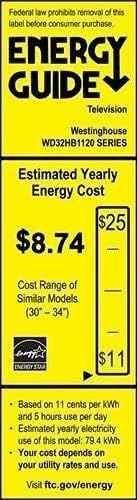
Energy Guide label for the Westinghouse WD32HB1120 television, showing estimated yearly energy cost and consumption details.
Warranty and Support
For warranty information and technical support, please refer to the warranty card included with your product or visit the official Westinghouse website. Keep your purchase receipt as proof of purchase for warranty claims.
Online Support: www.westinghouseelectronics.com/support/