
1. Product Overview
The ELP 5MP Wide Angle USB Camera Module is a compact, high-resolution camera designed for various applications including computers, Raspberry Pi, Lightburn, and laser engravers. It features a 5-megapixel Aptina MI5100 CMOS sensor, providing clear and true-color images. The 100-degree low distortion lens ensures accurate visual representation. This module is UVC compliant, offering plug-and-play functionality across multiple operating systems.
Key Features:
- Super high resolution: 5MP (2592x1944) for detailed imaging.
- Image Sensor: Aptina MI5100 CMOS for high quality and accurate color.
- Lens: 100-degree wide-angle with low distortion for true-to-life images.
- Connectivity: High-speed USB 2.0 interface.
- Compact Design: Small outline (38x38mm/32x32mm) suitable for embedded applications.
- Compatibility: UVC support for Linux, Windows XP/7/8/10, WIN CE, MAC, and Android (with OTG).
2. What's in the Box
Upon opening your ELP 5MP Wide Angle USB Camera Module package, you should find the following items:
- 1 x ELP 5MP USB Camera Module
- 1 x 1-meter USB Cable
- 1 x User Manual
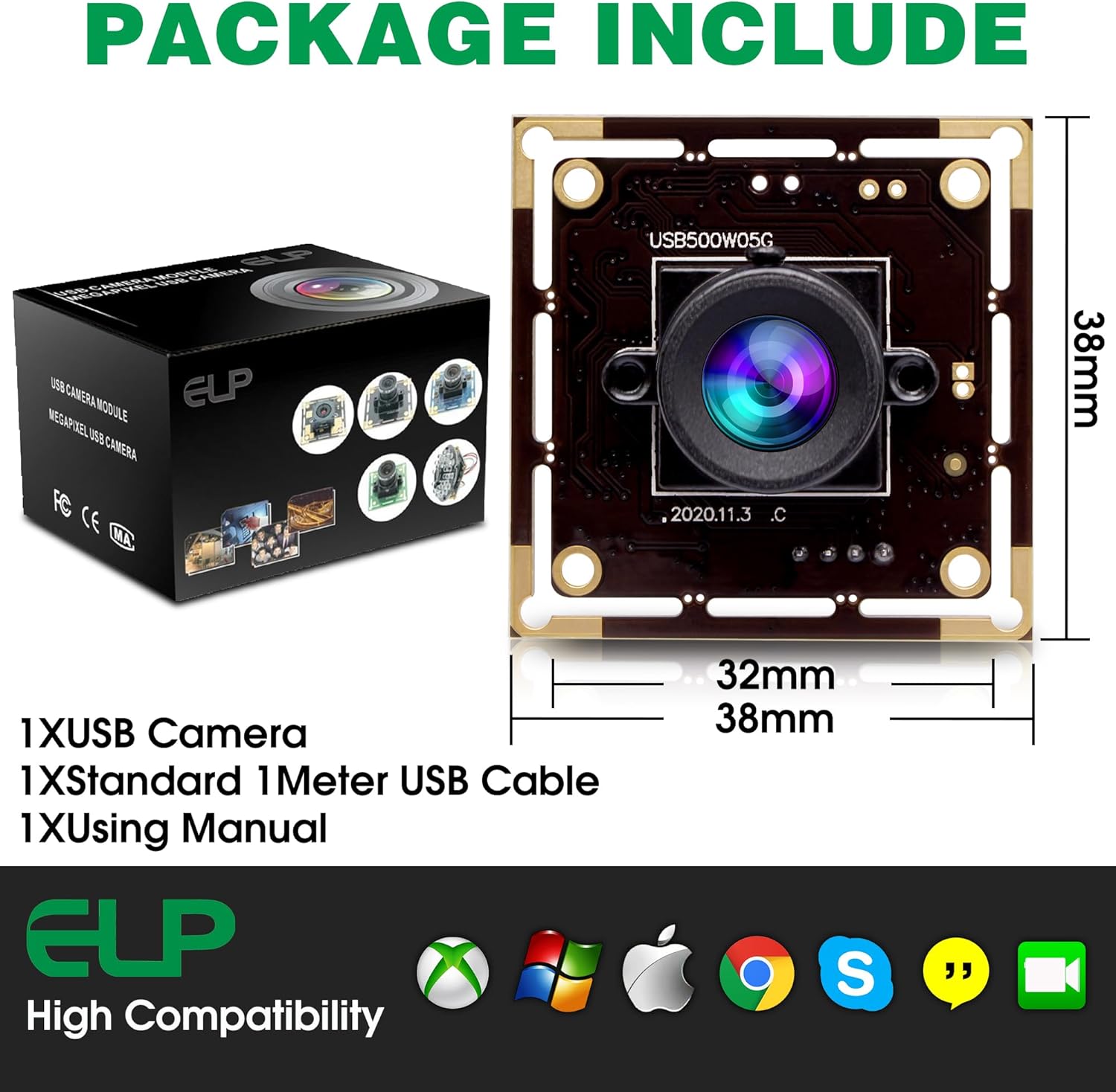
Image: Contents of the ELP 5MP USB Camera Module package, including the camera module, USB cable, and user manual.
3. Setup Instructions
3.1 Connecting the Camera Module
- Prepare the Module: Ensure the camera module is securely positioned for your intended application.
- Connect USB Cable: Insert the smaller end of the provided 1-meter USB cable into the camera module's USB port.
- Connect to Host Device: Plug the standard USB-A end of the cable into an available USB 2.0 port on your computer, Raspberry Pi, Jetson Nano, or other compatible host device.
- Power On: The camera module is typically powered via the USB connection. No external power supply is usually required.

Image: The ELP 5MP USB Camera Module connected to a laptop, demonstrating its plug-and-play UVC compatibility across various operating systems.
3.2 Driver Installation (UVC Compliant)
The ELP 5MP USB Camera Module is UVC (USB Video Class) compliant. This means it does not require specific driver installation on most modern operating systems. It should be recognized automatically as a standard webcam or video input device.
- Windows: Compatible with Windows XP SP2 or above, Windows 7/8/10. The system will typically install necessary drivers automatically.
- Linux: Compatible with Linux kernel 2.6.24 or above.
- Mac OS: Compatible with Mac OS X 10.4.8 or later.
- Android: Compatible with Android Version 4.0 or above, supporting OTG (On-The-Go) functionality.

Image: Visual representation of the camera module's broad compatibility with Linux, Windows, Android, and Mac OS.
4. Operating the Camera Module
4.1 Accessing the Camera Feed
Once connected, you can access the camera feed using various software applications:
- Windows: Use the built-in Camera app, or third-party software like AMCAP, OBS Studio, or Lightburn.
- Linux: Use applications like Cheese, VLC, or mjpg-streamer (for Raspberry Pi).
- Mac OS: Use Photo Booth, QuickTime Player, or other compatible webcam software.
- Android: Use OTG camera apps available on app stores.
4.2 Adjusting Camera Parameters
Most camera software allows you to adjust various parameters to optimize image quality for your specific environment. Common adjustable parameters include:
- Brightness
- Contrast
- Hue
- Saturation
- Sharpness
- Gamma
- White Balance
- Backlight Contrast
- Gain
- Frequency (Anti-flicker)
- Exposure
Refer to your chosen software's documentation for specific instructions on accessing and modifying these settings.
Video: Demonstration of adjusting camera parameters and selecting different resolutions using AMCAP software on a PC. This video illustrates how to fine-tune image settings for optimal performance.
Video: Overview of the ELP 16MP USB camera module, demonstrating its connection to a PC and the process of selecting various resolutions and adjusting parameters via AMCAP software. This highlights the flexibility in resolution options.
4.3 Resolution and Frame Rate
The camera supports various resolutions up to 2592x1944 (5MP). The frame rate may vary depending on the selected resolution and the capabilities of your host device and software. For optimal performance, ensure your software is configured to use the appropriate resolution and compression mode (e.g., MJPEG or YUY2).

Image: A visual comparison of image clarity at different resolutions (720P, 1080P, 1944P) captured by the ELP 5MP camera module, emphasizing its high-resolution capabilities.
4.4 Low Distortion Lens
The 100-degree lens is designed to minimize optical distortion, which is crucial for applications requiring accurate geometric representation, such as scanning or measurement. This ensures that straight lines appear straight and objects maintain their natural proportions.
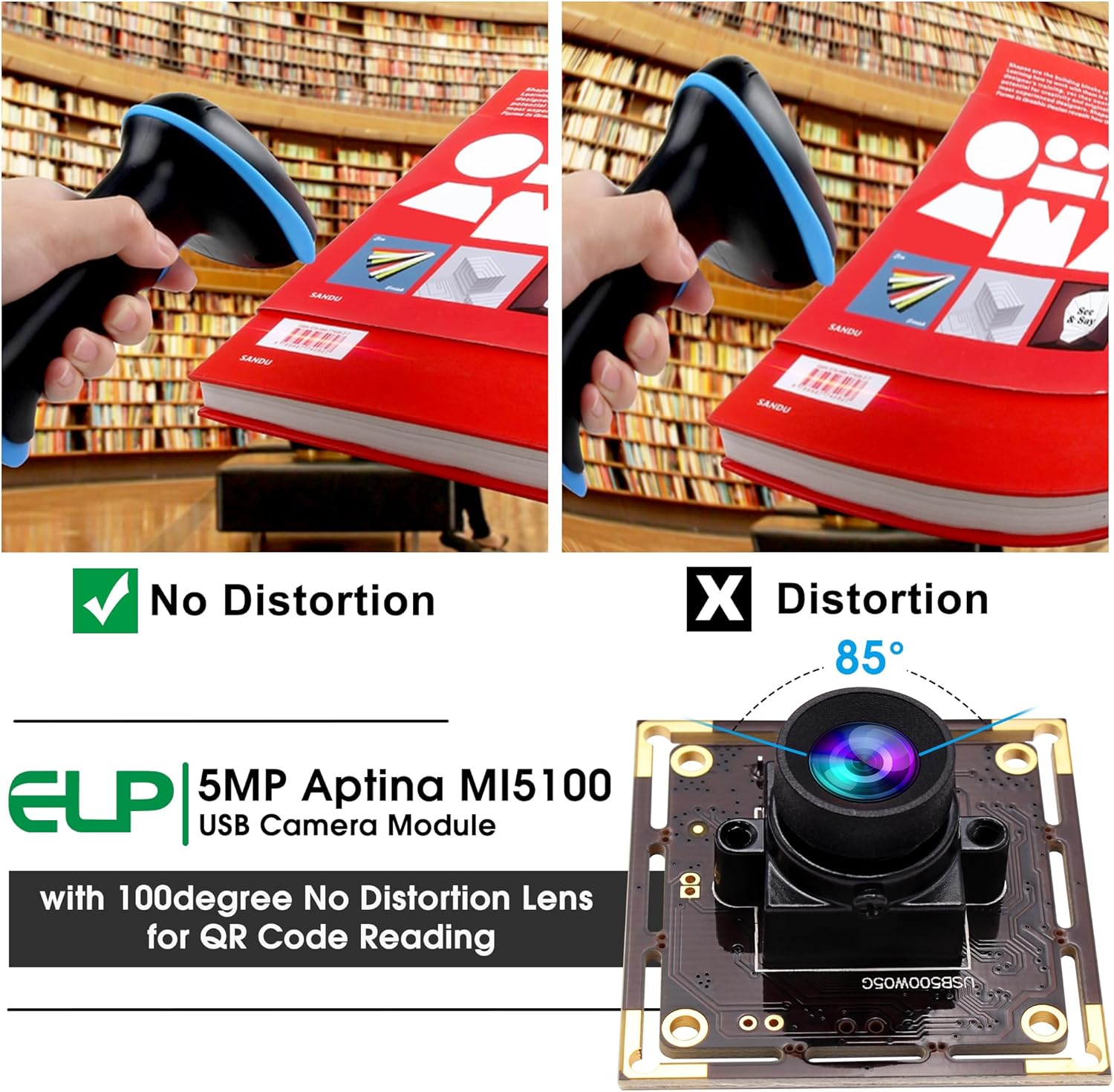
Image: A side-by-side comparison illustrating the difference between an image captured with a no-distortion lens and one with an 85-degree distorted lens, highlighting the clarity provided by the ELP 5MP module's 100-degree no-distortion lens.
5. Maintenance
To ensure the longevity and optimal performance of your ELP 5MP USB Camera Module, follow these maintenance guidelines:
- Cleaning the Lens: Use a soft, lint-free microfiber cloth specifically designed for optics to gently wipe the lens. For stubborn smudges, a small amount of lens cleaning solution can be applied to the cloth (not directly to the lens).
- Dust Removal: Use a blower brush or compressed air (designed for electronics) to remove dust from the lens and circuit board. Avoid touching the circuit board components directly.
- Storage: When not in use, store the camera module in a clean, dry, and dust-free environment. Keep it away from extreme temperatures and humidity.
- Handling: Handle the camera module by its edges to avoid touching the lens or sensitive electronic components.
- Cable Care: Avoid bending or crimping the USB cable excessively, as this can damage the internal wires.
6. Troubleshooting
If you encounter issues with your ELP 5MP USB Camera Module, refer to the following common troubleshooting steps:
6.1 Camera Not Detected
- Check USB Connection: Ensure the USB cable is securely plugged into both the camera module and the host device. Try a different USB port.
- Restart Host Device: Sometimes a simple restart of your computer or Raspberry Pi can resolve detection issues.
- Try Different Cable/Device: Test the camera with a different USB cable or on another compatible host device to rule out cable or port issues.
- Verify UVC Support: Confirm that your operating system and software fully support UVC devices.
6.2 No Image or Black Screen
- Software Selection: Ensure the correct camera is selected as the video input device within your application (e.g., AMCAP, OBS Studio).
- Application Permissions: On some operating systems, applications may require explicit permission to access the camera. Check your system's privacy settings.
- Resolution/Format Settings: Incorrect resolution or video format settings in the software can sometimes cause a black screen. Try adjusting these settings to a default or lower resolution (e.g., 640x480, MJPEG).
6.3 Poor Image Quality (Blurry, Grainy, Distorted)
- Clean Lens: Refer to the Maintenance section for instructions on cleaning the lens.
- Lighting Conditions: Ensure adequate and even lighting in your environment. Poor lighting can lead to grainy images.
- Software Settings: Adjust brightness, contrast, exposure, and white balance settings within your camera software.
- Resolution: Ensure you are using a sufficiently high resolution for your needs.
6.4 Low Frame Rate
- Reduce Resolution: Lowering the resolution can significantly increase the frame rate.
- Change Compression: Switch between MJPEG and YUY2 compression modes in your software settings, as one may offer better performance than the other depending on your system.
- USB Port: Ensure you are using a high-speed USB 2.0 port. Using a USB 1.1 port will severely limit performance.
- System Resources: Close other demanding applications to free up CPU and memory resources.
7. Product Specifications
| Feature | Specification |
|---|---|
| Model Number | ELP-USB500W05G-FD100 |
| Image Sensor | Aptina MI5100 CMOS |
| Resolution | 5 Megapixel (2592x1944) |
| Lens Type | 100-degree Wide Angle, Low Distortion |
| Connectivity | USB 2.0 |
| Video Capture Format | MJPEG/YUY2 |
| Maximum Aperture | f/2.4 |
| Product Dimensions | 4.4 x 3.6 x 2.8 inches |
| Item Weight | 3.2 ounces |
| Operating System Support | Linux (2.6.24+), Windows (XP SP2+, 7/8/10), Mac OS X (10.4.8+), Android (4.0+ with OTG) |
| Manufacturer | Ailipu Technology Co.Ltd |
8. Warranty and Support
8.1 Product Warranty
For information regarding the warranty period and terms for your ELP 5MP USB Camera Module, please refer to the documentation provided with your purchase or contact the seller directly. Standard warranties typically cover manufacturing defects.
8.2 Technical Support
If you require technical assistance or have questions not covered in this manual, please contact ELP USB CAMERA, the seller of this product. You can often find contact information on the product packaging or the retailer's website where you made your purchase.
For additional resources and product information, you may visit the ELP Store on Amazon.


