
Introduction
This manual provides instructions for the setup, operation, and maintenance of your Youshiko Large LCD Radio Controlled Wall and Desk Clock, Model YC8055. This clock is designed to provide accurate time, date, indoor temperature, and humidity readings. It automatically synchronizes with the MSF radio time signal from the UK, ensuring precise timekeeping and automatic adjustments for Daylight Saving Time.
Safety Information
- Use only the specified battery type (2 x AA Mignon LR06).
- Do not mix old and new batteries, or different types of batteries.
- Ensure batteries are inserted with correct polarity (+/-).
- Remove exhausted batteries promptly to prevent leakage.
- Do not expose the clock to extreme temperatures, direct sunlight, or high humidity.
- Keep the clock away from strong magnetic fields.
- Clean the clock with a soft, dry cloth. Do not use abrasive cleaners or liquids.
Package Contents
- Youshiko Large LCD Radio Controlled Wall and Desk Clock (Model YC8055)
- Integrated stand for desk placement
- Wall mounting holes
Note: 2 x AA batteries are not included and must be purchased separately.
Product Overview
Display Layout
The large LCD screen provides clear visibility of time, date, temperature, and humidity. The display is designed for easy readability in various indoor environments.

Image: Front view of the Youshiko YC8055 clock display, showing the time, date, day, temperature, humidity, and radio signal indicator. Dimensions are overlaid, indicating a height of 279mm and width of 246mm for the main unit, with display sections measuring 63mm and 25mm in height respectively.
Buttons and Controls
The control buttons are located on the back of the unit for setting and adjusting various functions.

Image: Rear view of the Youshiko YC8055 clock, highlighting the control buttons: SET, ALARM, UP (▲), DOWN (▼), WAVE, and SNOOZE. The battery compartment is also visible at the bottom center.
Stand and Mounting Options
The clock can be placed on a desk using its integrated stand or mounted on a wall using the provided hanging holes.
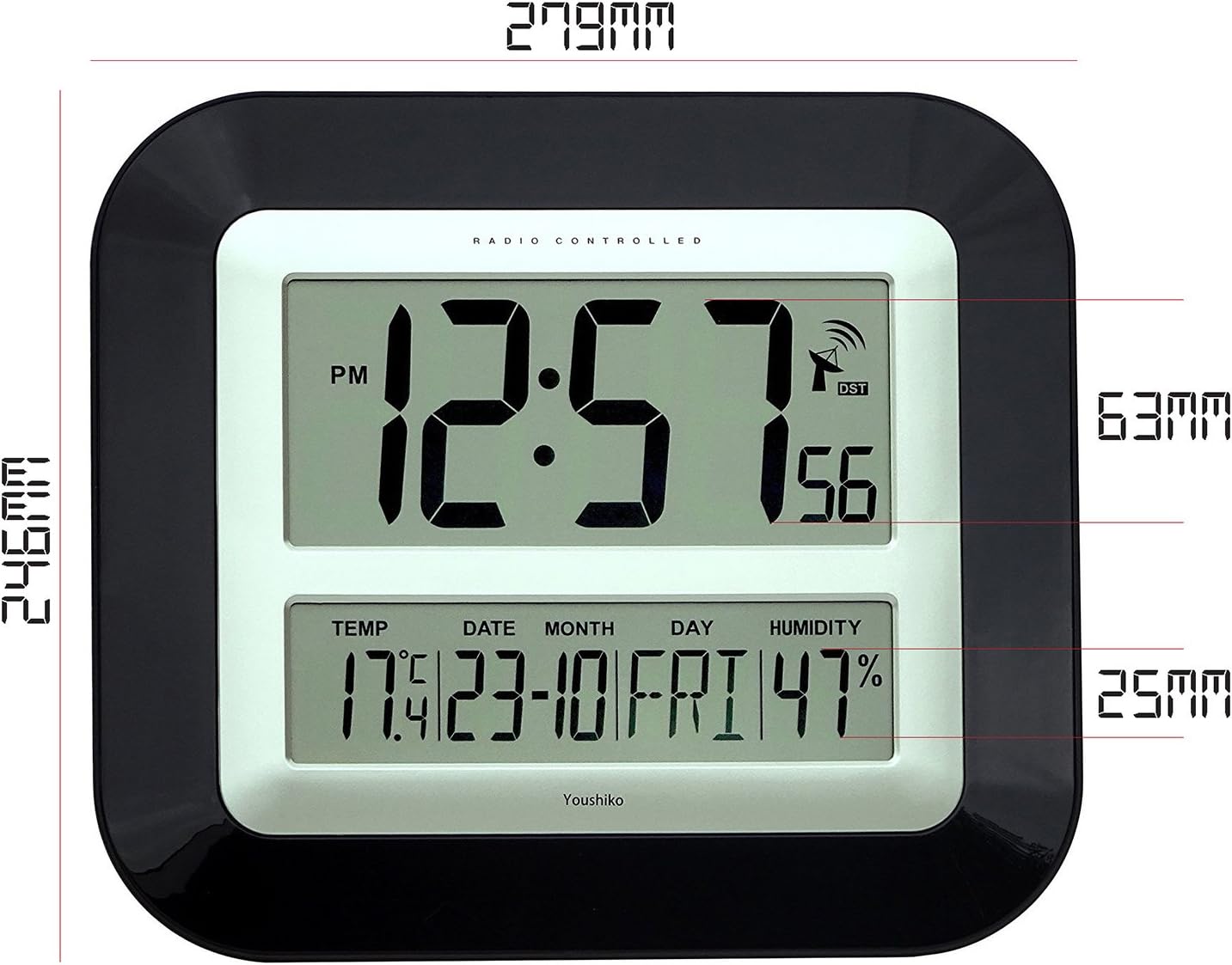
Image: Side view of the Youshiko YC8055 clock, illustrating the extended integrated stand for stable desk placement.
Setup
1. Battery Installation
- Open the battery compartment cover on the back of the clock.
- Insert 2 x AA (LR6) batteries, ensuring correct polarity (+ and -).
- Close the battery compartment cover securely.
2. Initial Radio Signal Reception
Upon battery insertion, the clock will automatically attempt to receive the MSF radio time signal. This process may take a few minutes (typically less than 3 minutes). During this time, an antenna symbol will usually appear on the display, indicating it is searching for the signal. Once the signal is received, the clock will automatically set the correct time, date, and adjust for Daylight Saving Time (DST) if applicable.
If the clock does not set itself within a few minutes, try placing it near a window for better signal reception. Radio-controlled clocks can sometimes struggle to pick up signals in certain rooms or locations due to interference or building materials.
3. Radio Control Systems
This clock is designed for the UK and Ireland market, utilizing the MSF signal. For other regions, different radio control systems may be in use.

Image: Diagram illustrating the two main radio control systems in Europe: MSF for the UK and Ireland (transmitters in Cumbria, UK) and DCF-77 for the rest of Europe (transmitters in Mainflingen, Germany). It advises choosing the correct system for your location.
4. Manual Time/Date Adjustment (if needed)
In rare cases where the radio signal cannot be received, or if you wish to manually adjust certain settings, follow these steps:
- To change 12h/24h display format: Press and hold the [Set] button until the display shows either '12h' or '24h'. Use the [▲] (Up) or [▼] (Down) buttons to toggle to your desired setting. Press [Set] again to confirm. Continue pressing [Set] a few more times until the clock returns to displaying the time.
- Other manual settings (e.g., time zone, specific time/date) may be available by repeatedly pressing the [Set] button. Use the [▲] and [▼] buttons to adjust values.
Operating
Time Display
The clock displays hours, minutes, and seconds. It can be set to either a 12-hour format (with AM/PM indicator) or a 24-hour format.
Date and Day Display
The lower section of the display shows the current date (day and month) and the day of the week.
Temperature and Humidity Display
The clock continuously monitors and displays the indoor temperature (in Celsius or Fahrenheit) and relative humidity. While providing a general indication, these readings are not intended for scientific accuracy.
Alarm Function
The clock includes an alarm with a snooze function.
- Setting the Alarm: Press the [ALARM] button to enter alarm setting mode. Use the [▲] and [▼] buttons to set the desired alarm time. Press [ALARM] again to confirm.
- Activating/Deactivating Alarm: Press the [ALARM] button briefly outside of setting mode to toggle the alarm on or off. An alarm icon will appear on the display when activated.
- Snooze Function: When the alarm sounds, press the [SNOOZE] button to temporarily silence the alarm. The alarm will sound again after a short interval.
Maintenance
Cleaning
Wipe the clock with a soft, dry cloth. Do not use liquid cleaners, sprays, or abrasive materials, as these can damage the display or casing.
Battery Replacement
When the display dims or the clock stops functioning, replace the batteries. Follow the battery installation steps in the Setup section. It is recommended to replace both batteries simultaneously.
Troubleshooting
| Problem | Possible Cause | Solution |
|---|---|---|
| Clock does not display time or is incorrect. | Batteries are low or incorrectly inserted. No radio signal received. | Check battery polarity and replace if necessary. Move the clock to a location near a window and allow it to search for the signal. Manually set the time if signal reception remains an issue. |
| Antenna symbol is flashing or not displayed. | Clock is searching for or has lost the radio signal. | Ensure the clock is placed in an optimal location for signal reception (e.g., near a window, away from electronic interference). Allow several minutes for synchronization. |
| Temperature/Humidity readings seem inaccurate. | Environmental factors or general indication. | The temperature and humidity displays provide general indications and are not calibrated for scientific precision. Ensure the clock is not in direct sunlight or near heat/cold sources. |
| Alarm does not sound. | Alarm is not activated or volume is too low (if adjustable). | Ensure the alarm function is turned on (check for alarm icon on display). This model has a fixed alarm volume. |
Specifications
| Feature | Detail |
|---|---|
| Brand | Youshiko |
| Model Number | YC8055 |
| Display Type | Digital LCD |
| Time Format | 12h / 24h selectable |
| Radio Control | MSF (UK & Ireland) 60 kHz |
| Functions | Time, Date, Day of Week, Indoor Temperature, Indoor Humidity, Alarm with Snooze |
| Temperature Unit | Celsius / Fahrenheit selectable |
| Power Source | 2 x AA (LR6) batteries (not included) |
| Mounting Options | Wall mount or Desk stand |
| Dimensions (H x W x D) | 27.9 cm x 24.6 cm x 3.0 cm (approx. 11 x 9.7 x 1.2 inches) |
| Material | Plastic with clear glass lens |
| Color | Black |
| Indoor/Outdoor Use | Indoor |
| UPC / GTIN | 635346122354 |
Warranty and Support
For warranty information and customer support, please refer to the documentation provided with your purchase or contact Youshiko customer service directly. Keep your proof of purchase for any warranty claims.


