
1. Introduction
This manual provides essential information for setting up, operating, and maintaining your Sonim XP7 XP7700 smartphone. Designed for durability, the Sonim XP7 is an ultra-rugged 4G/LTE device built to withstand challenging environments.
Key Features:
- 2G/3G/4G/LTE Network Compatibility
- MSM8926 1.2 GHz Quad core Chipset
- Corning Gorilla Glass 2 with glove touch, blanview display
- 16GB Internal storage / 1GB RAM
- Micro-SIM Card Type
- Ultra-Rugged, Waterproof design
2. Device Overview
Familiarize yourself with the physical components of your Sonim XP7 smartphone.
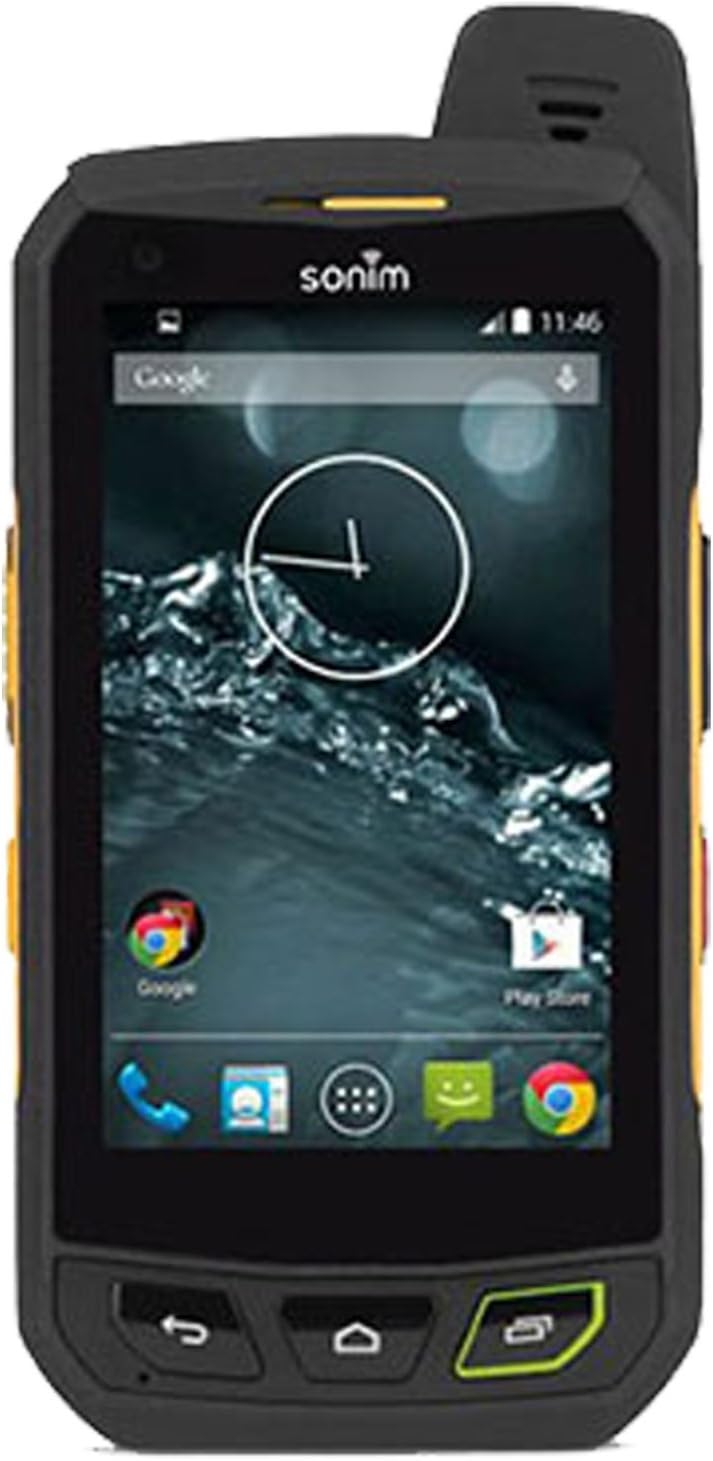
Figure 1: Front View of Sonim XP7. Displays the screen, physical buttons, and front camera.
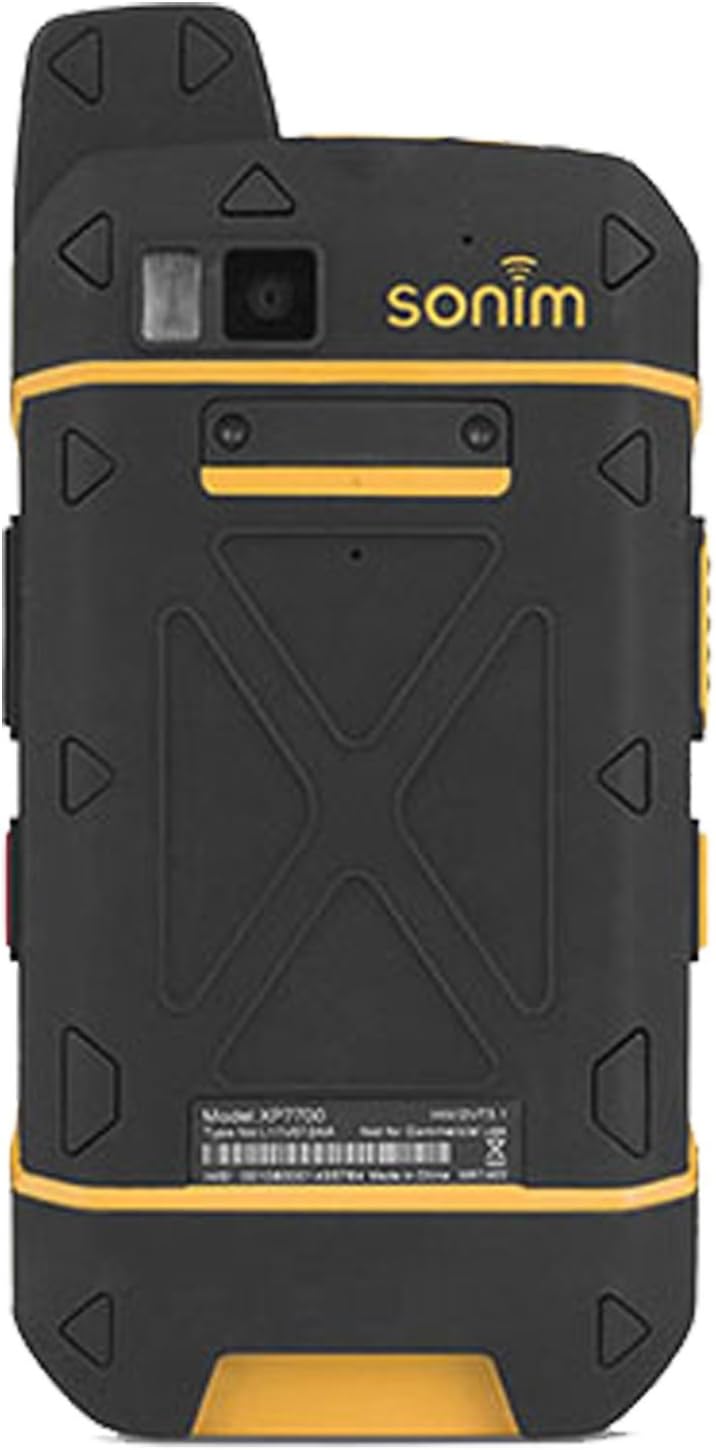
Figure 2: Back View of Sonim XP7. Highlights the rear camera, LED flash, and Sonim branding.
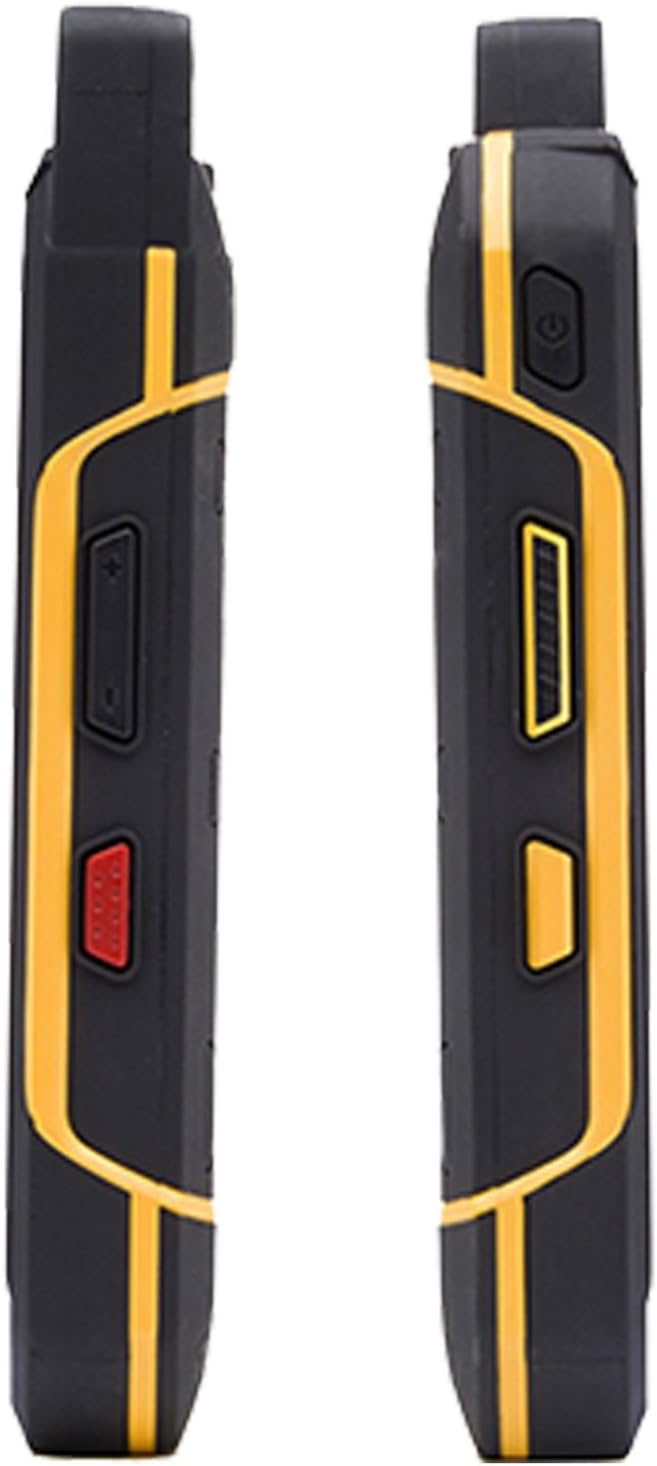
Figure 3: Side View of Sonim XP7. Illustrates the side buttons, including volume controls and a programmable red button.
3. Setup
3.1 SIM Card Installation
- Ensure the device is powered off.
- Locate the SIM card slot cover on the side of the phone.
- Carefully open the cover.
- Insert your Micro-SIM card into the designated slot with the gold contacts facing down.
- Close the SIM card slot cover securely to maintain water and dust resistance.
3.2 Charging the Battery
Your Sonim XP7 comes with a Lithium Ion battery. Use the provided adapter to charge your device.
- Connect the adapter to the charging port on your phone.
- Plug the adapter into a power outlet.
- The charging indicator on the screen will show the charging status.
- A full charge provides approximately 10 hours of talk time.
3.3 Initial Power On
Press and hold the Power button until the Sonim logo appears. Follow the on-screen prompts to complete the initial setup, including language selection and network configuration.
4. Operating Your Sonim XP7
4.1 Basic Navigation
The Sonim XP7 runs on Android 4.4. Navigate the interface using the touchscreen and physical buttons. The device features a glove-touch display for operation with work gloves.
4.2 Making Calls and Messaging
Use the Phone application to make calls. The device features a 100-decibel speaker for clear audio in noisy environments. Access the Messaging application for sending and receiving text messages.
4.3 Connectivity
Your Sonim XP7 supports Bluetooth for connecting to wireless accessories and cellular networks for data and communication.
- Bluetooth: To enable Bluetooth, go to Settings > Wireless & networks > Bluetooth.
- Cellular Data: Ensure your SIM card is active and cellular data is enabled in Settings > Data usage.
4.4 Special Features
The Sonim XP7 is built with several features for demanding use:
- Ultra-Rugged: Designed to meet military durability standards.
- Waterproof: Can withstand immersion in water.
- Corning Gorilla Glass 2: Provides enhanced screen protection against scratches and impacts.
- Glove Touch: Allows for touchscreen operation while wearing gloves.
5. Maintenance
5.1 Cleaning
To clean your Sonim XP7, wipe it with a damp cloth. Avoid using harsh chemicals or abrasive materials that could damage the device's rugged exterior or screen.
5.2 Battery Care
To prolong battery life, avoid exposing the device to extreme temperatures. Charge the battery regularly and avoid complete discharge when possible.
5.3 Durability Tips
While the Sonim XP7 is built to be rugged and waterproof, always ensure all port covers are securely closed to prevent water and dust ingress, especially before exposing the device to wet or dusty conditions.
6. Troubleshooting
If you encounter issues with your Sonim XP7, try the following basic troubleshooting steps:
- Device not powering on: Ensure the battery is charged. Connect the device to the charger for at least 15 minutes before attempting to power it on again.
- No network signal: Check that your SIM card is correctly inserted. Verify that cellular data is enabled in settings. If the issue persists, contact your service provider.
- Touchscreen unresponsive: Restart the device. If the screen remains unresponsive, ensure it is clean and dry.
- Audio issues: Check volume settings. Ensure no debris is blocking the speaker or microphone.
For more complex issues, refer to the official Sonim support resources or contact your retailer.
7. Specifications
| Feature | Detail |
|---|---|
| Product Dimensions | 5.39 x 0.83 x 2.83 inches |
| Item Weight | 10.2 ounces |
| Item Model Number | SONIM XP7 |
| Batteries | 1 Lithium Ion batteries required (included) |
| Operating System | Android 4.4 |
| RAM | 1 GB |
| Memory Storage Capacity | 16 GB |
| CPU Model | Snapdragon |
| CPU Speed | 1.2 GHz |
| Screen Size | 3 Inches |
| Resolution | 480 x 800 |
| Special Features | Ultra-Rugged, Glove Touch, Waterproof, Corning Gorilla Glass |
| Connectivity Technologies | Bluetooth, Cellular |
| Audio Jack | 3.5 mm |
| Whats in the box | Adapter |
8. Warranty and Support
This device typically comes with a 30-day store warranty. For specific warranty details and support, please refer to the documentation provided at the time of purchase or contact your retailer directly. Manufacturer support information may also be available on the official Sonim website.


