
1. Introduction
This manual provides comprehensive instructions for the installation, operation, and maintenance of your EDUP EP-AC1605 802.11AC 1200Mbps Dual-Band USB 3.0 Wireless Adapter. This device allows your computer to connect to wireless networks at high speeds, utilizing both 2.4GHz and 5.8GHz frequency bands for optimal performance.
Please read this manual carefully before using the product to ensure proper setup and functionality. Keep this manual for future reference.
2. Package Contents
Verify that all items are present in your package:
- 1x EDUP EP-AC1605 Wireless Adapter
- 2x Detachable Antennas
- 1x USB 3.0 Cable
- 1x Driver CD
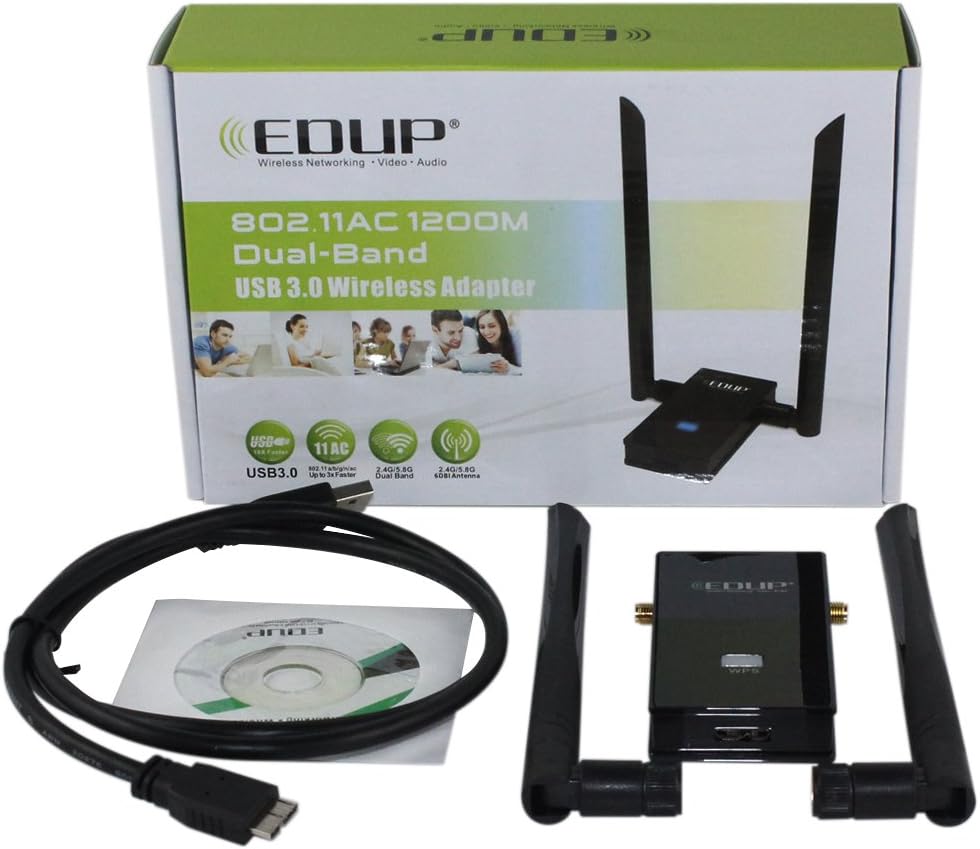
Image: Contents of the EDUP EP-AC1605 Wireless Adapter retail package.
3. Product Features
- Dual-Band Support: Operates on both 2.4GHz (up to 300Mbps) and 5.8GHz (up to 867Mbps) frequencies for flexible and high-speed connectivity.
- 802.11AC Standard: Complies with the latest Wi-Fi standard for faster speeds and improved efficiency.
- USB 3.0 Interface: Provides high-speed data transfer to fully utilize the adapter's capabilities.
- 2x2 Technology: Advanced antenna technology for enhanced signal strength and coverage.
- Wireless Security: Supports 64/128-bit WEP, WPA, and WPA2 encryption protocols.
- QoS Enhancement: Includes WMM (Wi-Fi Multimedia) for improved quality of service.
- Soft AP Mode: Allows the adapter to function as a Wi-Fi hotspot (requires driver utility).
- WPS Hardware Button: For easy and secure connection to WPS-enabled routers.
- Wide OS Compatibility: Supports Windows XP/Vista/7/8/8.1, Linux, and Mac operating systems.
4. Setup and Installation
4.1 Hardware Installation
- Attach Antennas: Carefully screw the two detachable antennas onto the connectors on the wireless adapter. Ensure they are securely fastened but do not overtighten.
- Connect to Computer: Plug the USB 3.0 cable into the adapter's USB port and then connect the other end to an available USB 3.0 port on your computer. While the adapter is compatible with USB 2.0, a USB 3.0 port is recommended for optimal performance.

Image: The EDUP EP-AC1605 adapter with its two external antennas connected.
4.2 Driver Installation
The adapter requires specific drivers to function correctly. Follow these steps:
- Insert Driver CD: Place the included driver CD into your computer's CD/DVD drive. If your computer does not have a CD drive, you can download the latest drivers from the official EDUP website.
- Run Setup: Navigate to the CD drive (or downloaded folder) and run the setup executable (e.g.,
setup.exeorinstall.exe). - Follow On-Screen Prompts: Follow the instructions provided by the installation wizard. You may need to restart your computer after installation.
- Important Note on Driver Installation: Some users have reported issues when installing drivers with an active internet connection, or when using a USB 3.0 port initially. If you encounter problems detecting networks after installation, try the following:
- Disconnect from the internet before installing the drivers.
- If issues persist, try connecting the adapter to a USB 2.0 port for initial driver installation, then switch back to USB 3.0 if desired.

Image: Connection diagram illustrating the wireless adapter's role in connecting a PC to a router.
5. Operating Instructions
5.1 Connecting to a Wi-Fi Network
- After successful driver installation, your computer should detect available wireless networks.
- Click on the Wi-Fi icon in your system tray (Windows) or menu bar (Mac/Linux).
- Select your desired Wi-Fi network (SSID) from the list.
- Enter the network security key (password) if prompted.
- Click Connect. Your computer should now be connected to the internet.
5.2 Using the WPS Button
The WPS (Wi-Fi Protected Setup) button provides a quick and secure way to connect to a WPS-enabled router without entering a password.
- Press the WPS button on your EDUP EP-AC1605 adapter (labeled "WPS").
- Within two minutes, press the WPS button on your wireless router.
- The adapter and router will automatically establish a secure connection.

Image: Detail of the adapter's WPS button and USB 3.0 port.
5.3 Soft AP Mode (Access Point)
The Soft AP feature allows your wireless adapter to act as a Wi-Fi hotspot, sharing your computer's internet connection with other devices. This feature is typically enabled and configured through the driver utility software installed with the adapter.
- Open the EDUP wireless utility software (usually found in your system tray or Start Menu).
- Look for an option labeled "AP Mode," "Soft AP," or "Virtual Wi-Fi."
- Configure the SSID (network name) and password for your new hotspot.
- Enable the Soft AP mode. Other devices can now connect to your computer's shared internet connection.
6. Maintenance
- Keep Clean: Regularly clean the adapter with a soft, dry cloth. Avoid using liquid cleaners.
- Environmental Conditions: Store and operate the adapter in a cool, dry environment. Avoid extreme temperatures, direct sunlight, and high humidity.
- Ventilation: Ensure the adapter is not obstructed and has adequate airflow, especially during prolonged use.
- Driver Updates: Periodically check the official EDUP website for updated drivers. Keeping your drivers current can improve performance and stability.
- Antenna Care: Handle the antennas carefully. Do not bend or force them, as this can damage the connectors.
7. Troubleshooting
- Adapter not detected or not working:
- Ensure the adapter is securely plugged into a USB port.
- Try a different USB port, preferably a USB 3.0 port if available.
- Verify that drivers are correctly installed. Reinstall drivers if necessary, following the special note in Section 4.2.
- Check Device Manager (Windows) or System Information (Mac/Linux) to see if the adapter is recognized.
- Cannot find any Wi-Fi networks:
- Ensure your router is powered on and broadcasting a Wi-Fi signal.
- Check that the antennas are properly attached to the adapter.
- Verify that the wireless function is enabled on your computer.
- Reinstall drivers, ensuring no internet connection during the process, as per Section 4.2.
- Slow connection speed or frequent disconnections:
- Ensure you are connected to the 5GHz band for higher speeds, if your router supports it and you are within range.
- Move closer to your wireless router to improve signal strength.
- Check for interference from other electronic devices (e.g., microwaves, cordless phones).
- Update your adapter's drivers to the latest version.
- Restart your router and computer.
- WPS connection fails:
- Ensure your router supports WPS and that the feature is enabled.
- Press the WPS buttons on both the adapter and router within the two-minute window.
- Try connecting manually by selecting the network and entering the password.
8. Specifications
| Model Number | EDUP AC1605 |
| Wireless Standards | IEEE 802.11a/b/g/n/ac Draft 2.0 |
| Frequency Bands | 2.4GHz / 5.8GHz (Dual-Band) |
| Data Rate | Up to 300Mbps (2.4GHz), Up to 867Mbps (5.8GHz) |
| Interface | USB 3.0 (backward compatible with USB 2.0) |
| Wireless Security | 64/128-bit WEP, WPA, WPA2 |
| Modulation | DSSS with DBPSK, DQPSK, CCK; OFDM with BPSK, QPSK, 16QAM, 64QAM, 256QAM |
| Bandwidth | 20MHz, 40MHz, 80MHz |
| Operating System Support | Windows XP/Vista/7/8/8.1, Linux, Mac |
| Dimensions (Package) | 20.32 x 13.46 x 5.33 cm |
| Weight (Package) | 226.8 g |
9. Warranty and Support
The EDUP EP-AC1605 Wireless Adapter comes with a standard manufacturer's warranty. Please refer to the warranty card included in your package or visit the official EDUP website for detailed warranty terms and conditions.
For technical support, driver downloads, or further assistance, please contact your retailer or visit the official EDUP support website. Ensure you have your product model number (EP-AC1605) and purchase information ready when seeking support.
Official EDUP Website: www.edup.com (Please note: This is a placeholder link. Verify the actual official website for EDUP products.)


