
NSS NSVS710
NSVS710 NSS "NSVS7 Series" 10-channel Standalone NVR User Manual
Model: NSVS710
Introduction
This manual provides detailed instructions for the setup, operation, maintenance, and troubleshooting of the NSS NSVS710 10-channel Standalone Network Video Recorder (NVR). The NSVS710 is designed for robust and stable video surveillance, featuring an embedded Linux OS and broad compatibility with various IP cameras.
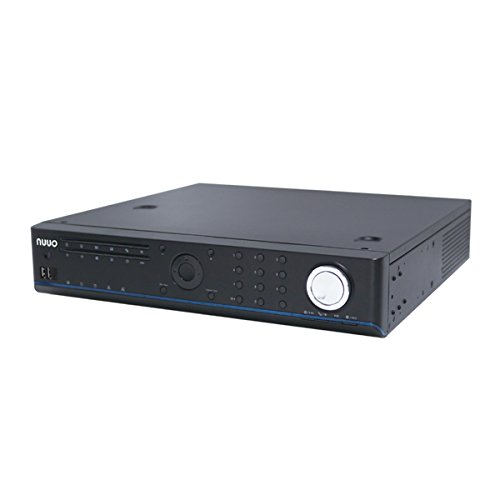
Figure 1: NSS NSVS710 Standalone NVR. This image displays the front of the NVR unit, highlighting its compact design and accessible control panel, including USB ports and various indicator lights.
Setup
Follow these steps to set up your NSVS710 NVR:
- Unpacking: Carefully remove the NVR from its packaging. Ensure all components are present.
- Power Connection: Connect the provided power adapter to the NVR and then to a power outlet.
- Network Connection: Connect an Ethernet cable from the NVR's LAN port to your network router or switch.
- Display Connection: Connect a monitor to the NVR's HDMI output port.
- Peripheral Connection: Connect a USB mouse and keyboard to the NVR's USB ports for local control. The NVR can be operated without a PC.
- Initial Boot: Power on the NVR. The system will boot up, displaying the initial setup wizard on the connected monitor.
- Language Selection: The system supports Japanese menus. Select your preferred language during the initial setup.
- Camera Registration (One-Click Setup): Utilize the one-click setup function to easily register compatible IP cameras. This feature eliminates the need to manually input camera IP addresses or account information. The NVR is compatible with IP cameras from various manufacturers, allowing for a unified surveillance system even with mixed camera brands.
Operating
The NSVS710 NVR offers various functionalities for effective surveillance management:
- Live View: Access live video feeds from all connected cameras on the connected monitor or via remote access.
- Recording: Configure recording schedules, motion detection recording, and continuous recording settings. The NVR comes with 2TB of storage.
- Playback: Review recorded footage using the intuitive playback interface. Search by date, time, or event.
- Remote Access (ezNUUO System):
The ezNUUO system enables easy remote access without requiring port forwarding or a fixed IP address. Simply enter the recorder's server ID on the dedicated ezNUUO website from a web browser to view live feeds and manage settings remotely.
Additionally, live video can be viewed on mobile devices such as iPhone, iPad, and Android phones using the dedicated mobile application.
- WDR Function: The basic Wide Dynamic Range (WDR) function corrects image gradation to prevent underexposure of subjects in environments with significant light/dark differences, such as strong backlighting.
- CMS Compatibility: The NVR is compatible with NUUO's Central Management System (NCMS) for advanced multi-device management.
Maintenance
Regular maintenance ensures optimal performance and longevity of your NVR system:
- Cleaning: Gently wipe the exterior of the NVR with a soft, dry cloth. Do not use liquid cleaners or aerosols. Ensure ventilation openings are clear of dust and debris.
- Firmware Updates: Periodically check the NSS official website for firmware updates. Keeping the firmware updated ensures the latest features, security patches, and performance improvements.
- Data Backup: Regularly back up important recorded footage to external storage devices to prevent data loss.
- System Restart: If the system experiences minor issues, a simple restart can often resolve them. Power off the NVR, wait a few seconds, and then power it back on.
Troubleshooting
Here are solutions to common issues you might encounter:
| Problem | Possible Cause | Solution |
|---|---|---|
| No video output on monitor. | Loose HDMI cable, incorrect display input, NVR not powered on. | Check HDMI cable connection. Ensure monitor is set to the correct input. Verify NVR power status. |
| Cannot access NVR remotely. | Incorrect Server ID, network connectivity issues, NVR not connected to internet. | Verify the Server ID entered on the ezNUUO site. Check NVR's network cable and internet connection. Ensure NVR is powered on. |
| Cameras not recording. | Recording schedule not set, insufficient storage, camera not properly registered. | Check recording settings and schedules. Verify available storage space. Re-register cameras if necessary using one-click setup. |
| Poor image quality (e.g., dark areas). | Backlighting, WDR function disabled. | Ensure the basic WDR function is enabled in camera settings to compensate for strong backlighting. |
Specifications
Key technical specifications for the NSS NSVS710 NVR:
- Model: NSVS710
- Brand: NSS
- Channels: 10-channel
- Storage: 2TB (Terabytes)
- Operating System: Embedded Linux (for high stability and virus attack resistance)
- Display Output: HDMI
- Control Interface: USB (for mouse and keyboard)
- Remote Access: ezNUUO System (browser-based, mobile app support for iPhone, iPad, Android)
- Compatibility: Broad compatibility with various IP camera manufacturers.
- Features: One-click setup, Basic WDR function, NUUO CMS (NCMS) support.
Warranty and Support
For warranty information and technical support, please refer to the official NSS website or contact your authorized dealer. Keep your purchase receipt as proof of purchase for warranty claims.
Online Resources:
- Official NSS Website: www.nss.co.jp (Please note: This is a placeholder URL, refer to your product documentation for the exact support website.)
- Product Support Page: Check the NSS website for a dedicated support page for the NSVS710 model, which may include FAQs, driver downloads, and firmware updates.
Ask a question about this manual
Ask about setup, troubleshooting, compatibility, parts, safety, or missing instructions. Manuals+ will review the question and use this page’s manual context to help answer it.