
1. Introduction
This manual provides essential instructions for setting up, operating, and maintaining your Philips SW750M/37 Spotify Multiroom Speaker. Please read this manual thoroughly before using the product to ensure proper function and safety. This speaker is designed to stream music directly from Spotify, offering a seamless multiroom audio experience.
2. Important Safety Information
Observe the following safety precautions to prevent electric shock, fire, or damage to the speaker:
- Do not expose the speaker to rain or moisture.
- Do not place objects filled with liquids, such as vases, on the speaker.
- Ensure proper ventilation; do not block any ventilation openings.
- Only use attachments/accessories specified by the manufacturer.
- Unplug the speaker during lightning storms or when unused for long periods.
- Refer all servicing to qualified service personnel.
3. Package Contents
Verify that your package contains the following items:
- Philips SW750M/37 Spotify Multiroom Speaker
- Power Adapter
- Quick Start Guide
- Safety and Warranty Information
4. Product Overview
Familiarize yourself with the components of your Philips SW750M/37 speaker.
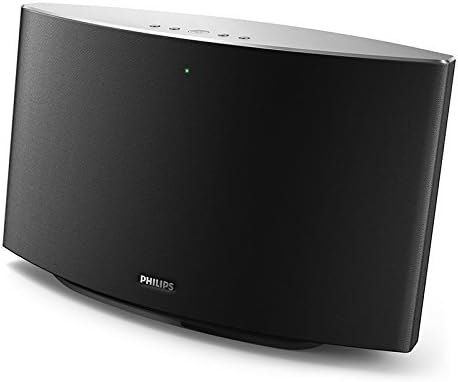
A front-angled view of the Philips SW750M/37 Spotify Multiroom Speaker. The speaker features a black fabric grille on the front, a silver-colored top panel with control buttons, and a small green LED indicator light.
4.1 Top Panel Controls
- Power Button: Turns the speaker on or off.
- Volume Up/Down: Adjusts the playback volume.
- Play/Pause: Controls music playback.
- Direct Access Buttons (1, 2, 3): Customizable buttons for instant access to favorite Spotify playlists or stations.
- Status Indicator LED: Displays the speaker's current status (e.g., connected, playing, standby).
4.2 Rear Panel Connections
- DC IN: Power adapter connection port.
- AUX IN: For connecting external audio devices via a 3.5mm audio cable (cable not included).
- Service Port: For service use only.
5. Setup
5.1 Power Connection
- Connect the power adapter to the DC IN port on the rear of the speaker.
- Plug the power adapter into a wall outlet.
- Press the Power Button on the top panel to turn on the speaker. The status indicator LED will illuminate.
5.2 Network Connection (Wi-Fi)
The Philips SW750M/37 requires a Wi-Fi connection to access Spotify Connect features.
- Download the Philips Speaker Setup app from your device's app store (iOS or Android).
- Open the app and follow the on-screen instructions to connect your speaker to your home Wi-Fi network.
- Ensure your mobile device is connected to the same Wi-Fi network as the speaker during setup.
5.3 Spotify Connect Setup
A Spotify Premium account is required to utilize Spotify Connect features with this speaker.
- Ensure your speaker is connected to your Wi-Fi network.
- Open the Spotify app on your mobile device or computer.
- Play a song and tap the 'Devices Available' icon (usually a speaker or computer icon) at the bottom of the screen.
- Select your Philips SW750M/37 speaker from the list of available devices.
- Music will now stream directly to your speaker.
5.4 Multiroom Setup
To create a multiroom audio system, you will need multiple Philips Spotify Multiroom Speakers.
- Ensure all speakers are connected to the same Wi-Fi network.
- Use the Philips Speaker Setup app to group speakers or manage individual playback zones.
- Within the Spotify app, you can select individual speakers or speaker groups for playback.
6. Operating Instructions
6.1 Playing Music via Spotify Connect
Once connected via Spotify Connect, your mobile device acts as a remote control. Music streams directly from the cloud to your speaker, preserving your device's battery.
- Use the Spotify app to select tracks, playlists, and control playback (play, pause, skip).
- Incoming calls or other app usage on your mobile device will not interrupt music playback on the speaker.
6.2 Using Direct Access Buttons
The three direct access buttons (1, 2, 3) on the top panel allow for quick playback of your favorite Spotify content without needing to open the app.
- To assign content: While playing a Spotify track or playlist through the speaker, press and hold one of the direct access buttons (1, 2, or 3) for a few seconds until you hear a confirmation tone. The currently playing content is now assigned to that button.
- To play assigned content: Simply press the corresponding direct access button (1, 2, or 3). The speaker will immediately start playing the assigned Spotify content.
6.3 Adjusting Volume
- Use the Volume Up/Down buttons on the speaker's top panel.
- Adjust the volume directly within the Spotify app on your connected device.
6.4 AUX Input
To play audio from a device without Spotify Connect:
- Connect a 3.5mm audio cable (not included) from your external audio device's headphone jack or audio out port to the AUX IN port on the speaker.
- The speaker will automatically switch to AUX input mode.
- Control playback and volume from your external audio device.
7. Maintenance
7.1 Cleaning
- Wipe the speaker's surface with a soft, dry cloth.
- Do not use cleaning agents containing alcohol, ammonia, or abrasives.
- Avoid spraying liquids directly onto the speaker.
7.2 Storage
If storing the speaker for an extended period, unplug it from the power outlet and store it in a cool, dry place away from direct sunlight and extreme temperatures.
8. Troubleshooting
If you encounter issues with your speaker, refer to the following common problems and solutions.
| Problem | Possible Cause | Solution |
|---|---|---|
| No power | Power adapter not connected or outlet not working. | Ensure the power adapter is securely connected to the speaker and a working power outlet. |
| No sound | Volume too low; incorrect input selected; speaker not connected to Spotify. | Increase volume. Check if Spotify Connect is active or if AUX cable is properly connected. |
| Cannot connect to Wi-Fi | Incorrect Wi-Fi password; speaker too far from router; router issues. | Verify Wi-Fi password. Move speaker closer to router. Restart router and speaker. Re-run setup via the Philips Speaker Setup app. |
| Spotify Connect not working | No Spotify Premium account; speaker not visible in Spotify app. | Ensure you have a Spotify Premium account. Confirm speaker is connected to Wi-Fi. Restart Spotify app and speaker. |
| Direct access buttons not working | Content not assigned or assigned content removed from Spotify. | Re-assign content to the direct access buttons by pressing and holding while playing desired Spotify content. |
9. Specifications
- Model: SW750M/37
- Power Source: Battery / AC Power Adapter
- Output Wattage: 20 Watts
- Speaker Maximum Output: 5 Watts
- Control Method: Remote (via Spotify app), On-device buttons
- Mounting Type: Tabletop Mount
- Features: Spotify Connect, Multiroom Audio, Direct Access Buttons, Surround Sound
- Item Weight: Approximately 4.63 pounds (2.1 kg)
- Waterproof: No
10. Warranty and Support
For warranty information and technical support, please refer to the warranty card included in your package or visit the official Philips support website. Keep your proof of purchase for warranty claims.
Online Support: www.philips.com/support