
Introduction
The MILANIX MX10 is a versatile 10-inch widescreen LCD portable television designed for convenient entertainment on the go. It integrates a full-band digital TV tuner, supporting both ATSC and NTSC standards, enabling reception of local broadcast channels. This unit is equipped with a built-in rechargeable lithium-ion battery for extended portable use and can also be powered via the included AC/DC adapters. For expanded media options, the MX10 features USB and SD card inputs for external audio and video playback, as well as dual AV inputs for connecting to other devices such as DVD players or game systems. Audio output is provided through a built-in speaker and an earphone jack for private listening.
What's in the Box
Please check the package contents to ensure all items are present:
- MILANIX MX10 Portable TV Unit
- Remote Control
- Batteries for Remote Control
- AC Power Adapter
- DC Car Power Adapter
- Telescopic Antenna
- Magnetic Base Antenna
- AV Input Cable (3.5mm to RCA)

Figure 1: Included accessories for the MILANIX MX10 Portable TV. This image displays the remote control, AC power adapter, DC car power adapter, telescopic antenna, magnetic base antenna, and an AV input cable.
Product Overview
Rear Panel and Connectivity

Figure 2: Rear view of the MILANIX MX10 Portable TV. Visible ports include AV OUT, AV IN, the main ON/OFF power switch, and the DC 12V power input jack. The antenna connector is also visible at the top.
- AV OUT: Audio/Video output jack for connecting to an external display or audio system.
- AV IN: Audio/Video input jack for connecting external devices like DVD players or game consoles.
- ON/OFF Switch: Main power switch for the unit.
- DC 12V: Power input jack for connecting the AC or DC power adapters.
- Antenna Connector: For connecting the telescopic or magnetic base antenna.
Side Panel Controls
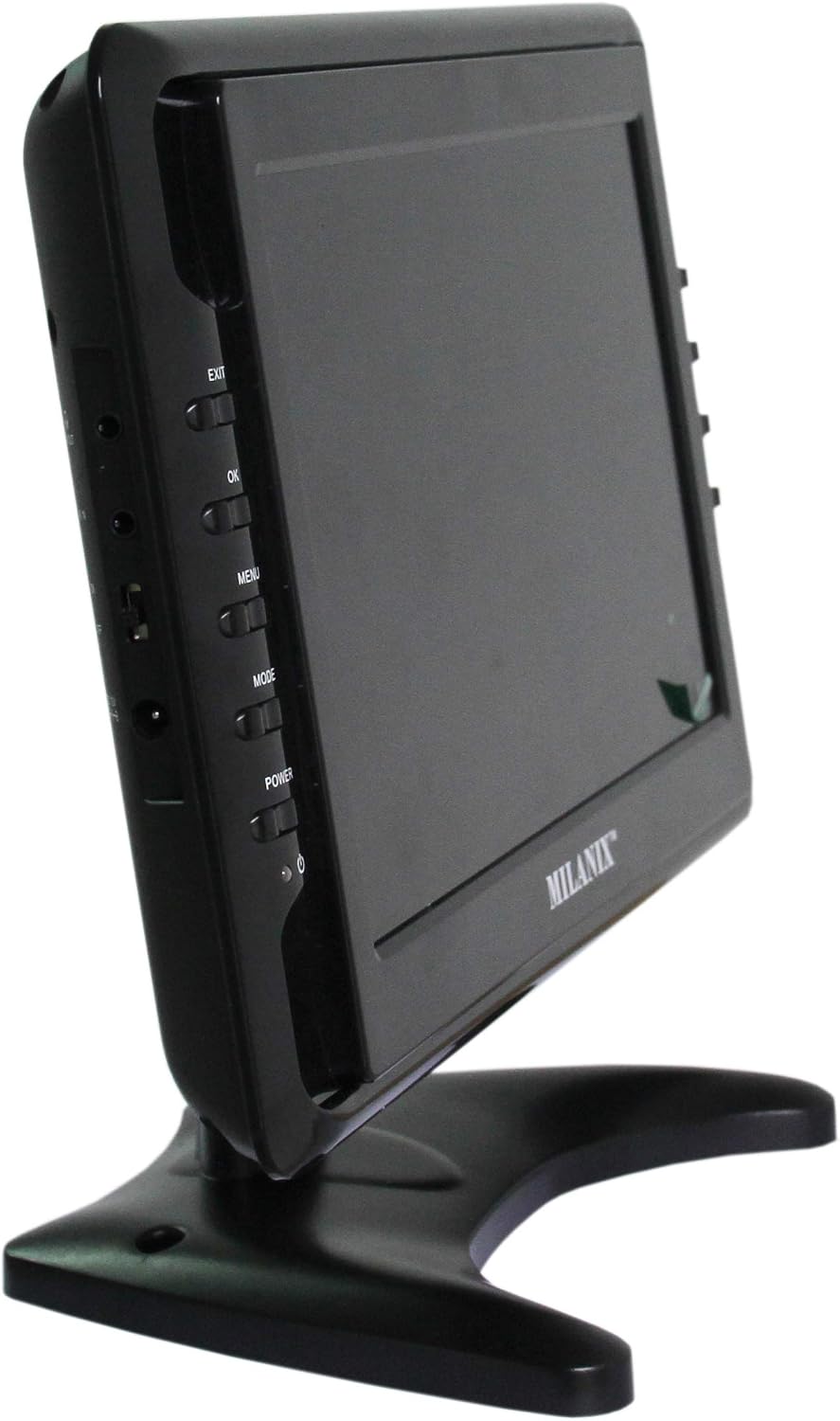
Figure 3: Side view of the MILANIX MX10 Portable TV, highlighting the control buttons. From top to bottom: EXIT, OK, MENU, MODE, and POWER buttons are visible.
- EXIT: Exits current menu or function.
- OK: Confirms selection or enters menu.
- MENU: Accesses the main menu.
- MODE: Switches between input sources (TV, AV, USB, SD).
- POWER: Turns the TV on or off (standby mode).
- Additional buttons for Volume Up/Down and Channel Up/Down are typically located near these controls or on the remote.
Side Panel Media Ports and Stand

Figure 4: Side view of the MILANIX MX10 Portable TV, showing the USB port, SD card slot, and the integrated kickstand for tabletop placement.
- USB Port: For connecting USB flash drives to play media files.
- SD Card Slot: For inserting SD memory cards to play media files.
- Integrated Kickstand: Allows the TV to stand upright on a flat surface.
Setup
- Power Connection:
- For indoor use, connect the AC power adapter to the DC 12V input on the TV and plug it into a wall outlet.
- For in-vehicle use, connect the DC car power adapter to the DC 12V input on the TV and plug it into your vehicle's 12V power socket.
- The built-in rechargeable battery will charge automatically when connected to power. Ensure the battery is sufficiently charged for portable use.
- Antenna Connection:
- Attach either the telescopic antenna or the magnetic base antenna to the antenna connector on the rear of the TV.
- For optimal reception, extend the telescopic antenna fully or place the magnetic base antenna on a metallic surface in an elevated position, away from obstructions.
- Initial Power On:
- Ensure the main ON/OFF switch on the rear panel is in the "ON" position.
- Press the POWER button on the side panel or remote control to turn on the TV.
- First-Time Setup (Channel Scan):
- Upon first use, the TV may prompt you to perform an automatic channel scan. Follow the on-screen instructions.
- If not prompted, press the MENU button, navigate to the "Channel" or "Setup" menu, and select "Auto Scan" or "Auto Tuning" to find available digital and analog channels.
- This process may take several minutes. Do not interrupt it.
Operating Instructions
Basic TV Functions
- Power On/Off: Press the POWER button on the TV or remote.
- Volume Adjustment: Use the VOL+ and VOL- buttons on the remote or side panel.
- Channel Selection: Use the CH+ and CH- buttons on the remote or side panel, or enter channel numbers directly using the remote's numeric keypad.
- Input Source Selection: Press the MODE button on the TV or the "Source" / "Input" button on the remote to cycle through TV, AV, USB, and SD inputs.
Menu Navigation
- Press the MENU button to display the main menu.
- Use the directional arrow buttons (Up/Down/Left/Right) on the remote to navigate through menu options.
- Press the OK button to select an option or enter a sub-menu.
- Use the EXIT button to go back to the previous menu or exit the menu entirely.
- Common menu options include Picture Settings (Brightness, Contrast, Color), Sound Settings (Volume, Equalizer), Channel Settings (Auto Scan, Manual Scan), and System Settings (Language, Time, Sleep Timer).
USB/SD Media Playback
- Insert a USB flash drive into the USB port or an SD card into the SD card slot.
- Press the MODE button repeatedly until "USB" or "SD" is selected as the input source.
- The TV will display a file browser. Navigate through your folders and files using the directional buttons on the remote.
- Press OK to select and play a media file (videos, photos, music).
- Use the remote control for playback functions such as Play, Pause, Stop, Fast Forward, and Rewind.
Maintenance
- Cleaning the Screen: Use a soft, lint-free cloth slightly dampened with water or a screen cleaning solution. Do not spray liquid directly onto the screen.
- Cleaning the Casing: Wipe the exterior with a soft, dry cloth. Avoid abrasive cleaners or solvents.
- Battery Care: For optimal battery life, avoid fully discharging the battery frequently. If storing the TV for an extended period, charge the battery to about 50% and store in a cool, dry place.
- Storage: Store the TV in a dry environment, away from extreme temperatures and direct sunlight.
Troubleshooting
| Problem | Possible Cause | Solution |
|---|---|---|
| No power | Main power switch off, battery depleted, power adapter not connected. | Ensure rear ON/OFF switch is ON. Connect power adapter and charge battery. Press POWER button on TV or remote. |
| No signal / No channels found | Antenna not connected, poor antenna placement, no channel scan performed. | Connect antenna securely. Adjust antenna position for better reception. Perform an "Auto Scan" in the menu. |
| Poor picture quality | Weak signal, incorrect picture settings. | Adjust antenna position. Check picture settings (Brightness, Contrast, Color) in the menu. |
| No sound | Volume too low, Mute enabled, incorrect audio settings. | Increase volume. Press Mute button on remote. Check audio settings in the menu. |
| Remote control not working | Dead batteries, obstruction, remote not pointed at sensor. | Replace remote control batteries. Ensure no obstructions between remote and TV. Point remote directly at the TV's IR sensor. |
| Cannot play media from USB/SD | Incorrect input source, unsupported file format, corrupted media. | Select "USB" or "SD" input using the MODE button. Ensure media files are in supported formats. Try a different USB drive or SD card. |
Specifications
- Model: MX10
- Brand: MILANIX
- Display: 10-inch Widescreen LCD
- Tuner: Full Band Digital TV Tuner (ATSC/NTSC)
- Power Source: AC/DC Adapters, Built-in Rechargeable Lithium-Ion Battery
- Inputs: AV In, USB, SD Card
- Outputs: AV Out, Earphone Jack
- Color: Black
- Product Dimensions: 12 x 9 x 5 inches (approximate)
- Item Weight: 3 pounds (approximate)
- UPC: 600194330046
Warranty and Support
For warranty information or technical support, please refer to the documentation included with your purchase or contact MILANIX customer service directly. Specific warranty terms and support contact details may vary.