
1. Introduction and Overview
The Novation Launchkey Mini (MK2) is a compact and portable MIDI keyboard controller designed for electronic music production, particularly optimized for Ableton Live. Its intuitive layout and bus-powered USB connectivity make it suitable for both studio and on-the-go use. The controller features a 25-note mini keyboard with a fast synth-style action, 16 velocity-sensitive multi-color backlit drum pads, and 8 high-quality assignable knobs. It offers immediate integration with various Digital Audio Workstations (DAWs) like Ableton Live, FL Studio, Pro Tools, Reason, Cubase, and Logic, requiring no complex mapping. The Launchkey Mini (MK2) is also compatible with iPad via a Camera Connection Kit, allowing control over iOS music applications.

Figure 1.1: Top view of the Novation Launchkey Mini MK2, showing the keyboard, pads, and knobs.
2. What's in the Box
Upon opening the product packaging, please ensure all the following items are present:
- Novation Launchkey Mini (MK2) 25-Note USB Keyboard Controller
- Green Micro USB Cable
- Printed Getting Started Guide
- Software Bundle Download Codes/Instructions, including:
- Ableton Live Lite
- XLN Audio Addictive Keys
- Novation Bass Station virtual instrument
- Novation V-Station virtual instrument
- Over 4GB of Loopmasters samples

Figure 2.1: Included software cards and USB cable alongside the Launchkey Mini MK2.
3. Setup
The Launchkey Mini (MK2) is designed for quick and easy setup. It is class-compliant and bus-powered, meaning no external power supply or specific drivers are typically required for basic functionality on compatible operating systems.
3.1 Connecting to a Computer (Mac/PC)
- Locate the Micro USB port on the side of your Launchkey Mini (MK2).
- Connect one end of the provided green Micro USB cable to the Launchkey Mini (MK2).
- Connect the other end of the USB cable to an available USB port on your computer.
- The device will power on automatically and should be recognized by your operating system.
- Install the included software (Ableton Live Lite, virtual instruments) using the provided instructions and download codes.
- Open your preferred DAW (e.g., Ableton Live) and ensure the Launchkey Mini (MK2) is selected as your MIDI input device in the software's preferences.
3.2 Connecting to an iPad
To connect your Launchkey Mini (MK2) to an iPad, you will need an Apple Camera Connection Kit (sold separately). Connect the USB cable from the Launchkey Mini (MK2) to the Camera Connection Kit, and then connect the kit to your iPad. The device will be bus-powered by the iPad.

Figure 3.1: Side view of the Launchkey Mini MK2, highlighting the USB port for connectivity.
4. Operating Instructions
The Launchkey Mini (MK2) provides a range of controls for intuitive music creation and performance.
4.1 Keyboard
The 25-note mini keyboard offers a responsive synth-style action. Use the OCTAVE +/- buttons on the left side to shift the keyboard's octave range up or down, allowing access to a wider range of notes despite the compact size.
4.2 Drum Pads
The 16 multi-color backlit velocity-sensitive drum pads are arranged in a 2x8 grid. These pads are ideal for launching clips, playing drums, and triggering samples. When used with Ableton Live, the pads light up to indicate clip status (loaded, playing, recorded) and are laid out to mirror the Ableton Live session view, with one row for launching clips and another for stopping them.
4.3 Knobs
Eight high-quality knobs are located above the drum pads. These knobs can be assigned to control various parameters within your DAW or virtual instruments, such as volume, pan, filter cutoff, or effects sends. Their functionality is automatically mapped for seamless integration with Ableton Live.
4.4 Navigation and Control Buttons
- TRACK buttons: Used for navigating between tracks in your DAW.
- SCENE buttons: Used for launching scenes in Ableton Live's Session View.
- IN CONTROL button: Activates or deactivates the InControl mode for automatic mapping with supported DAWs.
- HOLD button: Used for sustained notes or other functions depending on the software.
- MIDI Channel button: Allows selection of the MIDI channel.
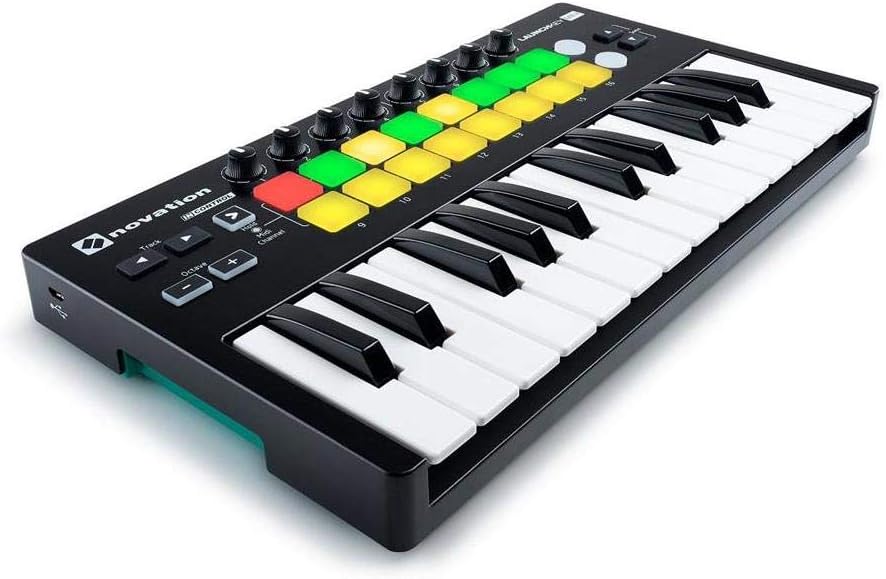
Figure 4.1: Detailed top-down view of the Launchkey Mini MK2, showing the layout of keys, pads, knobs, and control buttons.
5. Maintenance
To ensure the longevity and optimal performance of your Launchkey Mini (MK2), follow these maintenance guidelines:
- Cleaning: Use a soft, dry, lint-free cloth to wipe down the surface of the controller. For stubborn marks, a slightly damp cloth with mild soap can be used, but ensure no liquid enters the device. Avoid abrasive cleaners or solvents.
- Storage: Store the device in a cool, dry place away from direct sunlight, extreme temperatures, and high humidity. When transporting, use a protective bag or case to prevent physical damage.
- Connectivity: Always handle the USB cable and port with care. Avoid pulling the cable forcefully or bending the connector.
6. Troubleshooting
If you encounter issues with your Launchkey Mini (MK2), consider the following troubleshooting steps:
- Device Not Recognized:
- Ensure the USB cable is securely connected to both the Launchkey Mini (MK2) and your computer/iPad.
- Try a different USB port on your computer.
- If using a USB hub, try connecting directly to your computer.
- Restart your computer and the Launchkey Mini (unplug and replug).
- Check your operating system's device manager (Windows) or System Information (macOS) to see if the device is listed.
- No Sound/MIDI Output:
- Verify that the Launchkey Mini (MK2) is selected as the MIDI input device within your DAW's preferences/settings.
- Ensure the correct instrument track is armed for recording or monitoring in your DAW.
- Check that the volume levels in your DAW and on your audio interface/speakers are not muted or too low.
- Confirm that the virtual instrument or software synthesizer is loaded and active.
- Pads/Keys Not Responding:
- Check the MIDI channel settings on the Launchkey Mini (MK2) and ensure it matches the MIDI channel of your instrument in the DAW.
- Ensure the "InControl" mode is correctly set for your DAW.
- If specific pads are not lighting up or responding, try restarting the device.
- Software Issues:
- Ensure your DAW and operating system are up to date.
- Visit the Novation support website for the latest drivers or firmware updates for your Launchkey Mini (MK2).
7. Specifications
| Feature | Detail |
|---|---|
| Model Name | Launchkey Mini [MK2] |
| Item Model Number | AMS-LAUNCHKEY-MINI-MK2 |
| Number of Keyboard Keys | 25 (Mini-keys) |
| Pads | 16 Multi-color backlit, velocity-sensitive drum pads |
| Knobs | 8 Assignable knobs |
| Connectivity Technology | USB |
| Connector Type | Micro USB |
| Hardware Interface | USB 2.0 |
| Hardware Platform | PC/Mac/iOS |
| Supported Software | Ableton Live, FL Studio, Pro Tools, Reason, Cubase, Logic, iOS music apps |
| Item Weight | 1.55 pounds (approx. 0.7 kg) |
| Product Dimensions (L x W x H) | 14.96 x 8.66 x 3.07 inches (approx. 38 x 22 x 7.8 cm) |
| Special Feature | Compact, Portable, Velocity Sensitive Keys/Pads, Bus-powered |
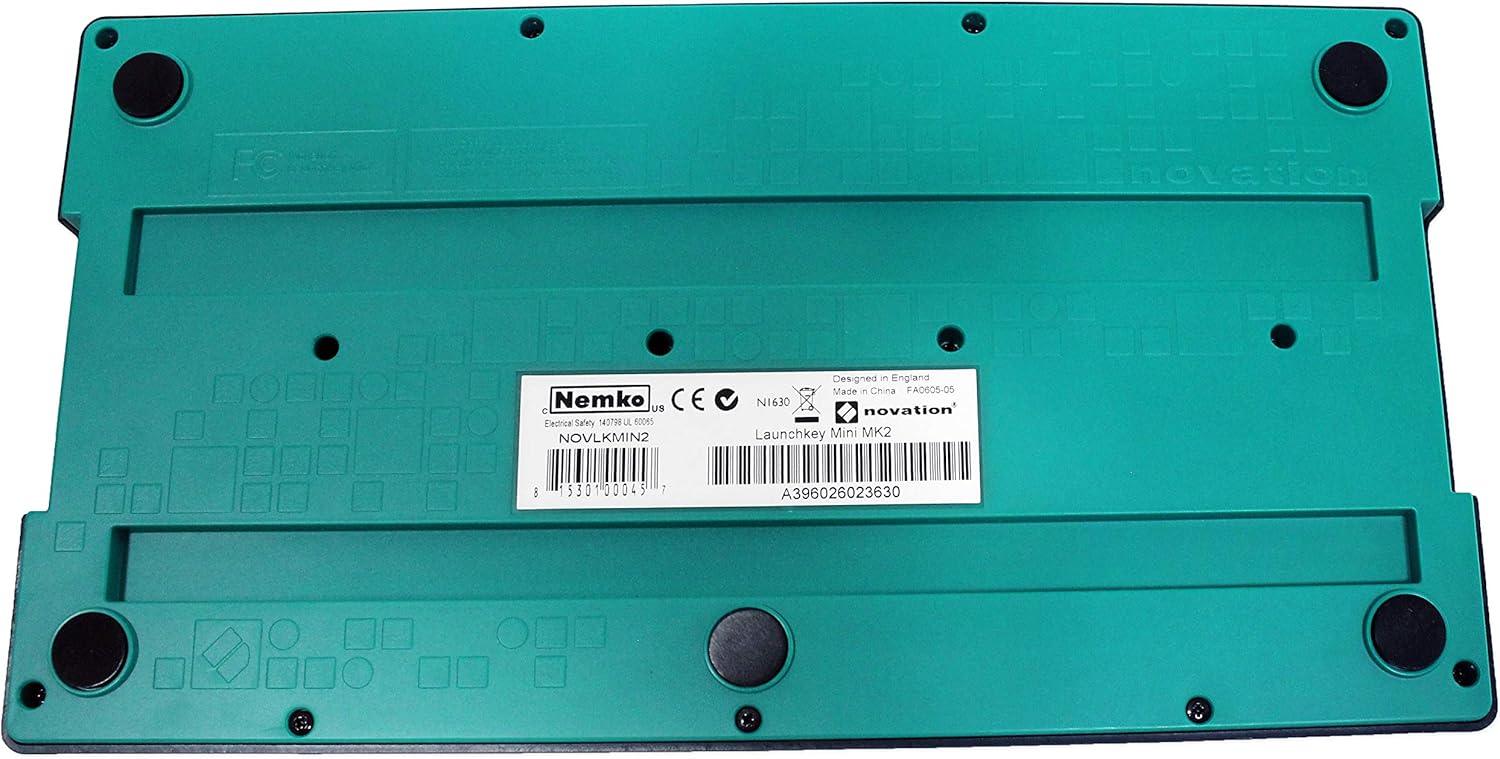
Figure 7.1: Bottom view of the Launchkey Mini MK2, showing product information and rubber feet for stability.
8. Warranty and Support
Novation offers a 3-Year Warranty on the Launchkey Mini (MK2) and all other Novation products. For detailed warranty terms, technical support, or to register your product, please visit the official Novation support website or the Focusrite Group website. Keeping your product registered can facilitate warranty claims and provide access to exclusive content and updates.
For further assistance, please refer to the comprehensive user manual available for download on the Novation website or contact their customer support directly.


