
Introduction
This manual provides instructions for the safe and proper installation and use of your MPF Products replacement battery for Barnes & Noble Nook Color BNTV250, BNTV250A, and BNRV200 7-inch tablets. Please read all instructions carefully before proceeding with installation. This battery is designed to replace original part numbers 6027B0090501, 6027B0107101, AVPB001-A110-01, AVPB003-A110-01, BNA-B002, DR-NK02, ENCORE, and NOOKCOLOR.

Image: MPF Products replacement battery with specifications and safety warnings printed on its label.
Setup and Installation
Installing a replacement battery in your Nook Color tablet requires careful attention. The product includes basic installation tools. For visual guidance, it is highly recommended to search for specific video tutorials online for your Nook Color model (BNTV250, BNTV250A, or BNRV200) before beginning.
Safety Precautions:
- Power Off: Ensure your Nook Color tablet is completely powered off and disconnected from any power source before starting.
- Static Electricity: Work in a clean, dry environment to minimize static discharge.
- Handle with Care: Batteries can be damaged if punctured or mishandled. Avoid bending or crushing the battery.
- Eye Protection: Consider wearing eye protection during the disassembly process.
Installation Steps:
- Prepare Your Workspace: Gather the included tools and ensure good lighting.
- Open the Tablet Casing: Carefully use the provided tools to pry open the back casing of your Nook Color tablet. Start from a corner and work your way around the edges. Be gentle to avoid damaging the plastic clips or internal components.
- Locate and Disconnect the Old Battery: Once the casing is open, locate the existing battery. Identify the battery connector on the tablet's circuit board. Gently disconnect the old battery's cable from the connector. This connector can be delicate; use a thin, non-conductive tool to carefully pry under the wires where they meet the connector if needed.
- Remove the Old Battery: The old battery may be lightly adhered to the tablet's frame. Carefully peel it away.
- Connect the New Battery: Align the connector of the new MPF Products battery with the port on the tablet's circuit board. Gently but firmly press it into place until it is securely seated. Ensure the connection is snug to prevent intermittent power issues.
- Position the New Battery: Place the new battery into the battery compartment. It should fit without excessive force.
- Close the Tablet Casing: Carefully re-align the back casing and press it firmly until all clips snap back into place. Ensure there are no gaps.
- Initial Charge: Connect your Nook Color tablet to its charger and allow it to charge fully before its first use.
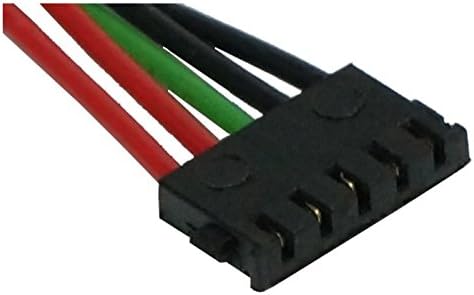
Image: Close-up view of a small, multi-pin battery connector, highlighting the delicate nature of the connection.
Operating Instructions
After successful installation, your Nook Color tablet is ready for use with its new battery.
- First Use: For optimal performance, fully charge the battery before its initial use.
- Charging: Use the original Nook Color charger or a compatible charger. Avoid using damaged or non-standard chargers.
- Normal Operation: The battery will provide power to your device as expected. Battery life will vary based on usage patterns, screen brightness, and active applications.
Maintenance
Proper maintenance can extend the lifespan of your replacement battery.
- Temperature: Avoid exposing your tablet to extreme temperatures (below 0°C/32°F or above 35°C/95°F), as this can degrade battery performance and lifespan.
- Storage: If storing the tablet for an extended period, ensure the battery is charged to approximately 50% to 80%. Store in a cool, dry place.
- Charging Cycles: While modern lithium-polymer batteries do not suffer from a 'memory effect,' regular full discharge-recharge cycles (once every few months) can help calibrate the battery's charge indicator.
Troubleshooting
If you encounter issues after installing your new battery, consider the following:
- Tablet Not Turning On:
- Ensure the battery connector is securely seated. A loose connection is a common cause.
- Verify the tablet is fully charged.
- Battery Not Charging:
- Check the charging cable and adapter for damage.
- Ensure the charging port on the tablet is clean and free of debris.
- Confirm the battery connector is properly installed.
- Short Battery Life:
- Adjust screen brightness to a lower setting.
- Close unnecessary background applications.
- Disable Wi-Fi or Bluetooth when not in use.
- If the issue persists, ensure the battery was fully charged initially and consider a full discharge/recharge cycle.
Specifications
| Feature | Specification |
|---|---|
| Battery Capacity | 3200 mAh |
| Battery Cell Composition | Lithium Polymer |
| Voltage | 3.7V |
| Watt-hours (Wh) | 11.8 Wh |
| Item Weight | 1.5 ounces |
| Compatible Nook Models | BNTV250, BNTV250A, BNRV200, NOOK Color, Nook Tablet (Not compatible with Nook HD or HD+ models) |
| Compatible Part Numbers | 6027B0090501, 6027B0107101, AVPB001-A110-01, AVPB003-A110-01, BNA-B002, DR-NK02, ENCORE, NOOKCOLOR |
Warranty Information
This MPF Products replacement battery comes with a 1 Year Replacement Warranty from the date of purchase. Please retain your proof of purchase for warranty claims. The warranty covers manufacturing defects and performance issues under normal use. It does not cover damage caused by improper installation, misuse, or accidental damage.
Support
If you require further assistance or have questions not covered in this manual, please refer to the seller's support channels or contact MPF Products customer service. When contacting support, please have your product model (ENCORE) and purchase details ready.