
1. Introduction
The iDevices Switch is a Wi-Fi enabled smart plug designed to provide convenient control over your home electronics. It connects directly to your home Wi-Fi network without requiring an additional hub. This device allows you to manage appliances from your mobile device, integrate with Apple HomeKit, and utilize voice commands through Siri and Amazon Alexa. Key features include customizable schedules, scene creation, real-time energy monitoring, and an adjustable LED nightlight.
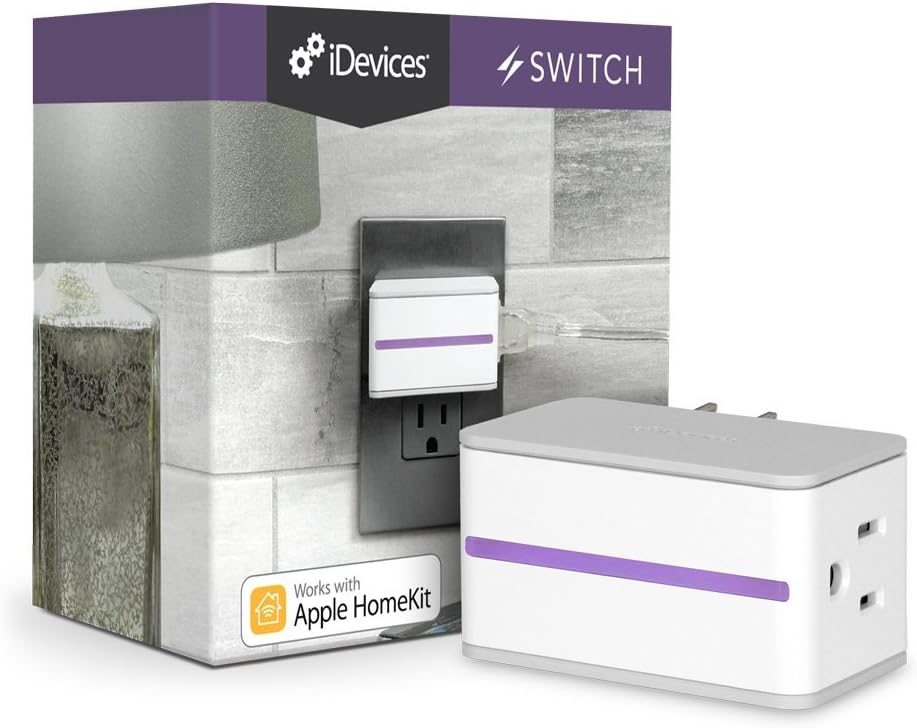
Image 1.1: iDevices Switch smart plug and its retail packaging.
2. Setup Guide
- Plug In: Insert the iDevices Switch into a standard 120V wall outlet. Ensure it is securely seated.
- Download App: Download the free iDevices Connected app from the Apple App Store on your iOS device (iPhone 4S+, iPad mini+, iPad 3+, or iPod touch 5+ running iOS 8.0+).
- Connect to Wi-Fi: Open the iDevices Connected app and follow the on-screen instructions to connect your Switch to your home Wi-Fi network. No additional hub is required.
- Pair with HomeKit: If prompted, use the HomeKit code provided with your device to pair it with Apple HomeKit for Siri voice control.

Image 2.1: The iDevices Switch plugged into a wall outlet, ready for setup.
Setup Overview Video
Video 2.1: An overview of the iDevices Switch, demonstrating its easy setup, scheduling features, voice control compatibility with Siri and Alexa, energy monitoring capabilities, and customizable nightlight. It also highlights integration with Apple HomeKit and customer support.
3. Operating Instructions
3.1 App Control
The iDevices Connected app serves as the primary interface for controlling your smart plug. From the app, you can:
- Turn On/Off: Toggle the power to connected appliances remotely.
- Create Schedules: Set custom schedules for your devices to turn on or off automatically based on your daily routine.
- Group into Scenes: Combine multiple iDevices products into 'scenes' (e.g., 'Goodnight' scene to turn off bedroom lights and TV with one command).
- Customize: Personalize your app experience by adding photos of your devices and rooms.

Image 3.1: The iDevices Connected app interface on a smartphone and Apple Watch, showing various home controls.
3.2 Voice Control
The iDevices Switch supports voice commands through Apple HomeKit (Siri) and Amazon Alexa.
- Siri: Use commands like, "Hey Siri, turn on my studio light" or "Hey Siri, activate Goodnight scene."
- Amazon Alexa: Integrate your iDevices Switch with Alexa for voice control of your connected devices.

Image 3.2: The iDevices Switch shown alongside other smart home devices, highlighting its compatibility.
3.3 Energy Monitoring
The iDevices Switch provides visual real-time energy reporting, allowing you to track and manage power consumption.
- Track Usage: Monitor the current draw, total average usage, and estimated cost of connected devices.
- View Reports: Access daily, weekly, monthly, and yearly energy reports to identify usage patterns and save on electricity bills.

Image 3.3: A smartphone displaying the energy monitoring interface of the iDevices Connected app, showing wattage and usage data.
3.4 Customizable Nightlight
The iDevices Switch includes a customizable LED nightlight.
- Color Options: Choose from hundreds of color options to match your preference or decor.
- Brightness Control: Adjust the brightness of the nightlight directly from the iDevices Connected app.
- Independent Control: The nightlight can be turned on or off independently of the main plug's power.
4. Maintenance
To ensure optimal performance and longevity of your iDevices Switch, follow these simple maintenance guidelines:
- Cleaning: Gently wipe the exterior of the device with a soft, dry cloth. Do not use liquid cleaners or abrasive materials.
- Ventilation: Ensure the smart plug is not obstructed by furniture or other objects that could impede airflow.
- Environmental Conditions: Avoid exposing the device to extreme temperatures, humidity, or direct sunlight.
5. Troubleshooting
If you encounter issues with your iDevices Switch, consider the following troubleshooting steps:
- No Power: Verify that the iDevices Switch is securely plugged into a functioning wall outlet.
- Connectivity Issues: Ensure your home Wi-Fi network is active and the Switch is within range. Restarting your Wi-Fi router may resolve connection problems.
- App Unresponsive: Close and reopen the iDevices Connected app. If the issue persists, try restarting your mobile device.
- Voice Control Not Working: Confirm that your iDevices Switch is properly paired with Apple HomeKit or Amazon Alexa, and that your voice assistant device is online and configured correctly.
- Factory Reset: If all other steps fail, you may need to perform a factory reset on the iDevices Switch and set it up again. Refer to the iDevices support website for specific instructions on how to perform a factory reset.
For further assistance, please visit the official iDevices support website or contact their customer experience team.
6. Specifications
| Model Number | IDEV0001P5 |
| Manufacturer | iDevices LLC (iGrill) - L&G |
| Item Weight | 9.6 ounces |
| Product Dimensions | 2.3 x 3.63 x 3.75 inches |
| Voltage | 120 Volts |
| Material | Copper |
| Color | White |
| Mounting Type | Plug-In Mount |
| Switch Style | Touch Switch |
7. Warranty and Support
iDevices products are supported by a dedicated U.S. Customer Experience team, committed to providing assistance and ensuring customer satisfaction.
- Warranty Information: For details regarding the product warranty, please refer to the documentation included with your purchase or visit the official iDevices website.
- Customer Support: If you require technical assistance, have questions about your device, or need to report an issue, please contact the iDevices Customer Experience team.
- Online Resources: Additional support resources, including FAQs, user guides, and software updates, can be found on the official iDevices website: iDevicesinc.com.

