
1. Introduction
The Fluke VT04 Infrared Imager is a visual infrared thermometer designed to quickly and accurately detect temperature differences and potential issues. It combines a visual image with an infrared heat map, allowing users to identify the precise location of hot and cold spots. Its compact, pocket-sized design ensures portability and ease of use in various environments. The intuitive interface enables immediate operation, and the accompanying SmartView reporting software facilitates the creation of detailed reports for documentation and verification purposes.
2. Safety Information
Always observe safety precautions when operating the Fluke VT04. This device is designed for indoor use. Ensure proper personal protective equipment (PPE) such as safety glasses and gloves are worn when working in environments that require them, especially near electrical panels or machinery. Do not attempt to open or modify the device. Refer to local safety regulations and product documentation for comprehensive safety guidelines. The device meets UL specifications.
3. Product Overview
The Fluke VT04 is a robust and user-friendly visual infrared thermometer. It features a clear LCD display that shows both a visual image and an overlaid infrared heat map. This blending capability helps in quickly identifying the exact location of temperature anomalies. The device automatically highlights the hottest and coldest spots within the field of view, along with a center-point temperature reading.
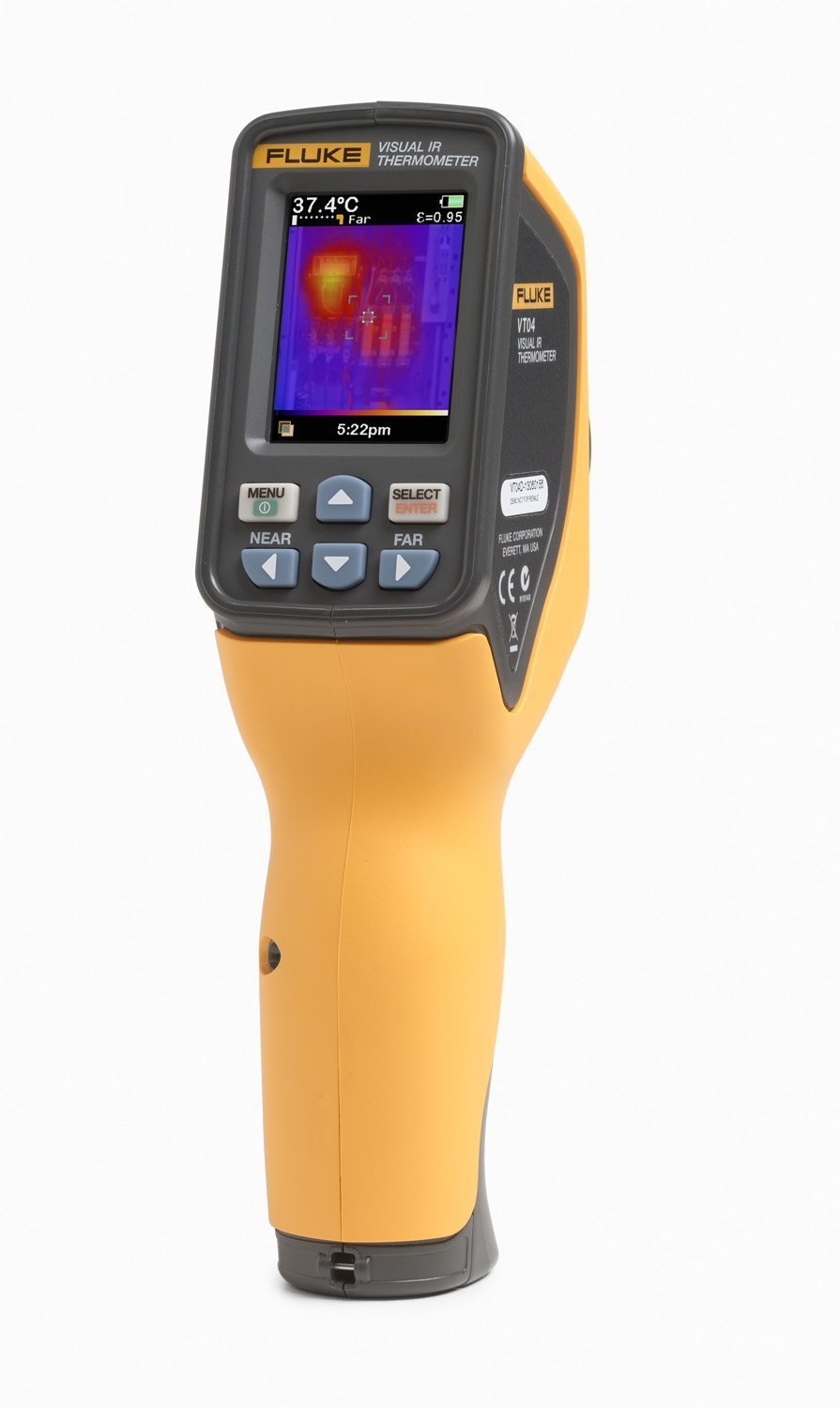
Figure 1: Fluke VT04 Infrared Imager in use, showing a thermal overlay on the display.
Key Features:
- Visual Image and Infrared Heat Map Blending: Combines visual and thermal data for precise issue identification.
- Center Point Temperature and Hot/Cold Markers: Automatically identifies and displays the hottest and coldest spots.
- Pocket-Size Design: Compact and portable for easy transport and use.
- Intuitive Interface: Designed for immediate operation without extensive training.
- SmartView Reporting Software: Enables creation of customizable reports.
- Alignment Option: Near focus at 23 centimeters (9 inches) from the target.
4. Setup
4.1 Battery Installation
The Fluke VT04 requires four (4) AA batteries for operation. Ensure batteries are inserted with correct polarity. Replace batteries when the low battery indicator appears on the display.
4.2 MicroSD Card
The device uses a MicroSD card (included) to store captured images. Insert the MicroSD card into the designated slot. Ensure it is properly seated for reliable image storage.
4.3 Lens Cover
Before use, open the protective lens cover located at the front of the imager. Close the cover when not in use to protect the lenses from dust and damage.
5. Operating Instructions
5.1 Power On/Off
Press the power button (usually labeled 'MENU' or similar, as indicated by the '0' symbol in the image) to turn the device on. Press and hold the power button to turn it off.
5.2 Capturing Images
Point the imager at the target area. The display will show a blended image of the visual and thermal data. The center-point temperature, hot, and cold markers will appear automatically. Press the 'SELECT/ENTER' button to capture and save the image to the MicroSD card.
5.3 Adjusting Heat Map Blending
The VT04 allows you to adjust the blending level of the heat map with the visual image. Use the navigation buttons (up/down arrows) to cycle through different blending percentages (e.g., 0%, 25%, 50%, 75%, 100% thermal overlay) to achieve the desired level of detail for analysis.
5.4 Focus Adjustment
The device offers an alignment option for 'Near' targets, which is optimal for objects approximately 23 centimeters (9 inches) away. Use the 'NEAR' and 'FAR' buttons to adjust the focus for clearer thermal and visual images at different distances.
6. Maintenance
6.1 Cleaning
To clean the device, wipe it with a clean, damp cloth. Do not use abrasive cleaners or solvents. Ensure the lenses are kept clean and free of smudges for accurate readings.
6.2 Storage
Store the Fluke VT04 in its soft carrying case when not in use to protect it from physical damage and environmental elements. Remove batteries if the device will not be used for an extended period.
7. Troubleshooting
If the device is not functioning as expected, consider the following:
- No Power: Check if the batteries are correctly installed and fully charged. Replace with new AA batteries if necessary.
- Unclear Image: Ensure the lens cover is fully open and the lenses are clean. Adjust the 'NEAR'/'FAR' focus settings for optimal clarity.
- Inaccurate Readings: Verify that the target is within the recommended distance for accurate temperature measurement. Ensure the emissivity setting is appropriate for the material being inspected (if adjustable on this model, general advice).
- Image Storage Issues: Check if the MicroSD card is properly inserted and has sufficient free space.
For further assistance, refer to the complete product manual available on the Fluke website or contact Fluke customer support.
8. Specifications
| Brand | Fluke |
| Model Name | FLK-VT04A GLOBAL |
| Item Model Number | FLK-VT04 |
| Special Feature | Backlit |
| Color | yellow/black |
| Included Components | VISUAL IR THERMOMETER, 8 HZ |
| Outer Material | Plastic |
| Specification Met | UL |
| Display Type | LCD |
| Product Care Instructions | Wipe Clean |
| Power Source | Four (4) AA Batteries |
| Number of Batteries | 4 AA batteries required. |
| Item Length | 9 Inches |
| Upper Temperature Rating | 482 Degrees Fahrenheit |
| Response Time | 0.5 seconds |
| Reusability | Reusable |
| Indoor/Outdoor Usage | Indoor |
| Item Weight | 2.6 pounds |
| Date First Available | September 9, 2013 |
9. Warranty and Support
For detailed warranty information, please refer to the official Fluke Corporation website or the documentation included with your product. Technical support and service information can also be found on the Fluke website. The SmartView reporting software is available to assist with data analysis and report generation.


