
LG BP250.DGBRLLK
LG BP250 Blu-Ray and DVD Disc Player User Manual
Model: BP250.DGBRLLK
This manual provides essential information for the safe and efficient operation of your LG BP250 Blu-Ray and DVD Disc Player. Please read it thoroughly before use and retain it for future reference.
1. Setup
Follow these steps to set up your LG BP250 Blu-Ray and DVD Disc Player.
1.1 Package Contents
- LG BP250 Blu-Ray and DVD Disc Player
- Remote Control
- Power Lead (UK Plug)
- Instruction Manual (this document)
Note: An HDMI cable is not included and must be purchased separately for connecting to your TV.
1.2 Connecting the Player
- Connect one end of an HDMI cable (not supplied) to the HDMI OUT port on the rear of the player.
- Connect the other end of the HDMI cable to an HDMI IN port on your television.
- Connect the supplied power lead to the AC IN port on the rear of the player, then plug the other end into a wall outlet.
- Turn on your television and select the correct HDMI input source.
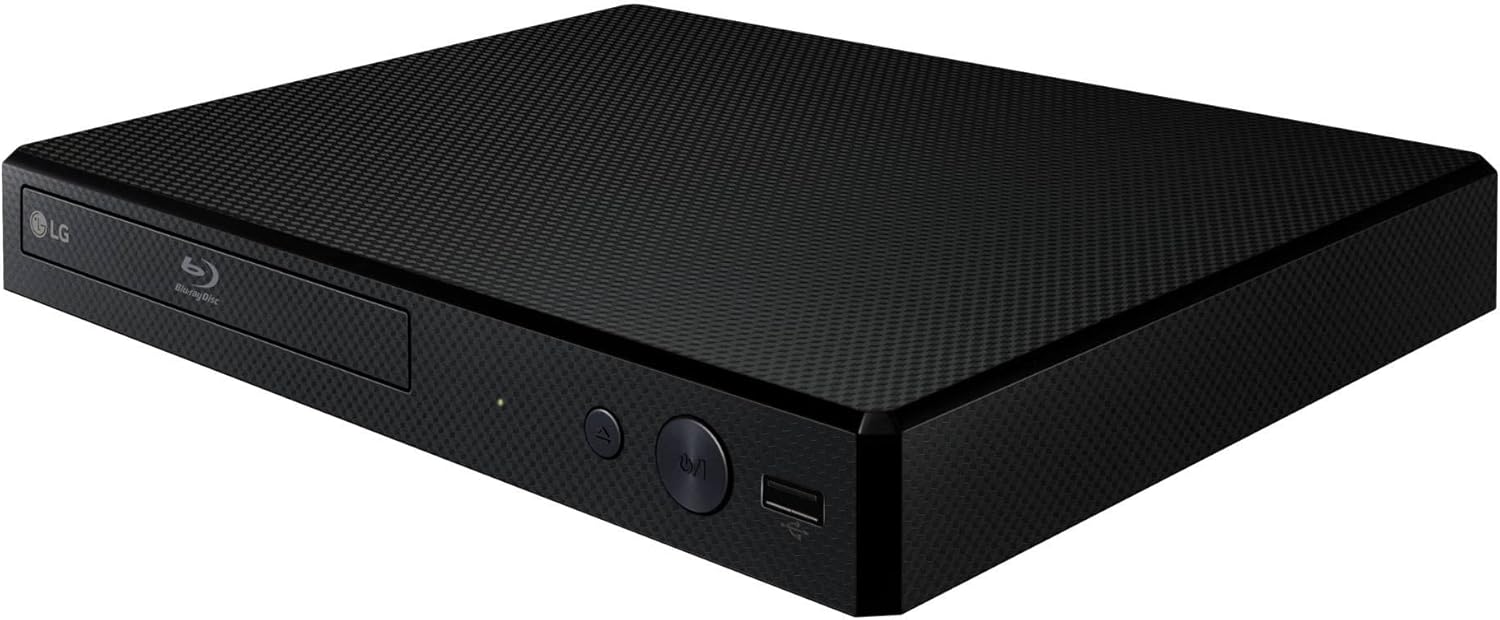
Image: Rear view of the LG BP250 Blu-Ray player, highlighting the HDMI output and power input ports for connection to a television and power supply.
1.3 Initial Setup
Upon first power-on, the player may guide you through an initial setup wizard. Follow the on-screen prompts to select your preferred language and other basic settings.
2. Operating Instructions
This section details the primary functions and operations of your Blu-Ray player.
2.1 Basic Disc Playback
- Press the POWER button on the player or remote control to turn on the unit.
- Press the OPEN/CLOSE button (eject icon) on the player or remote control to open the disc tray.
- Place a Blu-Ray or DVD disc gently onto the disc tray with the label side facing up.
- Press the OPEN/CLOSE button again to close the disc tray.
- The player will automatically begin reading the disc. If a menu appears, use the arrow buttons on the remote to navigate and the ENTER button to select.

Image: Front view of the LG BP250 Blu-Ray player, showing the disc tray and front panel controls.
2.2 USB Playback
The player supports playback of media files from external USB storage devices.
- Insert a USB storage device into the USB port on the front of the player.
- Navigate to the USB input source using the remote control.
- Browse your files and select the desired media for playback.
Supported media types include: MP4, MP3, AAC, FLAC, WMA, PCM.
2.3 Full HD Up-scaling
The LG BP250 features Full HD Up-scaling, which enhances the picture quality of standard definition DVDs to near Full HD resolution when connected to a compatible television.
3. Maintenance
Proper maintenance ensures the longevity and optimal performance of your player.
3.1 Cleaning
- Disconnect the power cord before cleaning.
- Use a soft, dry cloth to wipe the exterior of the player. Do not use liquid cleaners or abrasive materials.
- For discs, wipe gently from the center outwards with a clean, lint-free cloth.
3.2 Firmware Updates
Firmware updates may be released periodically to improve performance or add features. These updates are typically performed via USB.
- Visit the official LG support website for your model (BP250.DGBRLLK) to check for available firmware updates.
- Download the firmware file to a USB storage device.
- Insert the USB device into the player's USB port and follow the on-screen instructions to initiate the update process.
Caution: Do not power off the player or remove the USB device during a firmware update.
4. Troubleshooting
Refer to this section for solutions to common issues you may encounter.
| Problem | Possible Cause / Solution |
|---|---|
| No picture on TV. |
|
| No sound. |
|
| Disc does not play. |
|
| Remote control not working. |
|
5. Specifications
Key technical specifications for the LG BP250 Blu-Ray and DVD Disc Player.
| Feature | Detail |
|---|---|
| Model Number | BP250.DGBRLLK |
| Product Dimensions (W x D x H) | 27 x 19.5 x 4.3 cm |
| Item Weight | 830 Grams |
| Power Consumption (On-mode) | 12 Watts |
| Connectivity Technology | HDMI, Optical Audio |
| Connector Type | HDMI, USB (front) |
| Resolution | 1920x1080 (Full HD) |
| Special Features | 3D Playback, Full HD Up-scaling, External HDD playback |
| Supported Media Types | Blu-Ray Disc, DVD, MP4, MP3, AAC, FLAC, WMA, PCM |
| Colour | Black |
| Batteries Required | 1 A battery (for remote) |

Image: The LG BP250 Blu-Ray player with an overlay indicating its compact dimensions: 270 mm width, 195 mm depth, and 43 mm height.
6. Warranty and Support
For warranty information and technical support, please refer to the following:
- Warranty: Your LG BP250 Blu-Ray and DVD Disc Player comes with a standard manufacturer's warranty. Please retain your proof of purchase for warranty claims. Specific warranty terms and duration may vary by region.
- Technical Support: For further assistance, troubleshooting not covered in this manual, or service requests, please visit the official LG Electronics support website or contact LG customer service in your region.
- Online Resources: Additional support documents, FAQs, and software updates can be found on the LG website.