
TP-Link TL-WR802N
TP-Link N300 Wireless Portable Nano Travel Router
Model: TL-WR802N
1. Introduction
The TP-Link N300 Wireless Portable Nano Travel Router (TL-WR802N) is a compact and versatile networking device designed to provide reliable Wi-Fi connectivity wherever you go. Its pocket-sized design makes it ideal for travel, allowing you to create a private Wi-Fi hotspot using various internet sources. This router supports multiple operating modes, including Router, Access Point, Client, Repeater, and WISP, offering flexibility for different networking needs. It operates on the 2.4GHz band, delivering speeds of up to 300Mbps, suitable for streaming, online gaming, and internet calls.

Figure 1: Front view of the TP-Link N300 Wireless Portable Nano Travel Router.
2. Setup
2.1. Package Contents
Before you begin, ensure all items are present in your package:
- Wi-Fi Router TL-WR802N
- Power Adapter
- USB Cable
- RJ45 Ethernet Cable
- Quick Installation Guide Resource CD
2.2. Powering On
The TL-WR802N can be powered via its Micro USB port. Connect the provided USB cable to the router and then to either the power adapter (for wall outlet use) or a USB port on a computer/power bank.
2.3. Initial Connection and Configuration
To configure your router, connect to it either wirelessly or via an Ethernet cable.
- Wireless Connection: Locate the Wi-Fi network name (SSID) printed on the label on the bottom of the router and connect to it using the provided wireless password.
- Wired Connection: Connect one end of the Ethernet cable to the LAN/WAN port on the router and the other end to your computer's Ethernet port.
Once connected, open a web browser and navigate to tplinkwifi.net (or the IP address 192.168.0.1). Follow the on-screen Quick Setup Wizard to configure your desired operating mode and network settings.
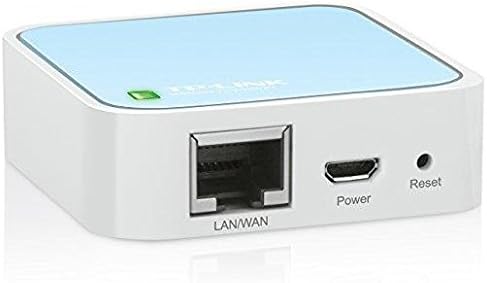
Figure 2: Rear view of the TL-WR802N showing the LAN/WAN port, Micro USB power port, and Reset button.
3. Operating Modes
The TL-WR802N supports five primary operating modes, each catering to different networking scenarios:
- Router Mode: This is the default mode. It allows the router to share an internet connection (from a DSL/Cable modem or Ethernet cable) wirelessly with multiple devices. Ideal for creating a private Wi-Fi network from a wired internet source.
- Access Point (AP) Mode: In this mode, the router transforms an existing wired network into a wireless one. It's useful for adding Wi-Fi capability to a wired-only network or extending an existing Wi-Fi network by connecting to a wired backbone.
- Client Mode: The router acts as a wireless adapter to connect a wired device (like a smart TV, game console, or desktop computer) to an existing wireless network. It receives the Wi-Fi signal and converts it into an Ethernet connection.
- Repeater Mode: This mode extends the range of an existing Wi-Fi network. The router wirelessly connects to an existing Wi-Fi network and re-broadcasts the signal, improving coverage in areas with weak signals.
- WISP Mode: Wireless Internet Service Provider (WISP) mode allows the router to connect wirelessly to a WISP's access point and share that internet connection with multiple devices, either wirelessly or via Ethernet. This is often used in public Wi-Fi scenarios where authentication is required.
4. Maintenance
To ensure optimal performance and longevity of your TL-WR802N, consider the following maintenance tips:
- Keep the device in a well-ventilated area to prevent overheating.
- Regularly check for and install firmware updates from the official TP-Link website to benefit from improved features and security patches.
- Clean the device periodically with a soft, dry cloth to remove dust.
- Avoid exposing the router to extreme temperatures or humidity. The operating temperature range is 0℃~40℃ (32℉~104℉).
5. Troubleshooting
If you encounter issues with your TL-WR802N, try the following common troubleshooting steps:
- No Internet Access: Verify that the internet source (modem/router) is working correctly. Check all cable connections. Restart the TL-WR802N and your internet source.
- Slow Wi-Fi Speed: Ensure the router is placed centrally and away from obstructions or interference sources (e.g., microwaves, cordless phones). Check for other devices consuming bandwidth.
- Cannot Access Management Page: Double-check that you are typing tplinkwifi.net or 192.168.0.1 correctly in your browser. Ensure your device is connected to the router's network. Try clearing your browser's cache or using a different browser.
- Forgotten Wi-Fi Password or Login Password: You can reset the router to factory default settings by pressing and holding the Reset button on the device for about 5-10 seconds while it is powered on. This will erase all custom settings, and you will need to reconfigure the router.
6. Specifications
| Feature | Specification |
|---|---|
| Wireless Type | 802.11a/b/g/n |
| Wireless Speed | 300 Mbps (2.4GHz) |
| Frequency Band | Single-Band (2.4 GHz) |
| Interfaces | 1 x 10/100Mbps WAN/LAN Port, 1 Micro USB Port, 1 Reset Button |
| Antenna Type | On-Board |
| Operating System Compatibility | Microsoft Windows 98SE, NT, 2000, XP, Vista, Windows 8.1/8/7, MACOS, NetWare, UNIX or Linux |
| Item Weight | 1.06 ounces |
| Product Dimensions (LxWxH) | 2.2 x 2.2 x 0.7 inches |
| Power Input | 5V/1A (via Micro USB) |
| Operating Temperature | 0℃~40℃ (32℉~104℉) |
7. Warranty and Support
The TP-Link N300 Wireless Portable Nano Travel Router (TL-WR802N) comes with an industry-leading 2-year warranty and unlimited 24/7 technical support. For warranty claims or technical assistance, please refer to the official TP-Link support channels.
7.1. How to Register Your Product for Warranty
To register your TP-Link product and activate its warranty, follow the steps outlined in the video below. Product registration helps streamline any future support or return processes.
Video: Learn how to register your TP-Link product on the TP-Link Warranty Portal. This video guides you through creating an account and registering your device to ensure your warranty is active.
Related documentsTL-WR802N


Ask a question about this manual
Ask about setup, troubleshooting, compatibility, parts, safety, or missing instructions. Manuals+ will review the question and use this page’s manual context to help answer it.