
Introduction
This manual provides essential instructions for setting up, operating, maintaining, and troubleshooting your Samsung Galaxy Grand Prime Unlocked Smartphone (Model SSG530HLGY). Please read this manual carefully to ensure proper use and optimal performance of your device.

Figure 1: Samsung Galaxy Grand Prime Smartphone (Front, Back, and Side Views)
The image displays the Samsung Galaxy Grand Prime smartphone from three angles: front, back, and side. The front shows the display with a colorful wallpaper, the home button, and front camera. The back reveals the main camera, flash, and Samsung logo. The side view highlights the slim profile and physical buttons.
Setup
1. Package Contents
Verify that your package contains the following items:
- Samsung Galaxy Grand Prime Smartphone
- Adapter
- USB Cable
- Handsfree (Earphones)
- Battery (pre-installed or separate)
2. Installing the SIM Card and Battery
Your device supports dual SIM cards. Ensure the device is powered off before proceeding.
- Carefully remove the back cover of the phone.
- If the battery is not pre-installed, insert the battery into its compartment, aligning the gold contacts.
- Locate the SIM card slots. Insert your SIM card(s) into the designated slots with the gold contacts facing down.
- If using a microSD card for expanded storage (up to 64GB), insert it into the microSD card slot.
- Replace the back cover, ensuring it clicks securely into place.
3. Initial Power On and Setup
- Press and hold the Power button (located on the side of the device) until the Samsung logo appears.
- Follow the on-screen prompts to complete the initial setup, including language selection, Wi-Fi connection, Google account setup, and date/time settings.
- Your device runs on Android v4.4.2 (Kit Kat).
Operating Your Device
1. Basic Navigation
- Touchscreen: Navigate by tapping, swiping, pinching, and spreading on the 5-inch TFT display.
- Home Button: Press to return to the home screen. Double-press for recent apps (functionality may vary).
- Back Button: Press to return to the previous screen.
- Recent Apps Button: Press to view and switch between recently used applications.
2. Making Calls and Sending Messages
- Open the Phone app to dial numbers or select contacts.
- Open the Messages app to compose and send text or multimedia messages.
3. Camera Usage
Your device features an 8 Megapixel rear camera with autofocus and LED flash, and a 5 Megapixel front-facing camera.
- Open the Camera app from the home screen or app drawer.
- Tap the screen to focus.
- Press the shutter button to capture photos or videos.
- Switch between front and rear cameras using the camera toggle icon.
4. Connectivity
- Wi-Fi: Access Wi-Fi settings from the Notification Panel or Settings menu to connect to wireless networks.
- Mobile Data: Enable or disable mobile data (2G/3G/4G LTE) from the Notification Panel or Settings menu.
- Bluetooth: Pair with other Bluetooth devices via the Settings menu.
5. Ultra Power Saving Mode
To extend battery life, activate Ultra Power Saving Mode. This mode changes the screen to grayscale and limits the number of usable applications to essential functions, significantly reducing power consumption.
- Access this mode via the Quick Settings panel or the Battery section in the Settings menu.
Maintenance
1. Charging the Battery
- Connect the USB cable to the adapter and then to your phone's charging port.
- Plug the adapter into a standard electrical outlet.
- A charging indicator will appear on the screen.
- Use only Samsung-approved chargers and cables to prevent damage to the device.
2. Cleaning Your Device
- Gently wipe the screen and body with a soft, lint-free cloth.
- Avoid using harsh chemicals, abrasive cleaners, or aerosol sprays.
- Do not expose the device to excessive moisture.
3. Software Updates
Periodically check for software updates to ensure your device has the latest features and security enhancements. Updates can be found in the Settings menu under "About device" or "Software update."
Troubleshooting
If you encounter issues with your device, try the following solutions before seeking professional assistance:
- Device not turning on: Ensure the battery is charged. Connect the charger and wait a few minutes before attempting to power on again.
- Screen frozen or unresponsive: Press and hold the Power button for approximately 10 seconds to force a restart.
- Cannot connect to Wi-Fi: Ensure Wi-Fi is enabled. Restart your router and the phone. Forget the network and reconnect.
- Poor call quality or dropped calls: Check your signal strength. Move to an area with better reception. Ensure your SIM card is properly inserted.
- Battery draining quickly: Reduce screen brightness, close unused apps, disable unnecessary connectivity features (Bluetooth, GPS), and consider using Ultra Power Saving Mode.
- Storage issues: Delete unnecessary files, clear app caches, or move media to a microSD card.
For more complex issues, refer to the official Samsung support website or contact customer service.
Specifications
| Feature | Detail |
|---|---|
| Model Name | Galaxy Grand Prime |
| Model Number | SSG530HLGY |
| Operating System | Android v4.4.2 (Kit Kat) |
| Processor | Quad-Core 1.2 GHz Cortex-A53 (Qualcomm MSM8916 Snapdragon 410) |
| Display | 5-inch TFT Capacitive Multi-Touchscreen |
| Rear Camera | 8 Megapixel (3264 x 2448 pixels) w/ Autofocus, LED Flash |
| Front Camera | 5 Megapixel |
| Internal Memory | 8GB |
| RAM | 1GB |
| Expandable Storage | microSD Slot, up to 64GB |
| Cellular Technology | 2G GSM (850/900/1800/1900), 3G HSDPA (850/900/1900/2100), LTE |
| Connectivity | Wi-Fi, Bluetooth |
| Dimensions | 5.7 x 2.84 x 0.34 inches |
| Weight | 4 ounces (0.25 Pounds) |
| Battery | 1 Lithium Ion battery (included) |
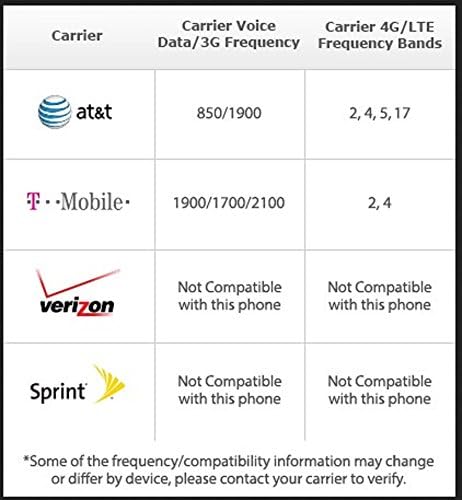
Figure 2: Carrier Compatibility Information
This table illustrates the carrier compatibility for the Samsung Galaxy Grand Prime. It shows that AT&T supports 850/1900 MHz for voice/3G and bands 2, 4, 5, 17 for 4G/LTE. T-Mobile supports 1900/1700/2100 MHz for voice/3G and bands 2, 4 for 4G/LTE. Verizon and Sprint are listed as "Not Compatible with this phone" for both voice/3G and 4G/LTE frequencies. Users are advised to contact their carrier to verify compatibility.
Warranty and Support
1. Warranty Information
Your Samsung Galaxy Grand Prime Smartphone is covered by a limited warranty. Please refer to the warranty card included in your product packaging or visit the official Samsung website for detailed terms and conditions regarding warranty coverage, duration, and service procedures.
2. Customer Support
For technical assistance, troubleshooting, or service inquiries, please contact Samsung Customer Support. You can find contact information, FAQs, and additional resources on the official Samsung support website: www.samsung.com/us/support/