
HP J7X28A#BGJ
HP LaserJet M630h Laser Multifunction Printer User Manual
Model: J7X28A#BGJ
Introduction
This manual provides comprehensive instructions for the setup, operation, maintenance, and troubleshooting of your HP LaserJet M630h Laser Multifunction Printer. Please read this manual thoroughly before using the printer to ensure optimal performance and to prevent damage.

Figure 1: Front view of the HP LaserJet M630h Multifunction Printer, showing the main unit with the output tray extended and the touchscreen control panel.
Setup
1. Unpacking and Placement
Carefully remove the printer from its packaging. Ensure all packing materials and protective tapes are removed. Place the printer on a stable, level surface with adequate space for ventilation and access to power and network connections.
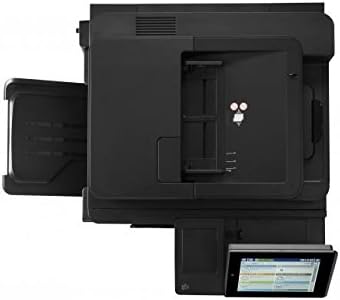
Figure 2: Top view of the HP LaserJet M630h printer, illustrating the document feeder and scanner lid.
2. Connecting Power and Network
- Connect the power cord to the printer and then to a grounded electrical outlet.
- For network connectivity, connect an Ethernet cable from your network router or switch to the printer's Gigabit Ethernet port. Alternatively, configure wireless connectivity via the control panel if applicable.

Figure 3: Rear view of the HP LaserJet M630h printer, showing the power input, Ethernet port, and USB ports.
3. Installing Toner Cartridge
Open the front access door and insert the toner cartridge into its designated slot until it clicks into place. Close the door securely.
4. Loading Paper
Open the paper tray and adjust the paper guides to fit the size of your paper. Load the paper stack, ensuring it is not overfilled. Close the tray.
Operating Instructions
1. Control Panel Overview
The HP LaserJet M630h features a touchscreen control panel for easy navigation and operation.

Figure 4: Close-up view of the HP LaserJet M630h's touchscreen control panel, displaying various function icons.
2. Printing Documents
- Ensure the printer is connected to your computer or network.
- From your computer, open the document you wish to print.
- Select "Print" from the application's menu.
- Choose the HP LaserJet M630h from the list of available printers.
- Adjust print settings (e.g., number of copies, duplex printing, paper type) as needed.
- Click "Print".
3. Copying Documents
- Place the document face-down on the scanner glass or face-up in the automatic document feeder (ADF).
- On the printer's control panel, select the "Copy" function.
- Adjust copy settings such as number of copies, lightness/darkness, and paper size.
- Press the "Start Copy" button.
4. Scanning Documents
- Place the document on the scanner glass or in the ADF.
- On the control panel, select the "Scan" function.
- Choose your scan destination (e.g., computer, email, network folder).
- Adjust scan settings like resolution and file format.
- Press the "Start Scan" button.
Maintenance
1. Replacing Toner Cartridge
When the toner level is low, a message will appear on the control panel. Follow these steps to replace the cartridge:
- Open the front access door.
- Remove the old toner cartridge by pulling it straight out.
- Unpack the new toner cartridge and gently shake it to distribute the toner.
- Insert the new cartridge into the slot until it locks into place.
- Close the front access door.
2. Cleaning the Scanner Glass
Regularly clean the scanner glass to ensure clear scans. Use a soft, lint-free cloth lightly dampened with glass cleaner. Do not spray cleaner directly onto the glass.
3. Paper Path Cleaning
If you experience frequent paper jams or print quality issues, the paper path may need cleaning. Refer to the printer's internal menu for specific paper path cleaning options or consult the online support resources.
Troubleshooting
| Problem | Possible Cause | Solution |
|---|---|---|
| Printer not responding | Power issue, network disconnection, driver problem. | Check power connections. Verify network cable or Wi-Fi connection. Reinstall printer drivers. |
| Paper jams | Incorrect paper loading, foreign objects in paper path, worn rollers. | Remove jammed paper carefully. Ensure paper is loaded correctly. Clean paper path. |
| Poor print quality | Low toner, dirty print head/scanner, incorrect print settings. | Replace toner cartridge. Clean scanner glass. Adjust print settings. Perform print head cleaning (if applicable). |
| Scanner not working | Software issue, dirty scanner glass, connectivity problem. | Restart printer and computer. Clean scanner glass. Check USB/network connection. Reinstall scanner drivers. |
For more detailed troubleshooting, refer to the HP support website or contact customer service.
Specifications
| Feature | Detail |
|---|---|
| Model Number | J7X28A#BGJ |
| Printer Type | Laser Multifunction (Print, Copy, Scan) |
| Print Technology | Laser |
| Print Speed (Monochrome) | Up to 60 ppm |
| Print Resolution (Black) | 1200 x 1200 dpi |
| Duplex Printing | Automatic |
| Scanner Type | Flatbed, Photo |
| Max Input Sheet Capacity | 600 sheets |
| Connectivity | Gigabit Ethernet, USB |
| Control Method | Touchscreen |
| Memory Storage Capacity | 2 GB |
| Item Weight | 137 pounds |
| Product Dimensions | 28.98 x 29.73 x 30.83 inches |
| Supported Media Types | Envelopes, Plain Paper, Card Stock, Labels, Glossy Photo Paper |
Warranty and Support
This HP LaserJet M630h printer comes with a standard manufacturer's warranty. For specific warranty terms and conditions, please refer to the documentation included with your product or visit the official HP support website.
For technical assistance, driver downloads, or further support, please visit the HP Support Website or contact HP Customer Service.
Ask a question about this manual
Ask about setup, troubleshooting, compatibility, parts, safety, or missing instructions. Manuals+ will review the question and use this page’s manual context to help answer it.