
1. Product Overview
The neoLab Neo Smartpen N2 is a digital pen designed to capture handwritten notes and drawings, converting them into digital documents via the Neo Studio companion app. It features a sleek design and internal storage for offline use.
Key Features:
- Digitize your Notes: Internal camera captures handwriting for digital conversion.
- Sleek & Durable Design: Constructed from aluminum and stainless steel for longevity and ergonomic grip.
- Offline Storage: 128MB internal storage allows writing without immediate app connection.
- Free Cloud Sync: Compatible with iOS and Android for multi-device access.
- Replaceable Ink Cartridge: Uses standard D1-Type pen tips.

Figure 1: Front view of the Neo Smartpen N2.
2. Package Contents
Upon unboxing your Neo Smartpen N2, verify that all the following items are included:
- Neo Smartpen N2
- Charger (USB cable)
- Two (2) Pen Tips
- User's Manual (this document)
- N Pocket Notebook

Figure 2: Neo Smartpen N2 and included accessories.
3. Setup Guide
3.1 Initial Charging
Before first use, charge the Neo Smartpen N2 for at least 30 minutes. Connect the provided USB cable to the pen's charging port and a power source.
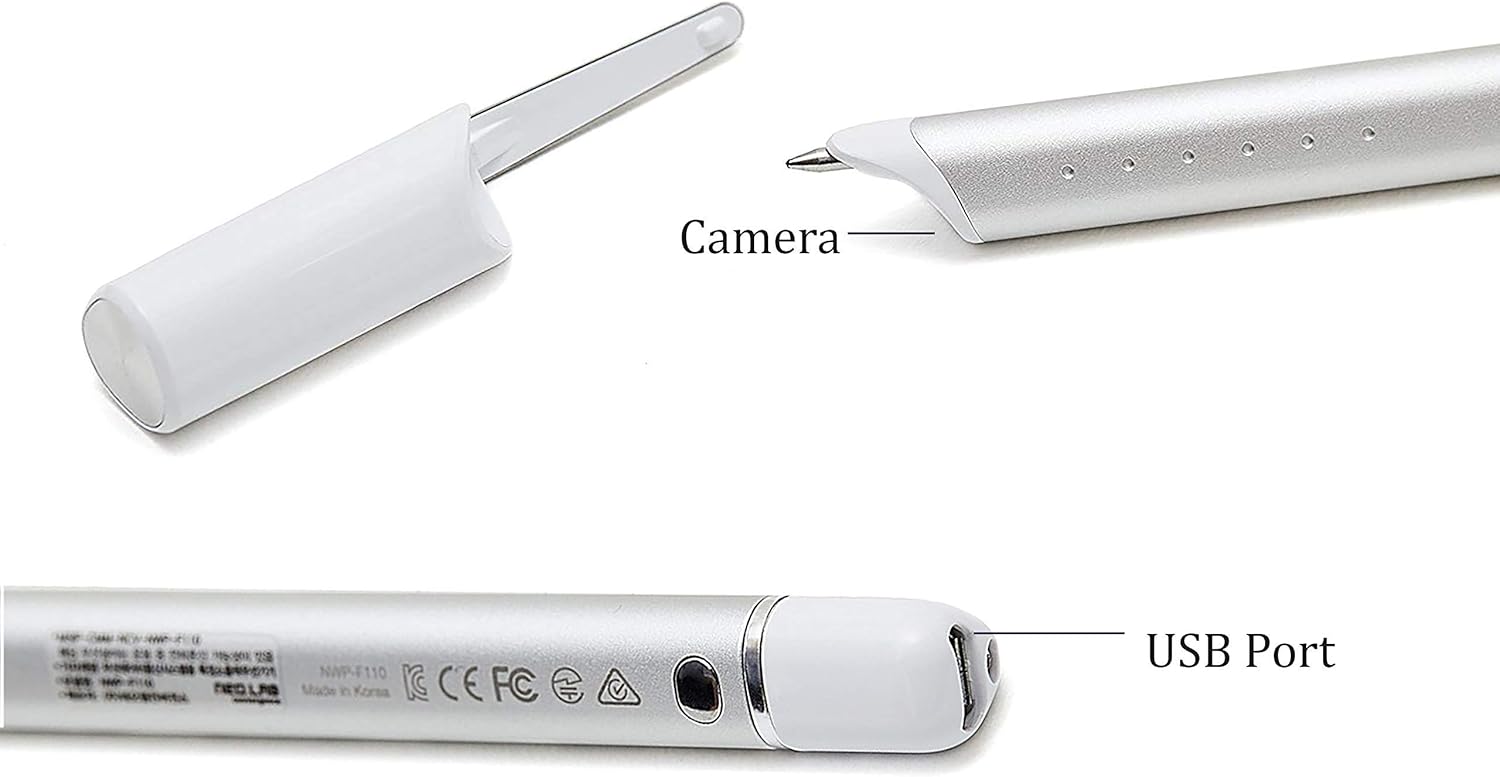
Figure 3: The Neo Smartpen N2 showing the camera and USB port.
3.2 App Download and Installation
While the pen is charging, download the Neo Studio app from your device's app store (App Store for iOS, Google Play for Android). Search for "Neo Studio" and install the application.
3.3 Powering On/Off
- To Power On: Press the power button, or simply start writing on an Ncode notebook. Applying pressure to the pen tip will automatically activate the pen.
- To Power Off: Press the power button until the LED light turns off, or leave the pen idle for a period, and it will automatically power off.
3.4 Bluetooth Pairing
Open the Neo Studio app. If Bluetooth is not enabled, the app will prompt you to turn it on. Follow the on-screen instructions to register your Neo Smartpen N2. The app will search for the pen, and once connected, the pen icon in the app will stop blinking and turn white.
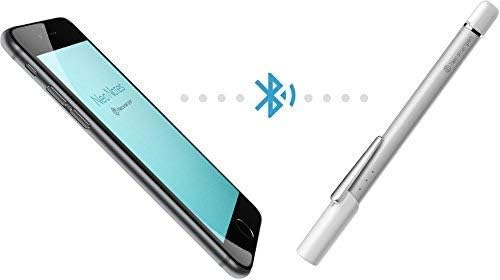
Figure 4: Bluetooth pairing process between the smartpen and a mobile device.
4. Operating the Neo Smartpen N2
4.1 Writing and Digitizing Notes
Use the Neo Smartpen N2 with Ncode paper (such as the N Pocket Notebook). Simply start writing as you would with a regular pen. The pen's infrared camera recognizes the Ncode patterns on the paper, digitizing your notes in real-time within the Neo Studio app.

Figure 5: Real-time digitization of notes from paper to the Neo Studio app.
4.2 Optimal Pen Holding
For best recognition, ensure the pen's camera (located near the tip) faces the page while writing. Avoid obstructing the camera with your fingers or hand.
4.3 Adding Color and Thickness
Within the Neo Studio app, you can enhance your digitized notes by adding colors and adjusting line thickness. Tap on the color palette icon in the app to select different colors or thicknesses for your notes.
4.4 Transcribing Handwritten Notes
The Neo Studio app can transcribe your handwritten notes into editable text. This feature saves time on manual typing and allows for easy searching and editing of your content.
4.5 Sharing and Exporting Notes
Share your notes in various file formats (e.g., Image, PDF, Text, SVG) through the Neo Studio app. Sharing options may vary based on the applications installed on your device.

Figure 6: Sharing options available in the Neo Studio app.
4.6 Emailing Notes Directly from Paper
For quick sharing, some Ncode notebooks feature a mail icon. Tap this icon on the paper with your Neo Smartpen N2 to send an email of your current page directly from your connected phone.
5. Writing Without Neo Notes (Offline Mode)
The Neo Smartpen N2 has 128MB of internal storage, allowing you to write even when disconnected from your device. All writing data will be saved to the pen's memory. When you reconnect the pen to the Neo Studio app, the stored notes will automatically transfer and appear in the application.
6. Managing Notes and Notebooks
6.1 Creating and Organizing Notebooks
Within the Neo Studio app, you can create new notebooks and organize your pages. You can move, copy, or delete pages between different notebooks to structure your work efficiently.
6.2 Locking and Unlocking Notebooks
To prevent accidental overwriting or to manage multiple notebooks of the same type, you can lock a notebook once you are finished using it. Locked notebooks will not receive new data until unlocked. To unlock, navigate to your notebooks in the app, select the locked notebook, and choose the unlock option.
6.3 Searching Notes
The Neo Studio app allows you to easily search your digitized notes. You can search by keywords, tags, or browse through the activity feed to quickly locate specific information.

Figure 7: Seamless experience of writing on paper and viewing on the app, facilitating search and organization.
7. Specifications
| Brand | neoLab |
| Model Number | N2 |
| Color | Silver White |
| Material | Aluminum |
| Item Weight | 0.02 Kilograms |
| Item Dimensions (L x W x H) | 6.14 x 0.3 x 0.5 inches |
| Battery Type | 1 Lithium Polymer battery (included) |
| Battery Average Life (Standby) | 3000 Hours |
| Minimum Required OS Version | Android 12.0, Windows 11, iOS 16 |
| Compatible Devices | iOS, Android, Smartphones, Tablets, Windows PC (e.g., Apple iPad Air (2nd generation), various Kindle Fire, Google Nexus, Microsoft Surface, Samsung Galaxy Tab models) |
8. Troubleshooting
If you encounter issues with your Neo Smartpen N2, consider the following:
- Pen Not Connecting: Ensure Bluetooth is enabled on your device and the pen is charged. Try restarting both the pen and the Neo Studio app.
- Notes Not Digitizing: Verify you are using Ncode paper. Ensure the pen's camera is not obstructed and is facing the paper correctly.
- App Issues: Check for app updates in your device's app store. If problems persist, try reinstalling the Neo Studio app.
- Offline Notes Not Syncing: Reconnect the pen to the Neo Studio app. Ensure the app is open and the pen is within range for data transfer.
9. Official Tutorial Video
For a visual guide on setting up and using your Neo Smartpen N2, please watch the official tutorial video below. This video covers unboxing, charging, powering on/off, app download, pairing, writing, optimal pen holding, adding color, transcribing, sharing, offline writing, and note management.
Video 1: Neo Smartpen N2 Tutorial (Source: Quantum Networks)
10. Warranty and Support
For warranty information, technical support, or further assistance, please refer to the official neoLab website or contact their customer service. Keep your purchase receipt for warranty claims.


