
1. Introduction
The Dino-Lite AM4815ZT is a USB digital microscope designed for detailed observation and analysis. It features a 1.3-megapixel sensor, 15x-200x optical magnification, and advanced image processing capabilities such as Extended Depth of Field (EDOF) and Extended Dynamic Range (EDR). This manual provides comprehensive instructions for setting up, operating, and maintaining your AM4815ZT microscope.

Figure 1: Dino-Lite AM4815ZT USB Digital Microscope
This image displays the Dino-Lite AM4815ZT USB Digital Microscope, highlighting its compact design and adjustable focus ring. The device connects via USB for power and data transfer.
2. Package Contents
Verify that all items listed below are present in your package:
- 1 x Dino-Lite AM4815ZT USB Digital Microscope
- 1 x Dino Capture Software CD (Software is also available for download from the official Dino-Lite website)
- 1 x Calibration Target (for measurement calibration)
- 1 x Set of Alternate Front Caps (6 pieces)
3. Setup
- Software Installation: Insert the Dino Capture Software CD into your computer's optical drive and follow the on-screen instructions to install the software. Alternatively, download the latest software version from the official Dino-Lite website. The software supports Windows XP, Vista, 7, 8, 10, and Mac OS 10.5 and above.
- Connect the Microscope: Plug the USB 2.0 cable of the Dino-Lite AM4815ZT into an available USB port on your computer.
- Initial Placement: For stable observation, place the microscope on a compatible stand (sold separately) or hold it steady over the object you wish to examine.

Figure 2: Dino-Lite AM4815ZT mounted on a stand
This image shows the Dino-Lite AM4815ZT microscope securely mounted on a stand, positioned to examine a small circuit chip. This setup provides stability for precise observation.
4. Operating Instructions
4.1 Adjusting Magnification and Focus
- Launch Software: Open the Dino Capture software on your computer.
- Position Object: Place the object you wish to observe directly under the microscope lens.
- Adjust Focus: Rotate the focus wheel on the microscope body until the image appears clear on your computer screen.
- Adjust Magnification: The magnification range is 15x to 200x. Adjust the distance between the microscope and the object, then refocus to achieve the desired magnification.
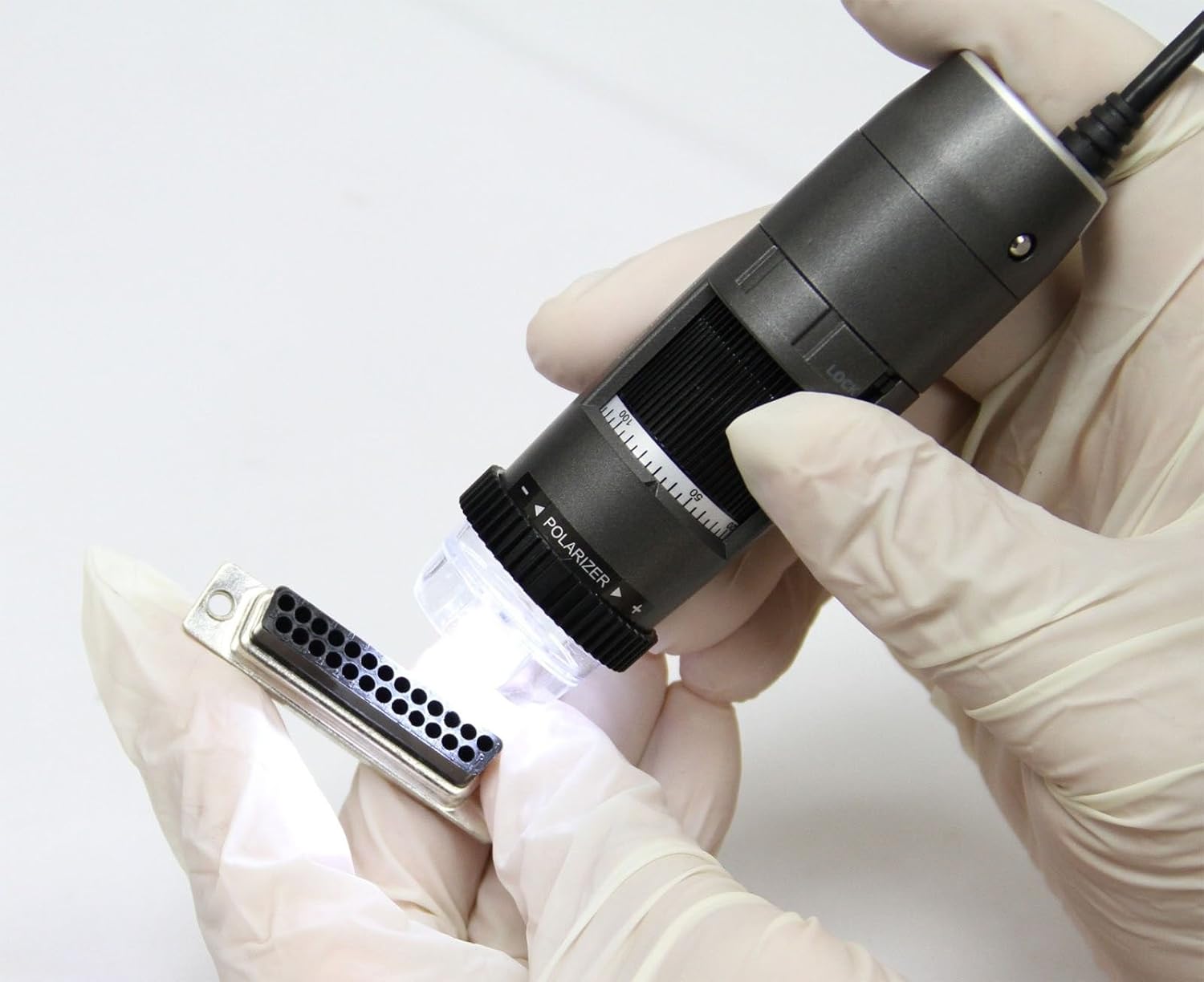
Figure 3: Manual inspection with Dino-Lite AM4815ZT
This image illustrates a user holding the Dino-Lite AM4815ZT to manually inspect a small electronic connector, demonstrating its handheld usability.
4.2 MicroTouch (MT)
The MicroTouch feature allows you to capture still images without physically pressing a button on the computer, reducing image disturbance. Gently touch the MicroTouch sensor on the microscope body to take a snapshot.
4.3 Measurement (MS)
The Dino Capture software includes measurement tools. To use this feature:
- Calibrate: Use the provided calibration target to calibrate the measurement tools within the software. This ensures accurate measurements at different magnifications.
- Apply Tools: Select the desired measurement tool (e.g., line, circle, angle) from the software interface.
- Measure: Draw on the captured image to measure dimensions. The software supports various units (inch/mil/mm/um).
4.4 Polarization (PZ)
The built-in adjustable polarizer helps reduce glare on reflective surfaces. Rotate the polarizer ring located at the front of the microscope to adjust the polarization level or switch it on/off. This is particularly useful for examining shiny objects like metals or plastics.

Figure 4: Polarizer ring on the Dino-Lite AM4815ZT
This close-up image of the Dino-Lite AM4815ZT highlights the adjustable polarizer ring at the front, which controls glare for improved image clarity.
4.5 Extended Depth of Field (EDOF)
EDOF is a software feature (available for Windows PC users only) that captures multiple images at different focus levels and automatically stacks them to create a single image with a greater depth of field. This results in a more uniformly focused image, especially useful for objects with varying heights.

Figure 5: EDOF comparison (without vs. with)
This image displays a side-by-side comparison of a microscopic view of a gear. The left side shows the image without EDOF, exhibiting limited depth of field, while the right side shows the same gear with EDOF applied, demonstrating significantly improved overall focus.
4.6 Extended Dynamic Range (EDR)
EDR is another software feature (available for Windows PC users only) that enhances image quality by combining multiple exposures to create an image with a wider range of light and shadow detail. This is beneficial for objects with both very bright and very dark areas.
4.7 Interchangeable Caps (IC)
The microscope comes with a set of 6 alternate front caps. These caps can be interchanged to suit different application needs, such as providing different working distances or protecting the lens. Refer to the software documentation for specific cap uses.
5. Software Features and Usage
The Dino Capture software provides a comprehensive suite of tools for image and video capture, annotation, comparison, and analysis.
- Image Capture: Save images in BMP, GIF, PNG, JPG, TIF, PNM, TGA formats.
- Video Recording: Record videos in WMV, FLV, SWF formats.
- Annotation: Add text, arrows, and shapes to captured images for documentation.
- Comparison: Compare multiple images side-by-side.
- Analysis: Utilize advanced tools for detailed image analysis.
For detailed instructions on using specific software features, refer to the Dino Capture software's built-in help documentation or the official Dino-Lite website.
6. Maintenance
- Cleaning the Lens: Use a soft, lint-free cloth specifically designed for optical lenses to gently clean the microscope lens. Avoid abrasive materials or harsh chemicals.
- Cleaning the Body: Wipe the microscope body with a soft, dry cloth. If necessary, a slightly damp cloth can be used, but ensure no moisture enters the device.
- Storage: Store the microscope in a clean, dry environment, away from direct sunlight and extreme temperatures. Use the provided caps to protect the lens when not in use.
- Software Updates: Regularly check the Dino-Lite website for software updates to ensure optimal performance and access to the latest features.
7. Troubleshooting
| Problem | Possible Cause | Solution |
|---|---|---|
| No image displayed in software | USB connection issue, software not recognizing device, incorrect camera selection. |
|
| Image is blurry or out of focus | Focus wheel not adjusted, incorrect working distance. |
|
| Excessive glare on object | Polarization not adjusted or off. |
|
| Software crashes or freezes | Outdated software, system incompatibility, resource conflict. |
|
8. Specifications
| Feature | Detail |
|---|---|
| Model Name | AM4815ZT |
| Magnification Range | 15x - 220x (Optical) |
| Resolution | 1280 x 1024 (1.3 Megapixels) |
| Frame Rate (max) | 30 FPS |
| Lighting | White LED (8) |
| Connection Type | USB 2.0 |
| Operating System Compatibility | Windows XP, Vista, 7, 8, 10; Mac OS 10.5 and above |
| Image Save Formats | BMP, GIF, PNG, JPG, TIF, PNM, TGA |
| Video Save Formats | WMV, FLV, SWF |
| Product Dimensions | 4.13 x 1.26 x 1.26 inches |
| Item Weight | 0.004 ounces (approx. 0.11 Grams) |
| Material | Metal Alloy, Glass |
| Color | Grey |
| Voltage | 5 Volts (USB powered) |
| Country of Origin | Taiwan |
9. Warranty and Support
The Dino-Lite AM4815ZT USB Digital Microscope comes with a 2-year warranty from the date of purchase. This warranty covers manufacturing defects and malfunctions under normal use. Please retain your proof of purchase for warranty claims.
For technical support, warranty service, or further inquiries, please visit the official Dino-Lite website or contact their customer service department.
Note: The Dino-Lite AM4815ZT model has been discontinued. For replacement options, please refer to model AF4915ZT or consult the Dino-Lite website.