
Introduction
This manual provides instructions for setting up, operating, and maintaining your Amazon Fire HD 8 Tablet (5th Generation). Please read this guide thoroughly to ensure proper use and to maximize your device's capabilities.
1. Getting Started
1.1 Unpacking and Initial Charge
Your Fire HD 8 Tablet package includes:
- Fire HD 8 tablet
- USB 2.0 cable
- 5W power adapter
- Quick Start Guide
Before first use, fully charge your tablet. Connect the USB cable to the tablet's micro-USB port and the power adapter, then plug the adapter into a wall outlet. A full charge typically takes under 5 hours with the included adapter.
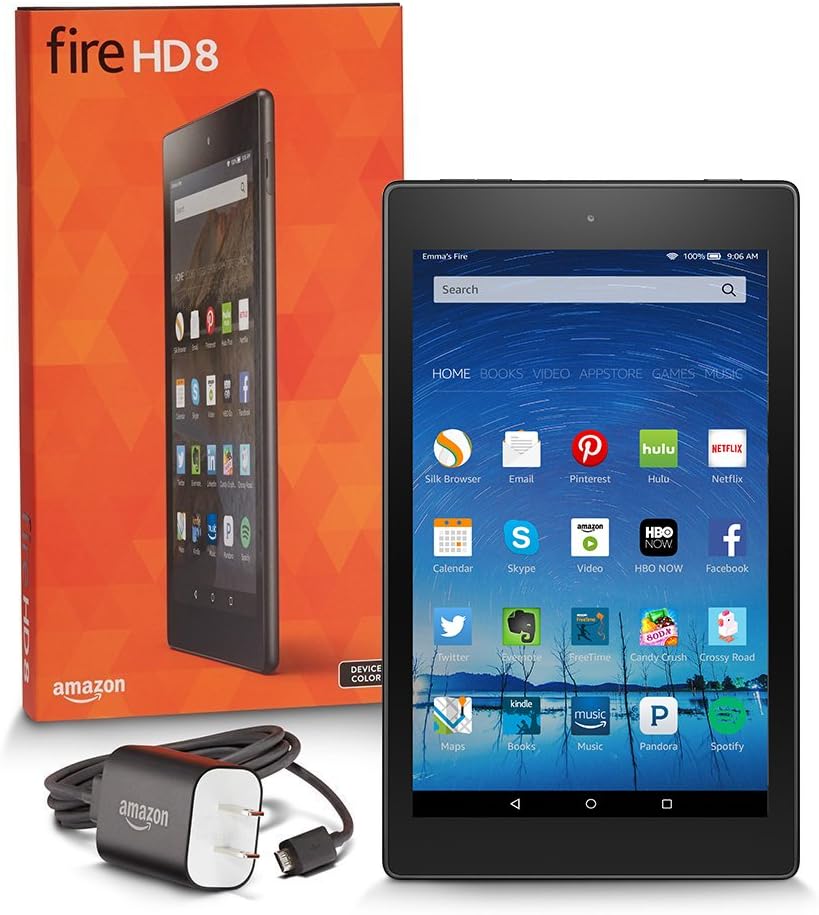
Image: The Fire HD 8 Tablet, its retail packaging, and the USB cable and power adapter included in the box.
1.2 Powering On/Off
To power on, press and hold the power button located on the side of the tablet until the Amazon logo appears. To power off, press and hold the power button, then select 'Power Off' from the on-screen options.
1.3 Wi-Fi Connection
Upon first startup, you will be guided through the Wi-Fi setup process. Select your desired network from the list and enter the password if required. The tablet supports single-antenna, dual-band Wi-Fi (802.11a/b/g/n/ac) with WEP, WPA, and WPA2 security.
1.4 Amazon Account Setup
Your Fire HD 8 Tablet is designed to link with your Amazon account. You will be prompted to sign in or create an account during the initial setup. This allows access to your Amazon content and services.
2. Operating Your Fire HD 8 Tablet
2.1 Navigating the Interface
The Fire HD 8 features an 8-inch touchscreen display. Navigate by tapping, swiping, and pinching. The home screen provides access to your apps, content libraries, and settings.

Image: The Fire HD 8 Tablet showing its home screen with applications like Silk Browser, Email, Pinterest, Hulu, Netflix, and more.
2.2 Content and Applications
Access millions of movies, TV shows, songs, Kindle e-books, and apps. The tablet supports various content formats including Kindle (AZW), KF8, TXT, PDF, Audible Enhanced format (AAX), DOC, DOCX, JPEG, GIF, PNG, BMP, non-DRM AAC, MP3, MIDI, PCM/WAVE, OGG, WAV, M4V, MP4, and more.

Image: A user engaging with content on the Fire HD 8 Tablet in a relaxed setting.
2.3 Camera Usage
The tablet is equipped with a 720p front-facing HD camera and a 5 MP rear-facing HD camera for photos and video recording.
2.4 Storage Management
The Fire HD 8 comes with either 8 GB or 16 GB of internal storage. You can expand storage by adding a microSD card (up to 200 GB) for additional movies, TV shows, music, photos, personal videos, and apps. Note that some apps may require installation on internal storage.
2.5 Bluetooth Connectivity
The tablet features built-in Bluetooth with support for A2DP compatible stereo headphones, speakers, microphones, and LE accessories. To pair a Bluetooth device, go to Settings, then Bluetooth, and follow the on-screen instructions.
2.6 Accessibility Features
Fire OS 5 includes various accessibility features such as VoiceView and Screen Magnifier for enhanced access. VoiceView utilizes IVONA's natural language text-to-speech voice. System-wide closed caption settings, adjustable font sizes (up to 50% larger), and book reading text adjustments (colors, text spacing) are also available.
3. Maintenance
3.1 Charging Your Device
Regularly charge your tablet using the provided USB cable and power adapter. Battery life is up to 8 hours for reading, web browsing, video watching, and music listening, and may vary based on usage and settings.
3.2 Cleaning the Tablet
To clean the screen, use a soft, lint-free cloth. For the body of the tablet, a slightly damp cloth can be used. Avoid harsh chemicals or abrasive materials.
3.3 Software Updates
Ensure your tablet's software is kept up-to-date to benefit from the latest features and security enhancements. Updates are typically downloaded automatically when connected to Wi-Fi.
4. Troubleshooting
4.1 Common Issues and Solutions
- Wi-Fi Connection Problems: If your tablet cannot connect to Wi-Fi, try forgetting the network in settings and re-entering the password. Ensure your router is functioning correctly. A device restart can also resolve temporary connection issues.
- Battery Draining Quickly: Battery life can be affected by screen brightness, active apps, and Wi-Fi usage. Reduce screen brightness, close unused applications, and consider enabling smart suspend options if available.
- Device Lag: If the tablet experiences noticeable lag when switching apps or loading content, try closing background applications or restarting the device. Ensure sufficient free storage space.
- Factory Reset: As a last resort for persistent issues, a factory reset can restore the tablet to its original settings. This will erase all personal data, so back up important files first. This option is typically found in the device settings under 'Device Options' or 'Reset'.
5. Technical Specifications
| Display | 8” touchscreen, 1280x800 resolution at 189 ppi, HD video playback with fully laminated IPS LCD display |
| Size | 8.4” x 5.0” x 0.3” (214 x 128 x 7.7mm) |
| Weight | 11.0 ounces (311 grams) |
| CPU & RAM | MediaTek Quad-Core: 2 @ 1.5 GHz + 2 @ 1.2 GHz, with 1 GB of RAM |
| Storage | 8 GB (4.5GB available to user) or 16 GB (11.6 GB available to user) internal storage. Expandable up to 200 GB via microSD card. |
| Battery Life | Up to 8 hours of reading, surfing the web, watching video, and listening to music. |
| Charge Time | Under 5 hours with included micro-USB power adapter. |
| Wi-Fi Connectivity | Single-antenna, dual-band Wi-Fi (802.11a/b/g/n/ac) with WEP, WPA, WPA2 security. |
| 4G Connectivity | N/A |
| Ports | USB 2.0 (micro-B connector), microSD slot. |
| Audio | 3.5 mm stereo jack and integrated stereo speaker with Dolby Audio. |
| Content Formats Supported | Kindle (AZW), KF8, TXT, PDF, unprotected MOBI, PRC, Audible Enhanced format (AAX), DOC, DOCX, JPEG, GIF, PNG, BMP, non-DRM AAC, MP3, MIDI, PCM/WAVE, OGG, WAV, M4V, MP4, Dolby Digital (AC-3), Dolby Digital Plus (E-AC-3), AAC LC/LTP, HE-AACv1, HE-AACv2, MKV, AMR-NB, AMR-WB, HTML5, CSS3, 3GP, VP8 (WEBM). |
| Sensors | Accelerometer, gyroscope. |
| Camera Specs | 720p front-facing HD camera, 5 MP rear-facing HD camera. |
| Location Services | Location-based services via Wi-Fi. |
| Available Colors | Black, Magenta, Blue, Tangerine. |
| Additional Features | External volume controls, built-in Bluetooth with A2DP support. |
| System Requirements | Ready to use out of the box; no setup, software installation, or computer required for content download. |
| Generation | 5th generation - 2015 release. |
6. Warranty and Support
Your Fire HD 8 Tablet includes a 1-year Limited Warranty and service. Optional 1-year, 2-year, and 3-year Extended Warranties are available for U.S. customers and are sold separately. For detailed terms and conditions, please refer to the warranty information provided with your device or visit the official Amazon support website.