1. Introduction
The Musical Fidelity M6SCD is a high-performance CD player and digital-to-analog converter designed to deliver exceptional audio fidelity from both standard Red Book CDs and various digital sources. Featuring a 32-bit DAC with 192 kHz upsampling, the M6SCD provides outstanding technical and musical performance. Its versatile design includes multiple digital inputs, allowing it to function as a highly revealing outboard DAC for devices such as music streamers and Blu-ray players.
2. Safety Information
Please read these safety instructions carefully before operating the M6SCD. Retain this manual for future reference.
- Power Source: Connect the unit only to the type of power supply indicated on the rear panel. Ensure the voltage is correct for your region.
- Ventilation: Do not block any ventilation openings. Ensure adequate airflow around the unit to prevent overheating.
- Water and Moisture: Do not expose the unit to rain, moisture, dripping, or splashing. Do not place objects filled with liquids, such as vases, on the apparatus.
- Heat: Do not place the unit near heat sources such as radiators, heat registers, stoves, or other apparatus (including amplifiers) that produce heat.
- Cleaning: Unplug the unit from the wall outlet before cleaning. Use only a dry cloth.
- Servicing: Do not attempt to service this product yourself. Refer all servicing to qualified service personnel. Opening the unit may expose you to dangerous voltages or other hazards.
- Laser Product: This product is a Class 1 Laser Product. Avoid direct exposure to the laser beam.
3. Package Contents
Carefully unpack the M6SCD and check that all the following items are present:
- Musical Fidelity M6SCD Unit
- Power Cable
- Remote Control (with batteries)
- User Manual (this document)
4. Product Overview
4.1 Front Panel

Figure 4.1: Front Panel of the M6SCD. Features include the power button, stop/play/pause/skip controls, input selection buttons (CD, SPDIF, Optical, USB), and the disc tray.
The front panel provides access to essential controls and the disc loading mechanism. From left to right, you will find the power button, display screen, CD tray, and various control buttons for playback and input selection.
- PWR: Power On/Off button.
- STOP: Stops CD playback.
- CD: Selects the internal CD player as the source.
- SPDIF: Selects one of the coaxial digital inputs.
- OPTICAL: Selects one of the optical digital inputs.
- USB: Selects the asynchronous USB input.
- Display: Shows track information, input selection, and operational status.
- Disc Tray: For loading and unloading CDs.
- Playback Controls: Play/Pause, Skip Forward, Skip Backward, Eject.
4.2 Rear Panel
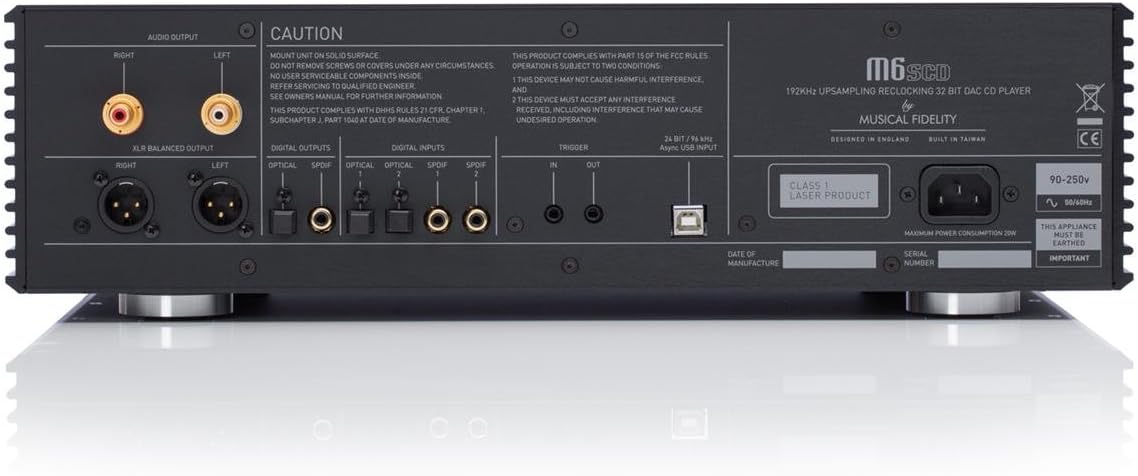
Figure 4.2: Rear Panel of the M6SCD. Connections include RCA and XLR balanced audio outputs, multiple optical and coaxial digital inputs, a USB input, trigger connections, and the AC power inlet.
The rear panel houses all the input and output connections for the M6SCD, allowing integration into your audio system.
- Audio Output (RCA): Unbalanced stereo analog outputs for connecting to an amplifier or preamplifier.
- XLR Balanced Output: Balanced stereo analog outputs for connecting to compatible balanced audio equipment.
- Digital Inputs (Optical 1, 2): Two optical (TOSLINK) digital inputs for connecting external digital sources.
- Digital Inputs (SPDIF 1, 2): Two coaxial (RCA) digital inputs for connecting external digital sources.
- USB Input: Asynchronous USB Type B input for connecting to a computer or other USB audio source.
- Trigger In/Out: For system integration with other compatible components.
- AC Power Inlet: For connecting the supplied power cable.
5. Setup
5.1 Unpacking and Placement
Carefully remove the M6SCD from its packaging. Place the unit on a solid, level surface away from direct sunlight, heat sources, and excessive moisture. Ensure there is adequate ventilation around the unit, especially above and behind it, to allow for proper heat dissipation.
5.2 Connections
Before making any connections, ensure the M6SCD and all connected components are powered off and unplugged from the mains supply.
5.2.1 Audio Output Connection
Connect the M6SCD to your amplifier or preamplifier using high-quality audio cables. You have two options:
- RCA (Unbalanced): Connect RCA cables from the "AUDIO OUTPUT" (RCA) jacks on the M6SCD to the corresponding analog input jacks on your amplifier. Ensure left and right channels are correctly matched.
- XLR (Balanced): For optimal performance with compatible equipment, connect XLR cables from the "XLR BALANCED OUTPUT" jacks on the M6SCD to the balanced input jacks on your amplifier.
5.2.2 Digital Input Connections (Optional)
If you wish to use the M6SCD as an external DAC for other digital sources, connect them to the appropriate digital inputs:
- Optical: Use a TOSLINK optical cable to connect your digital source (e.g., TV, game console) to one of the "OPTICAL" inputs.
- Coaxial (SPDIF): Use a coaxial digital cable to connect your digital source (e.g., Blu-ray player, streamer) to one of the "SPDIF" inputs.
- USB: Connect a USB Type A to Type B cable from your computer's USB port to the "USB" input on the M6SCD. You may need to install specific drivers for your operating system (refer to Musical Fidelity's website for driver availability).
5.2.3 Power Connection
Once all audio and digital connections are made, connect the supplied power cable to the "AC POWER INLET" on the rear of the M6SCD and then to a suitable wall outlet.
6. Operating Instructions
6.1 Power On/Off
Press the "PWR" button on the front panel or the remote control to turn the M6SCD on or off. The display will illuminate when the unit is powered on.
6.2 Playing CDs
- Press the "Eject" button (triangle with line) on the front panel or remote to open the disc tray.
- Place a CD gently into the disc tray with the label side facing up.
- Press the "Eject" button again, or gently push the tray, to close it. The M6SCD will read the disc.
- Press the "Play/Pause" button (triangle) to begin playback.
- Use the "Skip Forward" (double arrow right) and "Skip Backward" (double arrow left) buttons to navigate between tracks.
- Press "Stop" (square) to stop playback.
6.3 Using Digital Inputs
To use the M6SCD as a DAC for external digital sources:
- Ensure your external digital source is connected to the appropriate input on the M6SCD's rear panel.
- Press the corresponding input selection button on the front panel or remote control: "SPDIF" for coaxial inputs, "OPTICAL" for optical inputs, or "USB" for the USB input.
- The display will indicate the selected input.
- Begin playback from your external digital source. The M6SCD will process the digital audio signal.
7. Maintenance
Proper care will ensure the longevity and performance of your M6SCD.
- Cleaning: Disconnect the power cable before cleaning. Use a soft, dry, lint-free cloth to wipe the exterior surfaces. Do not use liquid cleaners, aerosols, or abrasive materials, as these may damage the finish.
- Disc Care: Handle CDs by their edges. Keep them clean and free of scratches. Store discs in their cases when not in use.
- Ventilation: Periodically check that the ventilation openings are clear of dust and debris.
- Storage: If storing the unit for an extended period, disconnect it from the power supply and store it in a cool, dry place, preferably in its original packaging.
8. Troubleshooting
If you experience issues with your M6SCD, consult the table below for common problems and solutions. If the problem persists, contact Musical Fidelity customer support.
| Problem | Possible Cause | Solution |
|---|---|---|
| No power | Power cable not connected; Wall outlet not active. | Ensure power cable is securely connected. Check wall outlet with another device. |
| No sound from CD | Incorrect input selected on amplifier; CD dirty/scratched; M6SCD output cables loose. | Select correct input on your amplifier. Clean or replace CD. Check audio cable connections. Ensure "CD" input is selected on M6SCD. |
| No sound from digital input | Incorrect input selected on M6SCD; Digital cable loose/faulty; External source not playing. | Select correct digital input (SPDIF, Optical, USB) on M6SCD. Check digital cable connections. Ensure external source is playing and outputting digital audio. |
| Remote control not working | Batteries depleted; Obstruction between remote and unit; Remote sensor blocked. | Replace batteries. Remove any obstructions. Ensure remote sensor on M6SCD is clear. |
| Disc tray not opening/closing | Obstruction in tray; Unit not powered on. | Check for any foreign objects. Ensure unit is powered on. Do not force the tray. |
9. Specifications
Technical specifications for the Musical Fidelity M6SCD.
| Feature | Detail |
|---|---|
| DAC Type | 32 bit Delta-Sigma (bit stream) dual differential 8x over-sampling |
| Frequency Response | 10Hz to 20 kHz -0.2dB max. |
| Digital Inputs | 2 x Coaxial (SPDIF), 2 x Optical (TOSLINK), 1 x Asynchronous USB (Type B) |
| Analog Outputs | 1 x Stereo RCA (unbalanced), 1 x Stereo XLR (balanced) |
| Product Dimensions (L x W x H) | 19.69 x 9.84 x 23.62 inches |
| Item Weight | 23.2 pounds (10.5 kg) |
| Color | Black |
| Special Features | Very low jitter, Multiple digital inputs |
10. Warranty and Support
Musical Fidelity products are designed and manufactured to the highest quality standards. For information regarding warranty coverage, service, or technical support, please refer to the warranty card included with your product or visit the official Musical Fidelity website.
Official Website: www.musicalfidelity.com
Please have your model number (M6SCD) and serial number ready when contacting support.