
1. Introduction
The Yupiteru DRY-WiFiV5c is a high-performance drive recorder designed to capture clear and detailed footage of your journeys. Equipped with advanced features such as 300-megapixel Full HD recording, Wi-Fi connectivity, GPS, a G-sensor for impact detection, and High Dynamic Range (HDR), this device provides comprehensive road surveillance and peace of mind. This manual provides essential information for setup, operation, maintenance, and troubleshooting to ensure optimal performance of your device.
2. Setup
2.1 Package Contents
- Yupiteru DRY-WiFiV5c Drive Recorder Unit
- 5V Converter Cigar Plug Cord (approx. 4m)
- Mounting Bracket Set
- Double-sided Tape
- microSD Card (8GB)
- Instruction Manual / Warranty Card
2.2 Device Overview
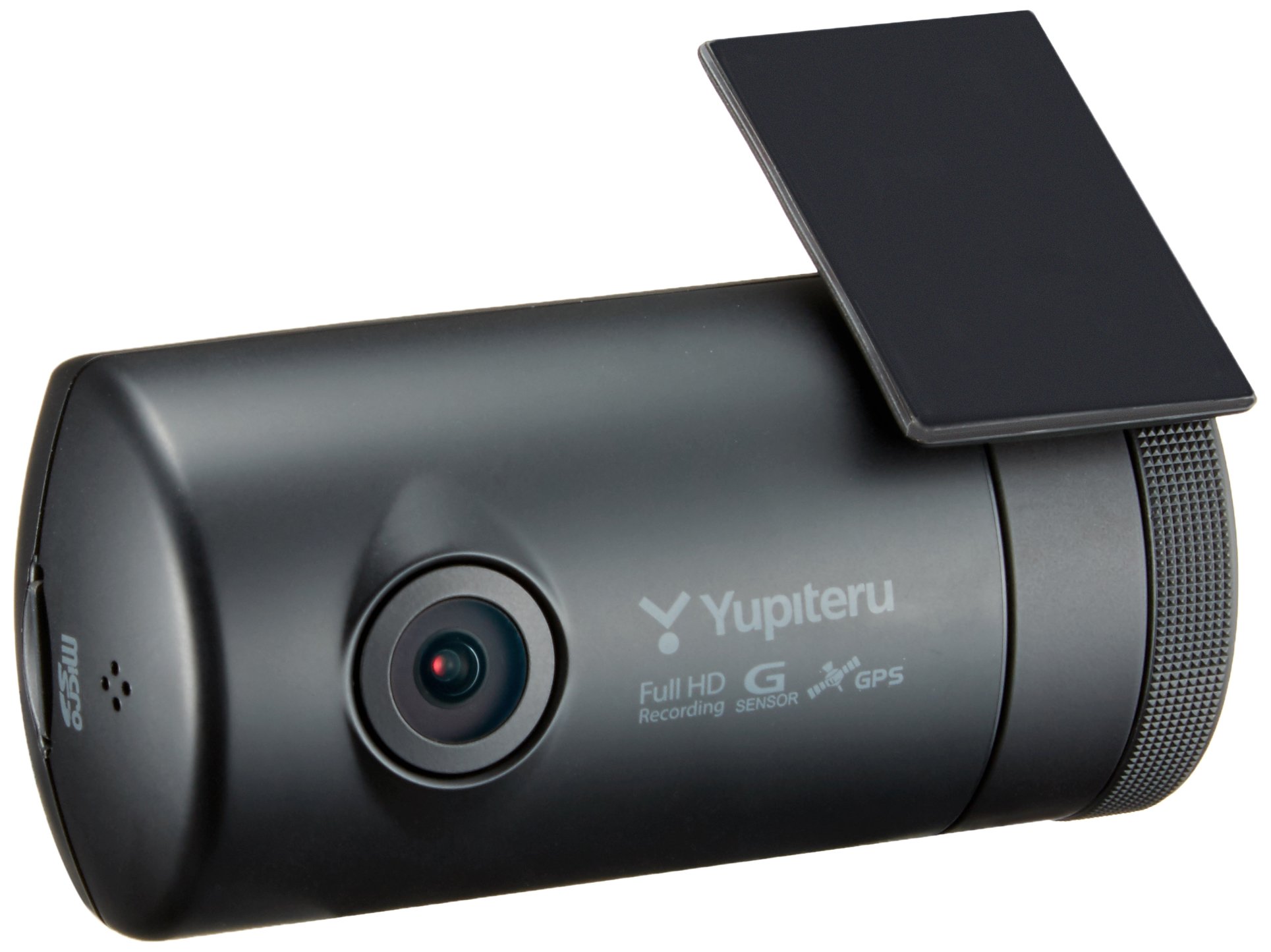
This image shows the front of the Yupiteru DRY-WiFiV5c drive recorder, featuring a compact design and a clear display screen. The screen shows a live view of the road with date and time overlay, indicating active recording.
2.3 Installation
- Clean the Windshield: Ensure the area on your windshield where the drive recorder will be mounted is clean and dry. This ensures proper adhesion of the double-sided tape.
- Attach Mounting Bracket: Apply the double-sided tape to the mounting bracket and then firmly attach the bracket to the desired location on your windshield, typically behind the rearview mirror to avoid obstructing your view.
- Mount the Device: Slide the DRY-WiFiV5c unit onto the mounting bracket until it clicks securely into place.
- Connect Power: Plug the 5V converter cigar plug cord into the drive recorder and then into your vehicle's cigarette lighter socket. Ensure the cable is routed neatly along the headliner and A-pillar to avoid interference with driving.

The drive recorder is discreetly mounted on the car's windshield, positioned behind the rearview mirror to minimize obstruction of the driver's view. The compact design ensures it blends seamlessly with the car's interior.
The drive recorder is shown installed on the passenger side of the windshield, offering a clear view of the road ahead. Its compact form factor ensures it does not obstruct the driver's line of sight.
2.4 Inserting the microSD Card
Insert the provided 8GB microSD card into the designated slot on the drive recorder. Ensure it is inserted correctly until it clicks into place. The device supports up to 32GB microSD cards (though some users report success with 128GB after formatting).
3. Operating Instructions
3.1 Recording Modes
The DRY-WiFiV5c offers three primary recording modes:
- Continuous Recording: The device automatically starts recording when the vehicle's ignition is turned on and records continuously in a loop. Older files are overwritten when the memory card is full.
- Manual Recording: Press a designated button on the device to manually start a recording. This footage is typically saved in a separate folder to prevent accidental overwriting.
- Impact Detection Recording (G-Sensor): In the event of a sudden impact or collision, the built-in G-sensor automatically triggers recording and saves the footage to a protected folder, ensuring critical evidence is preserved.

This image shows a car with front-end damage following an accident. It serves to highlight the critical role of a drive recorder in documenting incidents, providing crucial evidence for insurance claims and accident investigations.
3.2 Wi-Fi Connectivity and Smartphone App
The DRY-WiFiV5c features built-in Wi-Fi, allowing seamless connection to your smartphone or tablet via a dedicated application. This app provides several convenient functions:
- Playback: View recorded video footage directly on your smartphone or tablet.
- Download: Download recorded videos or live footage to your smartphone for easy sharing on social media or for transfer to other devices.
- Remote Control: Start or stop recordings, and capture still images remotely from your smartphone.
- Settings Adjustment: Easily configure device settings from your mobile device.
- Remote Monitoring: Check the drive recorder's footage from a location away from the vehicle (requires an optional AC adapter for continuous power).

The dedicated smartphone application allows users to view recorded footage directly on their mobile device. The interface shows a list of video files, with options for playback and download, providing convenient access to event recordings.

This image depicts a user remotely controlling the drive recorder using a smartphone. The dedicated app enables starting and stopping recordings, capturing still images, and adjusting settings from a distance, enhancing user convenience.

This graphic shows the process of downloading recorded video files from the drive recorder to a smartphone. Once downloaded, videos can be easily shared on social media or transferred for storage and review.

This image illustrates the ability to remotely check the drive recorder's footage from a location away from the vehicle, using a smartphone connected via Wi-Fi. This feature allows for monitoring the car's surroundings when parked or for reviewing events from a distance.
3.3 GPS Functionality
The integrated GPS module automatically records location, date, time, and speed information. This data can be viewed alongside the video footage using the dedicated PC viewer software, providing a comprehensive record of your journey.
3.4 HDR (High Dynamic Range)
The HDR function helps to suppress overexposure and underexposure in scenes with high contrast, such as driving against bright sunlight or entering/exiting tunnels. It also improves visibility in low-light conditions, ensuring clearer footage day and night.
3.5 Backup Function (Super Capacitor)
In the event of a sudden power loss due to an accident, the built-in super capacitor provides temporary power to safely save the currently recording file, preventing data corruption and ensuring that critical footage is not lost.
4. Maintenance
- MicroSD Card Formatting: It is recommended to regularly format the microSD card (e.g., once a month) to maintain optimal recording performance and prevent data errors.
- Cleaning the Lens: Gently wipe the camera lens with a soft, clean cloth to ensure clear video quality. Avoid using abrasive materials or harsh chemicals.
- Firmware Updates: Periodically check the Yupiteru website for any available firmware updates to ensure your device has the latest features and bug fixes.
5. Troubleshooting
5.1 Common Issues and Solutions
- Device not powering on:
- Check the power connection to the cigarette lighter socket.
- Ensure the vehicle's ignition is on.
- Verify the cigarette lighter fuse in your vehicle.
- Recording issues (e.g., not recording, corrupted files):
- Format the microSD card.
- Try a different, high-quality microSD card (Class 10 or higher recommended).
- Ensure the microSD card is inserted correctly.
- Wi-Fi connection problems:
- Ensure the Wi-Fi function is enabled on the drive recorder.
- Restart both the drive recorder and your smartphone/tablet.
- Ensure you are within range of the device's Wi-Fi signal.
- LED traffic lights flickering in recordings:
- The DRY-WiFiV5c is designed to be compatible with East-West LED traffic lights, but some flickering may still occur depending on the specific LED frequency and recording frame rate. This is generally not a defect.
- Poor image quality:
- Clean the camera lens.
- Ensure the windshield area in front of the camera is clean.
- Check if the protective film has been removed from the lens.
If you encounter persistent issues not covered here, please refer to the detailed troubleshooting section in your full instruction manual or contact Yupiteru customer support.
6. Specifications

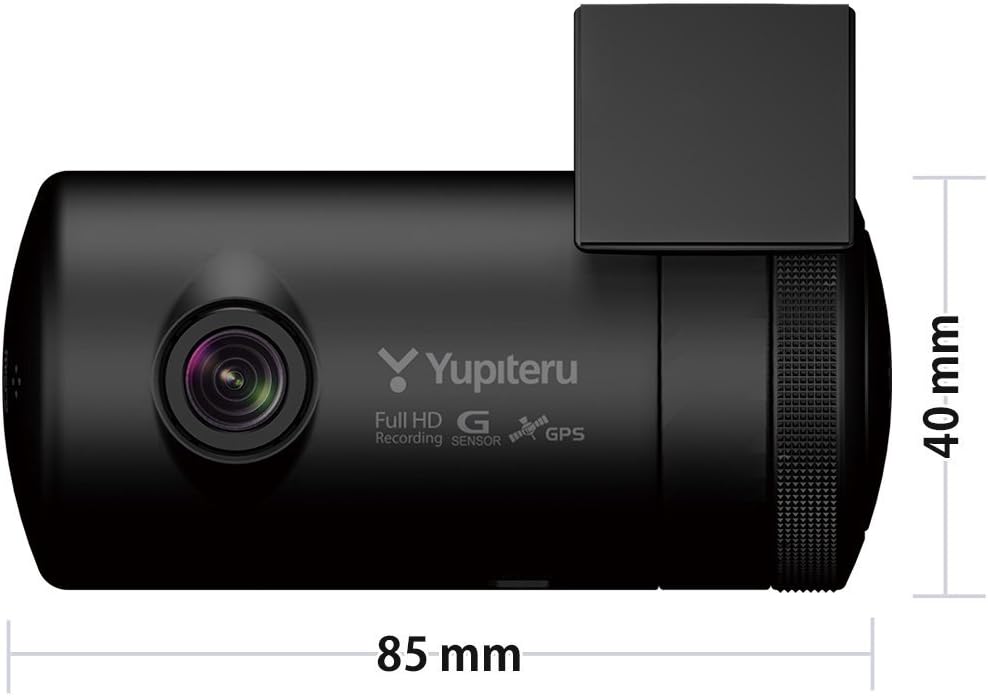
This diagram illustrates the compact dimensions of the DRY-WiFiV5c unit, measuring 85mm in width and 40mm in depth (excluding protrusions). When mounted with the included bracket, the total height is 54mm, allowing for flexible installation.

This graphic emphasizes the drive recorder's use of a 400-megapixel color CMOS sensor, enabling ultra-high-definition video recording. This ensures clear and detailed footage, even in challenging lighting conditions.
| Feature | Description |
|---|---|
| Model Name | DRY-WiFiV5c |
| Camera Performance | 400-megapixel color CMOS sensor |
| Lens Angle | 179° diagonal |
| Video Capture Resolution | Full HD (1080p) |
| Recording Methods | Continuous recording, Manual recording, Impact detection recording |
| Display | 1.5-inch Full Color TFT LCD |
| Connectivity | Wi-Fi |
| Special Features | Built-in GPS, G-Sensor, HDR, Super Capacitor (backup function) |
| Compatible Vehicles | DC12V vehicles only |
| Product Dimensions (D x W x H) | 40 x 85 x 40 mm (excluding protrusions) |
| Product Weight | 70 g |
| Included Components | Car mount, User manual, Warranty card |
7. Warranty
The Yupiteru DRY-WiFiV5c drive recorder comes with a manufacturer's warranty of one year from the date of purchase. Please retain your proof of purchase for warranty claims.
This product is also eligible for the Drive Recorder Council's Accident Compensation System. In the event of a traffic accident involving a tow truck within one year of installing the drive recorder, a uniform compensation of 40,000 yen may be provided by the Drive Recorder Council. Please refer to the warranty card or Yupiteru's official website for detailed terms and conditions of this compensation system.
8. Support
For technical assistance, product inquiries, or warranty service, please contact Yupiteru customer support. Refer to the contact information provided in your warranty card or visit the official Yupiteru website for the most up-to-date support details.
Yupiteru Official Website: Yupiteru Store on Amazon.co.jp