
Introduction
This manual provides essential information for the proper use and care of your NiceTQ USB 2.0 Data Sync Cable. Please read this manual thoroughly before using the product to ensure optimal performance and longevity.
This cable is designed for high-speed data transfer and is compatible with various devices, including external hard drives like the Seagate FreeAgent GoFlex Desk 1.5 TB USB 2.0 External Hard Drive STAC1500100.
Product Overview
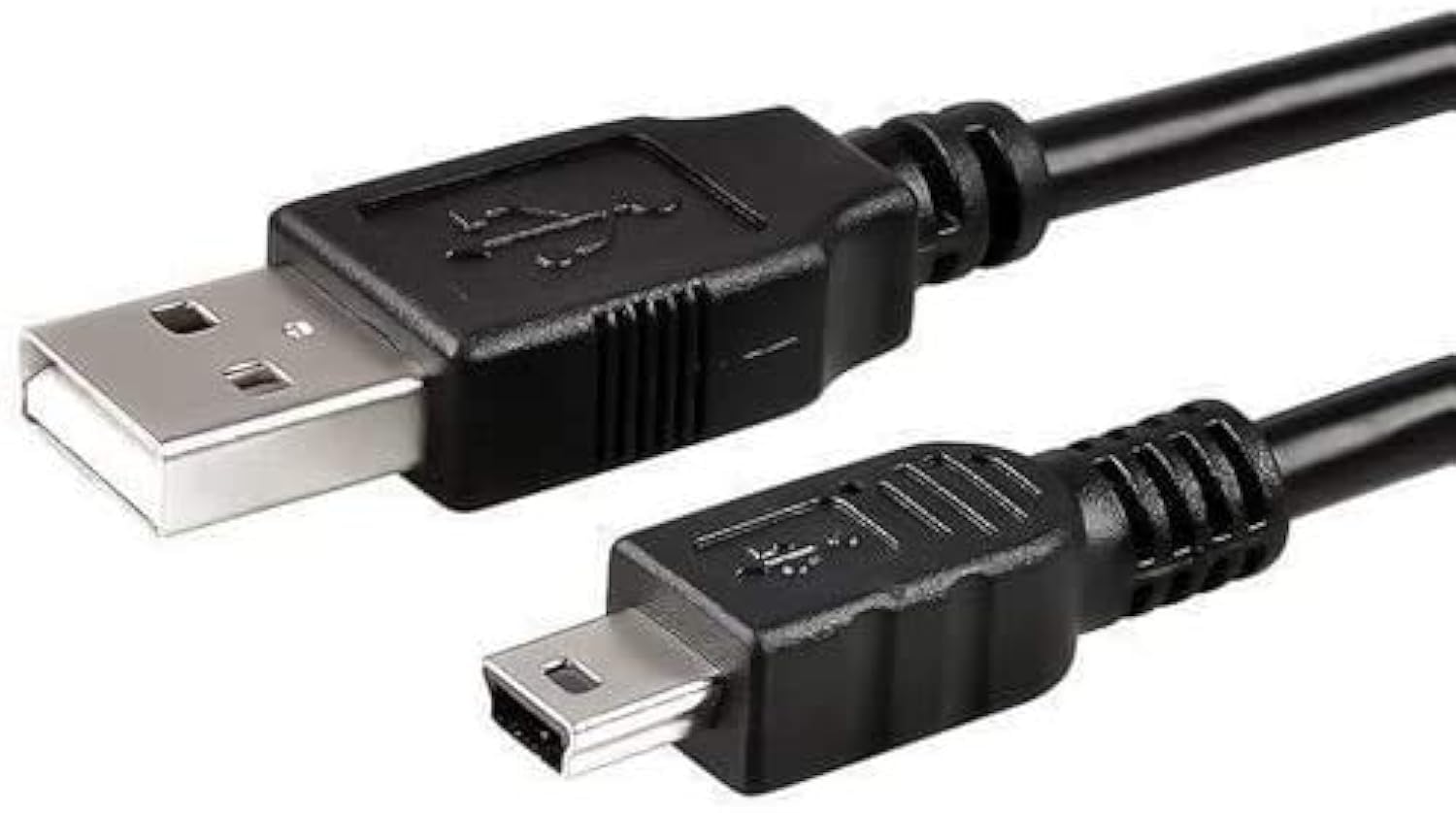
Figure 1: The NiceTQ USB 2.0 Data Sync Cable, showing its standard USB-A connector on one end and a Mini-B 5-pin connector on the other. This cable is designed for connecting devices such as external hard drives to a computer.

Figure 2: The NiceTQ USB 2.0 Data Sync Cable as it appears in its sealed plastic packaging. The cable is coiled neatly within the transparent bag, ready for use.
The NiceTQ USB 2.0 Data Sync Cable features a USB Type-A connector on one end and a Mini 5-Pin Type-B connector on the other. It is designed for high-speed data transfer up to 480 Mbps.
Key Features:
- Length: Approximately 3 feet (0.91 meters).
- Compatibility: Specifically designed for devices requiring a USB Type-A to Mini 5-Pin Type-B connection, including Seagate FreeAgent GoFlex Desk 1.5 TB USB 2.0 External Hard Drive STAC1500100.
- High Speed: USB 2.0 specification, supporting transfer rates up to 480 Mbps.
- Shielding: Features foil and braid shielding to minimize EMI/RFI interference.
- Construction: Twisted-pair construction ensures reliable, error-free data transfer.
Setup
Setting up your NiceTQ USB 2.0 Data Sync Cable is straightforward. Follow these steps to connect your device to a computer:
- Identify Ports: Locate the appropriate USB ports on your external device (e.g., hard drive) and your computer. The cable has a standard USB Type-A connector for your computer and a Mini 5-Pin Type-B connector for your device.
- Connect to Device: Gently insert the Mini 5-Pin Type-B end of the cable into the corresponding port on your external hard drive or other compatible device. Ensure the connector is oriented correctly to avoid damage.
- Connect to Computer: Insert the standard USB Type-A end of the cable into an available USB 2.0 port on your computer.
- Device Recognition: Your computer should automatically detect the connected device. If it's an external hard drive, it may appear as a new drive letter in 'My Computer' or 'This PC' (Windows) or on the desktop/Finder (macOS).
No additional drivers are typically required for this cable, as it utilizes standard USB protocols. Ensure your device's power source (if external) is connected and turned on before connecting the data cable.
Operating Instructions
Once the cable is connected and your device is recognized by the computer, you can begin data transfer operations.
Data Transfer:
- Copying Files: Drag and drop files or folders between your computer's drives and the connected external device.
- Backing Up Data: Use your operating system's built-in backup tools or third-party software to create backups of your important data onto the external hard drive.
- Accessing Media: If connecting a digital camera or camcorder, you can typically access photos and videos directly through file explorer or photo management software.
Safe Disconnection:
To prevent data corruption or loss, always safely eject your external device before disconnecting the cable:
- Windows: Click the "Safely Remove Hardware and Eject Media" icon in the system tray (bottom-right corner), then select your device and click "Eject."
- macOS: Drag the device icon from the desktop to the Trash, or click the Eject button next to the device name in a Finder window sidebar.
Wait for the "Safe to Remove Hardware" or "Disk Not Ejected Properly" message before physically unplugging the cable.
Maintenance
Proper maintenance ensures the longevity and reliable performance of your USB cable.
- Storage: Store the cable in a cool, dry place away from direct sunlight and extreme temperatures. Avoid tightly coiling or bending the cable sharply, as this can damage internal wires.
- Cleaning: If necessary, gently wipe the cable and connectors with a soft, dry, lint-free cloth. Do not use liquid cleaners or abrasive materials.
- Handling: Always grasp the connector housing when plugging or unplugging the cable. Avoid pulling on the cable itself, as this can strain the connection points and lead to damage.
- Inspection: Periodically inspect the cable for any signs of wear, fraying, or damage to the insulation or connectors. Discontinue use if any damage is observed.
Troubleshooting
If you encounter issues with your NiceTQ USB 2.0 Data Sync Cable, try the following troubleshooting steps:
| Problem | Possible Cause | Solution |
|---|---|---|
| Device not recognized by computer. | Loose connection, incorrect port, device not powered, damaged cable. |
|
| Slow data transfer speeds. | Connecting to a USB 1.1 port, background processes, drive fragmentation. |
|
| Cable appears physically damaged. | Wear and tear, improper handling. | Discontinue use immediately and replace the cable. Continued use of a damaged cable can lead to data loss or electrical hazards. |
Specifications
| Attribute | Detail |
|---|---|
| Brand | NiceTQ |
| Model Number | 8541682059 |
| Cable Type | USB 2.0 Data Sync Cable |
| Connector Type (End 1) | USB Type-A Male |
| Connector Type (End 2) | USB Mini 5-Pin Type-B Male |
| Length | 3 feet (approx. 0.91 meters) |
| Data Transfer Rate | Up to 480 Mbps (USB 2.0 High Speed) |
| Shielding | Foil and Braid Shielding |
| Construction | Twisted-Pair |
| Compatible Devices | PC, Digital Cameras, Camcorders, Web Cameras, External Hard Drives (e.g., Seagate FreeAgent GoFlex Desk 1.5 TB USB 2.0 External Hard Drive STAC1500100) |
| Product Dimensions | 6.5 x 3.6 x 0.7 inches (packaged) |
| Item Weight | 1.76 ounces |
Warranty Information
Specific warranty details for NiceTQ products are typically provided at the point of purchase or on the product packaging. Please retain your proof of purchase for any warranty claims.
In general, cables are covered against manufacturing defects. Damage resulting from misuse, accident, modification, or unauthorized repair is usually not covered. For detailed warranty terms, please refer to the documentation included with your purchase or contact the seller directly.
Customer Support
For further assistance or inquiries regarding your NiceTQ USB 2.0 Data Sync Cable, please contact the seller or manufacturer through the platform where the product was purchased.
When contacting support, please be prepared to provide the following information:
- Product Name: NiceTQ USB 2.0 Data Sync Cable
- Model Number: 8541682059
- Date of Purchase
- A detailed description of the issue you are experiencing.