
1. Introduction
The Gustard U12 is a high-performance USB Digital Audio Interface designed to convert USB audio signals into various digital output formats. It utilizes the XMOS X-CORE 32-bit digital signal processing unit, offering robust multi-core processing capabilities for high-fidelity audio. The U12 supports asynchronous USB Audio Class 2.0 and features an independent power supply for optimal audio performance.
Key features include:
- Support for 32-bit / 384kHz asynchronous 2.0 audio.
- Native 32-bit / 384kHz XMOS DAC capabilities.
- Precision audio clock circuit using 0.1PPM active crystals.
- Independent power supply for enhanced audio quality.
- Multiple digital outputs: Coaxial (RCA), Optical, AES/EBU, and IIS (HDMI port).
2. Package Contents
Please ensure all items are present upon unpacking:
- Gustard U12 Digital Audio Interface Unit
- Power Cable
- Mini-CD with XMOS Driver (version 3.20 or later)
3. Device Layout
3.1 Front Panel
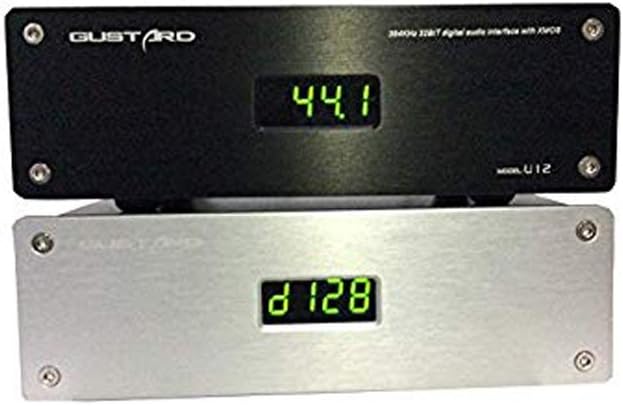
Figure 3.1: Front view of the Gustard U12, displaying the current sample rate.
The front panel features a digital display that indicates the current audio sample rate. There are no physical controls on the front panel.
3.2 Rear Panel

Figure 3.2: Rear panel connections of the Gustard U12.
The rear panel provides all necessary input and output connections:
- 230V/115V AC Input: Power connection.
- AES: AES/EBU digital audio output.
- COAX: Coaxial (RCA) digital audio output.
- IIS: IIS digital audio output via HDMI port.
- OPTICAL: Optical (Toslink) digital audio output.
- USB IN: USB 2.0 input for connection to a computer.
4. Setup Instructions
- Power Connection: Connect the provided power cable to the 230V/115V AC input on the rear panel of the U12 and then to a suitable power outlet.
- USB Connection: Connect a USB cable from your computer (Windows, macOS, or Linux) to the USB IN port on the rear panel of the U12.
- Digital Output Connection: Connect one of the digital outputs (Coaxial, Optical, AES/EBU, or IIS) from the U12 to the corresponding digital input on your Digital-to-Analog Converter (DAC) or audio amplifier.
- Driver Installation (Windows Users):
- Insert the provided mini-CD into your computer's CD drive.
- Locate and install the XMOS driver. A common driver version is 4.13.0 (e.g., "XMOS-Stereo-USB-Audio-Class2-Driver-3033_v4.13.0").
- Follow the on-screen instructions to complete the driver installation. Restart your computer if prompted.
- For optimal performance, it is recommended to use ASIO output when configuring your audio playback software (e.g., jRiver Media Player, Foobar2000).
- Driver Installation (macOS/Linux Users): The U12 is generally plug-and-play with macOS and Linux operating systems, requiring no additional driver installation.
- Initial Power On: Once all connections are secure and drivers are installed (if applicable), the U12 will power on automatically when the computer is turned on or when the USB cable is connected. The front display will show the current sample rate.
5. Operating Instructions
5.1 Audio Playback
After successful setup, select the Gustard U12 as your audio output device in your computer's sound settings or preferred audio playback software. Begin playing audio, and the U12 will automatically detect and display the incoming sample rate on its front panel.
5.2 Supported Output Formats and Sample Rates
- Coaxial (RCA), Optical, AES/EBU: These outputs conform to IEC60958 and AES3-r2009 standards, supporting a maximum resolution of 24-bit / 192kHz.
- IIS (HDMI port): This output can transmit up to 32-bit / 384kHz audio.
The U12 employs two independent active crystals to provide precise clock signals for different sample rate series: one for 44.1/88.2/176.4/352.8kHz and another for 48/96/192/384kHz. Only the crystal corresponding to the selected clock rate operates, preventing mutual interference.
5.3 Power Management
The U12 features an automatic standby mode. When your computer enters sleep mode or is powered off (provided the USB power is also off), the U12's display will turn off. Waking your computer or restoring USB power will instantly reactivate the U12 and its display.

Figure 5.1: The U12's display indicating various sample rates.
6. Maintenance
To ensure the longevity and optimal performance of your Gustard U12, follow these maintenance guidelines:
- Cleaning: Use a soft, dry cloth to wipe the exterior of the unit. Avoid using liquid cleaners or abrasive materials, as they may damage the finish.
- Placement: Place the U12 on a stable, flat surface with adequate ventilation. Avoid placing it near heat sources, direct sunlight, or in areas with high humidity.
- Power Off: If the unit will not be used for an extended period, it is advisable to unplug it from the power outlet.
- Internal Components: Do not attempt to open the unit or service it yourself. Refer all servicing to qualified personnel. Opening the unit may void your warranty.

Figure 6.1: Internal view of the U12's XMOS chip and circuitry.

Figure 6.2: Internal view highlighting the independent power supply with toroidal transformer.
7. Troubleshooting
| Problem | Possible Cause | Solution |
|---|---|---|
| No power / Display off |
|
|
| No sound / Device not recognized by computer |
|
|
| Juttering, clicking, or loss of sync on Coaxial output at high sample rates (e.g., 192kHz/24bit) |
|
|
| Device shuts off randomly |
|
|
8. Specifications
| Brand | Gustard |
| Model Number | U12 |
| Compatible Devices | Personal Computer |
| Connectivity Technology | USB, XLR (for AES/EBU) |
| Number of Channels | 4 |
| Item Weight | 1.5 Kilograms |
| Operating System Support | Linux, Windows, macOS |
| Audio Input | USB |
| Maximum Sample Rate | 384 KHz |
| Digital Outputs | Coaxial (RCA), Optical (Toslink), AES/EBU (XLR), IIS (HDMI) |
| UPC | 652252617682, 674387795905, 686560911064 |
| ASIN | B00PU3R6KY |
9. Warranty and Support
For warranty information or technical support, please refer to the documentation provided with your purchase or contact the manufacturer directly. Keep your proof of purchase for warranty claims.
Manufacturer: Gustard


