
CamKix D0027-SRC-BLA
CamKix Bluetooth Camera Shutter Remote Control User Manual
Model: D0027-SRC-BLA
1. Introduction
The CamKix Bluetooth Camera Shutter Remote Control is designed to provide a convenient and hands-free method for capturing photos and videos using your smartphone or tablet. This compact device allows you to trigger your device's camera remotely, making it ideal for selfies, group shots, steady long-exposure photos, and video recording without needing to touch your phone.
2. Package Contents
- CamKix Bluetooth Camera Shutter Remote Control
- Adjustable Wrist Strap
- Lithium Metal Battery (pre-installed)
3. Product Overview
The CamKix Bluetooth Camera Shutter Remote Control features a compact design with two primary buttons for camera control and a side-mounted ON/OFF switch. A small LED indicator light shows the device's status.

Figure 3.1: CamKix Bluetooth Camera Shutter Remote Control with included wrist strap.
The remote is designed for portability, easily fitting into a pocket or attaching to a keychain for quick access.

Figure 3.2: The compact design allows for easy portability in a pocket.
4. Setup
4.1. Battery Installation
The remote control comes with a pre-installed Lithium Metal battery. If replacement is needed, locate the circular battery compartment on the back of the device. Gently push and slide the cover to open it. Insert a new CR2032 Lithium Metal battery with the positive (+) side facing up, then close the cover securely.
4.2. Bluetooth Pairing
- Ensure your smartphone or tablet's Bluetooth is enabled.
- Turn on the CamKix remote control using the ON/OFF switch located on the side. A blue LED indicator light will begin to flash, indicating it is in pairing mode.
- On your smartphone or tablet, search for available Bluetooth devices. The remote will appear as "AB Shutter" or similar.
- Select "AB Shutter" to pair. The blue LED on the remote will stop flashing and remain solid for a few seconds, confirming successful pairing.
- The remote will automatically reconnect to your device on subsequent uses once it has been paired.

Figure 4.1: Visual representation of the easy pairing process with a smartphone.
5. Operating Instructions
5.1. Taking Photos and Videos
Once paired, open your device's camera application. The remote control features two buttons:
- Small Button: Designed for Android devices.
- Large Button: Designed for iOS (iPhone/iPad) devices.
Press the appropriate button to trigger the shutter for photos or to start/stop video recording. The remote functions up to 30 feet (10 meters) away from your paired device.
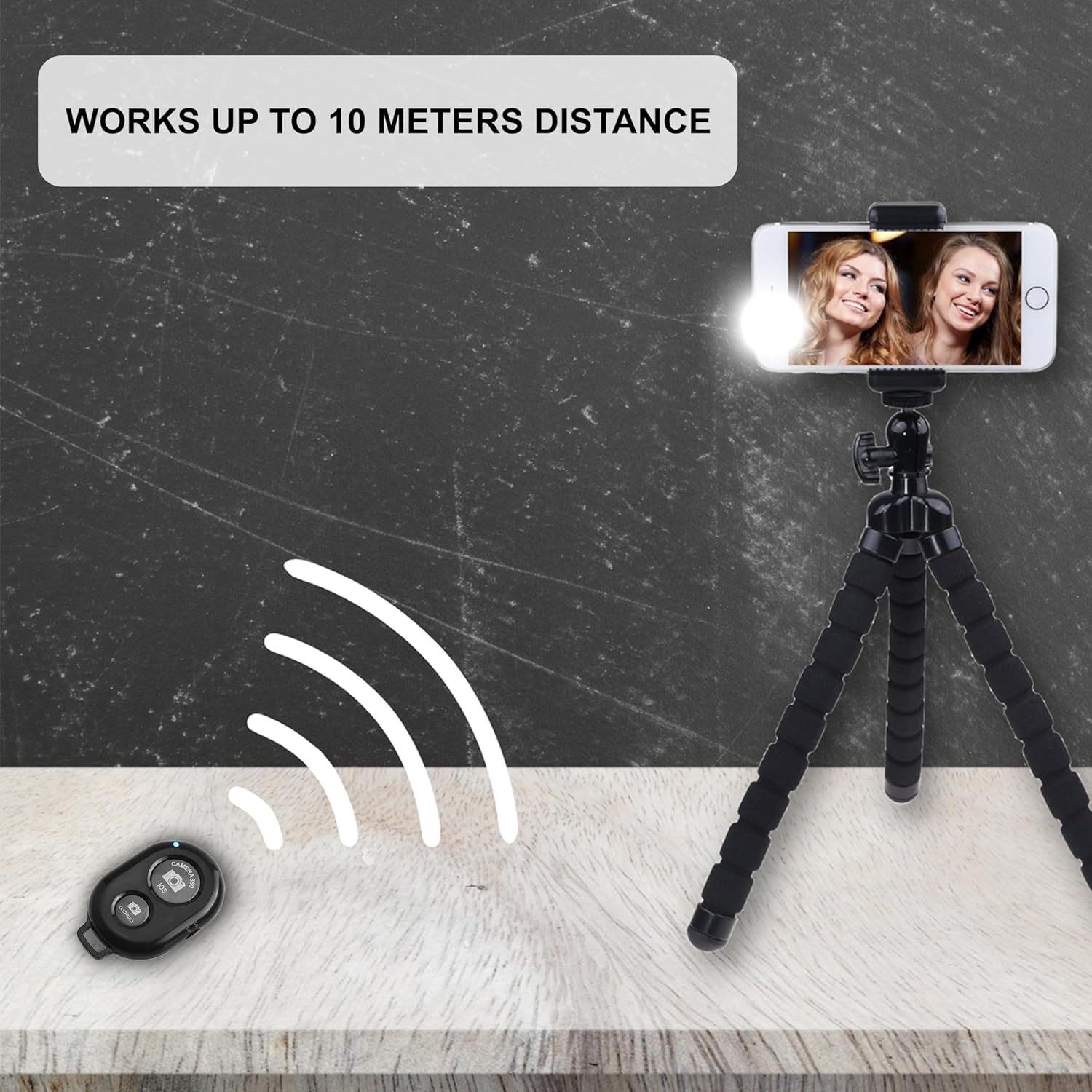
Figure 5.1: The remote operates effectively up to 10 meters distance from the paired device.
5.2. Device Compatibility
The CamKix remote control is compatible with a wide range of smartphones and tablets:
- Android: Devices operating on Android 4.2.2 OS and up.
- Apple iOS: Devices operating on Apple iOS 6.0 and up.
It can be used with the device's in-built camera app or third-party camera applications like Camera 360. Compatible devices include, but are not limited to, iPhone Xs, Xs Max, X, 8, 8 Plus, 7, 7 Plus, SE, 6s, 6s Plus, 6, 6 Plus, 5S, 5C, 5, 4s, 4; iPad Pro, 4, 3, 2, Mini 2, Mini, Air; Samsung Galaxy S9, S9+, S8, S8+, S7, S7 Edge, S6, S6 Edge, S5, S5 Mini, S4, S4 Mini, Note 9, 8, 7, 5, 4, 3, 2.

Figure 5.2: The remote offers broad compatibility with both Android and iOS operating systems.
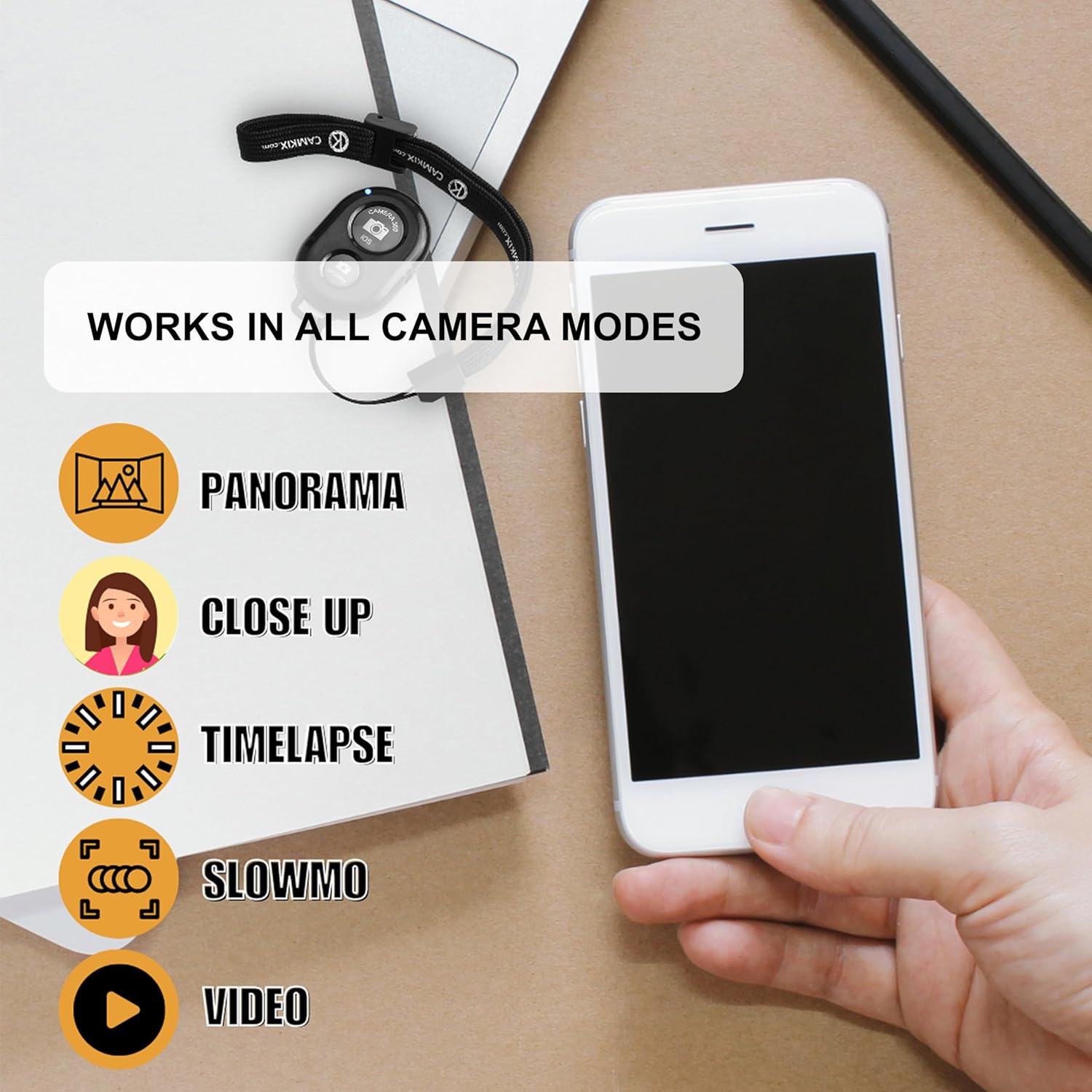
Figure 5.3: The remote supports various camera modes including Panorama, Close Up, Timelapse, Slow Motion, and Video.
6. Maintenance
To ensure the longevity and optimal performance of your CamKix Bluetooth Camera Shutter Remote Control, follow these maintenance guidelines:
- Cleaning: Wipe the remote with a soft, dry cloth. Do not use liquid cleaners or abrasive materials.
- Storage: Store the remote in a cool, dry place away from direct sunlight and extreme temperatures.
- Battery: If the remote will not be used for an extended period, it is recommended to remove the battery to prevent leakage.
- Handling: Avoid dropping the device or subjecting it to strong impacts, as this may damage internal components.
7. Troubleshooting
If you encounter issues with your CamKix Bluetooth Camera Shutter Remote Control, please refer to the following common troubleshooting steps:
| Problem | Possible Cause | Solution |
|---|---|---|
| Remote does not turn on. | Battery is dead or incorrectly installed. | Check battery orientation. Replace battery if necessary. Ensure ON/OFF switch is in the 'ON' position. |
| Remote does not pair with device. | Bluetooth is off on the device, remote is out of range, or previous pairing issue. | Ensure Bluetooth is active on your phone/tablet. Bring the remote closer to the device. Forget the device in your phone's Bluetooth settings and re-pair. Restart both the remote and your phone/tablet. |
| Remote triggers incorrect action (e.g., volume instead of shutter). | Device settings or app compatibility. | Some Android devices may interpret the shutter command as a volume command. Check your camera app settings for an option to use volume buttons as a shutter. Try a different camera app (e.g., Camera 360). |
| iPhone keyboard disappears when remote is connected. | iOS behavior with certain Bluetooth devices. | This is a known behavior with some iOS versions when a Bluetooth keyboard-like device is connected. Disconnect the remote's Bluetooth connection when typing is required, then reconnect for camera use. |
8. Specifications
| Feature | Detail |
|---|---|
| Product Dimensions | 4.92 x 0.43 x 3.43 inches |
| Item Weight | 0.64 ounces |
| Model Number | D0027-SRC-BLA |
| Batteries | 1 Lithium Metal battery (CR2032) required |
| Compatible Devices | Smartphones and Tablets (Android 4.2.2+ / iOS 6.0+) |
| Color | Black |
| Max Operating Distance | Up to 30 feet (10 meters) |
9. Warranty and Support
For warranty information, product support, or to view other CamKix products, please visit the official CamKix store or contact your retailer. Keep your purchase receipt for warranty claims.
Official CamKix Store: CamKix Store on Amazon
Ask a question about this manual
Ask about setup, troubleshooting, compatibility, parts, safety, or missing instructions. Manuals+ will review the question and use this page’s manual context to help answer it.