1. Overview
This manual provides instructions for the Maiwo K520 Slim Portable USB 2.0 External Optical Drive Case. This product is an empty enclosure designed to house a slim SATA optical drive (DVD-RW, CD-RW, etc.), allowing it to be used externally via a USB 2.0 connection. An optical drive is not included with this case and must be purchased separately.
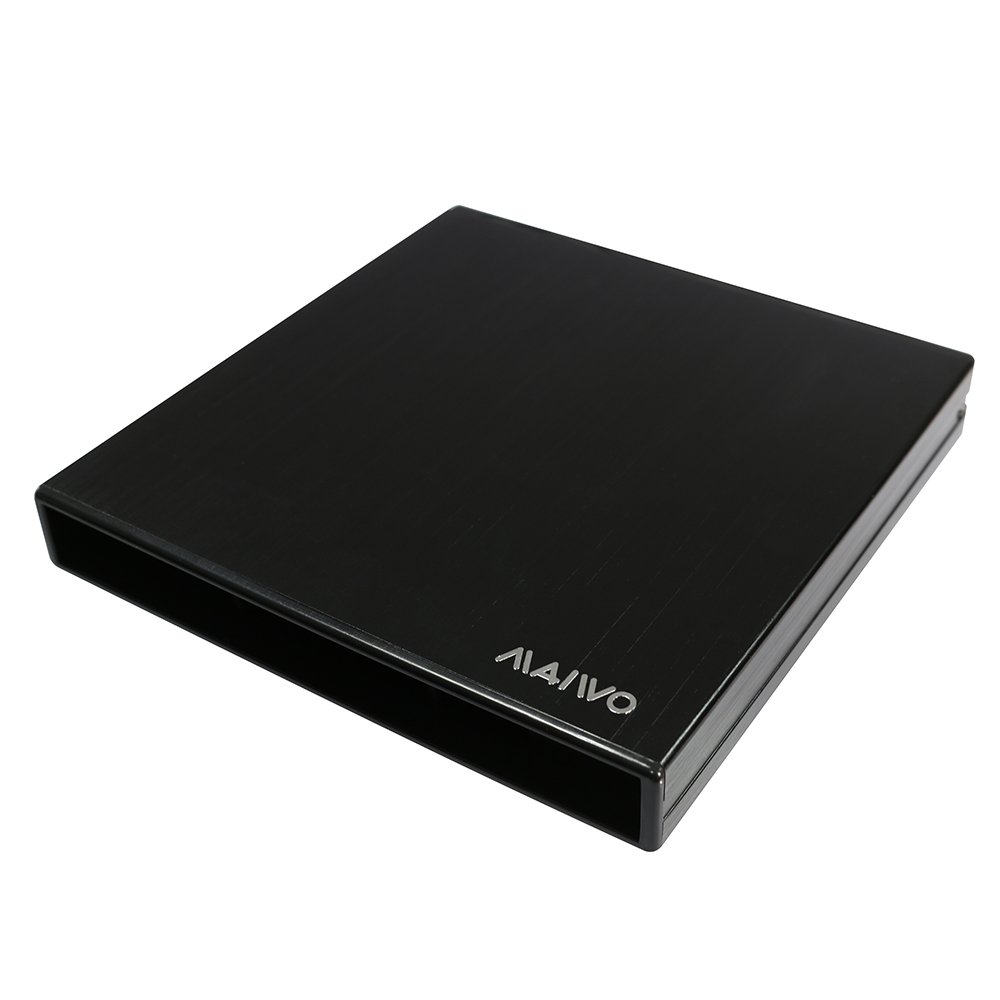
Figure 1: Maiwo K520 External Optical Drive Case (closed).
2. Product Contents
Verify that all items are present in the package:
- 1 x Maiwo K520 External Optical Drive Case
- 1 x USB 2.0 Data Cable (80cm)
- 1 x Power Cable (60cm)
- 1 x Screwdriver
- 4 x Screws

Figure 2: Product packaging and included accessories.
3. Setup Instructions
Follow these steps to install your slim SATA optical drive into the Maiwo K520 enclosure and connect it to your computer.
3.1. Installing the Optical Drive
- Open the Case: Gently slide open the enclosure to reveal the internal bay.
- Connect the Optical Drive: Align your slim SATA optical drive with the SATA data and power connectors inside the case. Carefully push the drive into place until it is firmly seated.

Figure 3: Inserting a slim optical drive into the enclosure.
- Secure the Drive: Use the provided screws and screwdriver to secure the optical drive within the enclosure. This prevents movement and ensures proper connection.
- Close the Case: Carefully slide the enclosure back together until it clicks into place, ensuring the drive is fully enclosed.
3.2. Connecting to Your Computer
- Identify Ports: Locate the USB 2.0 port and the DC power input port on the Maiwo K520 case.
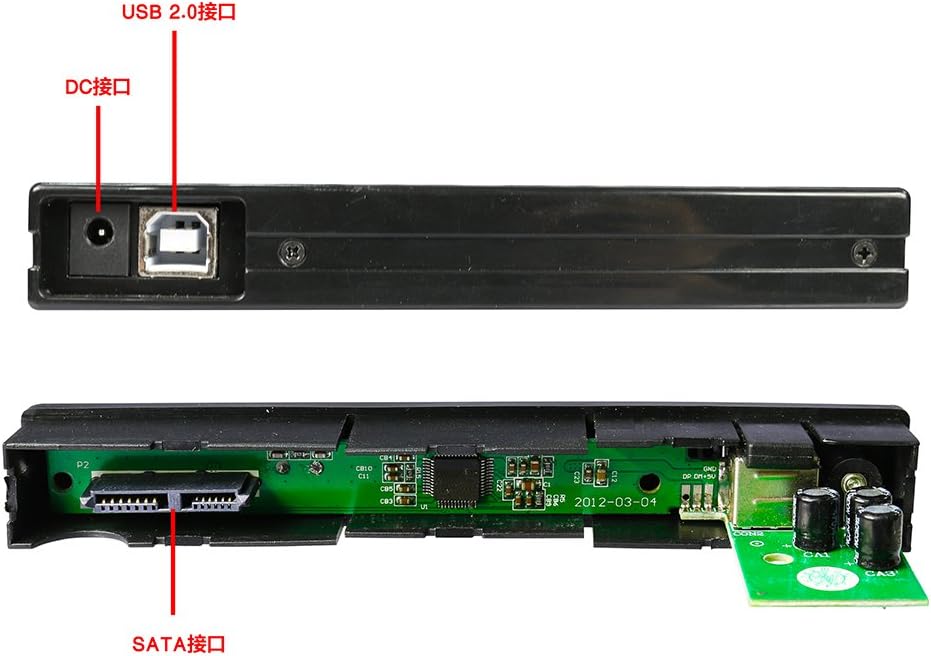
Figure 4: Rear view of the enclosure with port labels.
- Connect USB Data Cable: Plug one end of the provided USB 2.0 data cable into the USB 2.0 port on the Maiwo K520 case and the other end into an available USB 2.0 or 3.0 port on your computer.
- Connect Power Cable (If Needed): For some optical drives, especially those with higher power requirements, the single USB data connection may not provide sufficient power. If your drive is not recognized or operates intermittently, connect the provided power cable to the DC power input port on the case and to an available USB port on your computer or a USB wall adapter (not included).
- System Recognition: Your operating system (Windows 2000/2003/XP/VISTA/7/8 and later) should automatically detect and install the necessary drivers for the optical drive. The device is plug-and-play.
4. Operating Instructions
Once the optical drive is installed in the Maiwo K520 case and connected to your computer, it functions like any internal optical drive.
4.1. Inserting and Ejecting Discs
- Open Disc Tray: Press the eject button on the front of the optical drive (within the case) to open the disc tray.

Figure 5: Disc tray open with a driver disc.
- Insert Disc: Place a CD or DVD onto the disc tray with the label side facing up.
- Close Disc Tray: Gently push the disc tray back into the drive until it closes completely. Alternatively, press the eject button again.
- Access Disc Content: Your computer's operating system should recognize the disc. You can access its contents through "My Computer" or "This PC" (Windows) or Finder (macOS).
4.2. Reading and Writing Discs
The functionality for reading and writing discs depends on the specific optical drive installed in the Maiwo K520 case and the software installed on your computer. Use appropriate software for burning CDs/DVDs or playing media.
5. Maintenance
Proper maintenance ensures the longevity and optimal performance of your Maiwo K520 External Optical Drive Case.
- Cleaning: Use a soft, dry cloth to wipe the exterior of the case. Avoid abrasive cleaners or solvents. For the optical drive's lens, refer to the drive's specific cleaning instructions or use a specialized optical drive cleaning disc.
- Storage: Store the case in a cool, dry place away from direct sunlight and extreme temperatures.
- Handling: Handle the case with care to avoid dropping it or subjecting it to impacts, which could damage the internal optical drive or the enclosure itself.
6. Troubleshooting
If you encounter issues with your Maiwo K520 External Optical Drive Case, refer to the following common problems and solutions:
- Problem: The computer does not detect the optical drive.
- Solution:
- Ensure the USB data cable is securely connected to both the case and the computer.
- Try connecting the case to a different USB port on your computer.
- Connect the additional power cable (if not already connected) to provide sufficient power to the optical drive.
- Verify that the optical drive is correctly installed and seated within the Maiwo K520 case. Re-open the case and check the SATA connections.
- Test the optical drive in another enclosure or directly in a compatible computer (if possible) to rule out a faulty drive.
- Problem: Discs are not reading or writing correctly.
- Solution:
- Ensure the disc is clean and free of scratches or smudges.
- Verify that the disc is inserted correctly with the label side up.
- Check if the optical drive itself supports the type of disc you are trying to read or write (e.g., DVD-R, CD-RW).
- Ensure you are using appropriate software for reading or writing discs.
- If writing, ensure there is enough free space on the disc and that it is not write-protected.
- Problem: The drive tray does not open or close.
- Solution:
- Ensure the case is receiving adequate power. Try connecting the additional power cable.
- Check for any physical obstructions preventing the tray from moving.
- This issue is typically related to the optical drive itself, not the enclosure. Refer to the optical drive's manual for troubleshooting.
7. Specifications
| Feature | Detail |
|---|---|
| Model | K520 |
| Interface | USB 2.0 |
| Internal Drive Interface | SATA (for slim optical drives) |
| Compatibility | Windows 2000/2003/XP/VISTA/7/8 and later |
| Material | Plastic + Aluminum Alloy |
| Color | Black |
| Dimensions (L x W x H) | 14 cm x 13.8 cm x 2.1 cm (5.51 in x 5.43 in x 0.83 in) |
| Weight | 162 g (5.71 oz) |
| Special Feature | Portable |
| Optical Drive Speeds (Dependent on installed drive) |
|
Note: The listed optical drive speeds are typical for compatible drives and are dependent on the specific optical drive installed by the user, not the enclosure itself.
8. Warranty and Support
Maiwo products are designed for reliability and performance. For specific warranty information, please refer to the documentation provided with your purchase or contact Maiwo customer support directly.
If you require technical assistance or have questions not covered in this manual, please visit the official Maiwo website or contact their customer service department.


