
Introduction
This manual provides essential information for the proper setup, operation, and maintenance of your AOC E2752VH 27" LED Monitor. Please read this manual thoroughly before using the product to ensure optimal performance and safety. The AOC E2752VH features a 27-inch LED-backlit panel, Full HD resolution (1920 x 1080), and multiple connectivity options including DVI, HDMI, and VGA. It is designed for energy efficiency and offers a dynamic contrast ratio of 20,000,000:1 for enhanced visual detail.
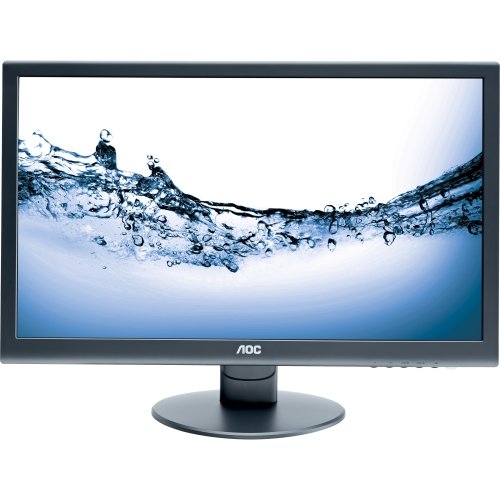
Image: Front view of the AOC E2752VH 27-inch LED Monitor, showcasing its slim bezel and stand.
Setup Instructions
1. Unpacking
Carefully remove the monitor and all accessories from the packaging. Ensure all components listed in the packing list are present.
- AOC E2752VH Monitor
- Power Cable
- VGA Cable (may vary by region)
- HDMI Cable (may vary by region)
- Audio Cable (if applicable)
- Monitor Stand Base and Neck
- User Manual (this document)
2. Assembling the Stand
- Place the monitor face down on a soft, clean surface to prevent scratches.
- Attach the stand neck to the back of the monitor, ensuring it clicks into place or is secured with screws (refer to the quick start guide for specific model instructions).
- Attach the stand base to the stand neck, securing it with the thumb screw or screws provided.
- Carefully lift the monitor and place it on a stable, flat surface.
3. Connecting the Monitor
The AOC E2752VH supports DVI, HDMI, and VGA connections. Choose the appropriate cable for your computer.
- Power Connection: Connect the power cable to the monitor's power input and then to a grounded electrical outlet.
- Video Connection (HDMI): Connect one end of the HDMI cable to the HDMI port on your computer's graphics card and the other end to the HDMI port on the monitor.
- Video Connection (DVI): Connect one end of the DVI cable to the DVI port on your computer's graphics card and the other end to the DVI port on the monitor.
- Video Connection (VGA): Connect one end of the VGA cable to the VGA port on your computer's graphics card and the other end to the VGA port on the monitor. Secure the screws on the VGA connector.
- Audio Connection (if applicable): If using the monitor's built-in speakers with a VGA or DVI connection, connect an audio cable from your computer's audio output to the monitor's audio input. HDMI carries audio digitally.
4. Initial Power On
- Ensure all cables are securely connected.
- Press the power button on the monitor.
- Turn on your computer.
- The monitor should automatically detect the input signal. If not, use the monitor's OSD (On-Screen Display) menu to manually select the input source.
Operating Instructions
1. Power On/Off
Press the power button located on the monitor's bezel to turn the monitor on or off. The power indicator light will illuminate when the monitor is on.
2. On-Screen Display (OSD) Menu
The OSD menu allows you to adjust various monitor settings. Access the OSD menu using the control buttons located on the monitor's bezel.
- Menu Button: Opens the OSD menu.
- Arrow Buttons (Up/Down or Left/Right): Navigate through menu options.
- Enter/Select Button: Confirms a selection or enters a sub-menu.
- Exit Button: Exits the current menu or OSD.
3. Common OSD Settings
- Brightness/Contrast: Adjust the overall brightness and contrast of the display.
- Color Settings: Modify color temperature, gamma, and individual RGB levels.
- Input Select: Manually switch between HDMI, DVI, and VGA input sources.
- Picture Mode: Select from preset display modes (e.g., Standard, Text, Internet, Game, Movie, Sports).
- Audio Settings: Adjust volume for built-in speakers or headphone output.
- OSD Setup: Change OSD language, position, and timeout.
- Information: Displays current resolution, refresh rate, and input source.
4. Adjustable Display Angle
The monitor features an adjustable stand allowing you to tilt the screen for optimal viewing comfort. Gently hold the top and bottom edges of the monitor and tilt it to your desired angle. Avoid applying excessive force.
Maintenance
1. Cleaning the Monitor
- Always power off the monitor and unplug the power cord before cleaning.
- Use a soft, lint-free cloth slightly dampened with water or a non-abrasive screen cleaner.
- Do not use alcohol, benzene, thinners, or other harsh chemicals, as these may damage the screen or casing.
- Avoid spraying liquid directly onto the screen.
2. General Care
- Do not block ventilation openings on the monitor.
- Avoid placing the monitor in direct sunlight or near heat sources.
- Keep the monitor away from excessive dust, humidity, and vibrations.
- Do not place heavy objects on the monitor or its cables.
Troubleshooting
| Problem | Possible Cause | Solution |
|---|---|---|
| No image on screen |
|
|
| Image is blurry or distorted |
|
|
| No sound from speakers |
|
|
Specifications
| Feature | Detail |
|---|---|
| Model Name | E2752VH |
| Screen Size | 27 inches |
| Display Type | LED-backlit LCD |
| Resolution | 1920 x 1080 (Full HD) |
| Aspect Ratio | 16:9 |
| Brightness | 300 cd/m² (Nit) |
| Contrast Ratio (Dynamic) | 20,000,000:1 |
| Color Support | 16.7 Million Colors |
| Connectivity | 1x HDMI, 1x DVI, 1x VGA |
| Built-in Speakers | Yes |
| Power Consumption | 40 W (typical) |
| Energy Efficiency | ENERGY STAR certified |
| Adjustable Angle | Tilt |
Warranty Information
The AOC E2752VH 27" LED Monitor comes with a 1-Year Manufacturer Warranty. This warranty covers defects in materials and workmanship under normal use. Please retain your proof of purchase for warranty claims. For full terms and conditions, please refer to the official AOC warranty statement available on their website or contact customer support.
Note: Warranty terms may vary by region.
Customer Support
For technical assistance, service inquiries, or further information regarding your AOC E2752VH monitor, please contact AOC customer support.
- AOC Official Website: www.aoc.com (Check for regional support contacts and FAQs)
- Online Support: Visit the support section of the AOC website for drivers, manuals, and troubleshooting guides.
- Telephone Support: Refer to your product's packaging or the AOC website for regional telephone support numbers.
When contacting support, please have your monitor's model number (E2752VH) and serial number ready. The serial number is typically located on a label on the back of the monitor.


