
TP-Link CPE210
TP-Link CPE210 Outdoor CPE User Manual
Model: CPE210
Brand: TP-Link
Introduction
The TP-Link CPE210 is a 2.4GHz 300Mbps 9dBi Outdoor CPE designed for cost-effective outdoor wireless networking applications. It is ideal for point-to-point (PtP), point-to-multipoint (PtMP), and outdoor Wi-Fi coverage scenarios. Featuring professional performance and user-friendly design, the CPE210 offers a reliable solution for both business and home users seeking extended wireless connectivity.
Package Contents
Verify that all items are present in your package:
- Outdoor Wireless CPE (CPE210 Unit)
- 24VDC Passive PoE Adapter
- Pole Mounting Straps
- AC Power Cord
- Installation Guide

Image: Contents of the TP-Link CPE210 package, including the CPE unit, PoE adapter, mounting straps, and power cord.
Product Overview
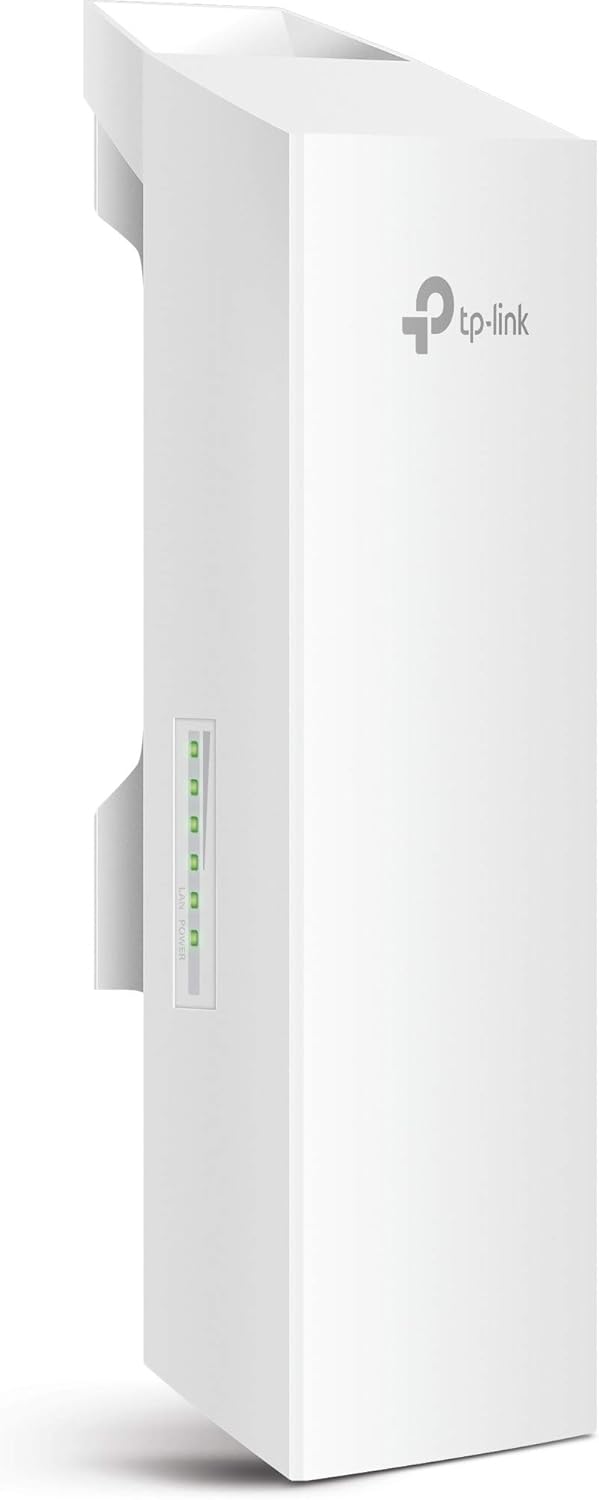
Image: Front view of the CPE210 unit, showing the TP-Link logo and status indicators.

Image: Side view of the CPE210 unit, highlighting its slim profile.

Image: Rear view of the CPE210, showing the integrated mounting bracket and product label.

Image: Bottom view of the CPE210, detailing the shielded Ethernet port (LAN/PoE In) and grounding terminal.
Setup Guide
1. Physical Installation
The CPE210 is designed for outdoor use and can be mounted on a pole or wall. Use the provided pole mounting straps to secure the device. Ensure the unit is positioned for optimal signal transmission, typically with a clear line of sight to the target device or area.
2. Powering the Device (Passive PoE)
The CPE210 is powered via Passive Power over Ethernet (PoE) using the included PoE adapter. Connect an Ethernet cable from the LAN/PoE In port on the CPE210 to the PoE port on the adapter. Then, connect another Ethernet cable from the LAN port on the adapter to your computer or network switch. Finally, plug the AC power cord into the PoE adapter and a power outlet.
Note: The PoE adapter supports deployment up to 60 meters (200 feet). Ensure proper grounding of the device for lightning protection.
3. Initial Configuration
Access the device's web-based management interface (Pharos Control) via a web browser. The default IP address and login credentials can be found in the included Installation Guide. From this interface, you can configure the operating mode, wireless settings, and other network parameters.
Video: An overview of the TP-Link Pharos series, including the CPE210, highlighting its features and outdoor networking capabilities. This video demonstrates the product's design, internal components, and the centralized management software, Pharos Control, which is used for configuration and monitoring.
Operating Modes
The CPE210 supports various operating modes to suit different networking needs:
- Access Point (AP) Mode: Broadcasts a wireless signal, allowing other devices to connect.
- Client Mode: Connects to an existing wireless network as a client device.
- AP Router Mode: Functions as a router, providing internet access to connected devices.
- AP Client Router (WISP) Mode: Connects to a Wireless Internet Service Provider (WISP) network and shares the internet connection with local devices.
These modes can be configured through the Pharos Control management interface, offering flexibility for various outdoor wireless applications.
Maintenance
Regular maintenance ensures optimal performance and longevity of your CPE210:
- Firmware Updates: Periodically check the TP-Link website for the latest firmware updates. Updating firmware can improve performance, add new features, and fix bugs.
- Physical Inspection: Regularly inspect the unit for any physical damage, loose cables, or corrosion, especially after severe weather conditions.
- Cleaning: Keep the unit's exterior clean from dust, dirt, and debris. Use a soft, dry cloth. Do not use liquid cleaners or aerosols.
- Environmental Conditions: Ensure the device operates within its specified temperature range (-40℃ to 70℃ / -40℉ to 158℉) and is protected from excessive moisture.
Troubleshooting
No Power/Device Not Responding
- Ensure the PoE adapter is properly connected and receiving power.
- Check the Ethernet cable connecting the PoE adapter to the CPE unit for damage.
- If the device becomes unresponsive, a factory reset may be necessary. Locate the reset button on the PoE adapter and press and hold it for approximately 8-10 seconds while the device is powered on.
Poor Signal Strength or Connectivity
- Verify clear line of sight between the CPE210 and the target device/network. Obstructions like trees or buildings can significantly degrade signal quality.
- Adjust the alignment of the CPE210 for optimal signal reception.
- Check for potential wireless interference from other 2.4GHz devices.
- Ensure the transmit power is set appropriately for your environment via the Pharos Control interface.
Difficulty Connecting to Specific Networks (e.g., Xfinity Wi-Fi)
Some public Wi-Fi networks, like Xfinity Wi-Fi, may require device registration based on MAC address. If using the CPE210 in WISP mode to connect to such a network, you might need to configure your client device (e.g., laptop) to clone the MAC address of the CPE210's WAN interface. This can trick the network into recognizing the CPE as an authorized device. Refer to your client device's network settings for MAC address cloning options.
Specifications
| Feature | Detail |
|---|---|
| Brand | TP-Link |
| Model | CPE210 |
| Frequency | 2.4 GHz |
| Wireless Standards | IEEE 802.11b/g/n |
| Data Rate | Up to 300 Mbps |
| Antenna | Built-in 9dBi 2x2 Dual-polarized Directional MIMO |
| Transmission Power | 0 to 27dBm/500mW (Adjustable) |
| Max Range | 5km+ (Point-to-Point/Multi-Point) |
| Interface | 1 x 10/100Mbps Shielded Ethernet Port (Passive PoE In), 1 Grounding Terminal |
| Power Supply | 24VDC Passive PoE Adapter (Included) |
| Operating Temperature | -40℃~70℃ (-40℉~158℉) |
| Dimensions | 8.82 x 3.11 x 2.36 inches |
| Weight | 7.2 ounces |
Warranty and Support
TP-Link products typically come with a limited warranty. For detailed warranty information, technical support, and additional resources, please visit the official TP-Link website or refer to the documentation included with your product.
You can also find the official User Manual (PDF) for the CPE210 here.
For further assistance, contact TP-Link customer support directly.
Related documentsCPE210


Ask a question about this manual
Ask about setup, troubleshooting, compatibility, parts, safety, or missing instructions. Manuals+ will review the question and use this page’s manual context to help answer it.