
1. Introduction
The Gingko Design Cube Alarm Clock (Model GK08W6) is a digital alarm clock featuring an LED display that can show time, date, and temperature. It incorporates a sound-activated display function for energy saving. This manual provides comprehensive instructions for setting up, operating, and maintaining your device.
Package Contents:
- Gingko Design Cube Alarm Clock (GK08W6)
- USB Power Cable
- Instruction Manual
2. Setup
2.1 Powering the Device
The clock can be powered by either 3x AAA batteries (not included) or via the supplied USB cable connected to a USB power adapter (not included) or a computer USB port.
- Battery Power: Open the battery compartment on the back of the clock and insert 3x AAA batteries, ensuring correct polarity.
- USB Power: Connect the small end of the USB cable to the DC 5V port on the back of the clock and the larger end to a USB power source.
For continuous display, USB power is recommended. Battery power is suitable for portable use or as a backup, but the display will typically turn off after a short period to conserve energy.

Image 1: Front view of the Gingko Design Cube Alarm Clock displaying the time.
3. Operating Instructions
The control buttons are located on the back of the clock. These typically include 'SET', 'UP', and 'DOWN' buttons.
3.1 Setting Time and Date
- Press and hold the 'SET' button for 3 seconds to enter time setting mode. The display will flash.
- Use the 'UP' and 'DOWN' buttons to adjust the hour. Press 'SET' to confirm and move to minutes.
- Adjust minutes with 'UP'/'DOWN', then press 'SET'.
- Continue this process to set the year, month, and day.
- After setting the day, press 'SET' to exit the setting mode.
3.2 Setting the Alarm
The clock supports up to three independent alarms (A1, A2, A3).
- Press the 'SET' button repeatedly until 'A1' (or A2, A3) appears on the display.
- Press and hold 'SET' for 3 seconds. The alarm hour will flash.
- Use 'UP'/'DOWN' to set the alarm hour, then press 'SET'.
- Use 'UP'/'DOWN' to set the alarm minute, then press 'SET'.
- The display will show 'ON:A1' or 'OFF:A1'. Use 'UP'/'DOWN' to toggle the alarm on or off. Press 'SET' to confirm.
- Repeat for A2 and A3 if desired.
3.3 Snooze Function
When the alarm sounds, press any button (except 'SET' or 'DOWN' during alarm setting) to activate the snooze function. The alarm will sound again after approximately 5 minutes.
3.4 Display Modes
The clock offers various display modes. Press the 'UP' button to cycle through them:
- dp-1: Time, date, and temperature display alternately.
- dp-2: Time display only.
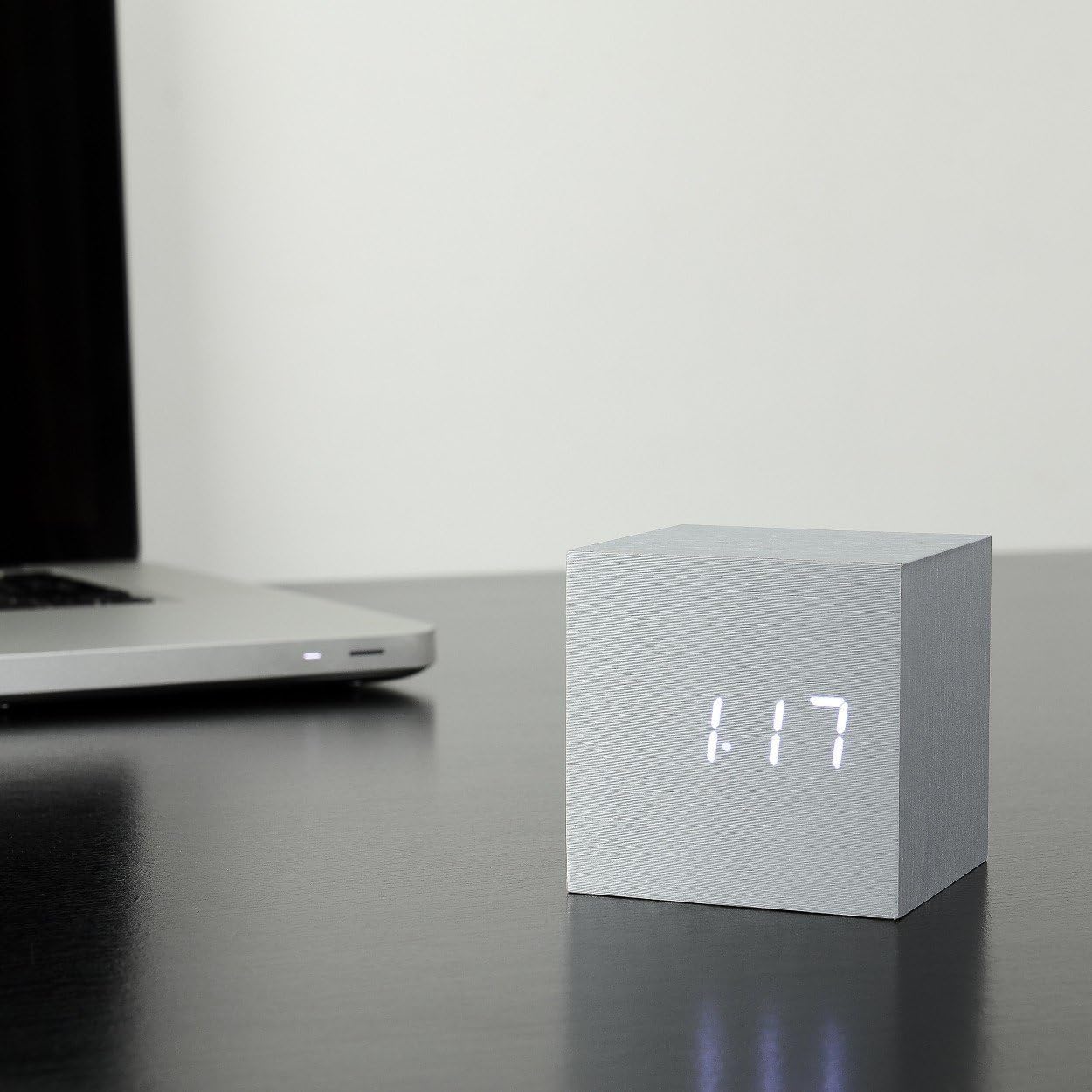
Image 2: The clock displaying the date (month and day).

Image 3: The clock displaying the temperature in Celsius.
3.5 Sound Activation Mode
In sound activation mode, the display will turn off when the room is quiet to save power. It will light up again in response to a sound (e.g., a clap, finger snap, or gentle tap on the clock/surface).
- To activate/deactivate sound activation mode, press the 'DOWN' button.
- When 'ON:SD' is displayed, sound activation is active.
- When '--:SD' is displayed, sound activation is inactive, and the display will remain on (if USB powered).
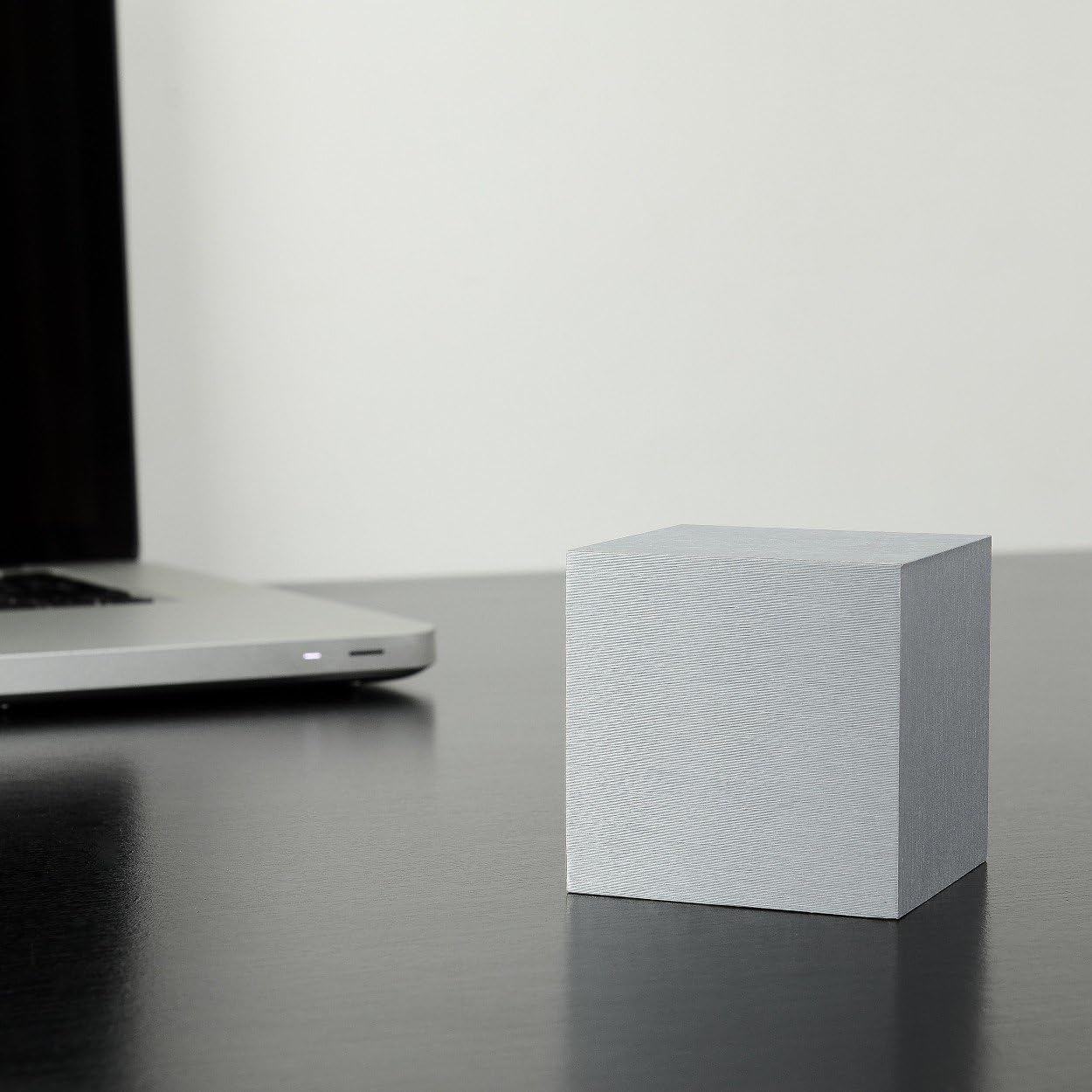
Image 4: The clock with its display off, indicating sound activation mode is active and the environment is quiet.
4. Maintenance
4.1 Cleaning
To clean the clock, gently wipe the surface with a soft, dry cloth. Avoid using abrasive cleaners, solvents, or excessive moisture, as these can damage the finish or internal components.
4.2 Battery Replacement
If using battery power, replace the AAA batteries when the display dims or the clock functions become unreliable. Ensure the clock is powered off or disconnected from USB before replacing batteries. Dispose of old batteries responsibly.
5. Troubleshooting
- Display is off or dim:
- Check battery level and replace if necessary.
- Ensure USB power cable is securely connected.
- If in sound activation mode, make a sound to activate the display. - Clock not keeping accurate time:
- Re-set the time following the instructions in Section 3.1.
- Ensure stable power supply (either fresh batteries or consistent USB power). - Alarm not sounding:
- Verify that the alarm is set to 'ON' (e.g., 'ON:A1') in the alarm settings.
- Check the alarm time to ensure it is correctly set. - Buttons not responding:
- Disconnect power (both USB and batteries) for a few minutes, then reconnect to perform a soft reset.
6. Specifications
| Brand | Gingko |
| Model Number | GK08W6 |
| Color | Gray |
| Material | Wood |
| Display Type | Digital LED |
| Power Source | Battery Powered (3x AAA, not included) or USB (DC 5V) |
| Special Features | Alarm, Snooze, Sound Activation, Time/Date/Temperature Display |
| Product Dimensions | 2.68 x 2.68 x 2.68 inches |
| Item Weight | 6.3 ounces (179.99 Grams) |
7. Warranty and Support
For warranty information and customer support, please refer to the documentation included with your purchase or visit the official Gingko Design website. Keep your proof of purchase for warranty claims.
Website: www.gingkodesign.com