
Introduction
This manual provides detailed instructions for the proper installation, operation, and maintenance of your Yupiteru DRY-FV13 Full HD Drive Recorder. Please read this manual thoroughly before using the device to ensure optimal performance and safety.
The DRY-FV13 is a compact drive recorder designed to capture high-quality Full HD video. Its small size ensures it does not obstruct your view while driving. Key features include automatic recording, a wide viewing angle, and a movable lens for flexible installation.
Package Contents
Before proceeding with installation, please verify that all the following items are included in your package:
- Yupiteru DRY-FV13 Drive Recorder Unit
- 5V Converter Cigar Plug Power Cord (approx. 4m)
- Mounting Bracket
- Double-sided Tape
- microSD Card (8GB)
- Instruction Manual and Warranty Card
Setup and Installation
1. Choosing an Installation Location
Select a location on your windshield that provides a clear view of the road ahead and does not obstruct the driver's visibility. Ensure the device is positioned centrally for optimal recording coverage.
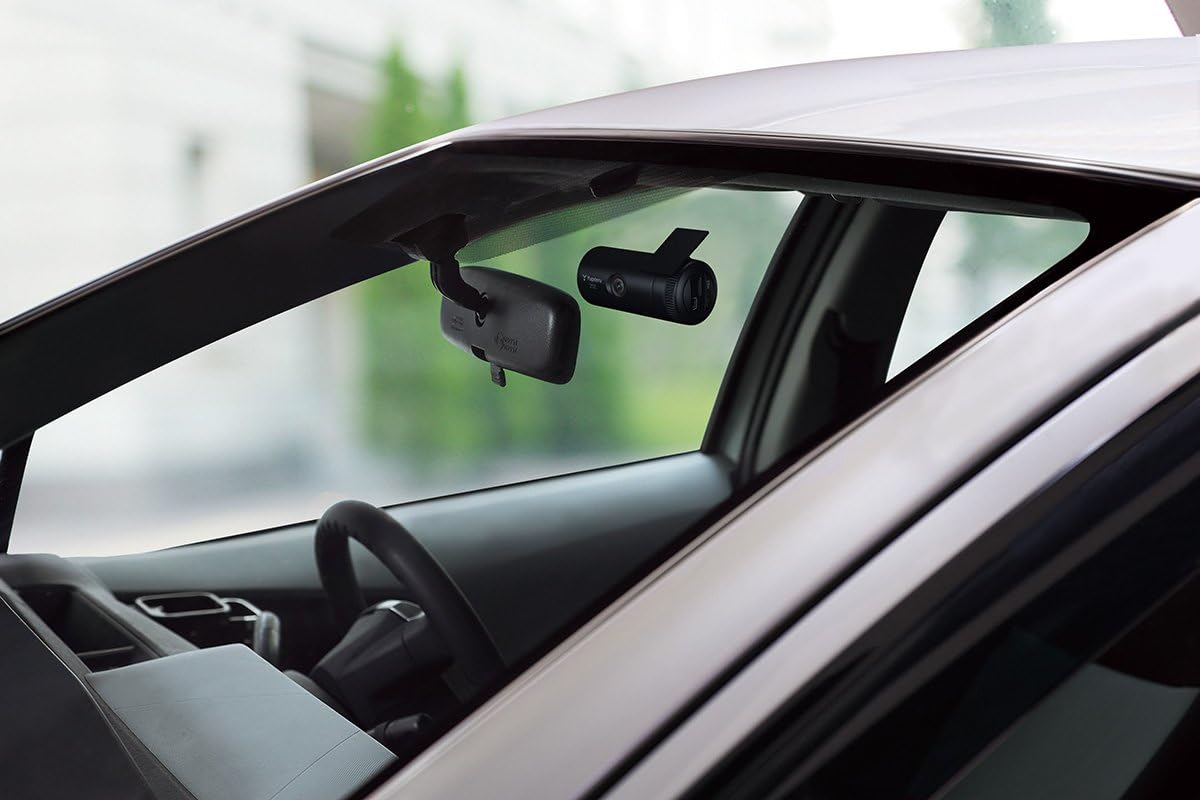
Image: The Yupiteru DRY-FV13 drive recorder mounted on the inside of a car's windshield, positioned behind the rearview mirror for an unobstructed view.
2. Adjusting the Lens Angle
The DRY-FV13 features a movable lens, allowing for optimal angle adjustment in various vehicle types, including those with front glass tilt angles between 15° and 90° (Patent No. 4712858). Use the built-in LCD screen to verify the camera's field of view and adjust the lens as needed to capture the desired area.

Image: A close-up of the Yupiteru DRY-FV13 unit, highlighting its movable lens feature with a curved arrow indicating the range of motion. This allows for flexible installation angles.
3. Mounting the Device
- Clean the chosen area on the windshield thoroughly.
- Attach the mounting bracket to the drive recorder.
- Peel off the protective film from the double-sided tape on the bracket.
- Firmly press the bracket onto the windshield for at least 30 seconds.
4. Power Connection
Connect the provided 5V converter cigar plug power cord to the drive recorder and then plug it into your vehicle's cigarette lighter socket. For automatic recording, connect to an accessory power source that turns on and off with the engine.

Image: A diagram illustrating the automatic recording function. When connected to the cigar plug, recording starts automatically when the engine is turned ON and stops when the engine is turned OFF.
5. Inserting the microSD Card
Insert the included 8GB microSD card into the designated slot on the drive recorder. Ensure it is inserted correctly until it clicks into place.
Operating Instructions
1. Automatic Recording
Once connected to an accessory power source, the device will automatically begin recording when the engine is turned ON and stop recording when the engine is turned OFF. This ensures continuous recording without manual intervention.
2. Audio Recording
The DRY-FV13 can record audio along with video. This feature can be toggled ON or OFF through the device's menu settings. Recording audio provides additional context for recorded events.
3. One-Touch Recording (PROTECT Button)
During continuous recording, pressing the "PROTECT" button will save the current video segment into a dedicated folder, preventing it from being overwritten. This is useful for preserving important footage immediately after an event.
4. Video Quality and Resolution Settings
The device records in Full HD (2 million pixels) for clear image quality. You can select from various recording resolutions:
- 1080P HD
- 1080P
- 720P
- VGA
Higher resolutions provide clearer images, while lower resolutions allow for longer recording times.

Image: An example of the clear image quality provided by Full HD recording, showing a magnified section of a road scene with improved detail compared to a wider view.
5. Digital Zoom
The DRY-FV13 supports 4x digital zoom for both video and still image capture. Note that digital zoom functionality is not available during live preview.
6. Backup Function
In the event of a sudden power interruption (e.g., during an accident), the backup function automatically saves the currently recording video file, preventing data corruption.
7. Viewing Recorded Footage
You can view recorded footage directly on the device's LCD screen or by connecting the microSD card to a computer. For computer viewing, insert the microSD card into an SD card reader/writer and connect it to your PC. System requirements for PC viewing are Windows 7 or 8, Core2Duo equivalent 2.0GHz or higher, and 2GB or more RAM.
Maintenance
1. microSD Card Management
When the microSD card's capacity is full, the device will automatically overwrite the oldest files. You can enable or disable this overwrite function through the device settings. Regularly back up important footage to a computer to prevent accidental deletion.
Approximate Recording Times (8GB microSD card):
- VGA: Approximately 75 minutes
- 720P: Approximately 50 minutes
- 1080P: Approximately 40 minutes
- 1080P HD (24fps): Approximately 50 minutes
Approximate Recording Times (Other microSD card sizes):
- 32GB: VGA ~225 min, 720P ~150 min, 1080P ~120 min, 1080P HD (24fps) ~150 min
- 16GB: VGA ~150 min, 720P ~100 min, 1080P ~80 min, 1080P HD (24fps) ~100 min
- 4GB: VGA ~37 min, 720P ~25 min, 1080P ~20 min, 1080P HD (24fps) ~25 min
2. Cleaning
Wipe the device's exterior and lens with a soft, dry cloth. Avoid using abrasive cleaners or solvents, as these may damage the unit.
Troubleshooting
- Date/Time Resets Frequently: The internal battery for maintaining date/time settings may have limited capacity. If the vehicle is not driven for approximately 3-4 hours daily, the date/time may reset after about 3 days. It is recommended to manually reset the date/time periodically if this occurs.
- Device Does Not Power On in Hot Weather: High temperatures can affect electronic devices. If the device fails to power on during hot conditions, allow it to cool down before attempting to use it again.
- Screen is Black or Buttons are Unresponsive: If the screen is black or buttons do not respond, try disconnecting the power cord, waiting a few moments, and then reconnecting it. This can resolve temporary operational glitches.
- Recorded Files Not Saving Correctly: Ensure the microSD card is properly inserted and not full. If the issue persists, try formatting the microSD card (this will erase all data) or using a different microSD card.
Specifications
| Feature | Specification |
|---|---|
| Brand | Yupiteru |
| Model Name | DRY-FV13 |
| Product Dimensions (D x W x H) | 40 x 94 x 40 mm |
| Product Weight | 370 g |
| Power Supply Voltage | DC12V (5V input) |
| Power Consumption | 5W |
| Operating Temperature Range | 0°C to +60°C |
| Video Capture Resolution | 1080p, 720p |
| Screen Size | 1.5 inches |
| Optical Sensor Technology | CMOS |
| Mounting Type | Adhesive Mount |
| Connectivity Technology | VGA |
| Compatible Vehicle Type | Car |

Image: A technical diagram illustrating the dimensions of the Yupiteru DRY-FV13 drive recorder, showing its length of 94mm and height of 40mm.

Image: A visual comparison highlighting the compact size of the Yupiteru DRY-FV13, indicating it is approximately 40% smaller than previous models, making it less obtrusive on the windshield.
Warranty and Support
A warranty card is included with your Yupiteru DRY-FV13 Drive Recorder. Please refer to the warranty card for details regarding warranty coverage, terms, and conditions. For technical support or service inquiries, please contact Yupiteru customer service as indicated on the warranty card or the official Yupiteru website.