Introduction
The Pioneer AppRadio 4 SPH-DA120 is a 6.2-inch capacitive touchscreen smartphone receiver designed for in-dash installation. This unit integrates seamlessly with your smartphone to provide a connected driving experience, offering access to navigation, communication, and entertainment features.
Key Features:
- 6.2-Inch capacitive touchscreen display for intuitive control.
- Built-in Bluetooth for hands-free calling and audio streaming.
- Designed to fit double-DIN (4-inch-tall) dash openings.
- Supports Apple CarPlay (compatible with iPhone 5 or later) and AppRadio Mode functionality for both iPhone and Android phones.
- MirrorLink compatibility for screen mirroring.
- Siri Eyes Free compatible for voice control.

Figure 1: Front view of the Pioneer AppRadio 4 SPH-DA120 receiver, showcasing its 6.2-inch capacitive touchscreen display.
What's in the Box
The package includes the following components:
- 6.2" Double-DIN In-dash AppRadio 4 Receiver with Capacitive Touchscreen
- Apple CarPlay Support
- Built-in Bluetooth Module
- Siri Eyes Free Functionality
- Android Music Support
- Pandora Internet Radio Compatibility
- FLAC Audio Playback
- SiriusXM Ready (requires separate tuner and subscription)

Figure 2: Various cables and accessories included with the AppRadio 4, such as the wiring harness, USB cables, and GPS antenna.
Setup and Installation
The SPH-DA120 is designed for installation in standard double-DIN dash openings. Professional installation is recommended to ensure proper wiring and functionality.
Connections:
- Power and Speaker Connections: Use the provided wiring harness to connect to your vehicle's power, ground, and speaker wires.
- USB Ports: The unit features dual rear USB ports. The first port is primarily for Apple CarPlay and Android Auto connectivity, while the second can be used for additional media devices or charging.
- HDMI Input: Connect compatible devices via the HDMI input for video and audio playback.
- AUX Input: A rear AUX input is available for connecting external audio sources.
- Back-up Camera Input: Connect an optional back-up camera for enhanced safety.
- External GPS Antenna: For optimal navigation performance, connect the included external GPS antenna.
- Wired Remote Input: Allows connection to a vehicle's steering wheel control interface (adapter may be required).
- RCA Pre-outs: Front, Rear, and Subwoofer pre-outs are provided for connecting external amplifiers.

Figure 3: Rear view of the SPH-DA120 showing various connection ports and the included RCA cables.

Figure 4: Detailed view of the rear input/output panel, highlighting the USB, HDMI, and RCA connections.
Operating Instructions
Touchscreen Interface:
The 6.2-inch capacitive touchscreen provides a responsive and intuitive user experience. Navigate through menus, select applications, and control media playback with simple taps and swipes.
Bluetooth Connectivity:
- On the SPH-DA120, go to the Bluetooth settings menu.
- Enable Bluetooth on your smartphone and search for available devices.
- Select "Pioneer SPH-DA120" from the list on your phone and confirm the pairing code.
- Once paired, you can make hands-free calls and stream audio wirelessly.
Apple CarPlay and AppRadio Mode:
Connect your compatible iPhone (iPhone 5 or later) to the primary USB port to activate Apple CarPlay. This allows you to access iPhone features like Maps, Music, Messages, and more directly from the receiver's display. For Android devices, AppRadio Mode provides similar integration for compatible applications.
Siri Eyes Free:
With a connected iPhone, activate Siri Eyes Free by pressing and holding the voice control button on the receiver or steering wheel (if connected). This allows you to use Siri's voice commands without looking at your phone or the receiver's screen, enhancing driving safety.
Specifications
| Feature | Detail |
|---|---|
| Product Dimensions | 9.6 x 6.4 x 11.1 inches |
| Item Weight | 5.46 pounds |
| Model Number | SPH-DA120 |
| Manufacturer | Pioneer |
| Connectivity Technology | Bluetooth |
| Controller Type | Android |
| Special Feature | RDS |
| Compatible Devices | Smartphone, Speaker |
| Total HDMI Ports | 1 |
| Connector Type | HDMI |
| Audio Encoding | Stereo |
| Audio Output Mode | Surround |
| Surround Sound Channel Configuration | 4.0 Channels |
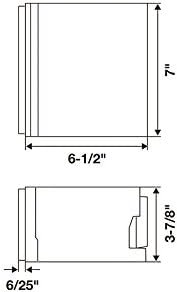
Figure 5: Diagram illustrating the dimensions of the SPH-DA120 unit.

Figure 6: Table detailing the expandability options, including HDMI input, dual rear USB, AUX input, back-up camera input, external GPS antenna, wired remote input, composite video output, composite AV input, and USB direct control for iPod/iPhone.
Maintenance
- Screen Cleaning: Use a soft, lint-free cloth to gently wipe the touchscreen. For stubborn smudges, slightly dampen the cloth with water or a screen-safe cleaner. Avoid abrasive materials or harsh chemicals.
- Software Updates: Periodically check the Pioneer website for firmware updates to ensure optimal performance and compatibility with the latest smartphone operating systems. Follow the instructions provided with the update carefully.
- General Care: Keep the unit free from dust and debris. Ensure proper ventilation around the unit to prevent overheating.
Troubleshooting
Common Issues and Solutions:
- No Power:
- Check all power connections and fuses.
- Ensure the vehicle's ignition is on.
- No Audio:
- Verify speaker connections.
- Check volume levels on both the receiver and connected smartphone.
- Ensure the correct audio source is selected.
- Bluetooth Pairing Issues:
- Delete previous pairings from both the receiver and your smartphone.
- Restart both devices and attempt pairing again.
- Ensure the receiver is in Bluetooth pairing mode.
- CarPlay/AppRadio Mode Not Launching:
- Ensure your smartphone is compatible and running the latest OS version.
- Use a certified USB cable and connect to the correct USB port (USB1).
- Check if the AppRadio application is installed and updated on your smartphone.
For more complex issues, consult a qualified car audio technician or refer to the detailed troubleshooting section in the full product manual available on the Pioneer support website.
Warranty and Support
Warranty Information: This product has no warranty.
Customer Support: For technical assistance, product inquiries, or service, please visit the official Pioneer website or contact their customer support line. Refer to the contact information provided on the Pioneer website for your region.
Online Resources: Additional resources, including FAQs, software downloads, and detailed manuals, may be available on the Pioneer support website.