
1. Introduction
This manual provides essential information for the proper installation, configuration, and maintenance of your MSI GeForce GTX 970 GAMING 4G graphics card. Please read this manual thoroughly before proceeding with installation to ensure optimal performance and to prevent damage to your system components.
2. Safety Information
- Always disconnect the power supply from your computer before installing or removing any hardware components.
- Wear an anti-static wrist strap to prevent electrostatic discharge (ESD) damage to sensitive components.
- Handle the graphics card by its edges to avoid touching the components on the PCB.
- Ensure proper ventilation within your computer case to prevent overheating.
- Keep the product away from moisture, extreme temperatures, and direct sunlight.
3. Package Contents
Verify that your package contains the following items. If any item is missing or damaged, contact your retailer.
- MSI GeForce GTX 970 GAMING 4G Graphics Card
- Driver CD / Quick Guide (may vary by region)
- Power Adapter Cables (if required for your power supply)

Image: The retail packaging for the MSI GeForce GTX 970 GAMING 4G graphics card, featuring the MSI dragon logo and product model information.
4. Product Overview
The MSI GeForce GTX 970 GAMING 4G is a high-performance graphics card designed for gaming and demanding graphical applications. It features NVIDIA's Maxwell architecture, 4GB of GDDR5 VRAM, and MSI's Twin Frozr V cooling solution.
4.1 Key Features
- NVIDIA GeForce GTX 970 GPU: Powerful graphics processing unit for advanced gaming.
- 4GB 256-bit GDDR5 VRAM: High-speed memory for texture handling and high resolutions.
- Twin Frozr V Thermal Design: Advanced cooling system with Traditional and Dispersion Fan Blades for efficient heat dissipation and quiet operation.
- Display Outputs: Includes DL-DVI-D, DL-DVI-I, HDMI, and DisplayPort for versatile monitor connectivity.
- PCI Express 3.0: High-bandwidth interface for optimal data transfer with the motherboard.
- 3-way SLI Ready: Supports multi-GPU configurations for enhanced performance.
- Military Class 4 Components: Ensures stability, efficiency, and long lifespan.
4.2 Card Layout

Image: Front view of the MSI GeForce GTX 970 GAMING 4G graphics card, showcasing the Twin Frozr V cooling system with dual fans and red/black shroud.
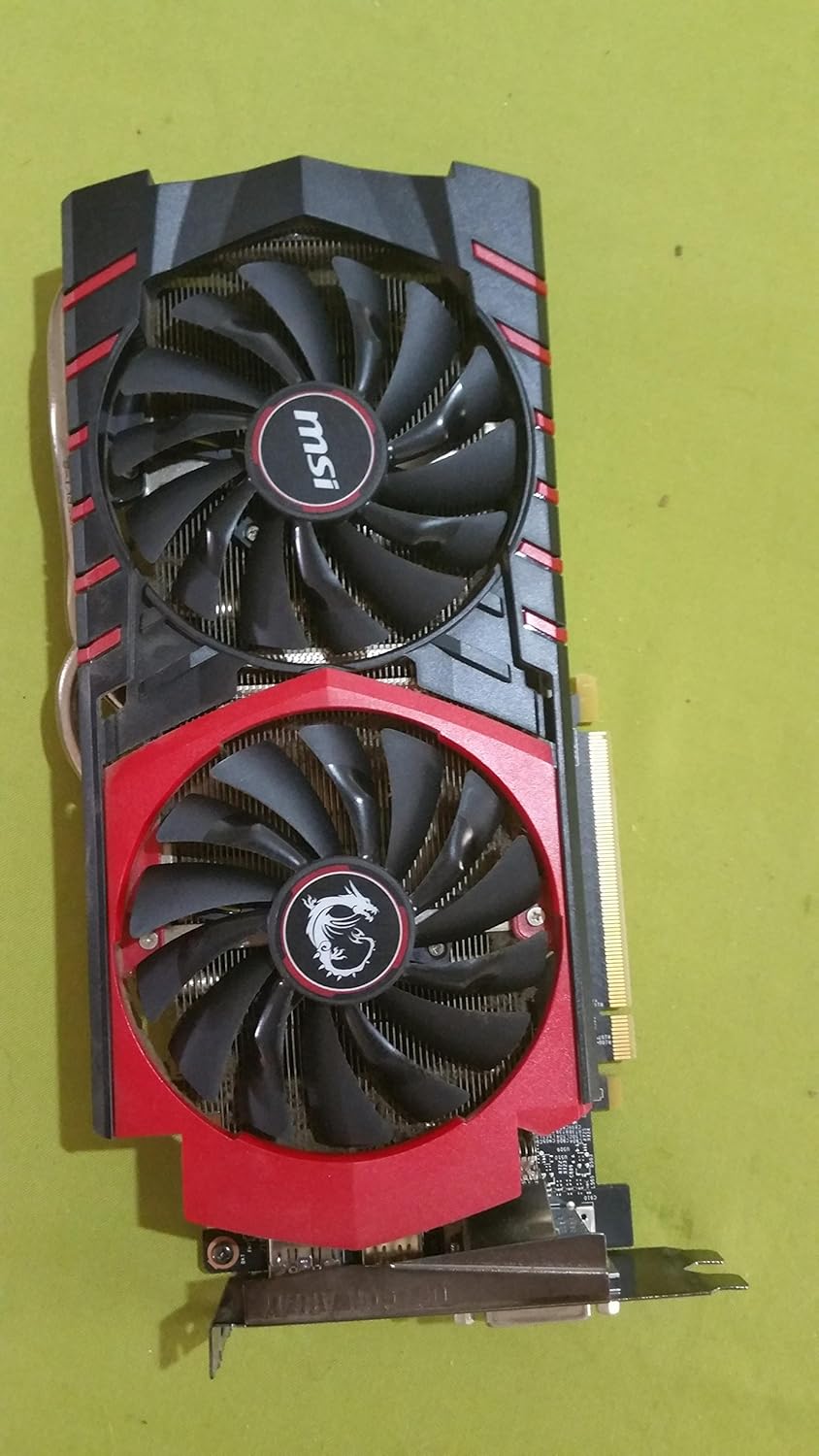
Image: Back view of the MSI GeForce GTX 970 GAMING 4G graphics card, showing the printed circuit board (PCB) and various components.
5. Setup and Installation
5.1 System Requirements
- PCI Express-compliant motherboard with one dual-width x16 graphics slot.
- Minimum 500W power supply with two 6-pin PCI Express power connectors (or one 8-pin and one 6-pin, depending on specific model).
- Minimum 4GB system memory (8GB recommended).
- Microsoft Windows 10, 8.1, 8, 7, or Linux operating system.
- Internet connection for driver updates.
5.2 Hardware Installation
- Prepare your system: Turn off your computer and disconnect the power cable. Open the computer case.
- Remove old graphics card (if applicable): If you have an existing graphics card, carefully remove it from the PCI Express slot.
- Install the graphics card: Locate an available PCI Express x16 slot on your motherboard. Align the graphics card with the slot and press down firmly until it is securely seated. Ensure the retention clip locks into place.
- Connect power cables: Connect the required 6-pin and/or 8-pin PCI Express power connectors from your power supply to the corresponding ports on the graphics card.
- Secure the card: Fasten the graphics card to the computer case with the screw(s) provided by your case manufacturer.
- Close the case: Replace the computer case cover and reconnect the power cable and display cables to the graphics card.
5.3 Driver Installation
- Boot your computer: Turn on your computer. The operating system may automatically detect new hardware and install generic drivers.
- Install NVIDIA drivers:
- Insert the driver CD included with your graphics card and follow the on-screen instructions.
- Alternatively, download the latest drivers directly from the official NVIDIA website (www.nvidia.com/drivers). Select your product type, series, and operating system, then download and run the installer.
- Restart your system: After the driver installation is complete, restart your computer for the changes to take effect.
6. Operating Your Graphics Card
6.1 NVIDIA Control Panel
The NVIDIA Control Panel provides comprehensive settings for managing your graphics card. You can access it by right-clicking on your desktop and selecting "NVIDIA Control Panel." Here you can adjust display settings, 3D settings, video settings, and more.
6.2 MSI Gaming App
The MSI Gaming App allows for quick adjustments to your graphics card's performance and display settings. It offers modes like OC Mode for increased performance, Gaming Mode for balanced settings, and Silent Mode for reduced noise. It also includes features like EyeRest for display color adjustments and LED control.
6.3 MSI Afterburner
MSI Afterburner is an advanced utility for graphics card overclocking, monitoring, and fan control. It provides real-time information about your card's clock speeds, temperatures, and fan speeds, allowing for fine-tuned performance adjustments. This software is intended for advanced users.
7. Maintenance
- Keep Drivers Updated: Regularly check the NVIDIA website for the latest graphics drivers to ensure optimal performance and compatibility with new games and applications.
- Clean Dust: Periodically clean dust from the graphics card's fans and heatsink using compressed air. Ensure the computer is powered off and unplugged before cleaning.
- Monitor Temperatures: Use monitoring software (like MSI Afterburner) to keep an eye on your GPU temperatures, especially during heavy load, to prevent overheating.
8. Troubleshooting
| Problem | Possible Solution |
|---|---|
| No display output. |
|
| System crashes or freezes during use. |
|
| Poor performance in games/applications. |
|
9. Specifications
| Feature | Detail |
|---|---|
| Graphics Processing Unit | NVIDIA GeForce GTX 970 |
| Interface | PCI Express 3.0 |
| Video Memory | 4GB GDDR5 |
| Memory Bus | 256-bit |
| Memory Speed | 7010 MHz |
| Max Digital Resolution | 4096x2160 |
| Display Outputs | DL-DVI-D, DL-DVI-I, HDMI, DisplayPort |
| Multi-GPU Support | 3-way SLI |
| Recommended PSU | 500W |
| Power Connectors | Two 6-pin (or one 8-pin and one 6-pin, depending on model) |
| Dimensions (LxWxH) | 13.7 x 10.55 x 3.27 inches (approx.) |
| Weight | 1.79 pounds (approx.) |
10. Warranty and Support
For detailed warranty information, please refer to the warranty card included with your product or visit the official MSI website. Technical support is available through the MSI support portal, where you can find FAQs, driver downloads, and contact information for customer service.
MSI Official Website: www.msi.com