
1. Introduction
This user manual provides comprehensive instructions for the safe and efficient use of your Sharp LC-60LE660 60-Inch Aquos 1080p 120Hz Smart LED TV. Please read this manual thoroughly before operating the television and retain it for future reference. This television combines a 60-inch full HD display with Smart TV capabilities, offering a high-quality viewing experience and access to various online services.
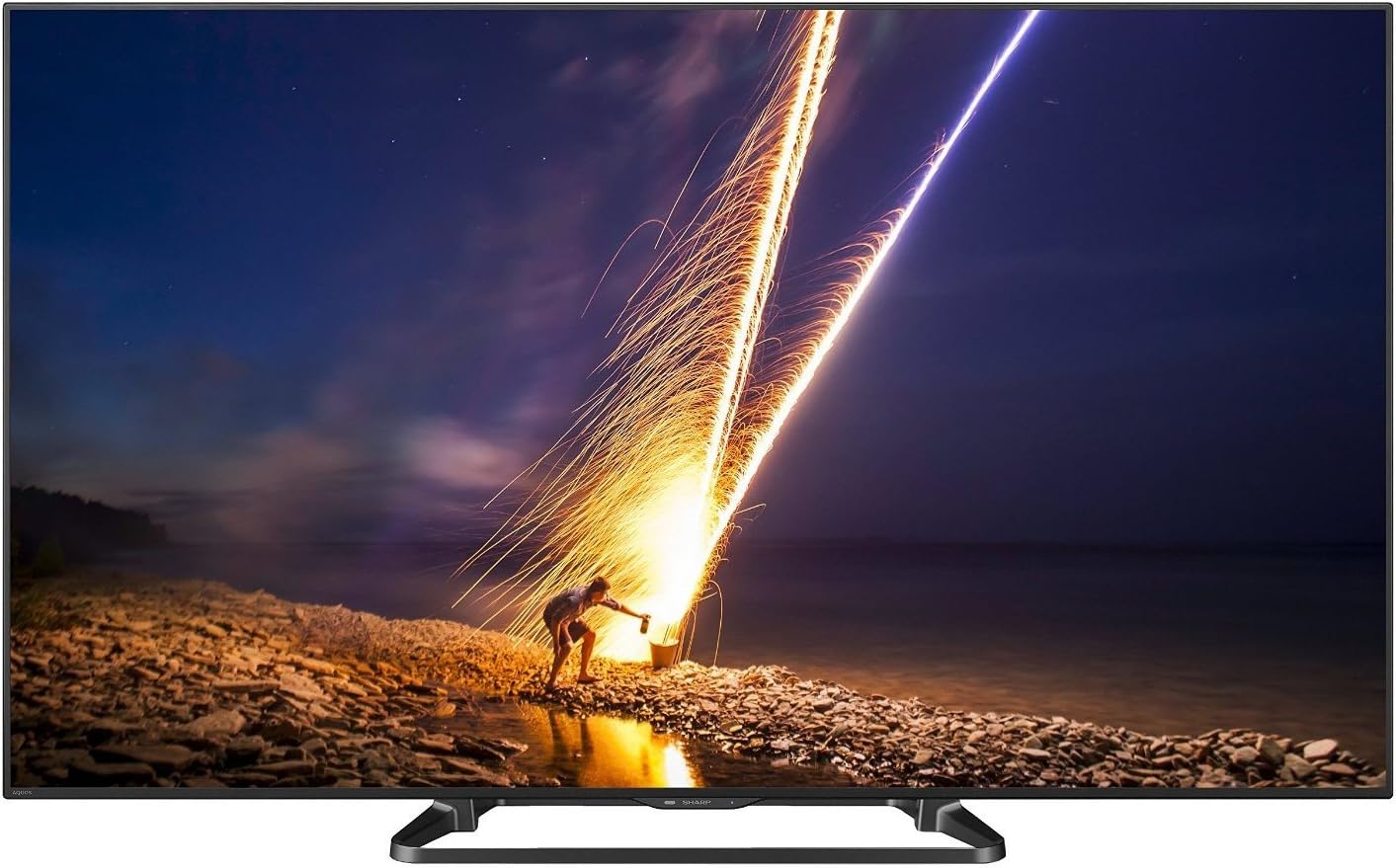
Figure 1: Front view of the Sharp LC-60LE660 Smart LED TV.
2. Important Safety Information
Please observe the following safety precautions to prevent damage to the television and ensure personal safety.
- Placement: Ensure the television is placed on a stable, level surface or securely mounted to a wall according to manufacturer's instructions. Avoid placing it in direct sunlight or near heat sources.
- Ventilation: Do not block ventilation openings. Allow adequate space around the television for proper airflow to prevent overheating.
- Power Supply: Connect the power cord to an appropriate AC outlet. Do not overload power outlets.
- Liquid Exposure: Keep the television away from water and moisture. Do not expose it to rain or splashes.
- Cleaning: Unplug the television before cleaning. Use a soft, dry cloth. Do not use liquid cleaners or aerosol cleaners.
- Servicing: Do not attempt to service this product yourself. Refer all servicing to qualified service personnel.
Legal Disclaimer: Must be at least 18 & over to purchase. Purchased items will require a direct signature at the time of delivery.
3. What's in the Box
Verify that all items are present upon unpacking your Sharp LC-60LE660 TV:
- Sharp LC-60LE660 60-Inch Aquos 1080p 120Hz Smart LED TV
- Universal Remote Control
- Power Cord
- User Manual (this document)
- Stand Assembly (if applicable)
4. Setup
4.1. Physical Placement and Dimensions
Before setting up your television, consider its dimensions and ensure adequate space for ventilation and viewing. The television weighs approximately 54.2 pounds.
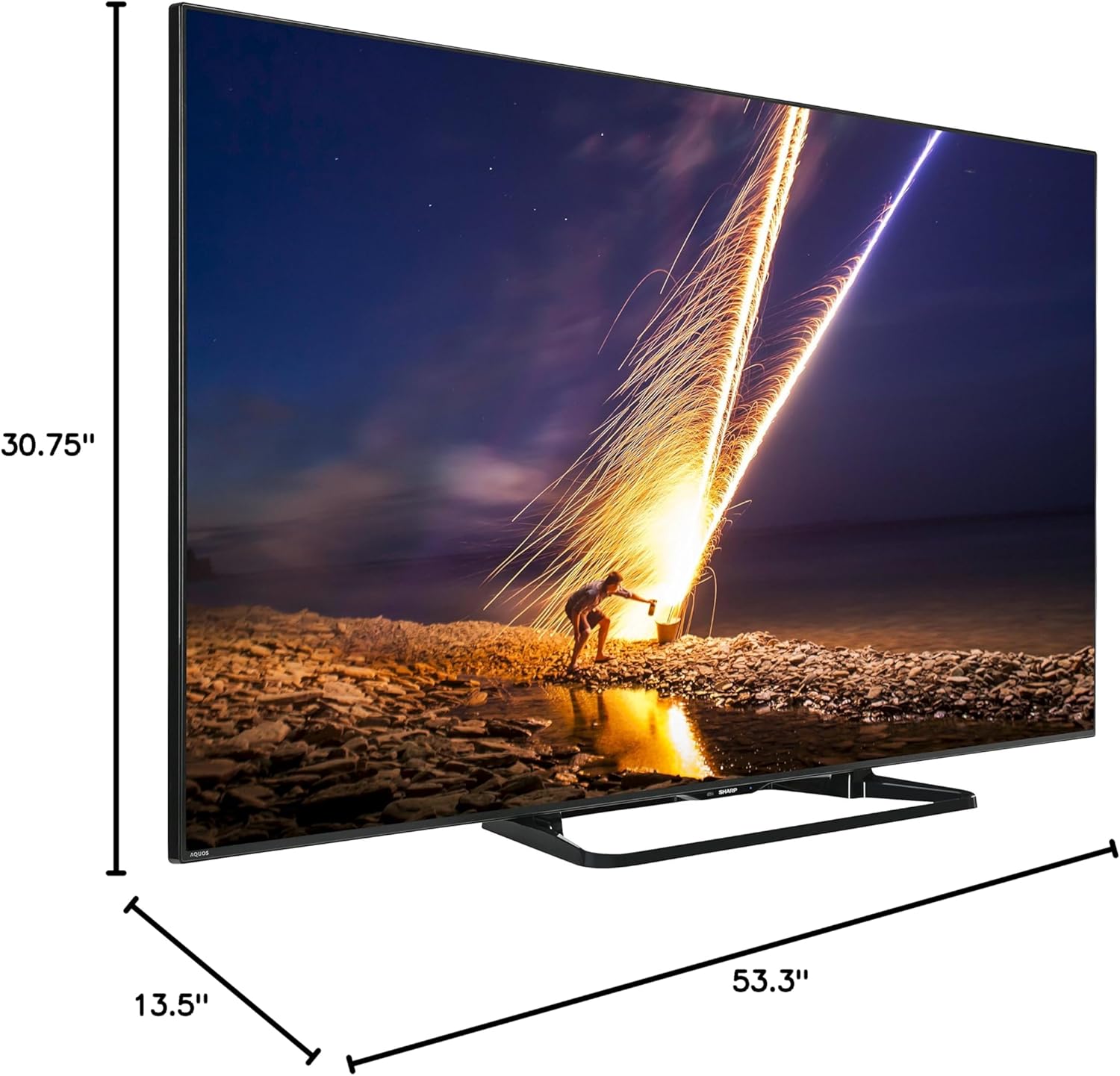
Figure 2: Dimensions of the Sharp LC-60LE660 TV with stand. Width: 53.3 inches, Height: 30.75 inches, Depth: 13.5 inches.
Ensure the TV is placed on a sturdy surface or mounted securely. Leave sufficient space around the TV for heat dissipation.
4.2. Connecting External Devices
The Sharp LC-60LE660 TV offers various ports for connecting external devices such as Blu-ray players, gaming consoles, and sound systems. Refer to the diagram below for port locations.
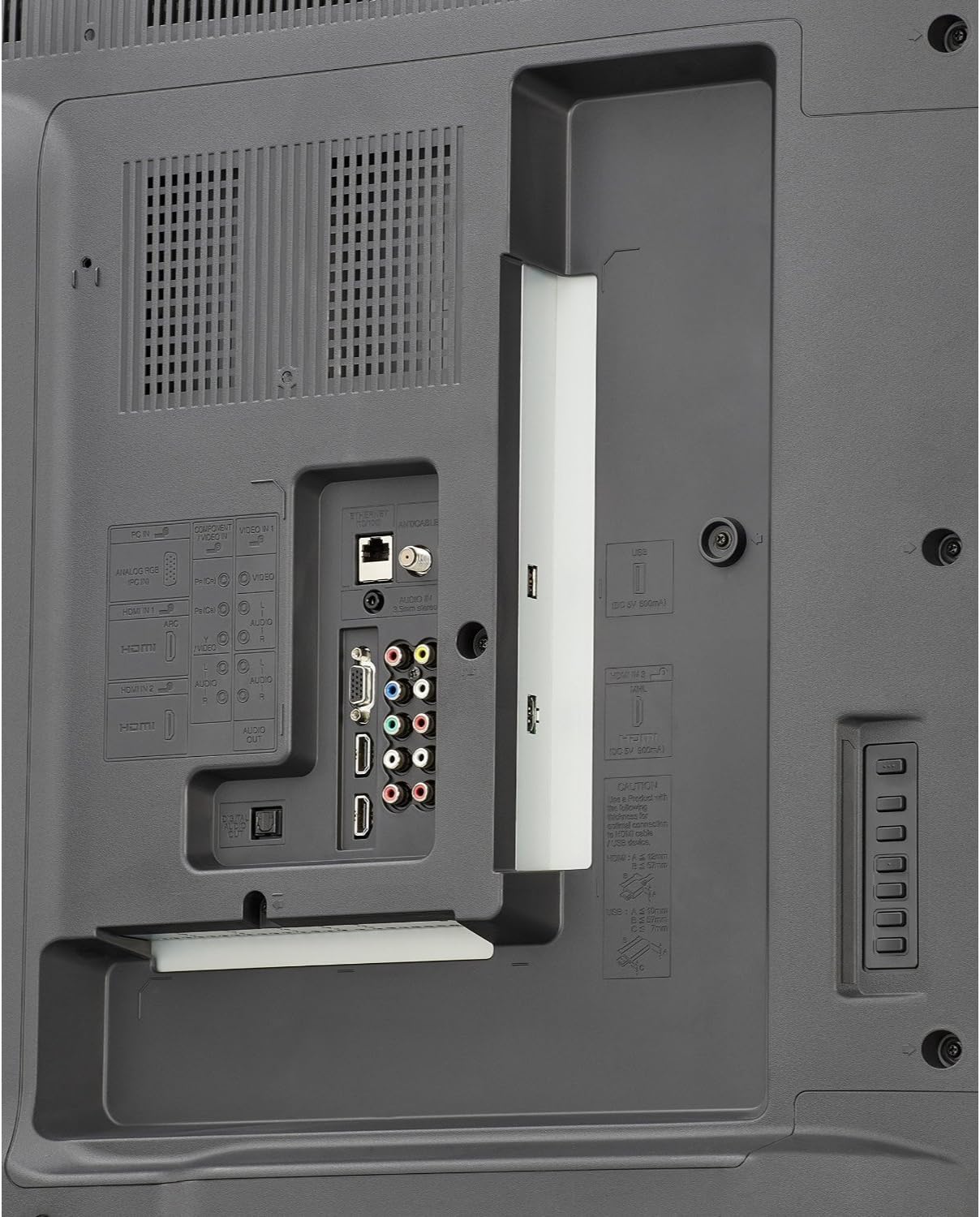
Figure 3: Rear panel connections. Includes multiple HDMI inputs, USB ports, component video input, composite video input, and audio output options.
- HDMI: Connect high-definition devices using HDMI cables. This model features multiple HDMI ports.
- USB: Use USB ports for media playback from USB storage devices or for firmware updates.
- Component/Composite: For older devices, use the component or composite video inputs.
- Audio Out: Connect to external audio systems via optical digital audio out or analog audio out.
- Ethernet/Wi-Fi: Connect to your home network via an Ethernet cable or the built-in Wi-Fi for Smart TV features.
4.3. Initial Power On and Network Setup
- Plug the power cord into the TV and then into a wall outlet.
- Press the power button on the remote control or the TV.
- Follow the on-screen instructions to select your language, country, and perform an initial channel scan.
- For Smart TV features, connect to your home network. Select your Wi-Fi network from the list and enter the password, or connect an Ethernet cable.
5. Operating Instructions
5.1. Basic TV Functions
- Power On/Off: Use the power button on the remote or TV.
- Channel Selection: Use the CH+/- buttons or number pad on the remote.
- Volume Control: Use the VOL+/- buttons on the remote.
- Input Selection: Press the INPUT button on the remote to switch between connected devices (HDMI, Component, etc.).
5.2. Smart Central Apps
Your Sharp LC-60LE660 TV features Smart Central Apps, providing quick access to popular streaming services and applications via built-in Wi-Fi.

Figure 4: Smart Central Apps interface with icons for Netflix, YouTube, Pandora, and other services.
To access Smart Central Apps:
- Ensure your TV is connected to the internet.
- Press the "Smart Central" button on your remote control.
- Navigate through the available applications using the arrow keys and select your desired app (e.g., Netflix, YouTube, Pandora, Flickr, Picasa, Facebook).
5.3. Picture and Sound Settings
- Picture Modes: Access the picture settings menu to adjust brightness, contrast, color, sharpness, and select preset picture modes (e.g., Standard, Movie, Game).
- AquoMotion240: This technology enhances clarity during fast-motion scenes. Adjust its settings in the picture menu to suit your preference.
- Sound Modes: Adjust audio settings, including bass, treble, and select sound modes (e.g., Standard, Music, Cinema).
5.4. Wallpaper Mode
The Wallpaper mode allows the TV to display art, photos, or a clock when powered off, integrating the television seamlessly into your living space.
- Access the Wallpaper mode settings through the TV's main menu.
- Select your preferred display option (e.g., pre-loaded art, personal photos via USB, or a clock).
6. Maintenance
- Screen Cleaning: Gently wipe the screen with a soft, lint-free cloth. For stubborn marks, slightly dampen the cloth with water or a specialized screen cleaner, then wipe dry immediately. Do not apply pressure.
- Cabinet Cleaning: Wipe the TV cabinet with a soft, dry cloth. Avoid using abrasive cleaners or solvents.
- Ventilation: Periodically check that the ventilation slots on the back of the TV are not obstructed by dust or debris.
7. Troubleshooting
If you encounter issues with your Sharp LC-60LE660 TV, refer to the following common solutions:
| Problem | Possible Cause / Solution |
|---|---|
| No power / TV does not turn on | Ensure the power cord is securely plugged into both the TV and a working electrical outlet. Try a different outlet. |
| No picture, but sound is present | Check the input source. Ensure external devices are powered on and connected correctly. Adjust brightness/contrast settings. |
| No sound, but picture is present | Check volume level and mute status. Ensure external audio systems are connected and configured correctly. |
| Picture is distorted or unclear | Check cable connections. Adjust picture settings. If using an antenna, check signal strength. |
| TV freezes or reboots unexpectedly | This can sometimes be resolved by a firmware update. Check Sharp's support website for the latest firmware for model LC-60LE660U and follow update instructions. A hard reset (unplugging the TV for a few minutes and plugging it back in) may also resolve temporary issues. |
| Smart features not working / No internet connection | Verify your Wi-Fi or Ethernet connection. Restart your router. Check network settings on the TV. |
If the problem persists after trying these solutions, please contact Sharp customer support.
8. Specifications
| Feature | Detail |
|---|---|
| Brand | Sharp |
| Model Number | LC-60LE660U |
| Screen Size | 60 Inches (60 3/32" diagonal) |
| Display Technology | LED |
| Resolution | 1080p (Full HD) |
| Refresh Rate | 120 Hz (AquoMotion240) |
| Dynamic Contrast Ratio | 4 million : 1 |
| Smart TV Features | Smart Central Apps (Netflix, YouTube, Pandora, Flickr, Picasa, Facebook), Built-in Wi-Fi, Browser |
| Connectivity | Wi-Fi, Multiple HDMI, USB, Component, Composite, Ethernet |
| Speaker Type | Built-In |
| Product Dimensions (with stand) | 53.3"W x 30.75"H x 13.5"D |
| Item Weight | 54.2 Pounds |
| Energy Efficiency | Energy Star Certified |
9. Warranty and Support
For warranty information and technical assistance, please refer to the documentation included with your television or visit the official Sharp support website. You can also visit the Sharp Store on Amazon for additional product information and customer support options.

Figure 5: Customer Support information is available for assistance.


