
T POWER TP-hp1-46M Macwheel E9 SmooSat E9
T POWER 25.2V Charger
User Manual for Electric Scooter Power Supply Cord
1. Product Overview
The T POWER 25.2V Charger is designed to provide reliable power to compatible electric scooters. This AC/DC adapter ensures efficient and safe charging with built-in protective features.
Key features include:
- Input Voltage Range: AC 100V - 240V.
- UL Certified for Safety.
- Provides Over Voltage Protection, Over Current Protection, and Short-circuit Protection.
- LED indicator for charging status.

Image 1.1: The T POWER 25.2V Charger with its integrated power cord.
2. Compatibility
This charger is specifically designed for certain electric scooter models. Please verify your scooter's model number or part number matches the compatible list below to ensure proper functionality and safety.
- Compatible Models:
- Macwheel E9 Electric Scooter Power Cord
- Macwheel E9 Pro Electric Scooter Power Cord
- SmooSat E9 Electric Scooter
- SmooSat E9 Pro Electric Scooter (Black, Blue, Pin Pro variants)
- Incompatible Models (Does NOT Work):
- iScooter E9 (Requires 42V charger)
- iScooter E9D
- iScooter E9 Pro
- iScooter E9Pro i9
- iScooter i9pro

Image 2.1: Visual guide to compatible and incompatible scooter models.
3. Setup and Operation
3.1. Initial Setup
- Verify Compatibility: Before connecting, ensure your electric scooter model is listed as compatible in Section 2.
- Inspect Charger: Check the charger and cable for any visible damage. Do not use if damaged.
- Connect to Scooter: Insert the charger's DC output plug firmly into the charging port of your electric scooter.
- Connect to Power Outlet: Plug the AC input cord of the charger into a standard AC 100V-240V wall outlet.
3.2. Charging Process and LED Indicator
The charger features an LED indicator to display the charging status:
- RED Light (Charging in progress): Indicates that the battery is actively charging.
- GREEN Light (Charge full or disconnect): Indicates that the battery is fully charged or the charger is disconnected from the scooter.
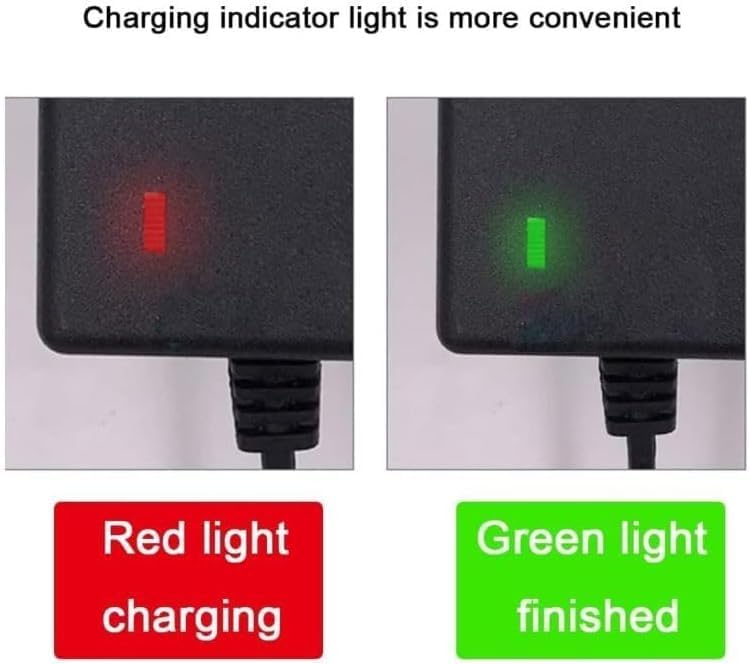
Image 3.1: The LED indicator showing red (charging) and green (finished).
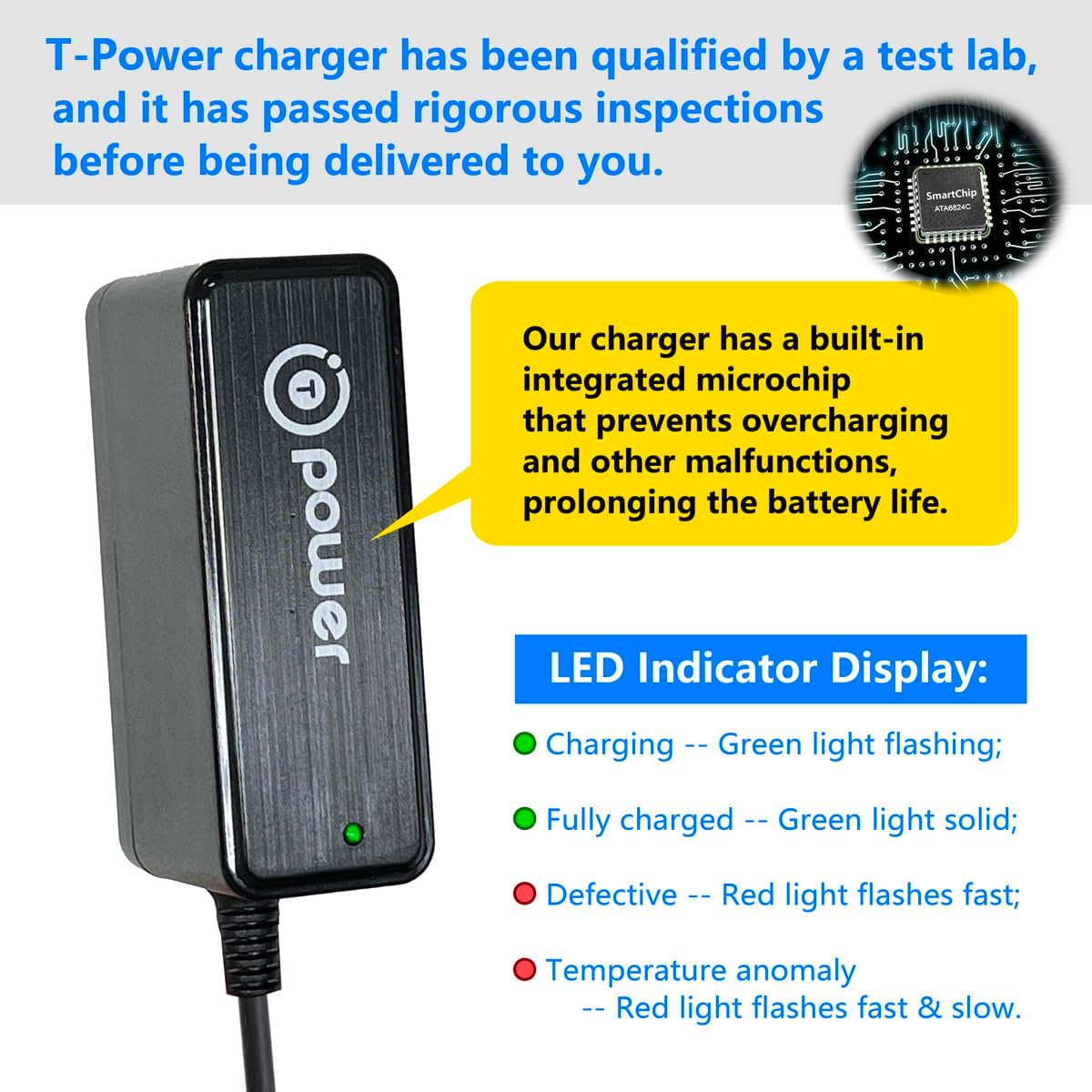
Image 3.2: Detailed view of the charger's LED indicator and internal microchip for protection.
4. Safety Features and Protection
The T POWER charger is equipped with multiple safety mechanisms to protect both the charger and your device:
- Over Voltage Protection: Prevents damage from excessive voltage input.
- Over Current Protection: Safeguards against current surges.
- Short-circuit Protection: Automatically shuts off in case of a short circuit.
- Over-Temperature Protection: Prevents overheating of the charger.
- Electrostatic Protection: Protects against electrostatic discharge.
- Magnetic Field Protection: Shields against magnetic interference.
A built-in integrated microchip prevents overcharging and other malfunctions, thereby prolonging the battery life of your scooter.

Image 4.1: Overview of the superior safety features integrated into the power adapter.

Image 4.2: Visual representation of the comprehensive safety protections.
5. Maintenance and Care
- Storage: Store the charger in a cool, dry place away from direct sunlight and extreme temperatures.
- Cleaning: Use a soft, dry cloth to clean the charger. Do not use liquid cleaners or solvents.
- Cable Care: Avoid sharp bends or kinks in the power cord. Do not place heavy objects on the cord. The cable is designed for durability, tested to withstand 10,000 bends.
- Disconnection: Always grasp the plug, not the cord, when disconnecting from the wall outlet or the scooter.

Image 5.1: Information on the charger's durable construction and materials.
6. Troubleshooting
| Problem | Possible Cause | Solution |
|---|---|---|
| Charger LED is off. | No power from outlet; charger not properly plugged in; faulty outlet. | Check wall outlet with another device. Ensure charger is fully plugged into both the outlet and the scooter. |
| LED remains GREEN when connected to scooter. | Scooter battery is already full; scooter not properly connected; scooter charging port issue. | Confirm scooter battery is not full. Re-plug the charger into the scooter. Ensure the connection is secure. |
| LED flashes RED rapidly. | Indicates a defective charger or temperature anomaly. | Disconnect the charger from both the scooter and the power outlet. Allow it to cool down if hot. If the issue persists, contact customer support. |
| Charger gets excessively hot. | Overload; poor ventilation; internal fault. | Ensure adequate ventilation around the charger. Disconnect immediately if excessively hot. Do not use if overheating persists. |
7. Specifications
| Specification | Value |
|---|---|
| Input Voltage Range | AC 100V - 240V |
| Output Voltage | 25.2 Volts |
| Product Dimensions | 4 x 4 x 2 inches |
| Item Weight | 4 ounces |
| Model Number | TP-hp1-46M Macwheel E9 SmooSat E9 |
| Safety Certification | UL Certified |
| Manufacturer | T POWER |
8. Warranty and Support
T POWER is committed to providing quality products and customer satisfaction.
- 30-Day Return for Any Reason: You may return your undamaged product and packaging within 30 days of purchase to receive a full refund.
- 1-Year Limited Manufacturer Warranty: We will take care of all quality-related issues. Easy exchange with a replacement.
- Technical Support: If you received the wrong item, are looking for a charger for your device, or if the adapter tip doesn't fit, please contact T-Power USA customer service for assistance.
For further inquiries or support, please visit the T POWER Store on Amazon.
Ask a question about this manual
Ask about setup, troubleshooting, compatibility, parts, safety, or missing instructions. Manuals+ will review the question and use this page’s manual context to help answer it.