
TP-Link CPE510
TP-Link CPE510 5GHz N300 Outdoor CPE User Manual
Model: CPE510
Brand: TP-Link
1. Product Overview
The TP-Link CPE510 is a 5GHz 300Mbps 13dBi Outdoor CPE designed for cost-effective outdoor wireless networking applications. It is ideal for point-to-point, point-to-multipoint, and outdoor Wi-Fi coverage scenarios, offering professional performance and user-friendly design.

2. Key Features
- Built-in 13dBi 2x2 dual-polarized directional MIMO antenna.
- Adjustable transmission power from 0 to 27dBm/500mW.
- System-level optimizations for more than 15km long-range wireless transmission (for paired Point-to-Point or Point-to-MultiPoint transmission).
- TP-Link Pharos Maxtream TDMA (Time-Division-Multiple-Access) technology improves product performance in throughput, capacity, and latency, ideal for PTMP applications.
- Centralized management system - Pharos Control.
- AP/Client/AP Router/AP Client Router (WISP) operation modes.
- Passive PoE adapter supports up to 60 meters (200 feet) Power over Ethernet deployment and allows remote device reset.
- Connectivity technology: Wi-Fi Built-In.
3. Package Contents
The CPE510 package includes the following items:
- Outdoor Wireless CPE (CPE510)
- 24V 1A Passive PoE Adapter
- Pole Mounting Straps
- AC Power Cord
- Installation Guide
4. Physical Overview
Familiarize yourself with the device's physical components and ports.

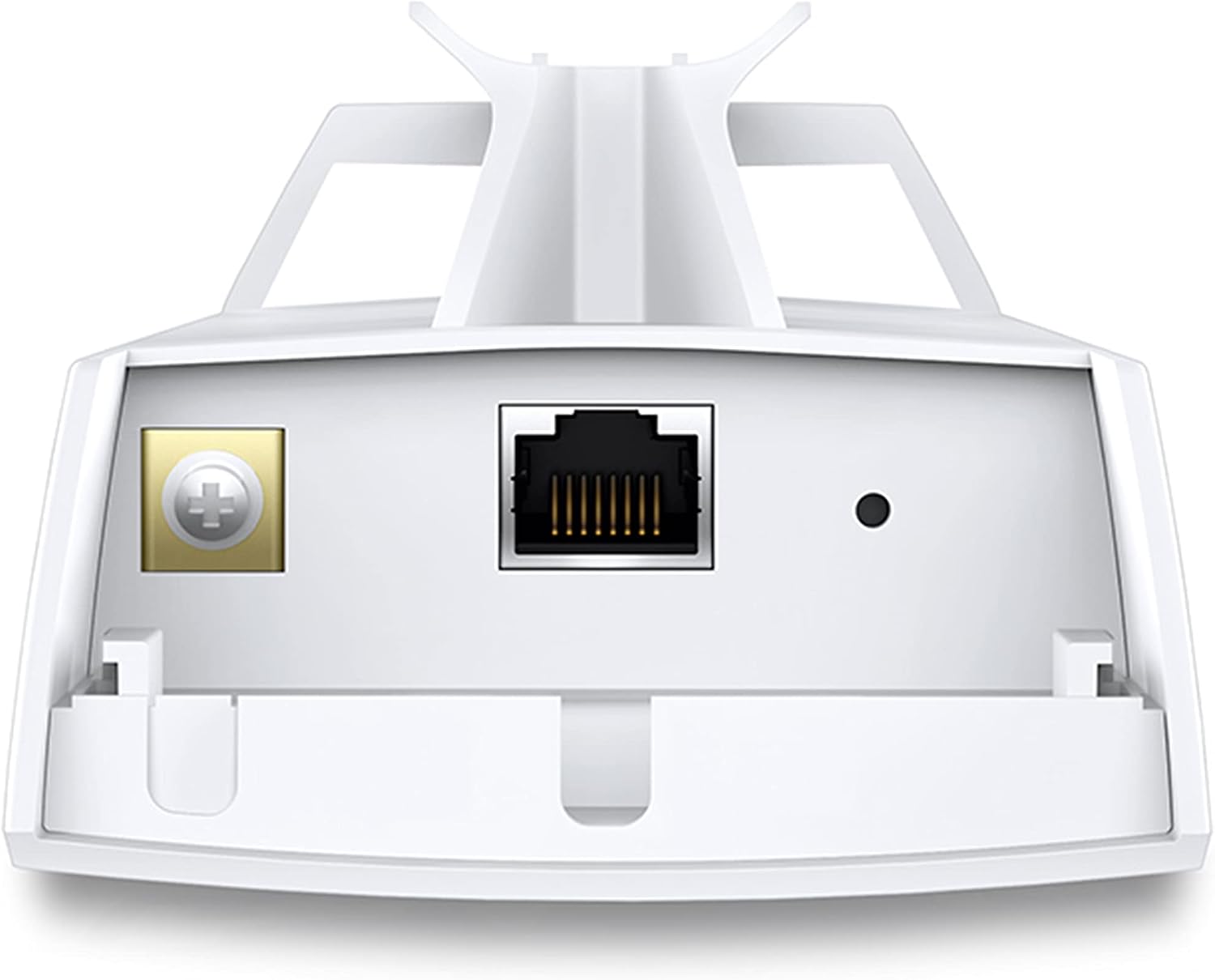
The device features an Ethernet port for data and Power over Ethernet (PoE) input, and a reset button for factory defaults.
5. Setup and Installation
The CPE510 is designed for outdoor mounting. Follow these general steps for installation:
- Mounting: Securely attach the CPE510 to a pole or suitable outdoor structure using the provided mounting straps. Ensure it has a clear line of sight to the desired transmission point.
- PoE Connection: Connect an Ethernet cable from the CPE510's Ethernet port to the PoE port on the passive PoE adapter. Then, connect another Ethernet cable from the LAN port of the PoE adapter to your computer or network device.
- Power On: Plug the AC power cord into the PoE adapter and then into a power outlet. The device will power on.
- Initial Configuration: Access the device's web-based management interface (PharOS) via a web browser. The default IP address is typically 192.168.0.254. Follow the on-screen instructions to set up your desired operation mode and network settings.
6. Operation Modes
The CPE510 supports various operation modes to suit different networking needs:
- Access Point (AP): Broadcasts a wireless signal for other devices to connect to.
- Client: Connects to an existing wireless network as a client device.
- AP Router: Functions as a router, providing internet access to connected devices.
- AP Client Router (WISP): Connects to a WISP (Wireless Internet Service Provider) network and shares the internet connection.
The CPE510 is optimized for long-range wireless transmission, making it suitable for extending network coverage over significant distances.
The centralized management system, Pharos Control, allows for easy management of all devices in your network from a single PC. Functions include device discovery, status monitoring, firmware upgrading, and network maintenance.

For more detailed configurations, the intuitive web-based interface, PharOS, provides advanced settings for professionals.

7. Environmental Considerations
The CPE510 is built to withstand various outdoor conditions, ensuring reliable performance even in challenging environments.
8. Maintenance
To ensure optimal performance and longevity of your CPE510, consider the following maintenance practices:
- Firmware Updates: Regularly check the TP-Link website for the latest firmware updates. Updating the firmware can improve performance, add new features, and fix bugs.
- Physical Inspection: Periodically inspect the device and its connections for any signs of wear, damage, or corrosion, especially after severe weather conditions.
- Cleaning: Gently clean the exterior of the device with a soft, dry cloth. Do not use liquid cleaners or aerosols.
9. Troubleshooting
If you encounter issues with your CPE510, try the following troubleshooting steps:
- No Power: Ensure the PoE adapter is properly connected to the CPE and a working power outlet. Check the power indicator on the PoE adapter.
- No Connection/Weak Signal: Verify the line of sight between CPEs (for PtP/PtMP setups). Check cable connections. Ensure correct configuration in PharOS (e.g., operation mode, channel, transmit power).
- Accessing Web Interface: If you cannot access the PharOS web interface, ensure your computer's IP address is in the same subnet as the CPE (default 192.168.0.x). Try resetting the device to factory defaults by pressing the reset button on the PoE adapter.
- Specific Network Configuration Issues (e.g., XfinityWiFi): For certain public Wi-Fi hotspots like XfinityWiFi, you may need to register the CPE's MAC address with the service provider. This often involves temporarily cloning the CPE's WAN MAC address onto a laptop's Wi-Fi adapter, connecting the laptop to the hotspot to register, and then reverting the laptop's MAC address. Ensure you use the MAC address from the WAN section of the CPE's status page. Configure the CPE510 in WISP mode for such scenarios.
10. Technical Specifications
| Product Dimensions | 8.82 x 3.11 x 2.36 inches |
| Item Weight | 6.7 ounces (190 Grams) |
| Manufacturer | TP-Link |
| ASIN | B00N2RO63U |
| Country of Origin | Vietnam |
| Item Model Number | CPE510 |
| Frequency Band Class | Dual-Band |
| Wireless Communication Standard | 802.11n |
| Frequency | 5 GHz |
| Recommended Uses | Outdoor Networking, Business |
| Connectivity Technology | Wi-Fi |
| Color | White |
| Number of Ports | 1 |

11. Warranty and Support
For detailed warranty information, please refer to the official TP-Link website or the warranty card included with your product.
For further assistance, TP-Link provides comprehensive support resources:
- Official User Guide: You can download the full user manual in PDF format from the official TP-Link support page or via this direct link: TP-Link CPE510 User Guide (PDF).
- Online Tutorials: TP-Link offers various online tutorials and FAQs on their website to help with setup, configuration, and advanced features.
- Customer Support: Contact TP-Link customer support for technical assistance or service inquiries.
Related Documents - CPE510
 |
TP-Link Outdoor CPE Installation Guide Comprehensive installation guide for TP-Link Pharos series outdoor CPE devices, covering hardware setup, software configuration, power supply, safety, and troubleshooting. |
 |
TP-LINK Outdoor CPE Installation Guide: CPE210, CPE220, CPE510, CPE520 Comprehensive installation guide for TP-LINK's Pharos series outdoor CPE devices (CPE210, CPE220, CPE510, CPE520). Covers hardware setup, software configuration, antenna alignment, specifications, and troubleshooting. |
 |
TP-Link Pharos Series User Guide: Setup and Management Comprehensive user guide for TP-Link's Pharos series outdoor wireless networking products. Learn about setup, operation modes, configuration, monitoring, and management with detailed instructions and features like MAXtream technology. |
 |
TP-Link CPE610 Outdoor CPE Installation Guide Comprehensive installation and configuration guide for the TP-Link CPE610 Outdoor CPE. Learn about hardware setup, PharOS software configuration, antenna alignment, and troubleshooting. |
 |
TP-Link Outdoor CPE Installation Guide (CPE510) Comprehensive installation and configuration guide for the TP-Link Outdoor CPE510, covering hardware connection, PharOS web interface setup, and wireless bridge configuration. |
 |
TP-Link Outdoor CPE Installation Guide Comprehensive installation guide for TP-Link Pharos series outdoor CPE devices (CPE205, CPE210, CPE220, CPE510), covering hardware setup, software configuration, antenna alignment, specifications, and safety information. |
Ask a question about this manual
Ask about setup, troubleshooting, compatibility, parts, safety, or missing instructions. Manuals+ will review the question and use this page’s manual context to help answer it.