
Introduction
Thank you for choosing the Esperanza Titanum Rainbow 3D TM114 Wireless Mouse. This manual provides essential information for the proper setup, operation, and maintenance of your new wireless mouse. Please read these instructions carefully before use to ensure optimal performance and longevity of the product.
Package Contents
Please check the package contents to ensure all items are present:
- Esperanza Titanum Rainbow 3D TM114 Wireless Mouse
- USB Receiver
- 1 x Lithium-ion Battery (may be pre-installed or included separately)

Image 1: The Esperanza Titanum Rainbow 3D TM114 Wireless Mouse in blue and black, shown with its compact USB receiver.
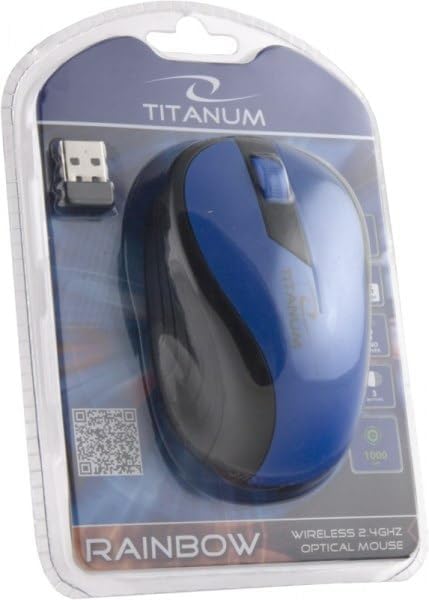
Image 2: The Esperanza Titanum Rainbow 3D TM114 Wireless Mouse displayed in its transparent retail packaging, highlighting the mouse and USB receiver.
Setup Instructions
- Install Battery: Open the battery compartment on the underside of the mouse. Insert the provided Lithium-ion battery, ensuring correct polarity (+/-). Close the compartment securely.
- Connect USB Receiver: Plug the USB receiver into an available USB 2.0 port on your computer (desktop PC, laptop, or notebook).
- Power On: Locate the power switch on the underside of the mouse and slide it to the "ON" position.
- Automatic Connection: Your computer should automatically detect and install the necessary drivers for the mouse. This process may take a few moments. Once complete, the mouse will be ready for use.
- Testing: Move the mouse and click the buttons to confirm it is functioning correctly.
Operating Instructions
The Esperanza Titanum Rainbow 3D TM114 Wireless Mouse features standard 3-button functionality with an optical sensor for precise tracking.
- Left Click: Use the left button for primary actions such as selecting items, opening files, and navigating web pages.
- Right Click: Use the right button to access contextual menus, offering additional options for selected items.
- Scroll Wheel: The scroll wheel allows for vertical scrolling through documents and web pages. Pressing the scroll wheel often acts as a middle click, which can open links in new tabs or perform other functions depending on the application.
- Movement: Move the mouse across a flat surface to control the cursor on your screen. The optical sensor provides accurate tracking.
Maintenance
- Cleaning: To clean the mouse, gently wipe its surface with a soft, dry, or slightly damp cloth. Avoid using harsh chemicals or abrasive cleaners. Ensure no liquid enters the mouse.
- Sensor Cleaning: Occasionally, dust or debris may accumulate around the optical sensor on the underside of the mouse. Use a soft brush or compressed air to carefully clean the sensor area.
- Battery Replacement: When the mouse performance degrades or it stops responding, it may be time to replace the battery. Follow the "Install Battery" steps in the Setup section to replace the Lithium-ion battery.
- Storage: When not in use for extended periods, turn off the mouse using the power switch to conserve battery life. Store the USB receiver in a safe place, preferably within the mouse's designated storage slot if available.
Troubleshooting
- Mouse Not Responding:
- Ensure the mouse is powered on.
- Check if the battery is correctly installed and has sufficient charge. Replace if necessary.
- Verify the USB receiver is securely plugged into a working USB port. Try a different USB port.
- Ensure the mouse and receiver are within the effective wireless range (typically up to 10 meters).
- Restart your computer.
- Erratic Cursor Movement:
- Clean the optical sensor on the underside of the mouse.
- Ensure you are using the mouse on a clean, non-reflective, and uniform surface. Avoid glass or highly reflective surfaces.
- Check for strong electromagnetic interference from other wireless devices.
- Buttons Not Working:
- Ensure the mouse is properly connected and powered on.
- Test the mouse on another computer to rule out software issues.
Specifications
| Brand | Esperanza |
| Model Name | Titanum Wireless (TM114) |
| Connectivity Technology | Wireless (USB Receiver) |
| Movement Detection Technology | Optical |
| Number of Buttons | 3 |
| Hand Orientation | Right |
| Compatible Devices | PC, Laptop, Notebook (Office use) |
| Operating System Compatibility | Android 10.0, Chrome OS (and generally Windows/macOS) |
| Power Source | 1 x Lithium-ion Battery |
| Color | Black/Blue |
Warranty and Support
For warranty information, please refer to the documentation provided with your purchase or contact your retailer. Keep your proof of purchase for any warranty claims.
For technical support or further assistance, please visit the official Esperanza website or contact their customer service department.