
1. Introduction
This manual provides detailed instructions for the installation, operation, and maintenance of your ASUS X99-DELUXE motherboard. The ASUS X99-DELUXE is an ATX motherboard designed for high-performance computing, supporting Intel LGA 2011-3 processors and DDR4 memory.

Figure 1: Top-down view of the ASUS X99-DELUXE Motherboard, showing the CPU socket, RAM slots, and heatsinks.
2. Key Features
- ASUS OC Socket: Designed to enhance 8-core CPU and DDR4 performance beyond standard X99 expectations.
- DDR4 Memory Support: Features a special memory overclocking design, supporting DDR4 memory speeds up to 3200MHz (O.C.).
- Dual M.2 X4 Support: Provides two M.2 slots with PCIe 3.0 x4 interface, enabling data transfer speeds up to 32Gb/s for compatible NVMe SSDs.
- Fan Extension Card: Includes an extension card for advanced PC cooling management.
- 5-Way Optimization: Utilizes Dual Intelligent Processors 5 for system optimization, including performance tuning, power saving, digital power control, and fan control.
- UEFI BIOS: Features a media-acclaimed Unified Extensible Firmware Interface (UEFI) BIOS for intuitive system configuration.
- SATA Express: Supports SATA Express for storage speeds up to 10Gb/s.
3. Setup and Installation
Before beginning installation, ensure your system is powered off and disconnected from the power source. Handle the motherboard by its edges to avoid static discharge.
3.1. CPU Installation (LGA 2011-3 Socket)
- Carefully open the CPU socket retention mechanism.
- Align the triangular mark on the CPU with the corresponding mark on the socket.
- Gently place the CPU into the socket without forcing it.
- Close the retention mechanism to secure the CPU. Ensure no pins are bent during this process.

Figure 2: Angled view of the ASUS X99-DELUXE Motherboard, highlighting the LGA 2011-3 CPU socket.
3.2. Memory (DDR4) Installation
The motherboard supports DDR4 memory modules. Refer to the motherboard manual for specific memory configurations and supported speeds.
- Open the clips at both ends of the DIMM slot.
- Align the notch on the DDR4 memory module with the key in the DIMM slot.
- Insert the module firmly into the slot until the clips snap into place.
3.3. Storage Device Installation (M.2, SATA)
Install M.2 SSDs into the dedicated M.2 slots and SATA drives to the SATA ports. The motherboard supports SATA 3 (6Gb/s) and SATA Express.
3.4. Connecting Peripherals
Connect your display, keyboard, mouse, and other peripherals to the rear I/O panel. The motherboard provides various USB ports, Ethernet ports, and audio jacks.
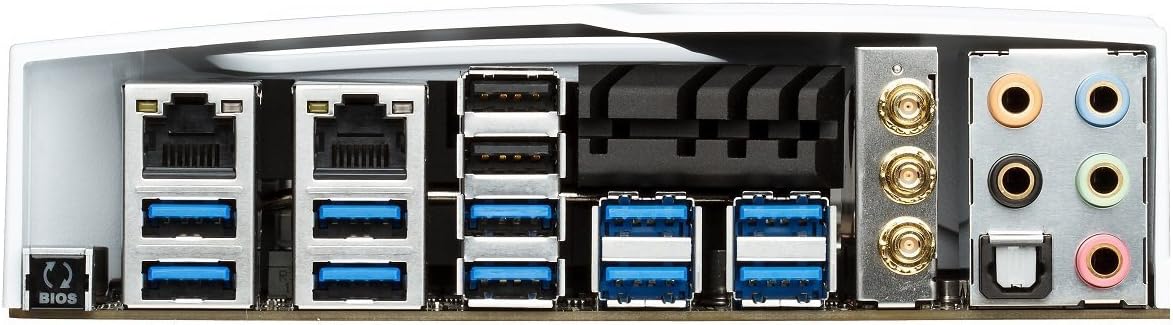
Figure 3: Rear I/O panel of the ASUS X99-DELUXE Motherboard, showing USB ports, Ethernet, and audio jacks.
4. Operating Instructions
4.1. UEFI BIOS Configuration
The UEFI BIOS allows you to configure system settings, boot options, and hardware parameters. To enter the BIOS, press the DEL key during system startup.
- EZ Mode: Provides a simplified interface for basic settings.
- Advanced Mode: Offers comprehensive control over all motherboard features, including overclocking and fan control.
4.2. Driver Installation
After installing your operating system (e.g., Windows XP, as listed in specifications, and newer OS versions), install the necessary drivers for the motherboard chipset, audio, network, and other integrated components. These are typically provided on a support DVD or available for download from the ASUS website.
4.3. 5-Way Optimization
The 5-Way Optimization feature, accessible through ASUS software, automatically tunes your system for optimal performance, power efficiency, digital power delivery, and fan acoustics based on your usage. It is recommended to manage overclocking and fan settings directly within the BIOS for more precise control.
5. Maintenance
Regular maintenance helps ensure the longevity and stable operation of your motherboard.
- Dust Removal: Periodically clean dust from the motherboard and cooling components using compressed air. Ensure the system is powered off and unplugged before cleaning.
- Connection Checks: Verify that all cables and components are securely seated.
- BIOS Updates: Check the ASUS support website for the latest BIOS updates to improve compatibility and performance. Follow update instructions carefully.
6. Troubleshooting
If you encounter issues with your ASUS X99-DELUXE motherboard, consider the following troubleshooting steps:
- No Power/No Boot:
- Ensure all power cables (24-pin ATX, 8-pin CPU) are securely connected.
- Verify the power supply unit (PSU) is functioning correctly.
- Check the front panel power switch connection to the motherboard.
- No Display:
- Confirm the graphics card is properly seated in its PCIe slot and has adequate power.
- Ensure the monitor cable is securely connected to the graphics card.
- Test with a different display cable or monitor if possible.
- System Instability/Crashes:
- Check RAM modules for proper seating; try reseating them or testing one module at a time.
- Ensure CPU cooler is correctly installed and making good contact with the CPU. Monitor CPU temperatures.
- Reset BIOS settings to default.
- Bent CPU Socket Pins:
Bent pins in the CPU socket can cause severe system malfunctions or prevent booting. This type of damage is typically not covered under warranty. Exercise extreme caution during CPU installation to avoid bending pins.
7. Specifications
| Category | Specification |
|---|---|
| Brand | ASUS |
| Model Name | X99-DELUXE |
| CPU Socket | LGA 2011-3 |
| Compatible Processors | Intel Core i7 (LGA 2011-3) |
| Chipset Type | Intel X99 |
| RAM Memory Technology | DDR4 |
| Memory Clock Speed | Up to 3200 MHz (O.C.) |
| Memory Slots Available | 8 |
| RAM Memory Maximum Size | 64 GB |
| Graphics Card Interface | PCI Express |
| Total PCIe Ports | 5 |
| Total SATA Ports | 8 |
| System Bus Standard Supported | SATA 3 |
| USB 2.0 Ports | 2 (internal headers, total ports may vary) |
| Total USB Ports | Various (including USB 3.0 on rear I/O) |
| Number of Ethernet Ports | 1 (Dual Gigabit LAN) |
| Main Power Connector Type | 24-Pin ATX |
| Compatible Devices | Personal Computer |
| Platform | Windows XP (and newer OS versions) |
| Item Weight | 4.44 Pounds (approx. 2.01 kg) |
8. Warranty and Support
For warranty information and technical support, please refer to the official ASUS website or contact ASUS customer service. Keep your proof of purchase for warranty claims.
ASUS Support Website: https://www.asus.com/support/
Note: Damage resulting from improper installation, misuse, or unauthorized modifications may void your product warranty.


