
HP B9S76A#B1H
HP OfficeJet 5740 All-in-One Wireless Printer User Manual
Model: B9S76A#B1H
Introduction
The HP OfficeJet 5740 All-in-One Wireless Printer is a versatile device designed for home and small office use, offering print, copy, scan, and fax functionalities. This manual provides essential information for setting up, operating, maintaining, and troubleshooting your printer to ensure optimal performance.
Key features include wireless connectivity, mobile printing capabilities, automatic duplex printing, and a 25-sheet Automatic Document Feeder (ADF).
1. Setup
1.1 Unpacking and Initial Placement
Carefully remove the printer from its packaging. Ensure all packing materials, tapes, and protective films are removed from the exterior and interior of the printer. Place the printer on a stable, flat surface with adequate space around it for ventilation and access to paper trays and connections.

Figure 1: Front view of the HP OfficeJet 5740 printer.
1.2 Connecting Power
Connect the power cord to the back of the printer and then to a grounded electrical outlet. Do not connect the printer to a surge protector or extension cord during initial setup.
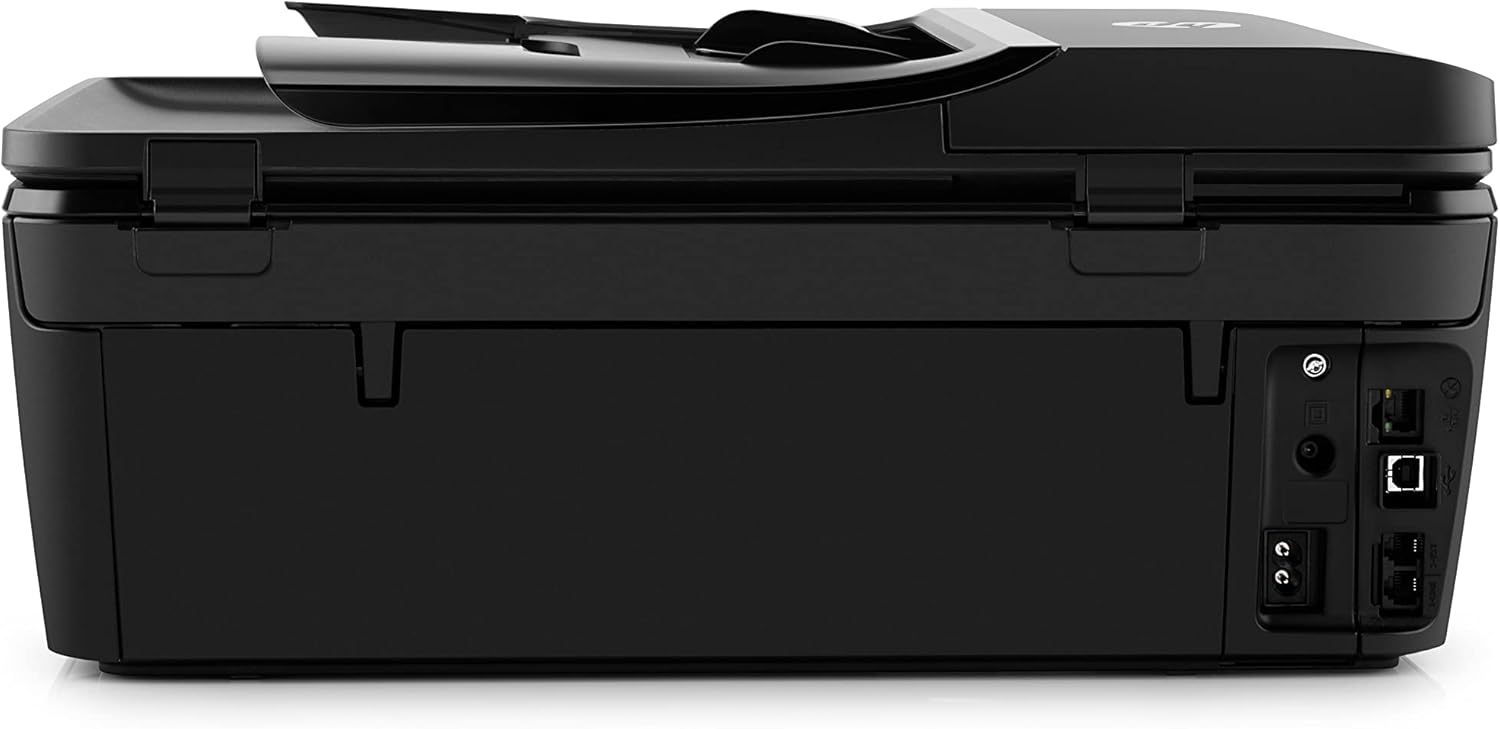
Figure 2: Rear view of the printer, highlighting connectivity ports.
1.3 Installing Ink Cartridges
Open the ink cartridge access door. Wait for the carriage to stop moving. Insert the HP 62 Setup Black Ink Cartridge and HP 62 Setup Tri-color Ink Cartridge into their respective slots. Close the access door. The printer will then perform an alignment process.
- HP 62 Setup Black Ink Cartridge (~200 pages)
- HP 62 Setup Tri-color Ink Cartridge (~165 pages)
1.4 Loading Paper
Load plain paper into the main input tray. Ensure the paper guides are adjusted to fit the paper size snugly without bending the paper.

Figure 3: Printer with paper loaded, ready for use.
1.5 Software Installation and Network Setup
Insert the provided Software CD into your computer's CD/DVD drive, or download the latest drivers from the official HP website. Follow the on-screen instructions to install the printer software. During installation, you will be prompted to set up the printer's network connection (Wi-Fi or Ethernet). For wireless setup, select your network from the list and enter the password.
- Wireless (Wi-Fi): Allows printing from multiple devices on your network.
- Ethernet: For a wired network connection.
- USB: For direct connection to a single computer.
2. Operating the Printer
2.1 Printing Documents and Photos
To print, open the document or photo on your computer or mobile device. Select "Print" from the application's menu. Choose the HP OfficeJet 5740 from the list of available printers. Adjust print settings such as paper size, print quality, and color options as needed. The printer supports automatic duplex printing for two-sided documents.
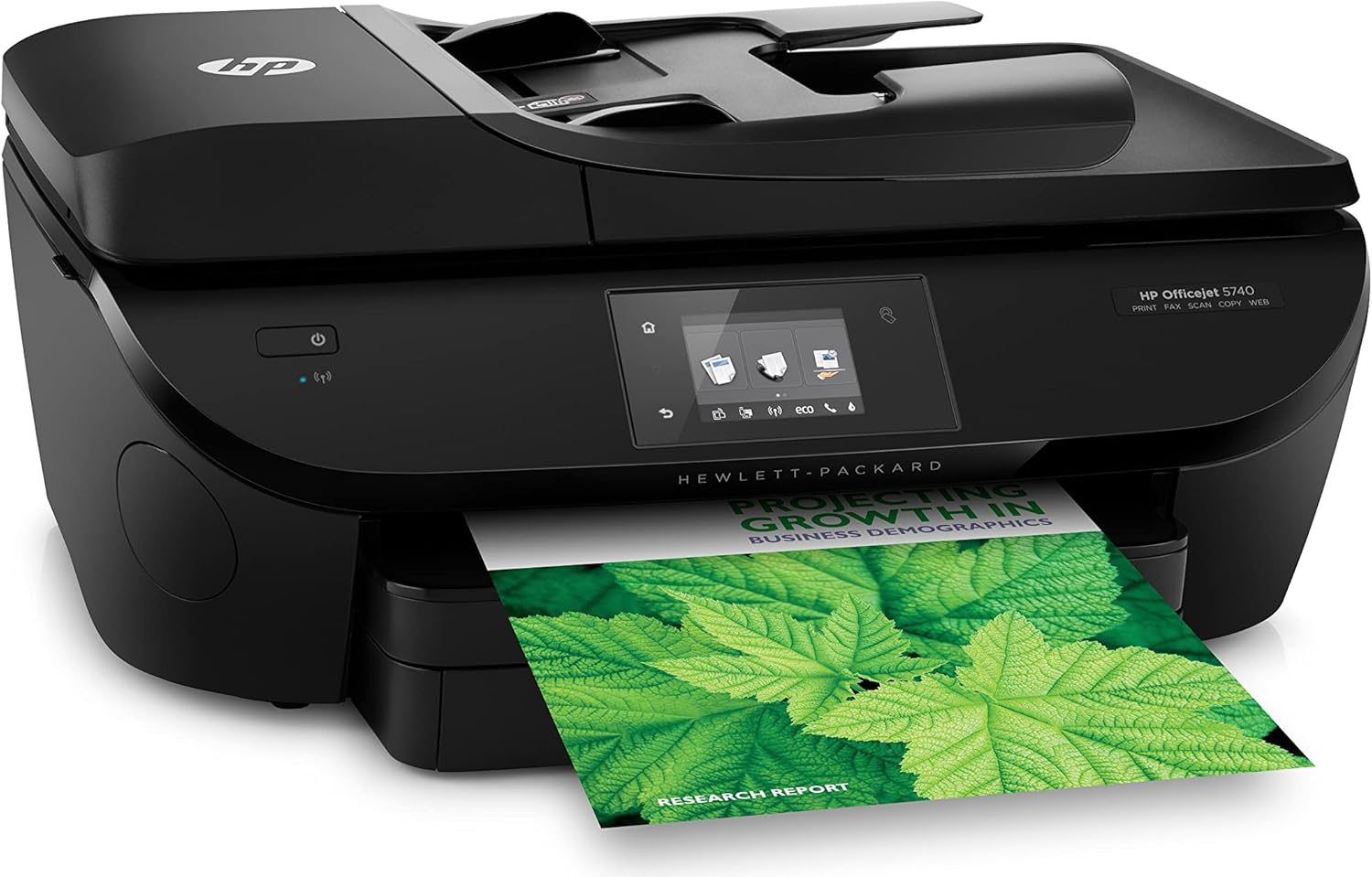
Figure 4: Printer in operation, producing a document with green foliage.

Figure 5: Printer in operation, producing a document with a colorful pie chart.
2.2 Copying Documents
Place the document face-down on the scanner glass or face-up into the Automatic Document Feeder (ADF). On the printer's control panel, select "Copy". Choose the number of copies and whether you want color or black and white copies. Press "Start Copy".
- Scanner Glass: For single pages or delicate items.
- ADF: For multiple-page documents (up to 25 sheets).
2.3 Scanning Documents and Photos
Place the item on the scanner glass or in the ADF. From your computer, open the HP printer software and select "Scan". Choose the scan destination (e.g., computer, email), file type (e.g., PDF, JPEG), and resolution. Initiate the scan. The printer also supports "Scan to email" directly from the control panel.
2.4 Faxing
Connect a phone cord to the printer's fax port and a wall jack. Place the document on the scanner glass or in the ADF. On the printer's control panel, select "Fax". Enter the recipient's fax number and press "Start Fax".
3. Maintenance
3.1 Replacing Ink Cartridges
When an ink cartridge is low or empty, a message will appear on the printer's display or computer. Open the ink cartridge access door, wait for the carriage to stop, and press down on the old cartridge to release it. Insert the new HP 62 Black or Tri-color ink cartridge until it clicks into place. Close the access door.
Note: Use genuine HP ink cartridges for optimal performance and print quality.
3.2 Cleaning the Printer
- Exterior: Wipe the exterior surfaces with a soft, damp, lint-free cloth.
- Scanner Glass: Use a soft cloth lightly dampened with glass cleaner (non-abrasive) to clean the scanner glass. Avoid spraying cleaner directly onto the glass.
- ADF Rollers: If paper jams or misfeeds occur frequently from the ADF, clean the ADF rollers using a lint-free cloth lightly dampened with distilled water.
- Printhead Cleaning: If print quality issues (streaks, faded colors) occur, use the printer's utility software to perform a printhead cleaning cycle.
4. Troubleshooting
4.1 Common Issues and Solutions
| Problem | Solution |
|---|---|
| Printer not responding | Check power connections. Ensure printer is turned on. Verify USB or network cable connection. Restart printer and computer. |
| Poor print quality | Check ink levels. Perform printhead cleaning and alignment from printer software. Use genuine HP ink. Ensure correct paper type is selected. |
| Paper jams | Remove all jammed paper carefully. Ensure paper is loaded correctly and not overfilled. Check for foreign objects in paper path. |
| Wireless connection issues | Restart router and printer. Ensure printer is within range of Wi-Fi router. Re-run wireless setup from printer control panel or software. |
For more detailed troubleshooting, refer to the HP support website or the full user manual PDF linked in the support section.
5. Specifications
| Feature | Detail |
|---|---|
| Product Dimensions (DxWxH) | 16.14"D x 17.87"W x 7.6"H |
| Item Weight | 16.91 pounds |
| Connectivity Technology | Ethernet, USB, Wi-Fi |
| Printing Technology | Inkjet |
| Printer Output | Color |
| Max Print Speed (Black) | 12 ppm |
| Max Print Speed (Color) | 4 ppm |
| Max Color Print Resolution | Up to 4800 x 1200 optimized dpi |
| Max Black Print Resolution | Up to 1200 x 1200 rendered dpi |
| Scanner Type | Document |
| Max Input Sheet Capacity | 125 sheets |
| Automatic Duplex Printing | Yes |
| Automatic Document Feeder (ADF) | Yes (25-sheet) |
| Included Components | HP Officejet 5740 e-All-in-One; HP 62 Setup Black Ink Cartridge; HP 62 Setup Tri-color Ink Cartridge; Software CD; Setup Instructions; Power cord; Phone cord. |
6. Warranty and Support
6.1 Warranty Information
The HP OfficeJet 5740 All-in-One Wireless Printer comes with a One-year limited hardware warranty. This warranty covers defects in materials and workmanship under normal use.
For specific warranty information and how to submit a warranty claim, please refer to the documentation included with your product or visit the official HP support website.
6.2 Customer Support
For technical assistance, product registration, or to access drivers and software updates, please visit the official HP support website. HP provides 24-hour, 7 days a week limited phone support for this product.
Official User Manual (PDF): Download PDF